Product Page Display Settings
This guide explains how to customize the pre-order display on your product details pages (PDP).
Accessing Display Settings
Section titled “Accessing Display Settings”There are two ways to access display settings:
- From any offer editor: Click the settings icon in the preview panel
- From the Offers menu: Go to Offers > Display Settings
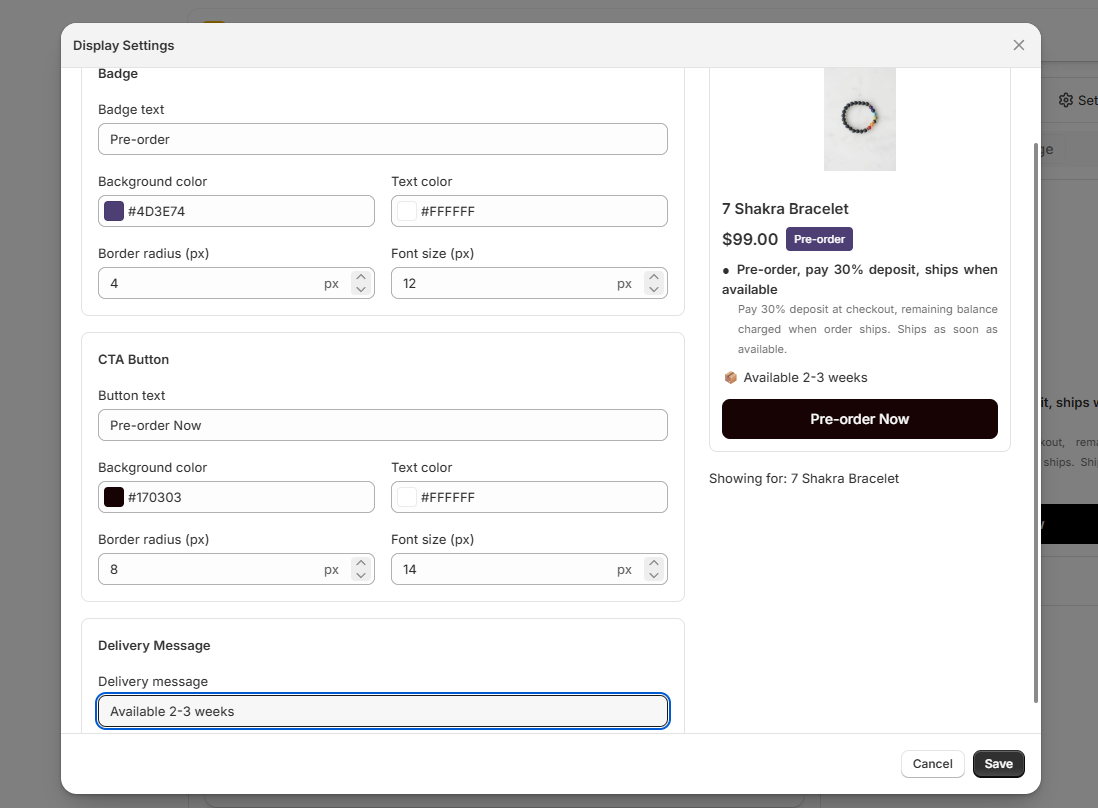
Badge Settings
Section titled “Badge Settings”Customize the pre-order badge that appears on the product page:
| Setting | Description |
|---|---|
| Badge text | Text displayed on the badge (e.g., “Pre-Order”) |
| Background color | Badge background color (color picker) |
| Text color | Badge text color (color picker) |
The badge appears near the product title or price, depending on your theme.
Button Settings
Section titled “Button Settings”Customize the pre-order call-to-action button:
| Setting | Description | Range |
|---|---|---|
| Button text | Text on the button (e.g., “Pre-Order Now”) | Any text |
| Background color | Button background color | Color picker |
| Text color | Button text color | Color picker |
| Border radius | Roundness of button corners | 0-50px |
| Font size | Button text size | 8-32px |
The button replaces the default “Add to Cart” button when a pre-order is active.
Delivery Message
Section titled “Delivery Message”Add a custom delivery message below the button to set customer expectations:
- Example: “Expected delivery: 2-3 weeks”
- Leave empty to hide the delivery message
You can also set per-product delivery messages when adding products to an offer.
Custom CSS
Section titled “Custom CSS”The Custom CSS box (in the product page display settings) holds one global CSS block applied to all pre-order widgets — product pages and collection cards alike. Rules are forced to !important, so they override your theme’s styles.
Target widget elements with their stable CSS classes, for example:
.qivra-pre-order-plan-card { border-radius: 8px;}Common classes include qivra-pre-order-container, qivra-pre-order-badge, qivra-pre-order-btn-container, qivra-pre-order-delivery-message, and qivra-pre-order-plan-card.
Live Preview
Section titled “Live Preview”The settings page includes a live preview panel showing how the badge and button will look on your storefront. Changes are reflected in real-time as you adjust settings.
Enabling App Embed
Section titled “Enabling App Embed”For display settings to take effect, the Qivra PreOrder app embed must be enabled:
- Open Shopify Theme Editor
- Go to App embeds in the sidebar
- Enable Qivra PreOrder
- Save
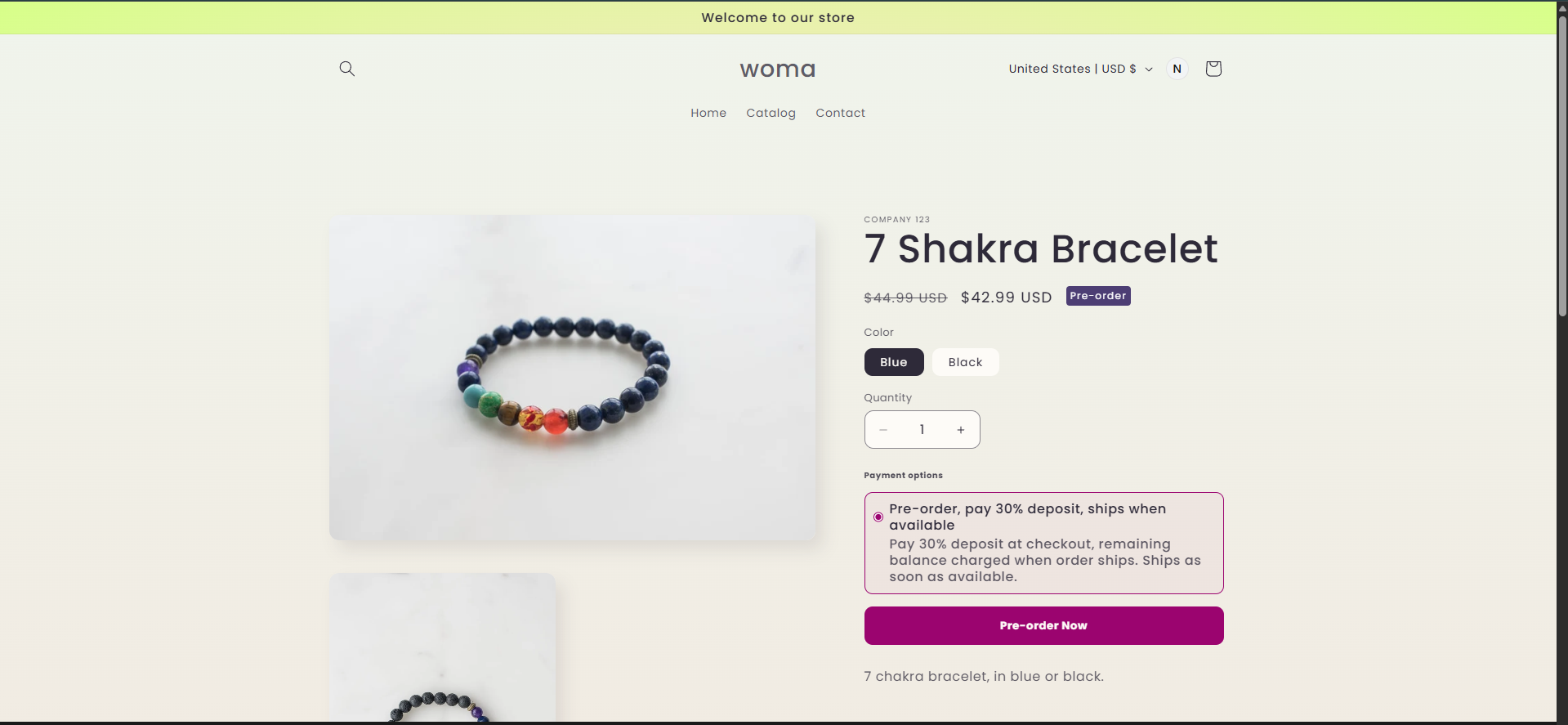
The app automatically detects your theme and uses the appropriate CSS selectors. Supported themes include:
- Dawn (and Dawn-based themes)
- Impulse
- Prestige
- Minimal
- Custom themes (with selector configuration)