View Form Submissions
When customers submit forms on your store, their responses are saved in the app. This guide shows you how to view, manage, and export form submissions.
Accessing Submissions
Section titled “Accessing Submissions”- From the app dashboard, click Submissions in the sidebar
- You’ll see a list of all form submissions
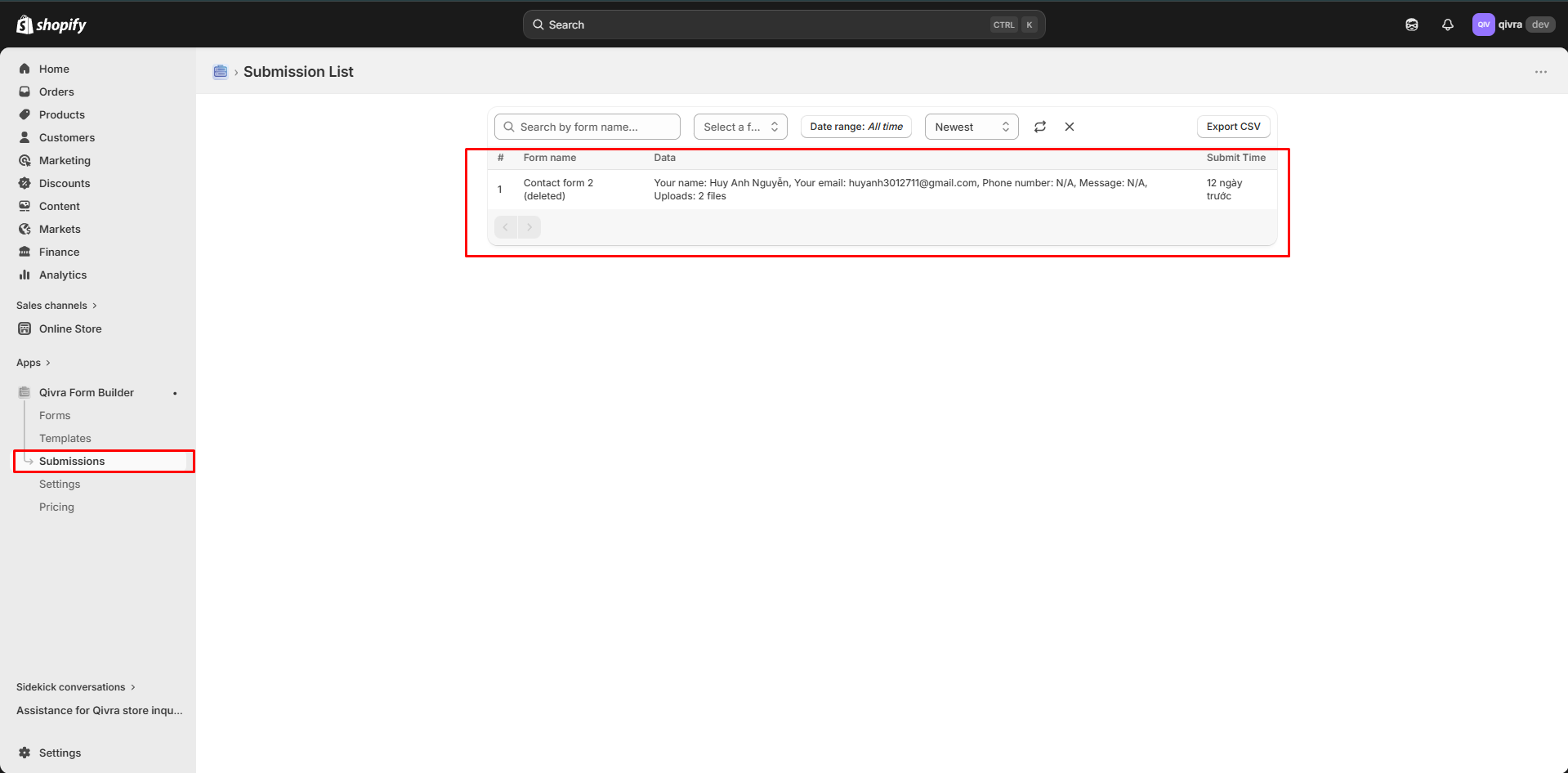
Understanding the Submissions List
Section titled “Understanding the Submissions List”The submissions page displays key information:
| Column | Description |
|---|---|
| Form Name | Which form was submitted |
| Submitted At | Date and time of submission |
| Status | Notification status (Sent, Pending, Failed) |
| Customer Info | Name, email, or other identifying info |
Filtering Submissions
Section titled “Filtering Submissions”Filter by Date Range
Section titled “Filter by Date Range”- Click the date filter dropdown
- Select a predefined range or custom dates:
- Today
- Last 7 days
- Last 30 days
- Custom range
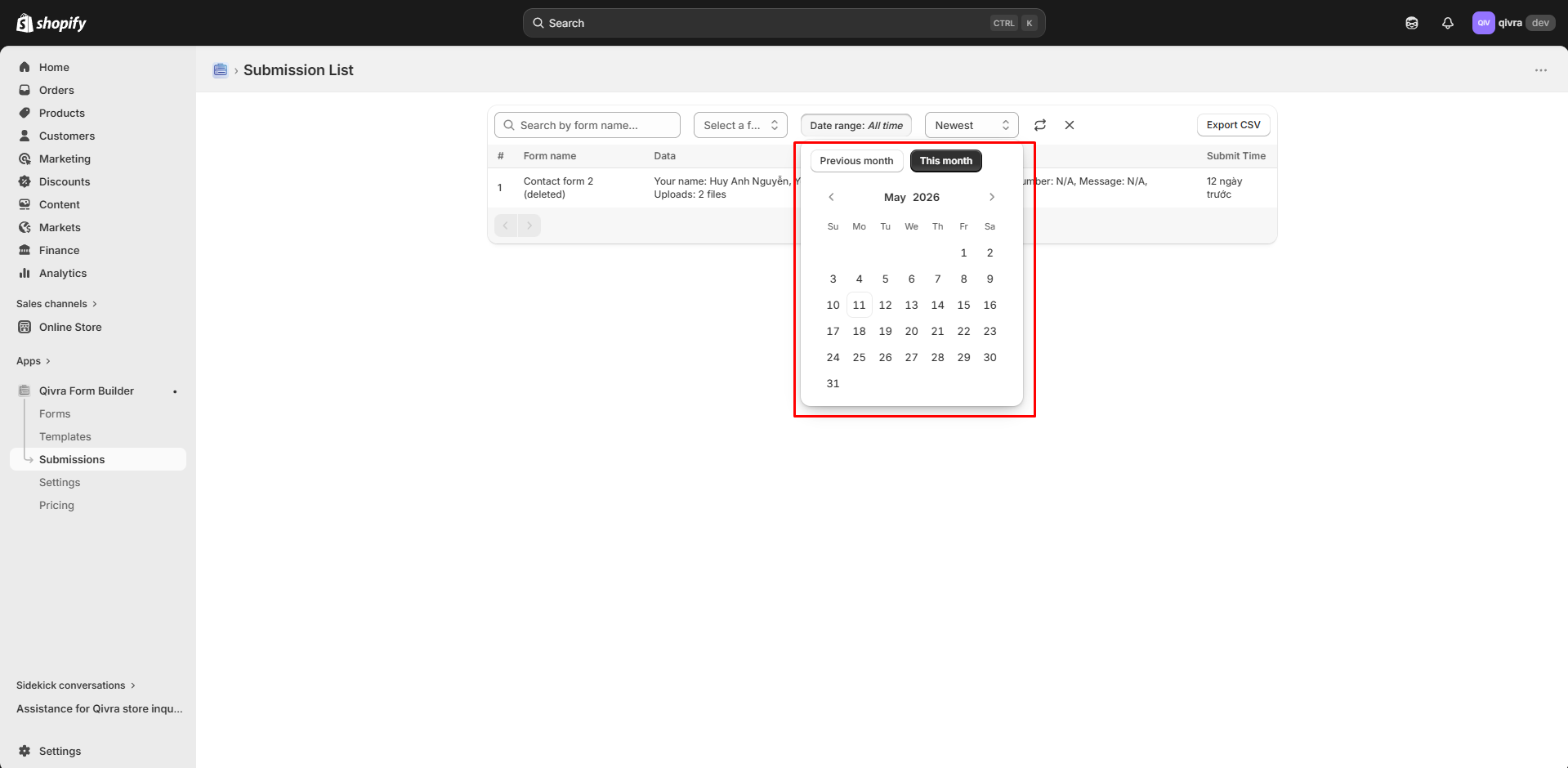
Filter by Form
Section titled “Filter by Form”- Click the form filter dropdown
- Select a specific form to view only its submissions
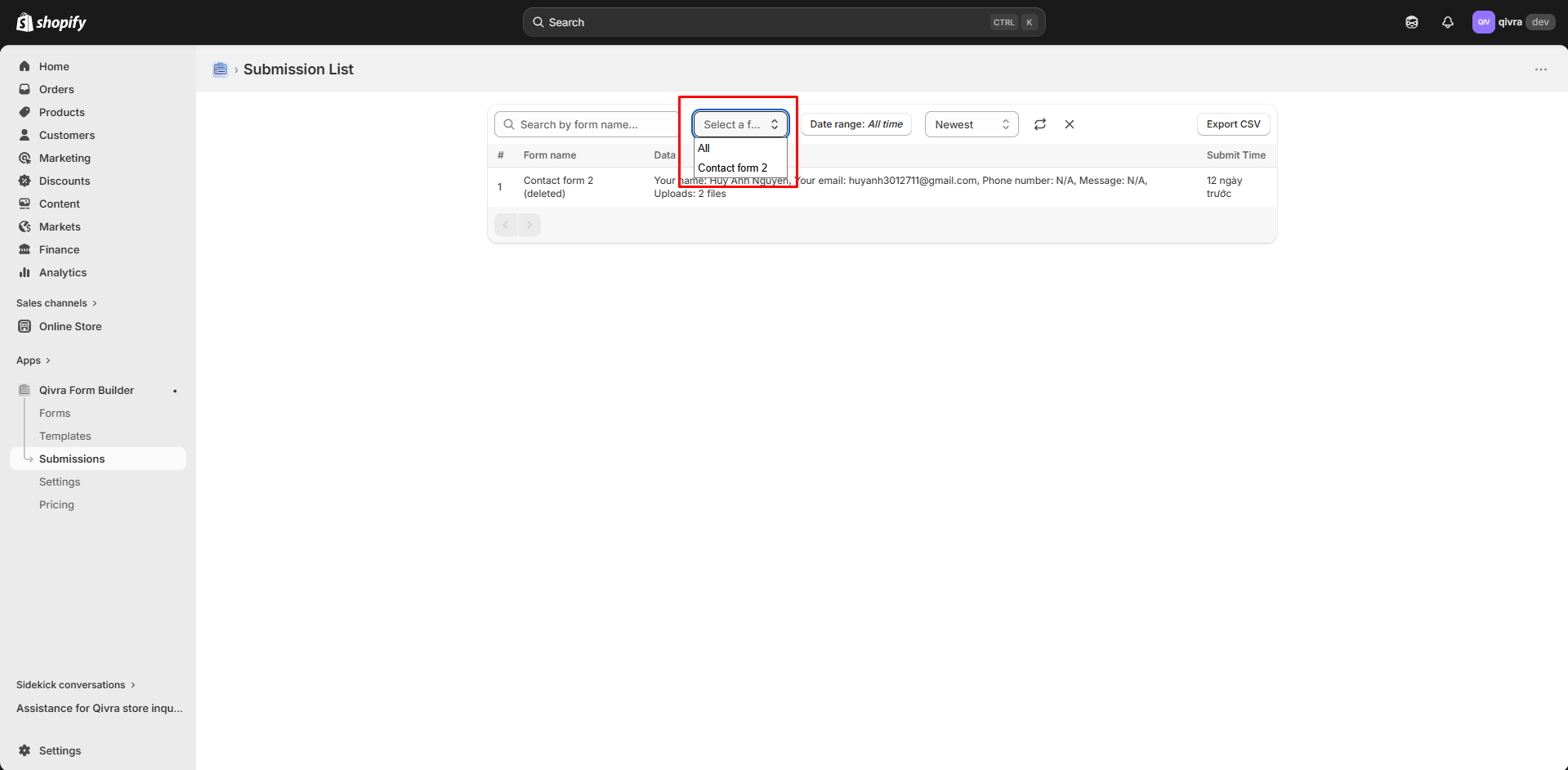
Filter by Status
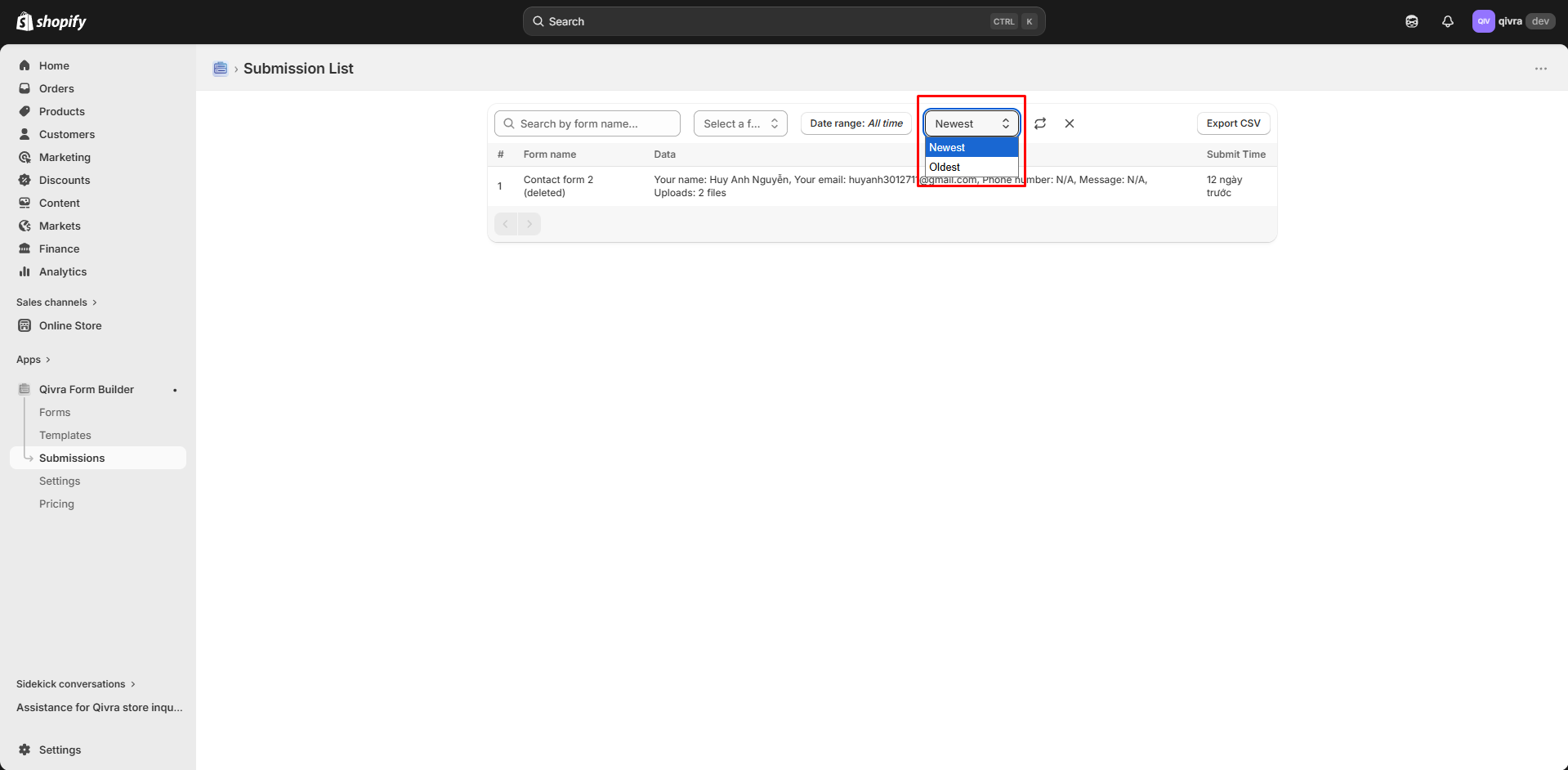
Section titled “Filter by Status”- Click the status filter dropdown
- Choose:
- All: Show all submissions
- Sent: Notifications successfully sent
- Pending: Waiting to be processed
- Failed: Notification delivery failed
Viewing Submission Details
Section titled “Viewing Submission Details”To see the full submission:
- Click on any submission row
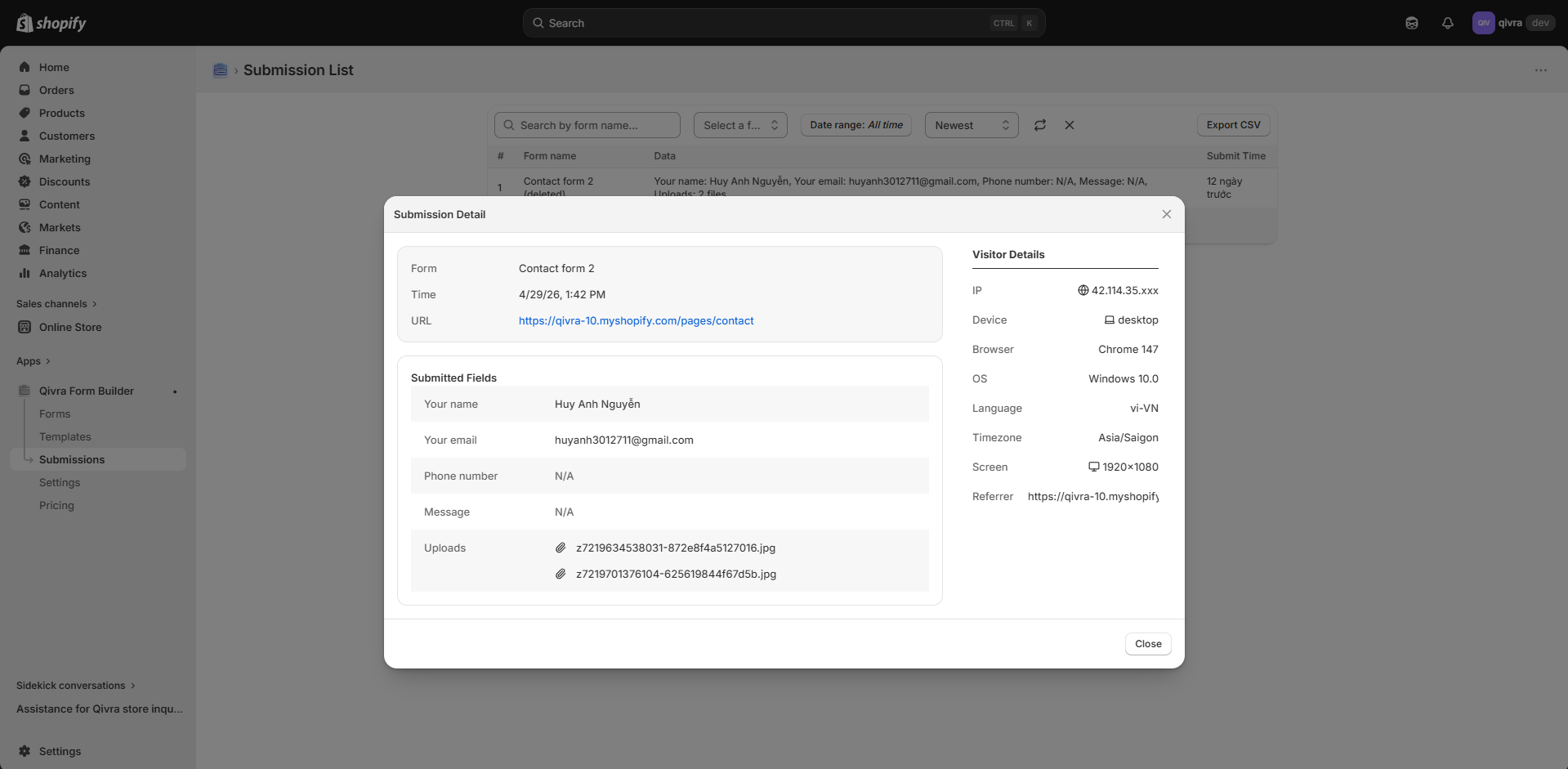
- A detailed view opens showing:
- All field values submitted
- Submission timestamp
- Customer IP address (for security)
- Notification status
Submission Details Include
Section titled “Submission Details Include”| Information | Description |
|---|---|
| Form Fields | All responses to form questions |
| Submitted At | Exact date and time |
| Page URL | Where the form was submitted |
| Customer IP | IP address of submitter |
| User Agent | Browser/device information |
Managing Failed Notifications
Section titled “Managing Failed Notifications”If email notifications fail to send:
- Look for submissions with Failed status
- Click on the submission
- Click Retry Notification
- The system will attempt to resend the email
Common Failure Reasons
Section titled “Common Failure Reasons”- Incorrect email provider settings
- Invalid recipient email address
- Email provider service issues
- Rate limiting from email provider
Exporting Submissions
Section titled “Exporting Submissions”To export your submissions:
- Go to the Submissions page
- Apply any filters if needed
- Click Export button
- Choose your export format (CSV or Excel)
- Download the file
Export Options
Section titled “Export Options”| Format | Best For |
|---|---|
| CSV | Spreadsheet analysis, data import |
| Excel | Formatted reports, sharing with team |
Submission Analytics
Section titled “Submission Analytics”Track your form performance:
Form Views
Section titled “Form Views”- See how many times your form was viewed
- Compare views to submissions for conversion rate
Key Metrics
Section titled “Key Metrics”| Metric | What It Means |
|---|---|
| Total Views | Number of times form was seen |
| Total Submissions | Completed form submissions |
| Conversion Rate | Percentage of viewers who submitted |
| Avg. Time | Average time to complete form |
Deleting Submissions
Section titled “Deleting Submissions”To remove submissions:
- Select one or more submissions using checkboxes
- Click Delete button
- Confirm the deletion
Warning: Deleted submissions cannot be recovered. Consider exporting before deleting.
Best Practices
Section titled “Best Practices”Regular Review
Section titled “Regular Review”- Check submissions daily for time-sensitive forms
- Set up email notifications for instant alerts
- Review failed notifications weekly
Data Management
Section titled “Data Management”- Export submissions regularly for backup
- Delete old submissions you no longer need
- Use filters to find specific submissions quickly
Security Considerations
Section titled “Security Considerations”- Submissions may contain sensitive customer data
- Follow your privacy policy for data retention
- Be cautious when sharing submission data