Add a Registration Form via Theme Editor Block
This guide shows how to place a B2B registration form on your storefront using an app block in the Shopify Theme Editor — no code required.
Before you begin
Section titled “Before you begin”- You have created a registration form and enabled it.
- You have enabled the app embed.
Step 1: Open the Theme Editor
Section titled “Step 1: Open the Theme Editor”- In the Shopify admin, go to Online Store → Themes.
- Click Customize on your live theme.
Step 2: Navigate to the page you want
Section titled “Step 2: Navigate to the page you want”- Use the page selector at the top to choose where the form should appear (e.g. a dedicated “Wholesale signup” page, the homepage, or a product page).
- Open the section where you want to add the form.
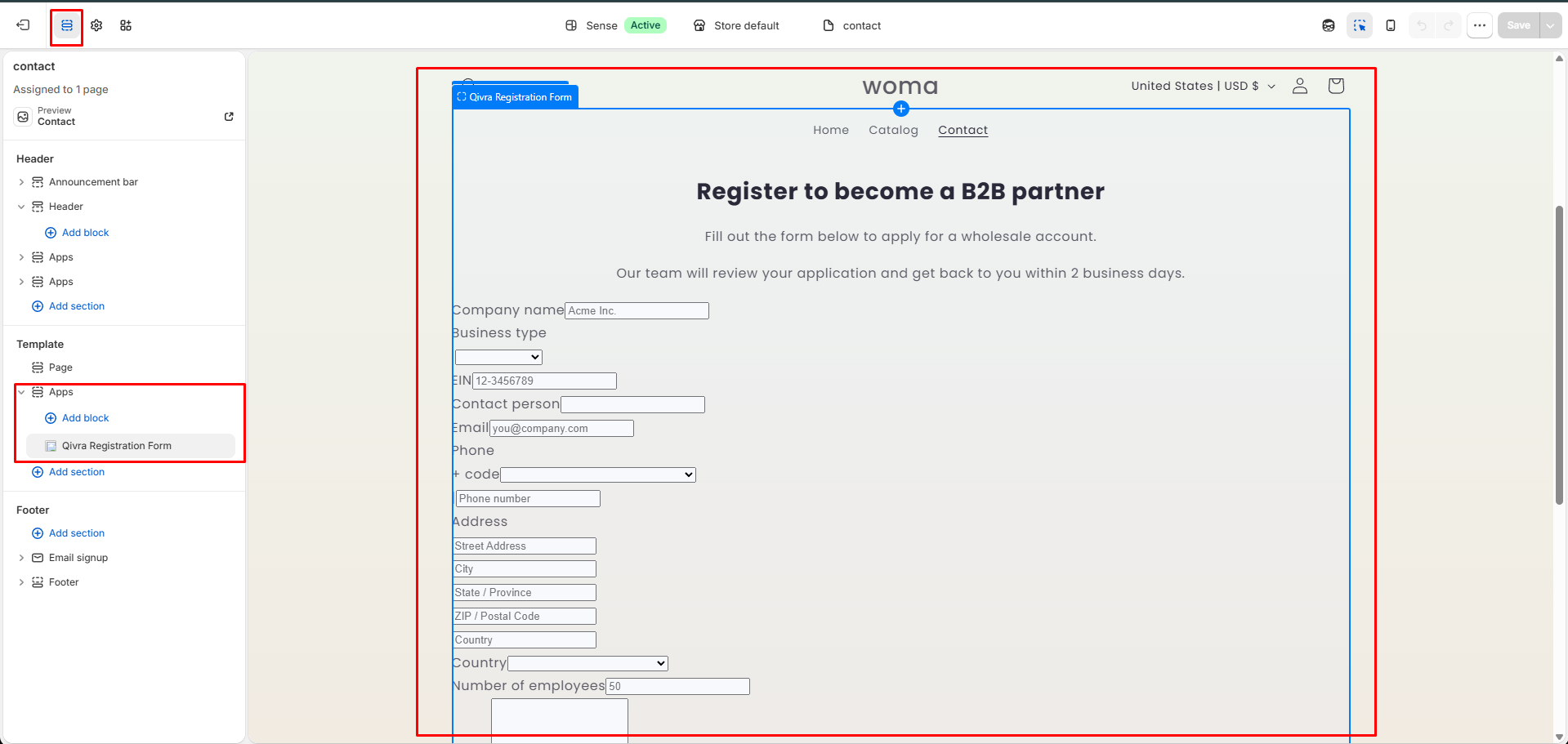
Step 3: Add the Qivra B2B registration block
Section titled “Step 3: Add the Qivra B2B registration block”- Click Add section or Add block.
- Find the Qivra B2B app block (Registration form).
- Add it to the section.
- Select which form to display (if you have more than one).
Step 4: Save and preview
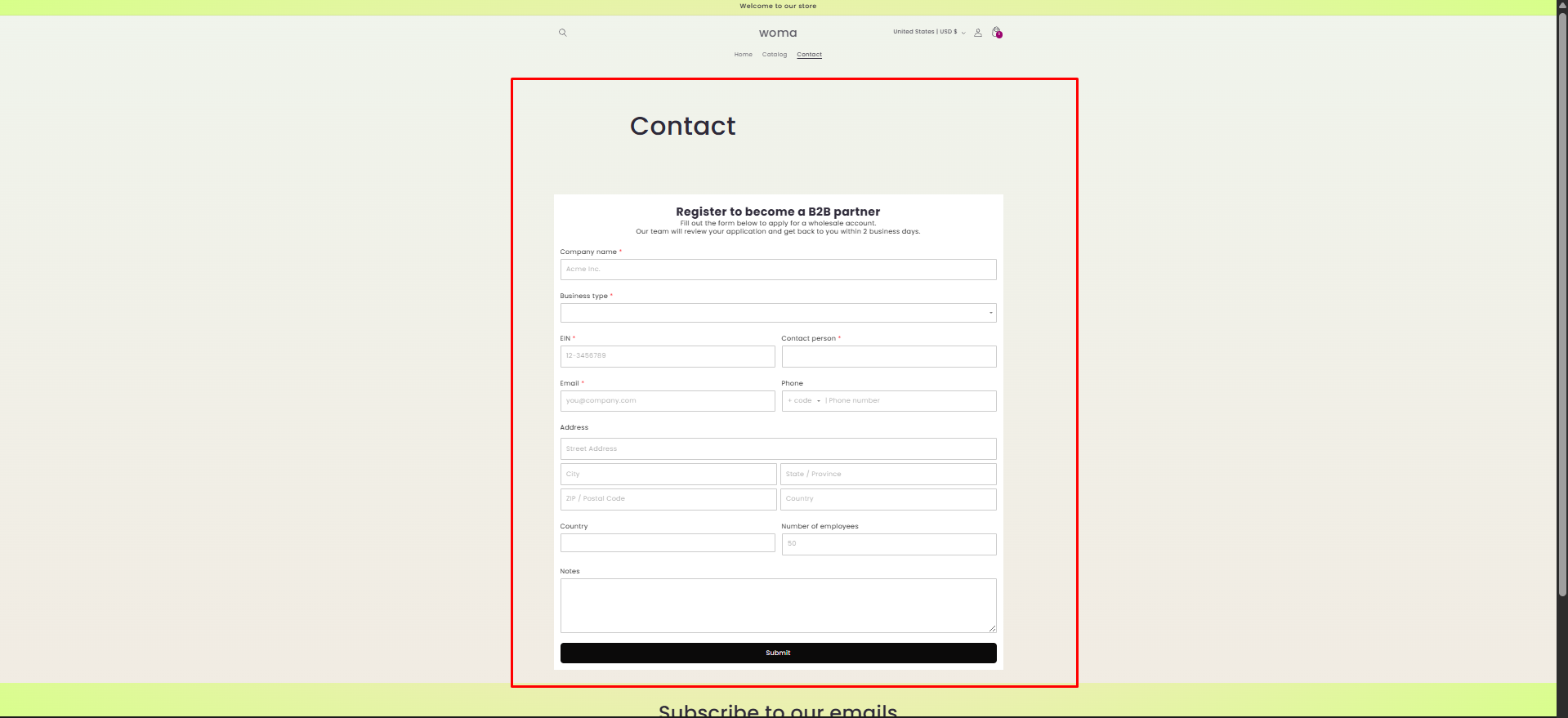
Section titled “Step 4: Save and preview”- Click Save.
- Preview the page to confirm the form renders.
If the block is missing, make sure the app embed is toggled on (see Enable the app embed).
When to use a block vs. shortcode
Section titled “When to use a block vs. shortcode”| Method | Best for |
|---|---|
| Theme Editor block | Merchants who want a no-code drag-and-drop placement |
| Embed shortcode | Placing the form inside page/blog content or custom Liquid |
See Embed a form via shortcode for the alternative method.
Related docs
Section titled “Related docs”- Enable the app embed
- Embed a form via shortcode
- Create a registration form
- Storefront display settings