Storefront Display Settings
This guide explains the Settings page — where you control how B2B prices and volume-discount information appear to customers on your storefront.
What the Settings page controls
Section titled “What the Settings page controls”The Settings page covers storefront pricing display. It decides which columns show in the B2B pricing/volume-discount table that appears on product pages, and the visual style of that display.
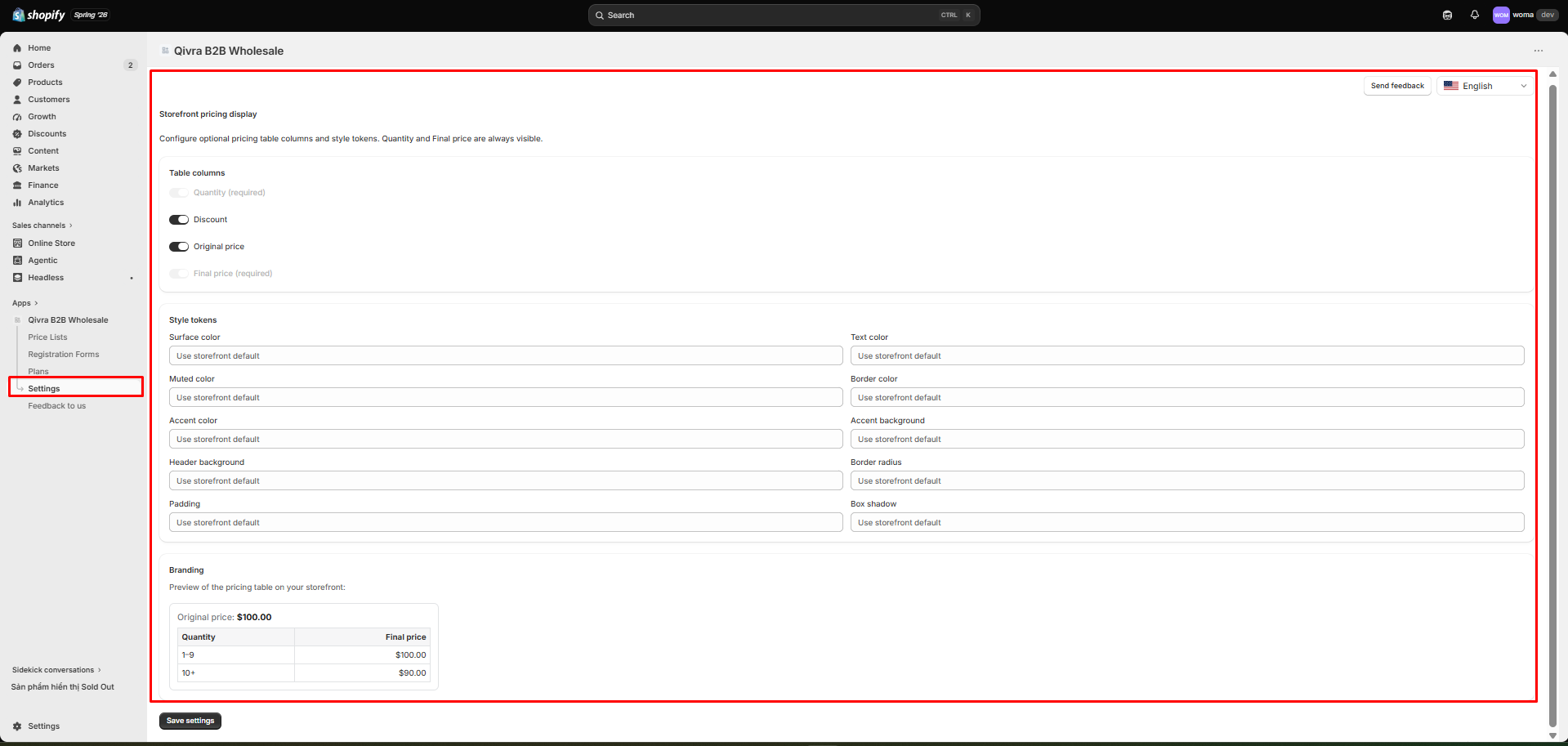
Display columns
Section titled “Display columns”| Column | Default | Toggle |
|---|---|---|
| Quantity | On | Always on (cannot be hidden) |
| Discount | On | Toggle on/off |
| Original price | On | Toggle on/off |
| Final price | On | Always on (cannot be hidden) |
What each column means
Section titled “What each column means”- Quantity — the quantity range for each price-break tier (e.g. “5–9”, “10+”).
- Discount — the discount applied at that tier (e.g. “5% off”).
- Original price — the list price before the B2B discount.
- Final price — the price the customer actually pays at that quantity.
Turn off Discount or Original price if you want a cleaner display that only shows the final B2B price.
Style tokens
Section titled “Style tokens”Below the column toggles, you can style the display to match your theme. Available style tokens:
| Token | Controls |
|---|---|
| Surface, Text, Muted, Border | Colors for the table background, text, secondary text, and borders |
| Accent, Accent soft | Highlight color (and its soft variant) for active/discounted rows |
| Header surface | Background color of the table header row |
| Border radius | Rounded corners on the table |
| Padding | Inner spacing of cells |
| Box shadow | Drop shadow under the table |
These map to CSS custom properties injected by the storefront pricing engine, so the B2B display blends into your theme.
Save settings
Section titled “Save settings”- Adjust toggles and style tokens.
- The settings are saved to your shop automatically and applied to the storefront pricing display.
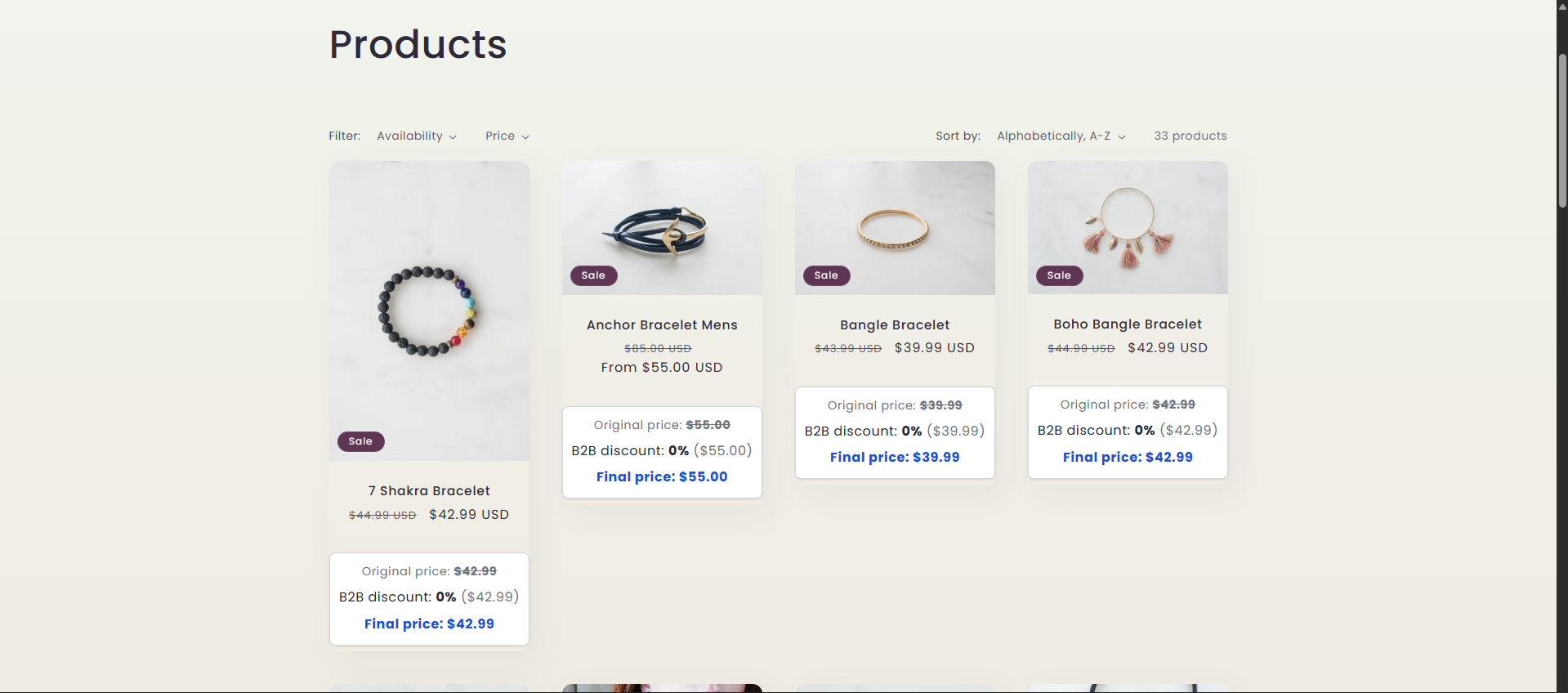
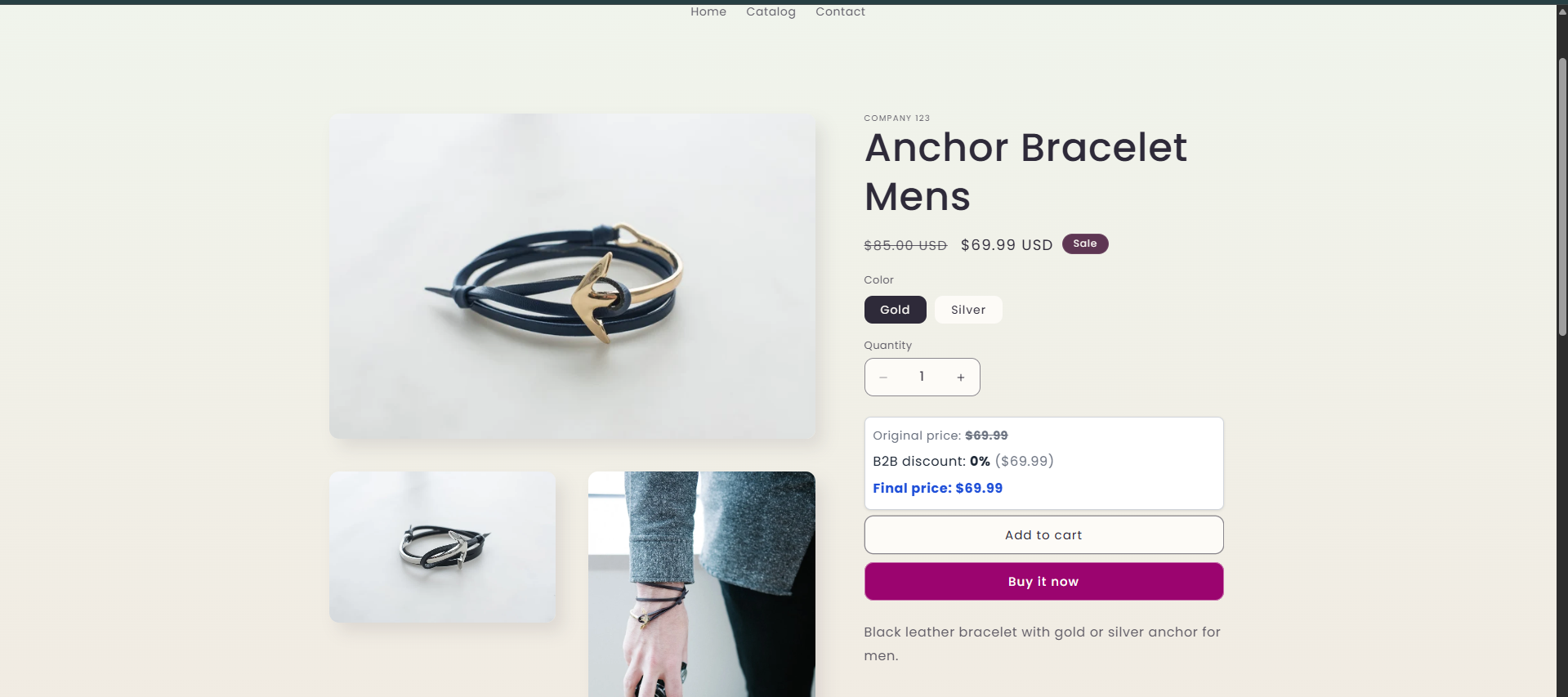
Display settings only take effect when the app embed is enabled.
Qivra branding on the storefront
Section titled “Qivra branding on the storefront”The B2B pricing table on your storefront shows a small “Powered by Qivra” badge. This section of the Settings page shows a live preview of the badge.
If you’d rather not display it, click the chat with us button here and ask — we can remove the branding for your store.
Related docs
Section titled “Related docs”- Enable the app embed
- Create your first price list
- Pricing rules: discounts and price breaks
- Troubleshooting: B2B prices not showing