Customize the Notify Me Button
The Back-in-Stock Settings tab controls everything the shopper sees on the storefront: the Notify Me button, the email popup, and the confirmation toast. Settings are organized into sections on one page - General, Product Targeting, Popup, Confirmation, Signup Button, and Notification Email - each with a live preview on the right, and a single Save bar at the bottom for all sections.
Open the Settings
Section titled “Open the Settings”- Open the Qivra PreOrder admin and go to Back-in-Stock.
- Click the Settings tab.
At the top, the General section has a master switch - Enable back-in-stock notifications. Turning it off hides the Notify Me button, the popup, and the signup form on every page of your storefront. Existing subscribers still receive restock emails.
Section: Product Targeting
Section titled “Section: Product Targeting”Control which sold-out products get the Notify Me button. Two modes:
| Mode | Behavior |
|---|---|
| All sold-out products | The button shows on every eligible sold-out product, except excluded ones |
| Only selected products | The button shows only on products matching your conditions (tags, collections, or included products), minus excluded ones |
In Only selected products mode, combine any of:
- Product tags - include every product carrying a tag
- Collections - include every product in a collection
- Include products - hand-pick individual products
The Exclude products list works in both modes, and exclusions always win - an excluded product never shows the button, even if it matches a tag or collection. Products can be filtered and searched while picking.
Section: Signup Button (Per Page Type)
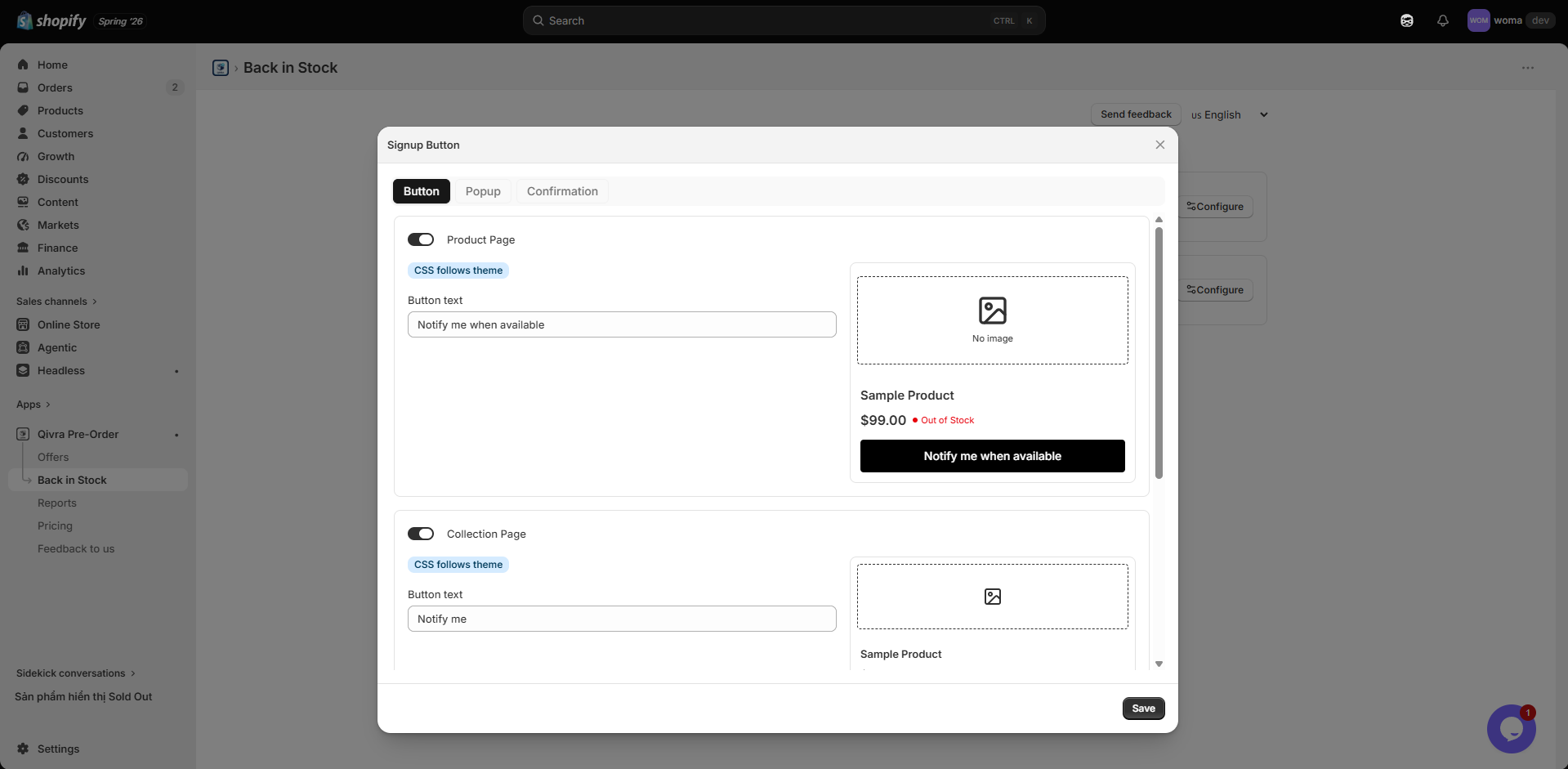
Section titled “Section: Signup Button (Per Page Type)”Configure where the Notify Me button shows and what it says on each type of storefront page. The section carries a CSS follows theme badge: by default the button styling inherits your theme so it always looks native to your storefront.
For each page type - Product Page, Collection Page, and Home Page:
- Toggle the switch on to show the Notify Me button on that page type.
- Edit the Button text (for example, “Notify Me”, “Email Me When Available”, or a localized phrase).
- Optionally override the look with the Custom Button CSS box.
- The preview on the right updates instantly and shows every enabled page type.
Tips:
- Disable a page type if you only want to capture subscribers on a specific page (for example, product pages only).
- The button text is per page type so you can use a shorter label on collection cards (“Notify Me”) and a longer one on the product page (“Email me when this is back in stock”).
- Leave the CSS box empty to keep following your theme; add CSS rules only when you need a custom look.
Section: Popup
Section titled “Section: Popup”Customize the popup that appears when a shopper clicks the Notify Me button.
| Field | Purpose |
|---|---|
| Popup title | The headline at the top of the popup, for example “Back in Stock Alert”. |
| Popup description | A short sentence that explains what the shopper is signing up for. |
| Email placeholder | The placeholder text inside the email input, for example “Enter your email”. |
| Subscribe button text | The label on the confirm button, for example “Notify Me” or “Subscribe”. |
| Privacy note | A small reassurance line under the email input, for example “We only use your email to notify you about this product.” |
| Custom Popup CSS | Optional CSS to restyle the popup. |
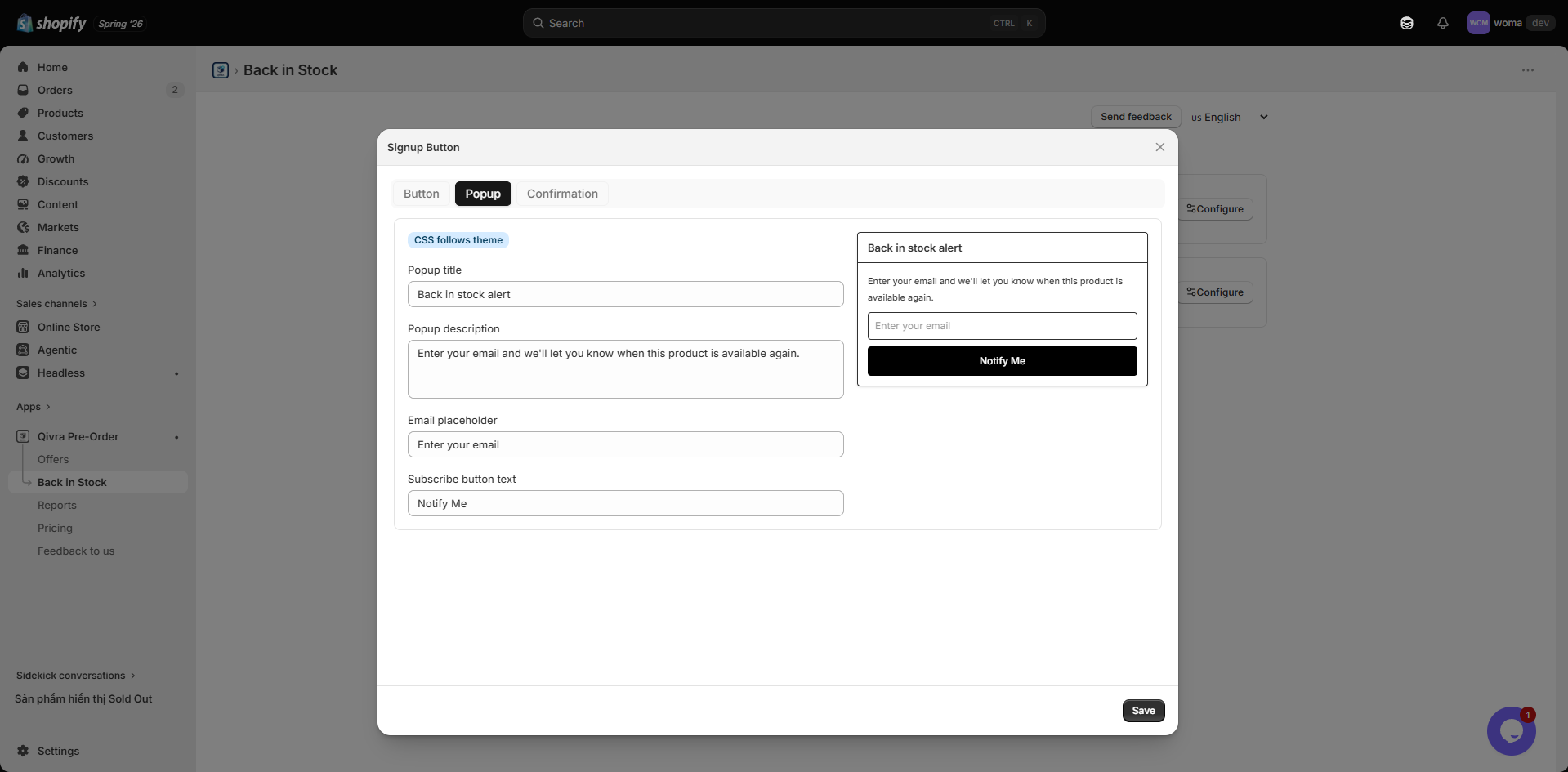
A live preview on the right shows the popup exactly as the shopper will see it.
Section: Confirmation
Section titled “Section: Confirmation”Customize the toast message shown after the shopper submits their email.
| Field | Purpose |
|---|---|
| Confirmation message | The success toast when a new subscription is created, for example “You’re on the list! We’ll email you when this is back in stock.” |
| Already subscribed message | The toast when the email is already registered for this product, for example “You’re already subscribed to this product.” |
| Toast background | Background color of the toast. |
| Toast text color | Text color of the toast. |
Use contrasting colors so the toast is readable. The preview reflects your color choices in real time.
Save Your Changes
Section titled “Save Your Changes”When you change any section, the Save bar appears at the bottom of the page. Click Save to apply every section at once, or Discard to revert. The restock email settings in the Notification Email section are saved in the same action.