Manage Price Lists
This guide covers everything you can do from the Price Lists table — search, filter, edit, duplicate, and delete your B2B price lists.
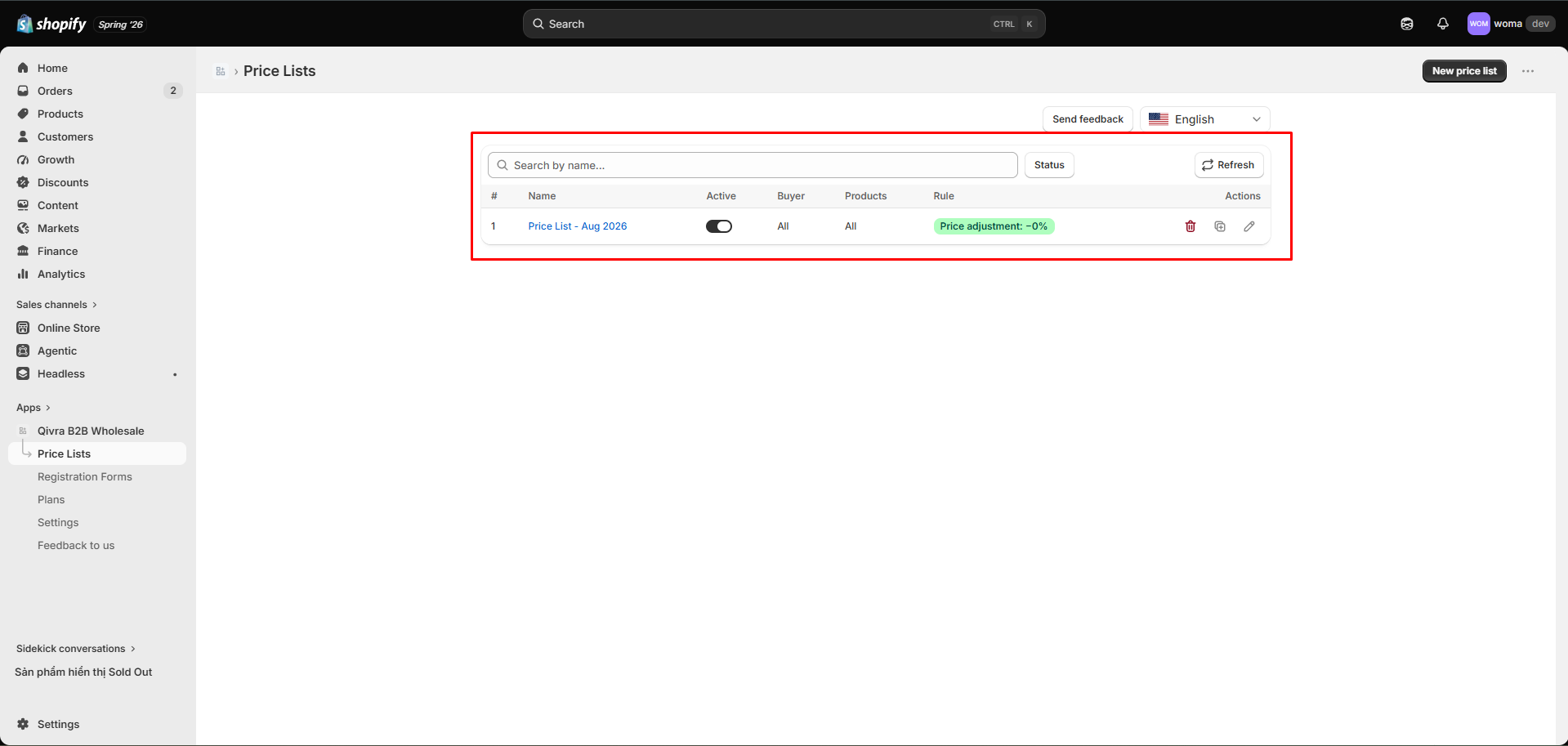
The price lists table
Section titled “The price lists table”Go to Price Lists in the sidebar. The table shows:
| Column | What it shows |
|---|---|
| Name | Price list name |
| Status | Active / Inactive |
| Priority | Conflict priority (higher wins) |
| Products | Product selection summary |
| Buyer | Customer selection summary |
| Rule | Configured rule summary (or Not configured) |
| Updated | Last updated time |
Search
Section titled “Search”Use the Search by name… box at the top to find price lists by name.
Filter by status
Section titled “Filter by status”Use the status filter to narrow the list:
- All statuses
- Active
- Inactive
Click Clear filters to reset.
Row actions
Section titled “Row actions”Each row has:
| Action | What it does |
|---|---|
| Status toggle | Flip the list between Active and Inactive without opening the editor |
| Edit | Open the price list in the editor |
| Duplicate | Create a copy (suffixed with “copy”) |
| Delete | Permanently remove the list (confirm required) |
Duplicate vs. edit
Section titled “Duplicate vs. edit”- Use Duplicate to clone a working list as a starting point for a new audience (e.g. clone “Wholesale 10%” into “VIP 20%”).
- Use Edit to change an existing list in place.
Delete a price list
Section titled “Delete a price list”Deleting is permanent and cannot be undone:
- Open the row actions → Delete.
- Confirm in the dialog. The list and all its rules are removed.
Badges in the table
Section titled “Badges in the table”| Badge | Meaning |
|---|---|
| Outside window | The list is Active but the current time is outside its effective period. See Priority and effective period. |
Empty states
Section titled “Empty states”- No price lists yet — create your first one with New price list.
- No price lists match your filters — clear filters or change the search.
Related docs
Section titled “Related docs”- Create your first price list
- Pricing rules: discounts and price breaks
- Priority, status, and effective period
- Metafield sync status