Setup Resend Email
Resend is a modern email API service that makes it easy to send transactional emails. This guide shows you how to set up Resend with Qivra Form Builder.
What is Resend?
Section titled “What is Resend?”Resend is a developer-friendly email service that offers:
| Feature | Benefit |
|---|---|
| Easy setup | Get started in minutes |
| High deliverability | Emails reach the inbox |
| Real-time analytics | Track email performance |
| Simple pricing | Free tier available |
Prerequisites
Section titled “Prerequisites”Before setting up Resend:
- Create a Resend account at resend.com
- Verify your domain (recommended)
- Have your API key ready
Getting Your Resend API Key
Section titled “Getting Your Resend API Key”Step 1: Log in to Resend
Section titled “Step 1: Log in to Resend”- Go to resend.com
- Sign in to your account
Step 2: Create API Key
Section titled “Step 2: Create API Key”- Go to API Keys in the dashboard
- Click Create API Key
- Name your key (e.g., “Qivra Form Builder”)
- Select permissions:
- Sending access - Required
- Domain - Select your verified domain
- Click Add
- Copy the API key (you won’t see it again)
Step 3: Domain Verification (Recommended)
Section titled “Step 3: Domain Verification (Recommended)”For best deliverability, verify your domain:
- Go to Domains in Resend
- Click Add Domain
- Enter your store’s domain
- Add the DNS records to your domain
- Wait for verification
Reference: https://resend.com/docs/dashboard/api-keys/introduction
Configuring Resend in Qivra Form Builder
Section titled “Configuring Resend in Qivra Form Builder”Step 1: Open Settings
Section titled “Step 1: Open Settings”- Go to Qivra Form Builder
- Click Settings in the sidebar
- Go to third party integration section
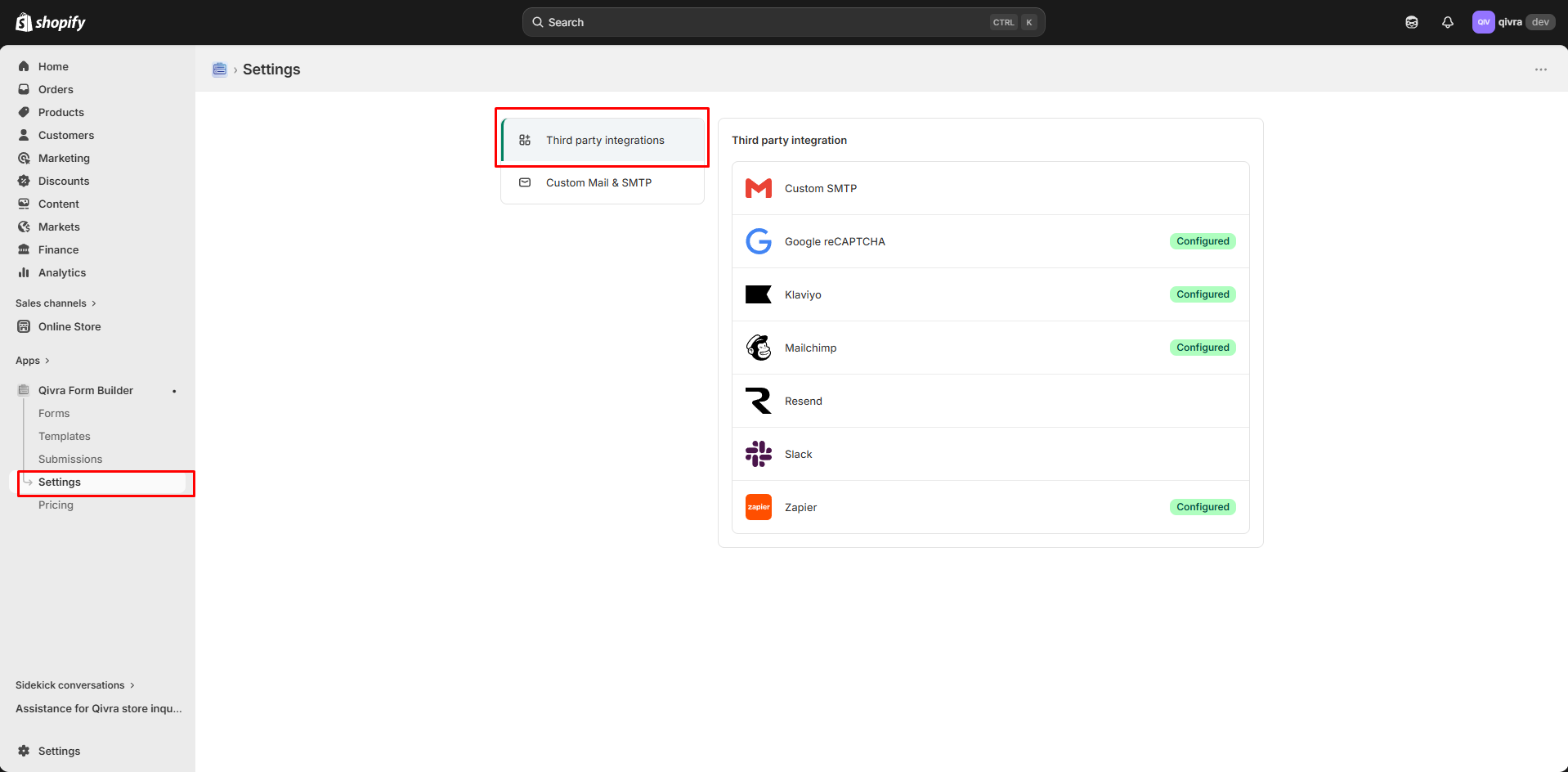
Step 2: Enter API Key
Section titled “Step 2: Enter API Key”- Click Resend in the provider list
- Paste your Resend API key
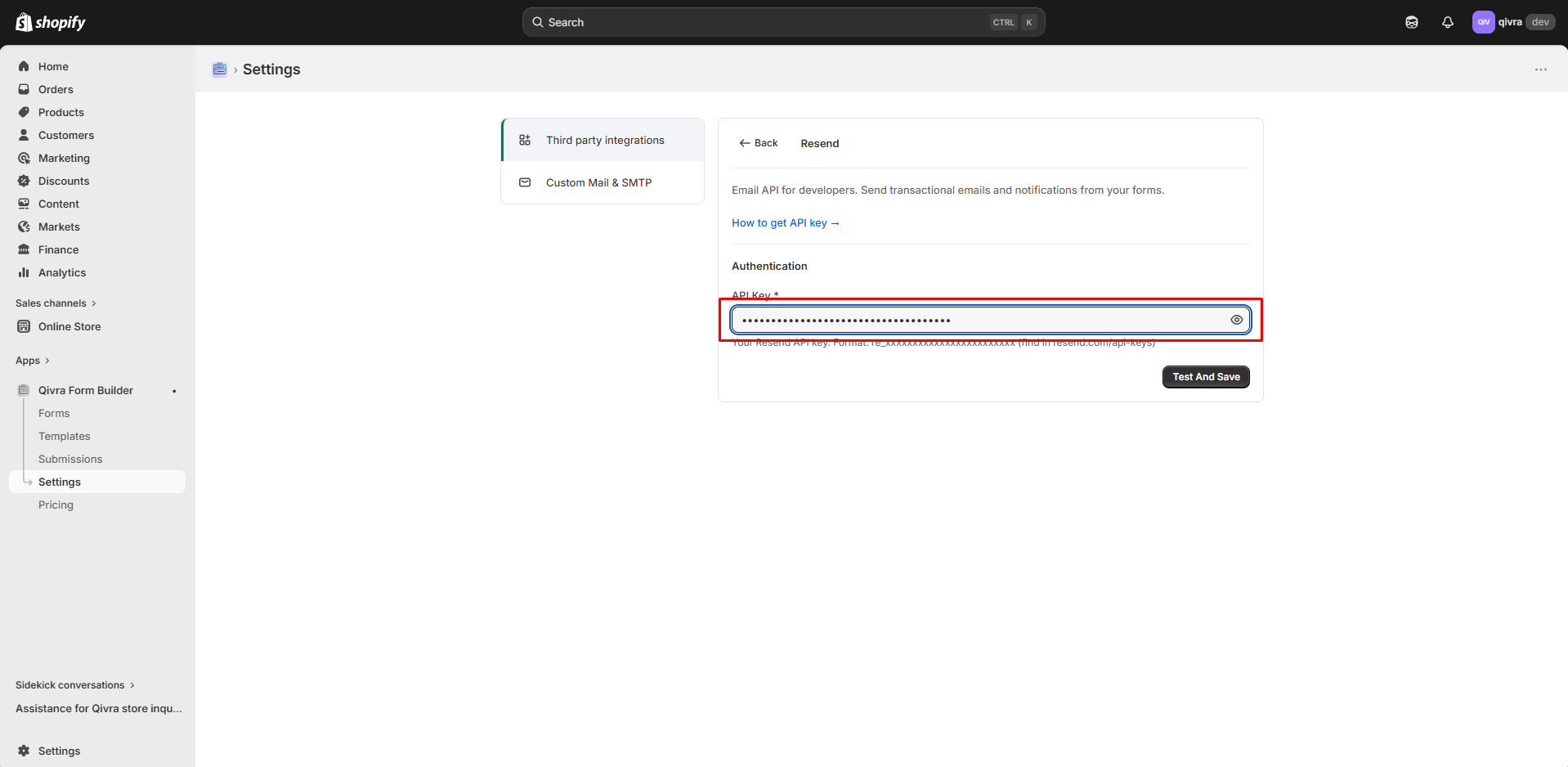
Step 3: Test & Save
Section titled “Step 3: Test & Save”- Click Test & Save
- Enter a test email address
- Check if the test email arrives
- If successful, settings are saved
Configuration Options
Section titled “Configuration Options”From Email Settings
Section titled “From Email Settings”The “From” address must be:
- From a verified domain in Resend
- A real email address format
- Preferably from your store domain
Examples:
noreply@yourstore.com- Recommendedforms@yourstore.com- Goodcontact@yourstore.com- Goodrandom@gmail.com- Not recommended (unless verified)
From Name
Section titled “From Name”This appears as the sender name in email clients.
Best Practices:
- Use your store name
- Be consistent across emails
- Keep it recognizable
Testing Your Setup
Section titled “Testing Your Setup”Sending a Test Email
Section titled “Sending a Test Email”- In Settings > Providers
- Click Test & Save
- Check your inbox
What to Check
Section titled “What to Check”| Check | Expected Result |
|---|---|
| Delivery | Email arrives in inbox |
| From Name | Shows your store name |
| From Email | Shows your configured address |
| Content | Test message displays correctly |
Troubleshooting Test Failures
Section titled “Troubleshooting Test Failures”| Error | Solution |
|---|---|
| Invalid API key | Verify key is correct and active |
| Domain not verified | Complete domain verification |
| From email not allowed | Use email from verified domain |
Resend Pricing
Section titled “Resend Pricing”Free Tier
Section titled “Free Tier”| Limit | Amount |
|---|---|
| Emails/month | 3,000 |
| Emails/day | 100 |
Paid Plans
Section titled “Paid Plans”If you need more:
- Visit Resend pricing page
- Upgrade directly in Resend
- No changes needed in Qivra
Best Practices
Section titled “Best Practices”Domain Verification
Section titled “Domain Verification”- Always verify your domain
- Use your store domain for sending
- Complete all DNS records
API Key Security
Section titled “API Key Security”- Never share your API key
- Regenerate if compromised
- Use environment variables if possible
Sending Limits
Section titled “Sending Limits”- Monitor your usage in Resend dashboard
- Set up alerts for approaching limits
- Upgrade before hitting limits
Common Issues
Section titled “Common Issues””Domain not found” Error
Section titled “”Domain not found” Error”Cause: Sending from unverified domain
Solution:
- Verify your domain in Resend
- Use verified domain for From Email
Emails Going to Spam
Section titled “Emails Going to Spam”Possible Causes:
- New domain without reputation
- Content triggering spam filters
- Missing DNS records
Solutions:
- Complete all DNS records
- Avoid spam trigger words
- Build sending reputation over time
Rate Limiting
Section titled “Rate Limiting”Cause: Exceeded sending limits
Solution:
- Check Resend dashboard for limits
- Wait for limit reset
- Upgrade plan if needed
Monitoring Email Performance
Section titled “Monitoring Email Performance”Resend Dashboard
Section titled “Resend Dashboard”Track in Resend:
- Delivery rate
- Open rate
- Bounce rate
- Spam complaints
Qivra Submission Status
Section titled “Qivra Submission Status”Check in Qivra:
- Submissions page
- Notification status column
- Failed notification alerts