Manage Pre-Order Orders
This guide explains how to manage pre-order orders from the Reports page.
Order List
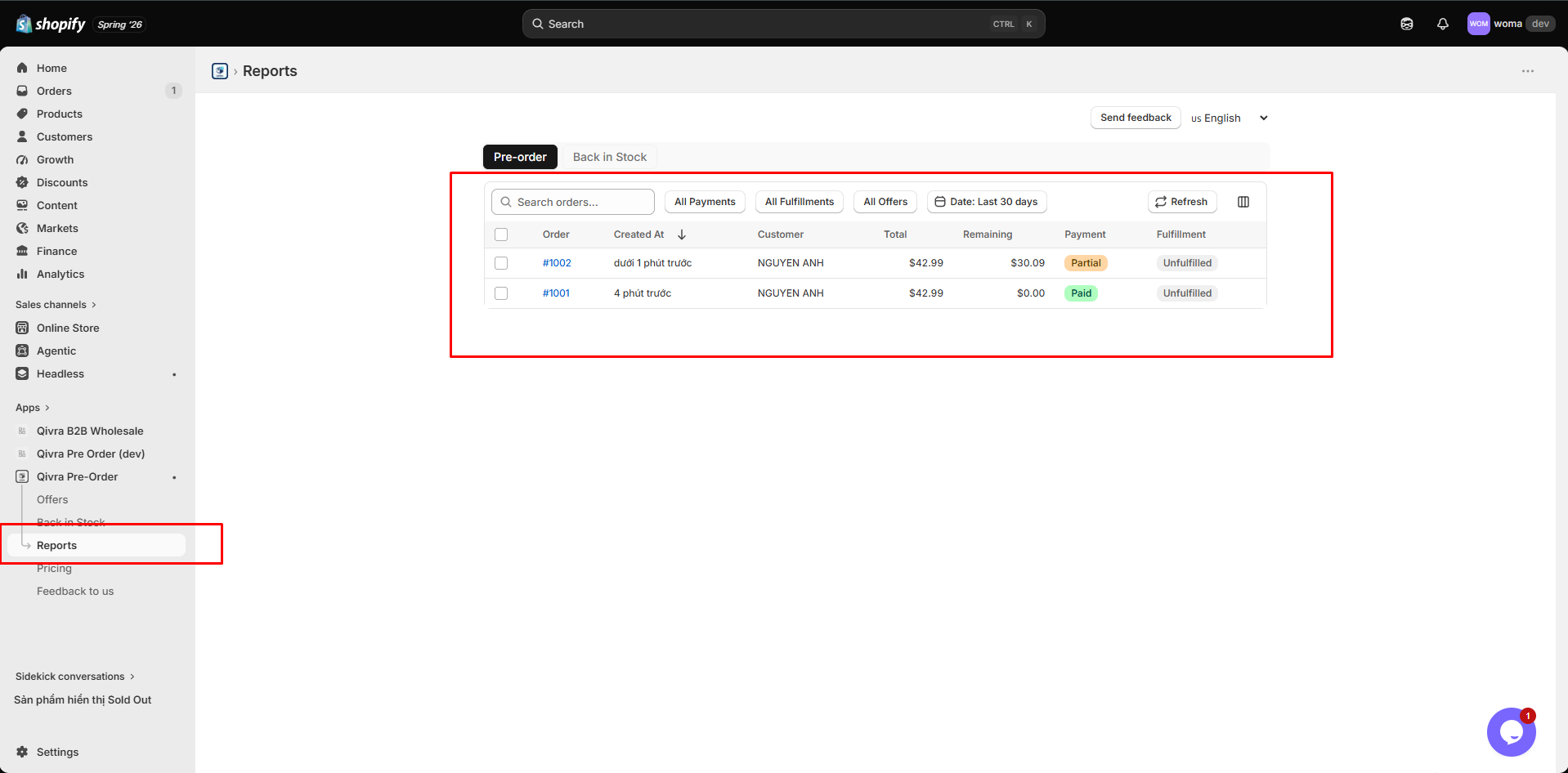
Section titled “Order List”To open the order list:
- Open Qivra PreOrder from your Shopify admin
- Open the Reports page
- Open the Pre-order tab
The table shows all pre-order orders with key information:
- Order number and date
- Customer name
- The offer the order belongs to
- Total amount and remaining balance
- Pre-order quantity
- Payment status
- Fulfillment status
- Delivery status and estimated delivery date (when set)
You can choose which columns to show with Edit columns.
Filtering Orders
Section titled “Filtering Orders”Use filters to find specific orders:
- Payment: Filter by payment status
- Fulfillment: Filter by fulfillment status
- Offers: Show only orders from a specific offer
- Date range: Filter by order date, with presets like last 7 days, last month, or a custom range
- Search: Search orders
Order Statistics
Section titled “Order Statistics”The stats bar at the top shows:
- Total Orders
- Revenue
- Outstanding - remaining balances not yet captured
Order Details
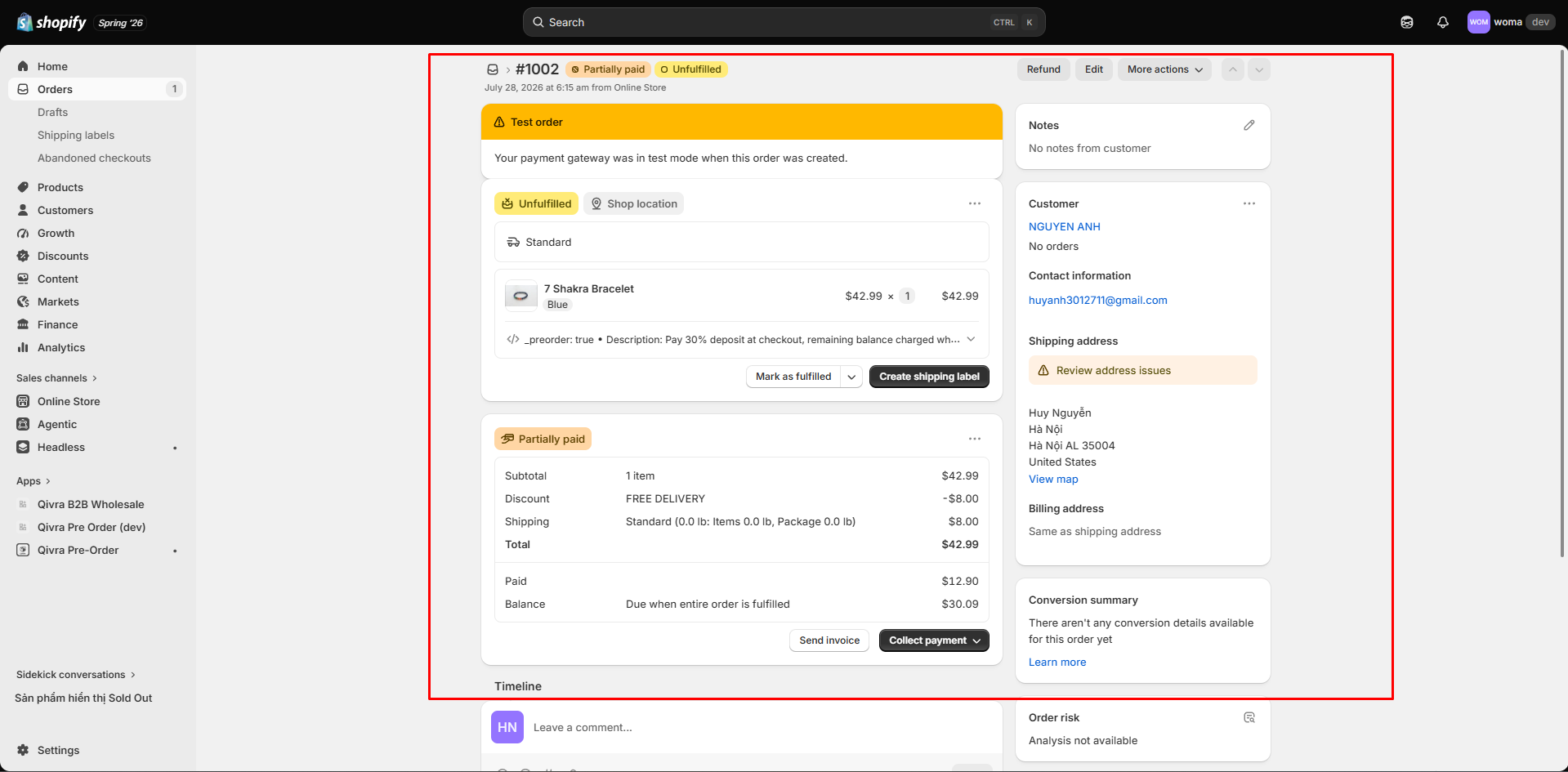
Section titled “Order Details”Click on an order to view detailed information:
- Shopify order link (opens the order in Shopify admin)
- Line items with product and variant details
- Payment breakdown (deposit paid, remaining balance)
- Scheduled payment information
- Order history and status changes
Payment Status
Section titled “Payment Status”| Status | Description |
|---|---|
| Paid | Full payment captured |
| Partially Paid | Deposit captured, remaining balance pending |
| Authorized | Payment authorized but not captured (pay-nothing) |
| Refunded | Payment has been refunded |
| Partially Refunded | Partial refund issued |
Scheduled Payments
Section titled “Scheduled Payments”For deposit and pay-nothing orders, the remaining balance is tracked as a scheduled payment:
| Field | Description |
|---|---|
| Capture amount | The remaining balance to be charged |
| Trigger type | On fulfillment, time after checkout, or exact time |
| Status | Scheduled, captured, failed, expired, or cancelled |
| Capture date | When the capture is scheduled (for time-based triggers) |
Capture Statuses
Section titled “Capture Statuses”- Scheduled: Waiting for the trigger condition
- Captured: Successfully charged
- Failed: Charge attempt failed (e.g., expired authorization)
- Expired: Authorization expired before capture
- Cancelled: Order was cancelled before capture
Managing Orders
Section titled “Managing Orders”Cancel Orders
Section titled “Cancel Orders”Cancel individual orders from the order detail view, or use bulk cancel from the order list:
- Select orders using checkboxes
- Click Bulk Cancel
- Confirm the cancellation
Cancelling in the app also cancels the corresponding Shopify order and releases any payment authorizations.
Send Delay Emails
Section titled “Send Delay Emails”If a delivery is running late, notify affected customers directly from the order list:
- Select the orders using checkboxes
- Click Send delay email
- Review the email content and confirm
The delay email template is configured in Offers > Settings > Delay notification — see Email Notifications.