Manage Products & Button Visibility
The Products tab in the Back-in-Stock page is where you decide which products can collect restock subscriptions, and when the Notify Me button should appear on your storefront.
Button Visibility Modes
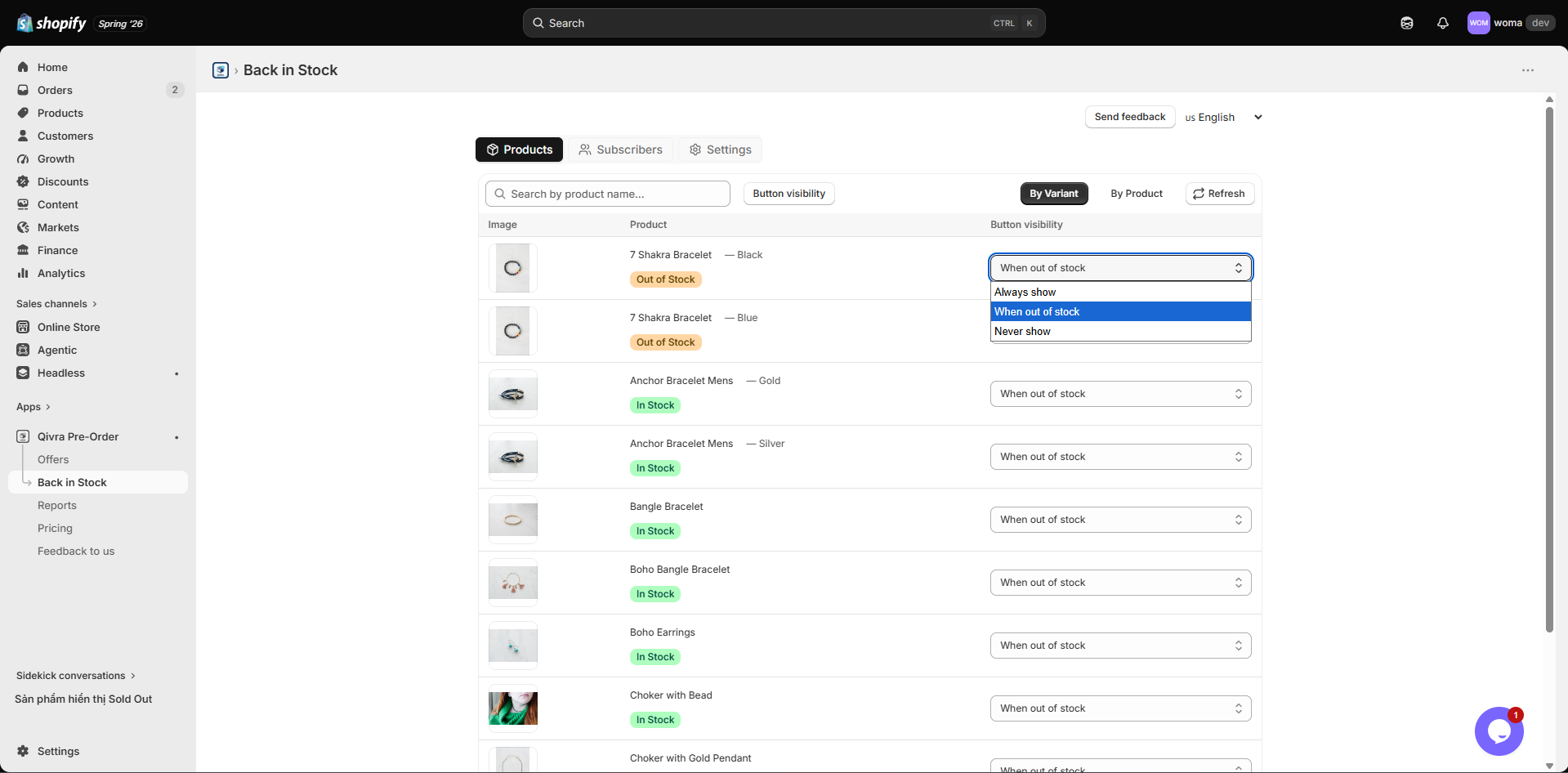
Section titled “Button Visibility Modes”Each product (or variant) has a Button visibility setting with three modes:
| Mode | Behavior |
|---|---|
| Always show | The Notify Me button shows whether the product is in stock or out of stock. Useful for capturing waitlists. |
| When out of stock | The Notify Me button only appears when the variant’s inventory reaches zero. This is the most common choice. |
| Never show | The Notify Me button is hidden for this product/variant, even when out of stock. Use this to opt specific products out. |
New products default to When out of stock.
Configure Button Visibility
Section titled “Configure Button Visibility”- Open the Qivra PreOrder admin and go to Back-in-Stock.
- Stay on the Products tab.
- (Optional) Use the search field to find a product by name.
- (Optional) Use the Button visibility filter dropdown to show only products in a specific mode (for example, show only “Never show” products to review them).
- For each product/variant row, open the dropdown in the Button visibility column and choose the new mode.
- Continue across pages - your changes accumulate and a Save bar appears at the bottom once you have at least one unsaved change.
- Click Save to apply all changes, or Discard to revert.
Changes persist across pagination, so you can configure many products across multiple pages before saving.
Switch Between “By Variant” and “By Product” View
Section titled “Switch Between “By Variant” and “By Product” View”The toggle buttons at the top right of the table switch how products are listed:
- By Variant - Every variant is a separate row. Best for products where each variant has its own inventory and needs its own visibility rule.
- By Product - Variants are grouped under the product. Products with multiple variants show a collapsible tree. Best when you want to scan products quickly.
Switching the view does not change your settings; it only changes how the list is displayed.
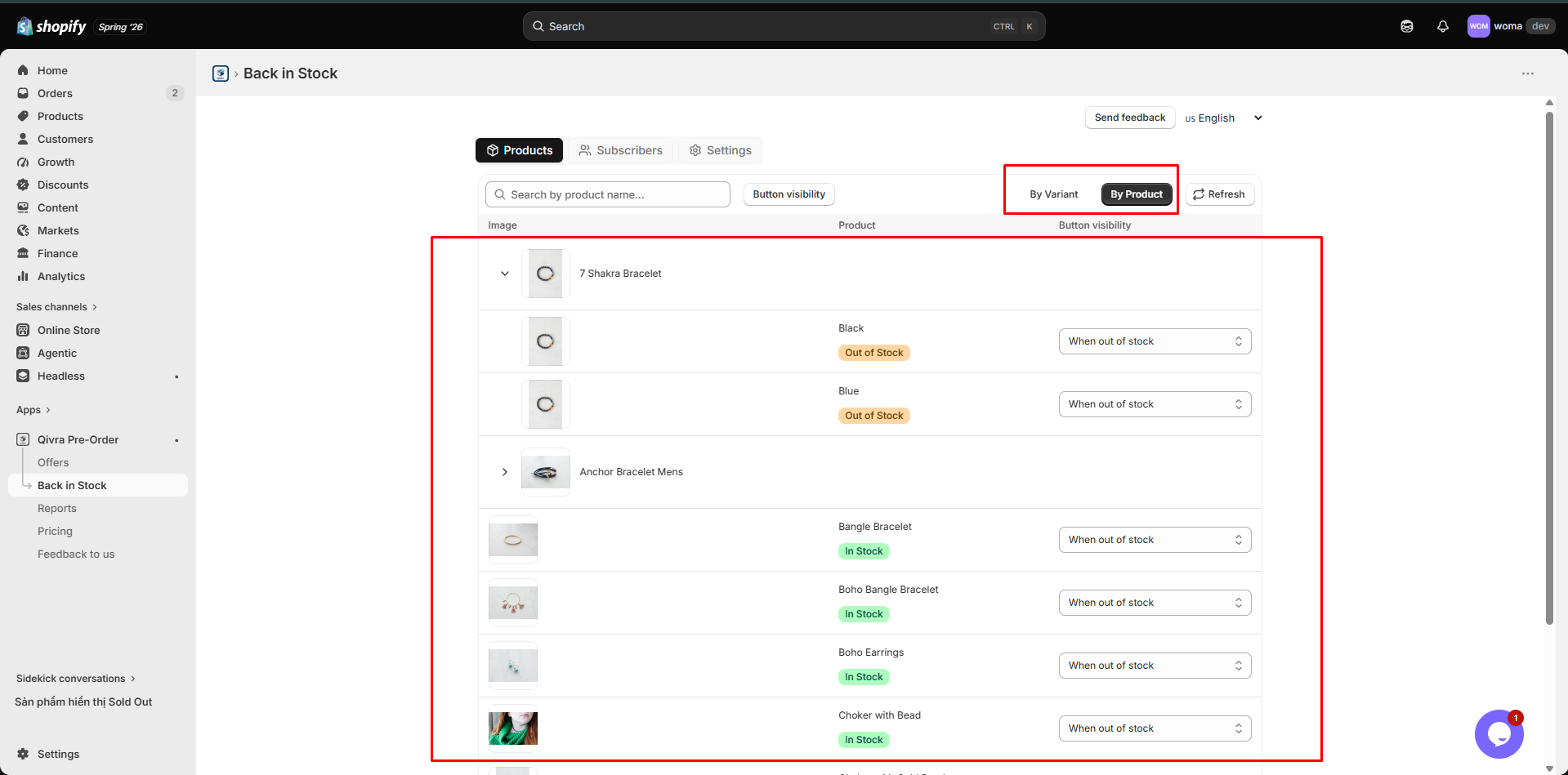
- For products with many variants, use the By Product view and expand the product to edit individual variants.
- The default mode for new products is When out of stock. If you want most products to show Notify Me always, set a few “Never show” exceptions instead.
- If a product is missing from the list, confirm it is tracked by Shopify inventory in your Shopify admin.