Quotes Overview
This guide introduces the Quotes feature of Qivra B2B Wholesale — what quotes are, how the quote lifecycle works, and what you need to set up before buyers can request quotes from your store.
What are quotes?
Section titled “What are quotes?”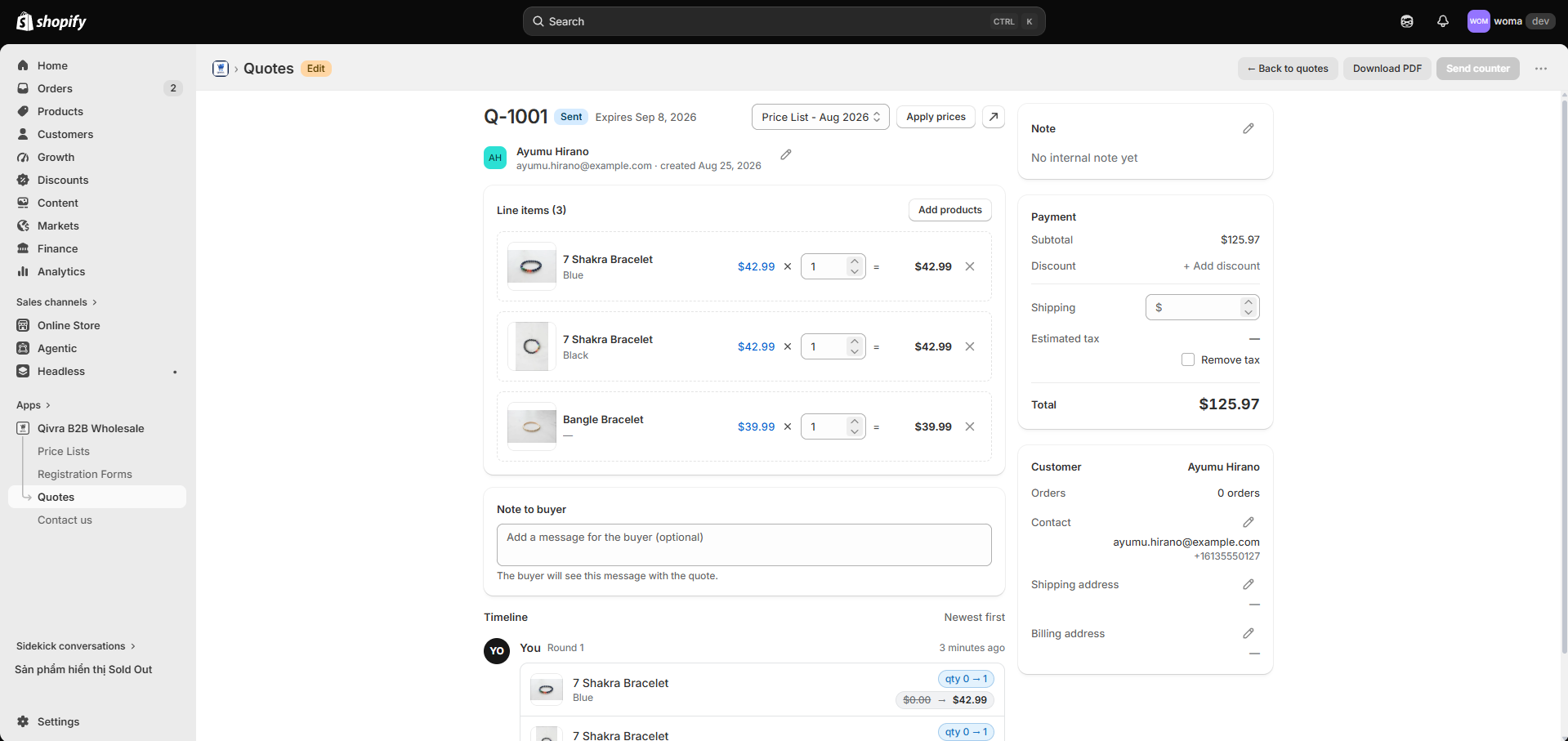
A quote is a negotiated price offer you send to a B2B buyer. Instead of forcing buyers to check out at list or price-list prices, quotes let you:
- Build a custom offer per customer — pick products, adjust unit prices, add a discount, override shipping, or remove tax.
- Send the quote as a branded PDF by email.
- Negotiate back and forth with the buyer until you agree.
- Convert an accepted quote into a draft order and invoice the buyer — all without leaving the app.
Buyers can also come to you first: from their customer account page, a buyer can submit a request for quote (RFQ) that lands in your Quotes inbox with the status New RFQ.
The quote lifecycle
Section titled “The quote lifecycle”A quote moves through the following statuses:
| Status | What it means |
|---|---|
| New RFQ | A buyer submitted a quote request from their account page. Waiting for your first offer. |
| Sent | You created/sent the quote. The buyer received it by email. |
| Negotiating | The buyer replied with a counter-offer; you sent a revised quote. |
| Accepted | The buyer accepted the quote. |
| Awaiting payment | The quote was converted to a draft order and the invoice was sent. |
| Converted | The buyer completed checkout — the quote became a real order. |
| Rejected | The buyer declined the quote (terminal). |
| Expired | The quote’s valid until date passed (terminal). |
| Cancelled | The quote was cancelled (terminal). |
Typical flow
Section titled “Typical flow”- Buyer requests a quote (or you start one yourself) → status New RFQ.
- You build and send the quote — see Create and send a quote → status Sent.
- The buyer opens the quote from their account page (or the email link) and accepts, negotiates, or declines it.
- Negotiation continues in rounds until agreement → status Negotiating → Accepted.
- You convert the accepted quote to a draft order and send the invoice → Awaiting payment.
- The buyer pays → Converted.
What’s in the Quotes section
Section titled “What’s in the Quotes section”The Quotes page in the app has two tabs:
- Quotes — your quote inbox: every RFQ and quote with its number, customer, items, total, status, and validity date. See Manage quotes.
- Settings — quote defaults: expiry days, currency, and quote numbering. See Quote settings.
Step 1: Turn on the Quote page for your customers
Section titled “Step 1: Turn on the Quote page for your customers”Buyers interact with quotes from a Quote page inside their customer account. To enable it:
- In the app, open Quotes and follow the Quote setup guide (also linked from the Home page setup guide).
- Click Open the editor — this opens Shopify’s Customer Accounts editor.
- In the editor, open the Apps tab, find Qivra B2B, and turn on Quote page.
- Confirm with I’ve turned it on.
Full walkthrough: Turn on the Quote page in customer accounts.
Step 2: Add the Quote link to the account menu
Section titled “Step 2: Add the Quote link to the account menu”So buyers can find the page, add it to the customer account menu:
- Click Open account menu in the setup guide.
- Select Customer account main menu.
- Add a menu item linking to the Quote page (under Apps).
- Confirm with I’ve added it.
Full walkthrough: Add the Quote menu link.
Once both steps are done, buyers see a Quote entry in their account where they can request quotes, review your offers, accept, negotiate, or decline them.
Quote emails and PDFs
Section titled “Quote emails and PDFs”- Every quote you send is emailed to the buyer with a link to open it in their account. You can customize (or disable) these emails — see Buyer email templates.
- Each quote can be downloaded as a PDF using a customizable template — see Customize the quote PDF template.