Contact Form Templates
Contact forms are essential for customer communication. This guide covers the contact form templates available in Qivra Form Builder and how to use them effectively.
Why Use Contact Form Templates?
Section titled “Why Use Contact Form Templates?”Contact form templates provide:
| Benefit | Description |
|---|---|
| Quick Setup | Start with a pre-built, optimized form |
| Best Practices | Fields organized for maximum conversions |
| Professional Look | Designed for trust and credibility |
| Customizable | Modify to fit your specific needs |
Available Contact Form Templates
Section titled “Available Contact Form Templates”Basic Contact Form
Section titled “Basic Contact Form”A simple form for general inquiries.
Included Fields:
| Field | Type | Required |
|---|---|---|
| Name | Text | Yes |
| Yes | ||
| Subject | Dropdown | No |
| Message | Text Area | Yes |
Best For:
- Simple websites
- Quick contact needs
- Small businesses
Advanced Contact Form
Section titled “Advanced Contact Form”A comprehensive form with more options.
Included Fields:
| Field | Type | Required |
|---|---|---|
| First Name | Text | Yes |
| Last Name | Text | Yes |
| Yes | ||
| Phone | Phone | No |
| Department | Dropdown | Yes |
| Subject | Text | Yes |
| Order Number | Text | Conditional |
| Message | Text Area | Yes |
| Attachment | File Upload | No |
Best For:
- E-commerce stores
- Businesses with multiple departments
- High-volume inquiries
Support Request Form
Section titled “Support Request Form”Specialized for customer support.
Included Fields:
| Field | Type | Required |
|---|---|---|
| Name | Text | Yes |
| Yes | ||
| Support Type | Dropdown | Yes |
| Priority | Radio | Yes |
| Order Number | Text | Conditional |
| Description | Text Area | Yes |
| Screenshots | File Upload | No |
Best For:
- Technical support
- Customer service teams
- Issue tracking
Using a Contact Form Template
Section titled “Using a Contact Form Template”Step 1: Access Templates
Section titled “Step 1: Access Templates”- Go to Qivra Form Builder
- Click Templates in sidebar
- Filter by “Contact” category
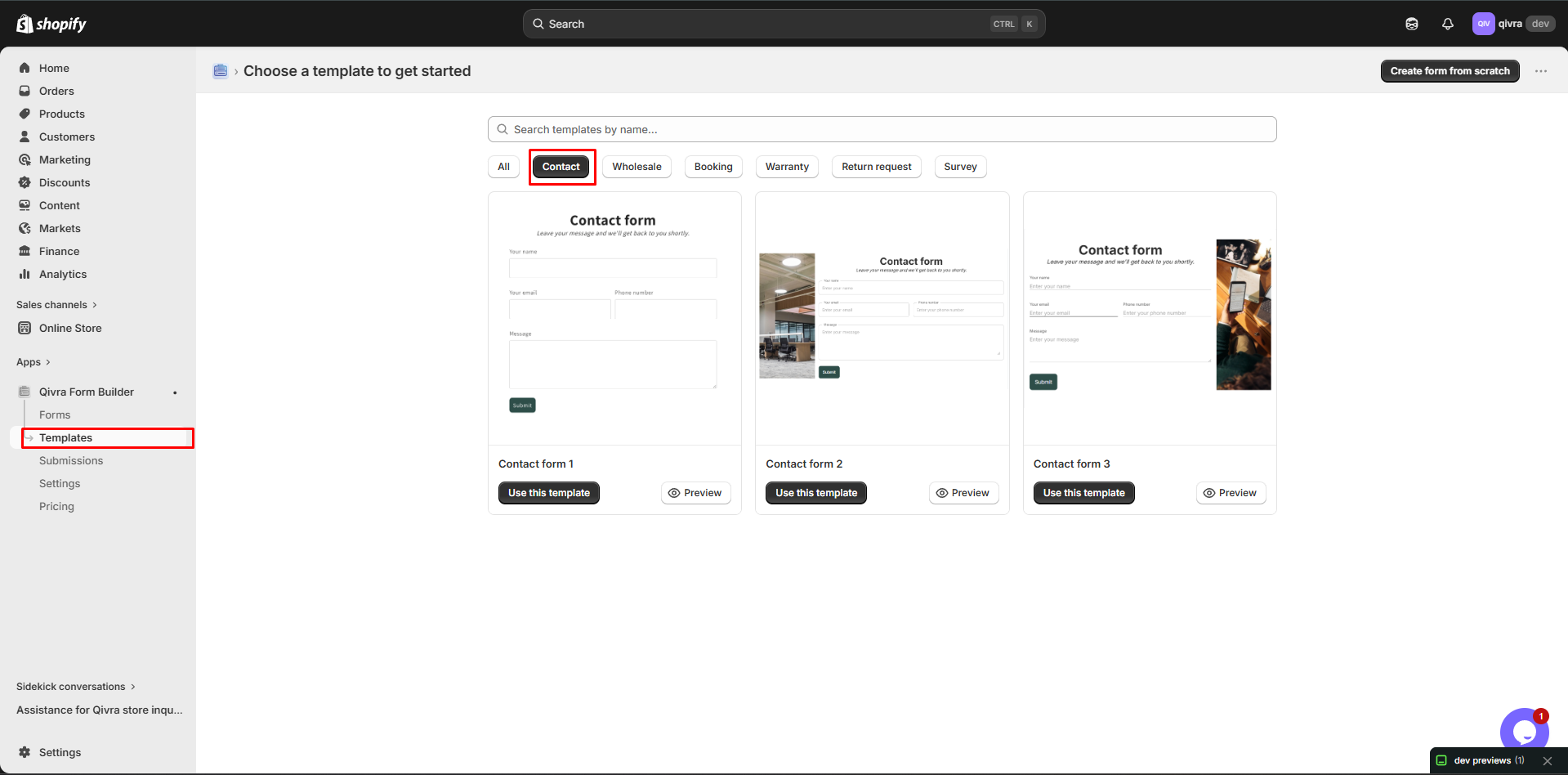
Step 2: Preview Template
Section titled “Step 2: Preview Template”- Click on a template to preview
- Review the fields and structure
- Check if it meets your needs
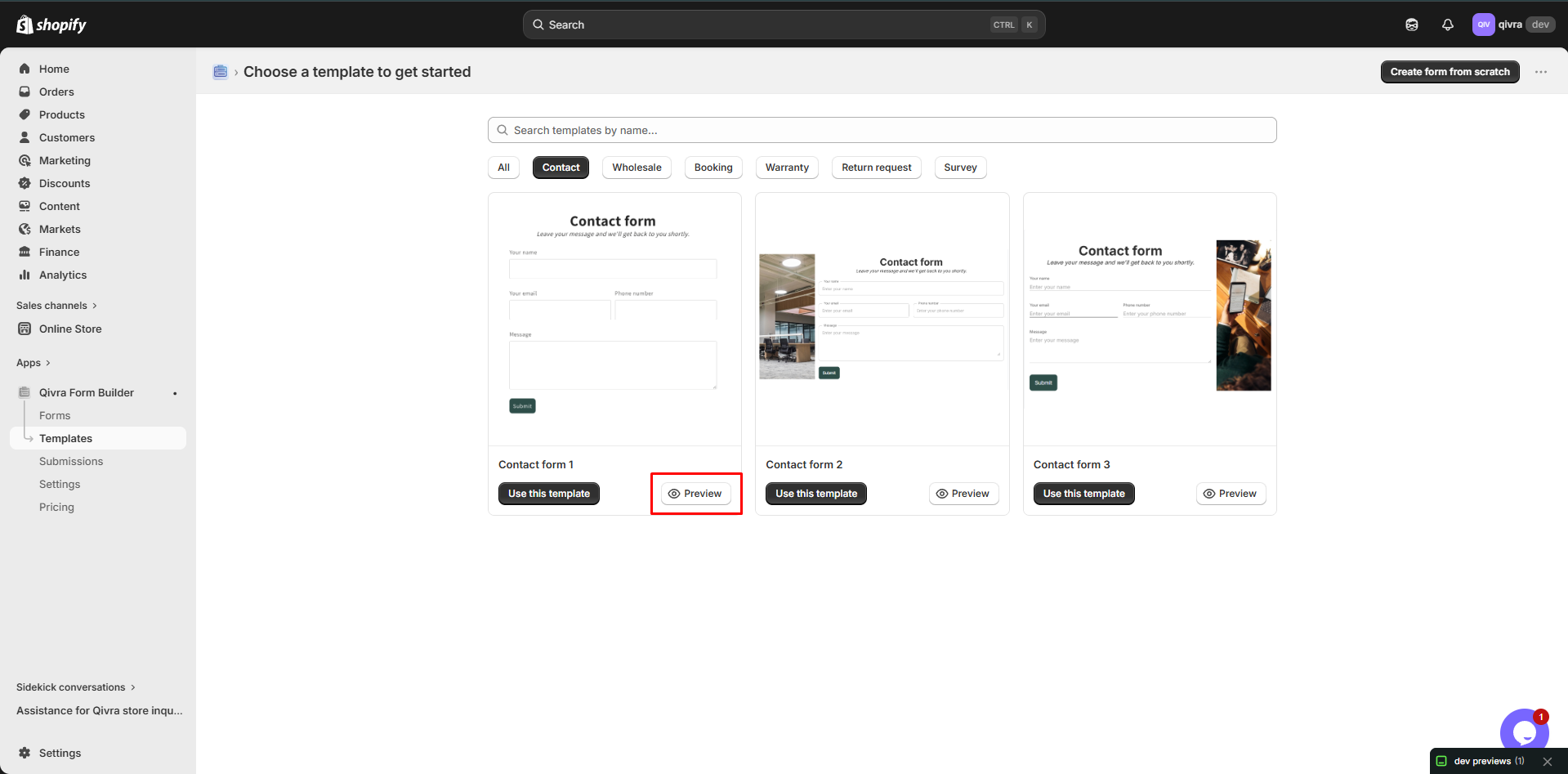
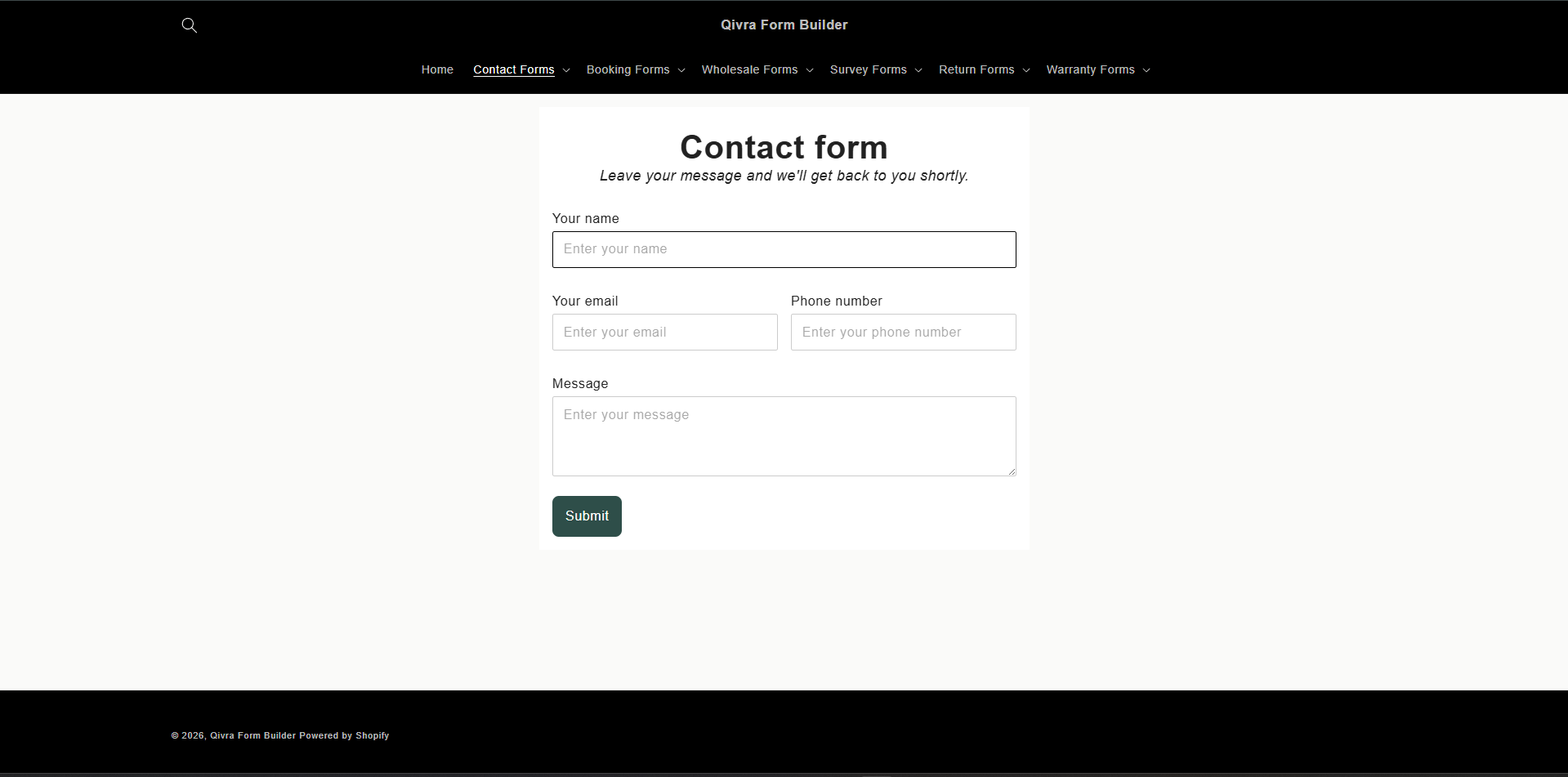
Step 3: Use Template
Section titled “Step 3: Use Template”- Click Use this template
- Name your form
- The form is created with template content
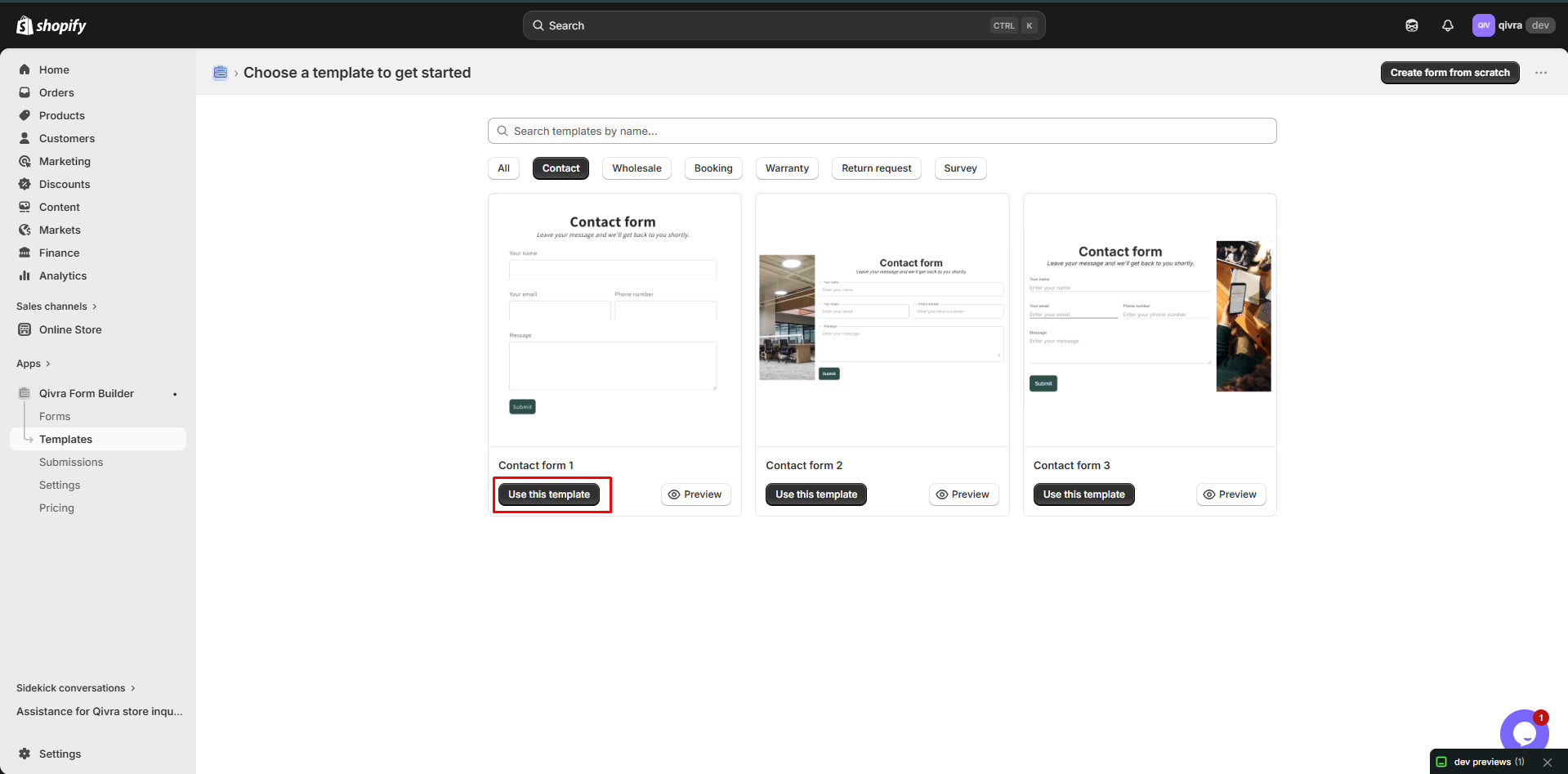
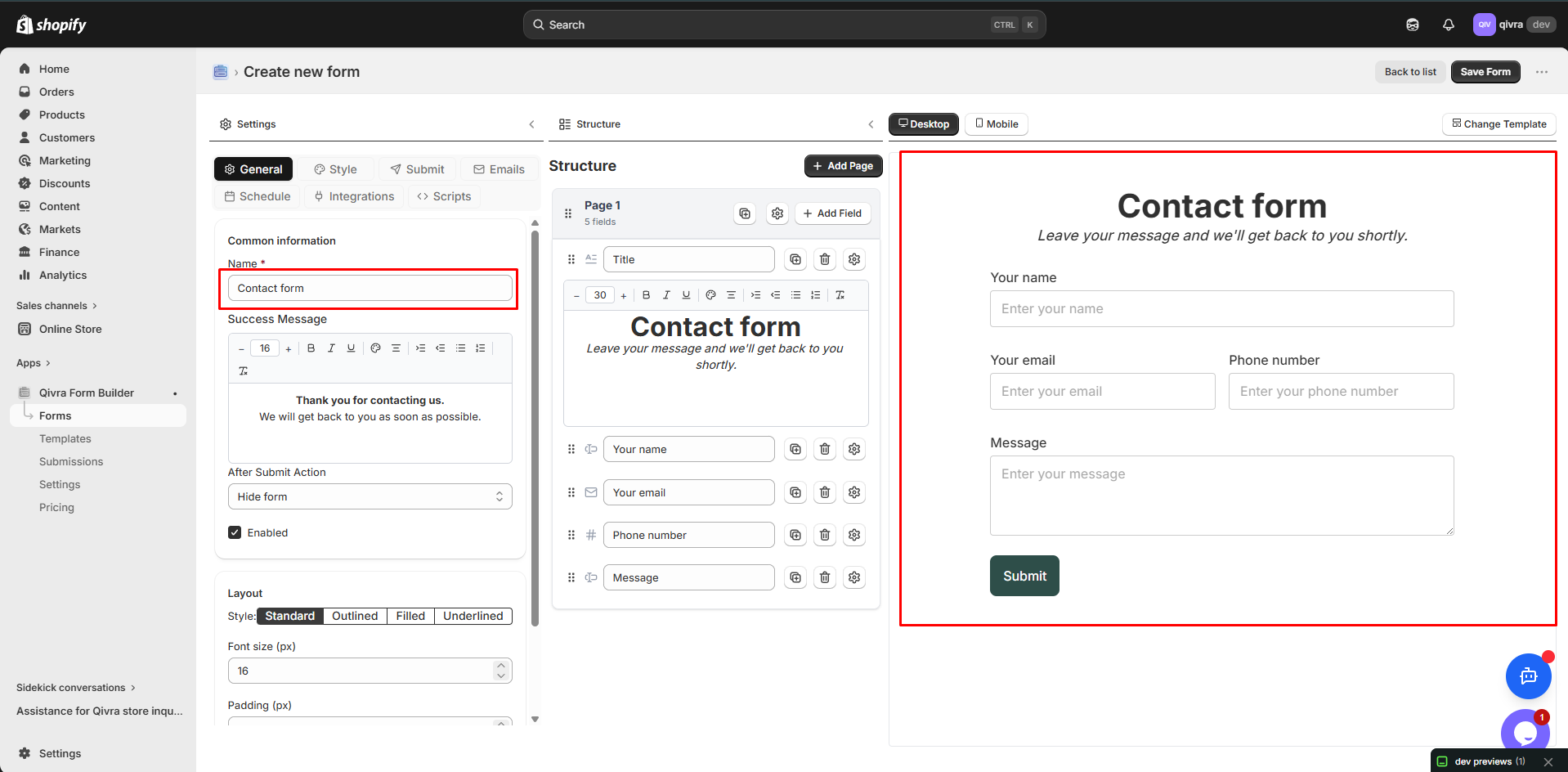
Step 4: Customize
Section titled “Step 4: Customize”Modify the form as needed:
- Add or remove fields
- Change field labels
- Adjust required settings
- Update styling
Customizing Contact Forms
Section titled “Customizing Contact Forms”Adding Fields
Section titled “Adding Fields”Common additions to contact forms:
| Field | Use Case |
|---|---|
| Company | B2B inquiries |
| Country | International customers |
| Preferred Contact | Email vs. Phone |
| Best Time to Call | Phone follow-up |
| How Did You Hear | Marketing tracking |
Conditional Fields
Section titled “Conditional Fields”Show fields based on user selection:
Example: Order-Related Inquiries
IF "Department" = "Order Support"THEN show "Order Number" fieldExample: Phone Callback
IF "Preferred Contact" = "Phone"THEN show "Best Time to Call" fieldDepartment Routing
Section titled “Department Routing”Route inquiries to different teams:
- Add Department dropdown
- Options: Sales, Support, Billing, General
- Set up conditional notifications
- Route to appropriate team email
Best Practices for Contact Forms
Section titled “Best Practices for Contact Forms”Keep It Simple
Section titled “Keep It Simple”| Recommendation | Why |
|---|---|
| Limit required fields | Higher completion rate |
| 4-6 fields max | Less overwhelming |
| Clear labels | Reduce confusion |
| Helpful placeholders | Guide users |
Essential Fields Only
Section titled “Essential Fields Only”Every contact form needs:
- Name - Identify the customer
- Email - For reply
- Message - The inquiry
Optional But Useful
Section titled “Optional But Useful”Consider adding:
- Phone (for urgent matters)
- Department (for routing)
- Order Number (for order issues)
Avoid These Mistakes
Section titled “Avoid These Mistakes”| Don’t | Why |
|---|---|
| Too many required fields | Discourages submission |
| No confirmation | User unsure if sent |
| Hidden contact info | Frustrates customers |
| No response time | Creates uncertainty |
Setting Up Notifications
Section titled “Setting Up Notifications”Email Recipients
Section titled “Email Recipients”Configure who receives contact form submissions:
- Open form settings
- Go to Notifications
- Add recipient emails
Auto-Reply
Section titled “Auto-Reply”Send confirmation to customers:
- Enable Auto-Reply
- Write confirmation message:
Thank you for contacting us!
We've received your message and will respond within 24-48 hours.
If your matter is urgent, please call us at [phone number].
Best regards,[Your Store Name]
Subject Line
Section titled “Subject Line”Use dynamic subject lines:
New Contact: {subject} - {customer_name}Displaying Your Contact Form
Section titled “Displaying Your Contact Form”Dedicated Contact Page
Section titled “Dedicated Contact Page”Create a dedicated contact page:
- Create page: “Contact Us”
- Add contact information
- Embed the contact form
- Add business hours
- Include map if applicable
Multi-Page Display
Section titled “Multi-Page Display”Show contact form in multiple places:
| Location | Trigger Type |
|---|---|
| Contact page | AUTO |
| Footer | BUTTON |
| Product pages | BUTTON (floating) |
| 404 page | AUTO |
Popup Contact Form
Section titled “Popup Contact Form”Use button trigger for popup:
- Set Trigger to BUTTON
- Position: Floating
- Button text: “Contact Us”
- Place on all pages
Contact Form Analytics
Section titled “Contact Form Analytics”Track These Metrics
Section titled “Track These Metrics”| Metric | Description |
|---|---|
| Submissions | Total forms submitted |
| By Department | Which topics are common |
| Response Time | How fast you reply |
| Resolution Rate | Issues resolved |
Using Data
Section titled “Using Data”- Identify common questions
- Update FAQ based on inquiries
- Train staff on frequent issues
- Improve product descriptions
Troubleshooting
Section titled “Troubleshooting”Low Submission Rate
Section titled “Low Submission Rate”| Possible Cause | Solution |
|---|---|
| Too many fields | Reduce required fields |
| Hard to find | Add link in navigation |
| No trust indicators | Add privacy policy |
| Poor mobile experience | Test on mobile |
Spam Submissions
Section titled “Spam Submissions”| Solution | How |
|---|---|
| Enable validation | Require valid email format |
| Add honeypot | Hidden field for bots |
| Moderate submissions | Review before responding |
No Email Notifications
Section titled “No Email Notifications”- Check email provider settings
- Verify recipient addresses
- Check spam/junk folders
- Test email delivery