Manage Submissions
The Submissions page is where you view and manage all form submissions from your customers. This guide covers everything you need to know about managing submissions.
Accessing Submissions
Section titled “Accessing Submissions”- Go to Qivra Form Builder
- Click Submissions in the sidebar
- View all form submissions
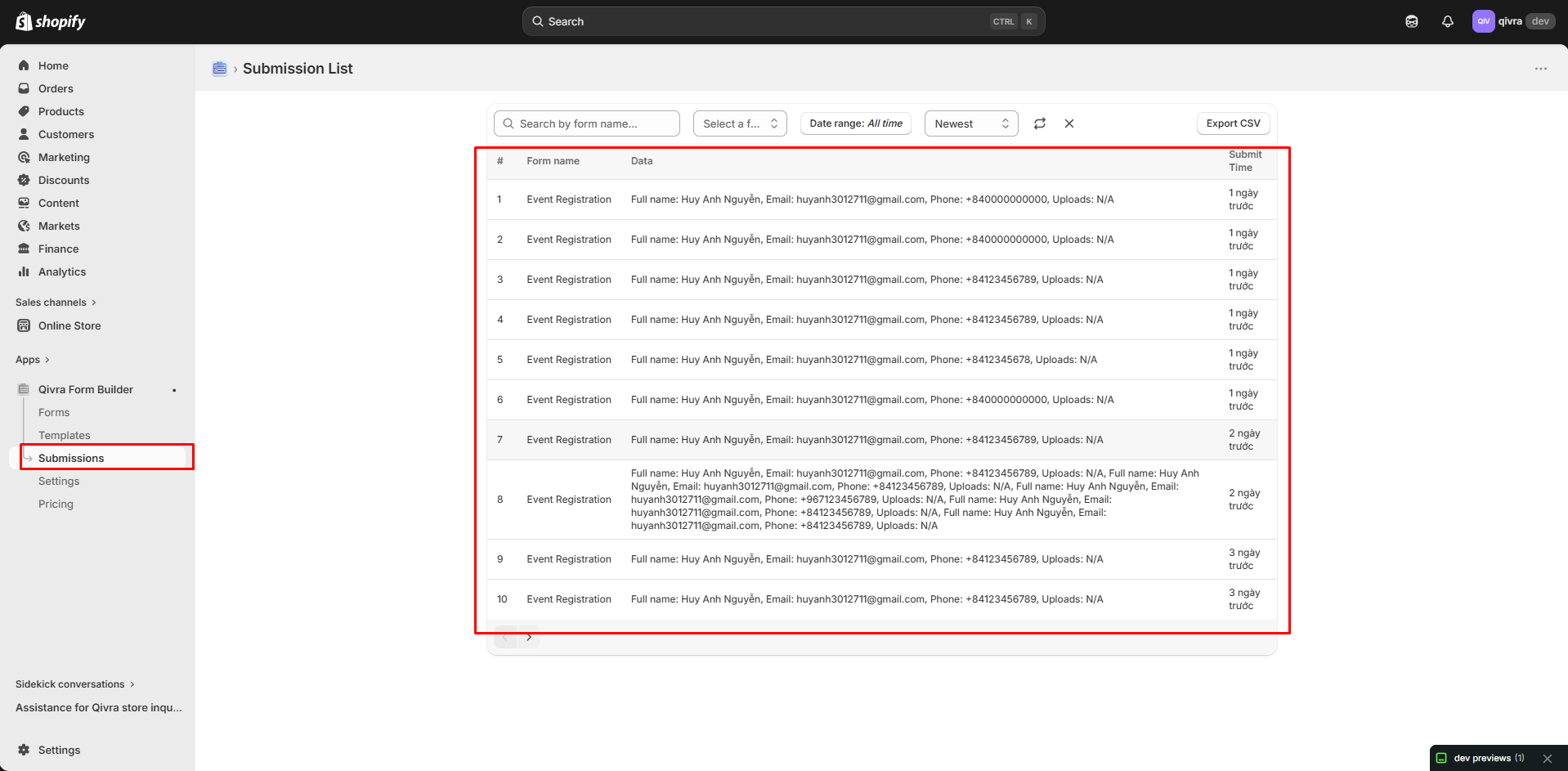
Submissions List
Section titled “Submissions List”List View
Section titled “List View”The submissions table shows:
| Column | Description |
|---|---|
| Form name | Which form was submitted |
| Data | A preview of the submitted values |
| Submit time | Date and time |
Filtering Submissions
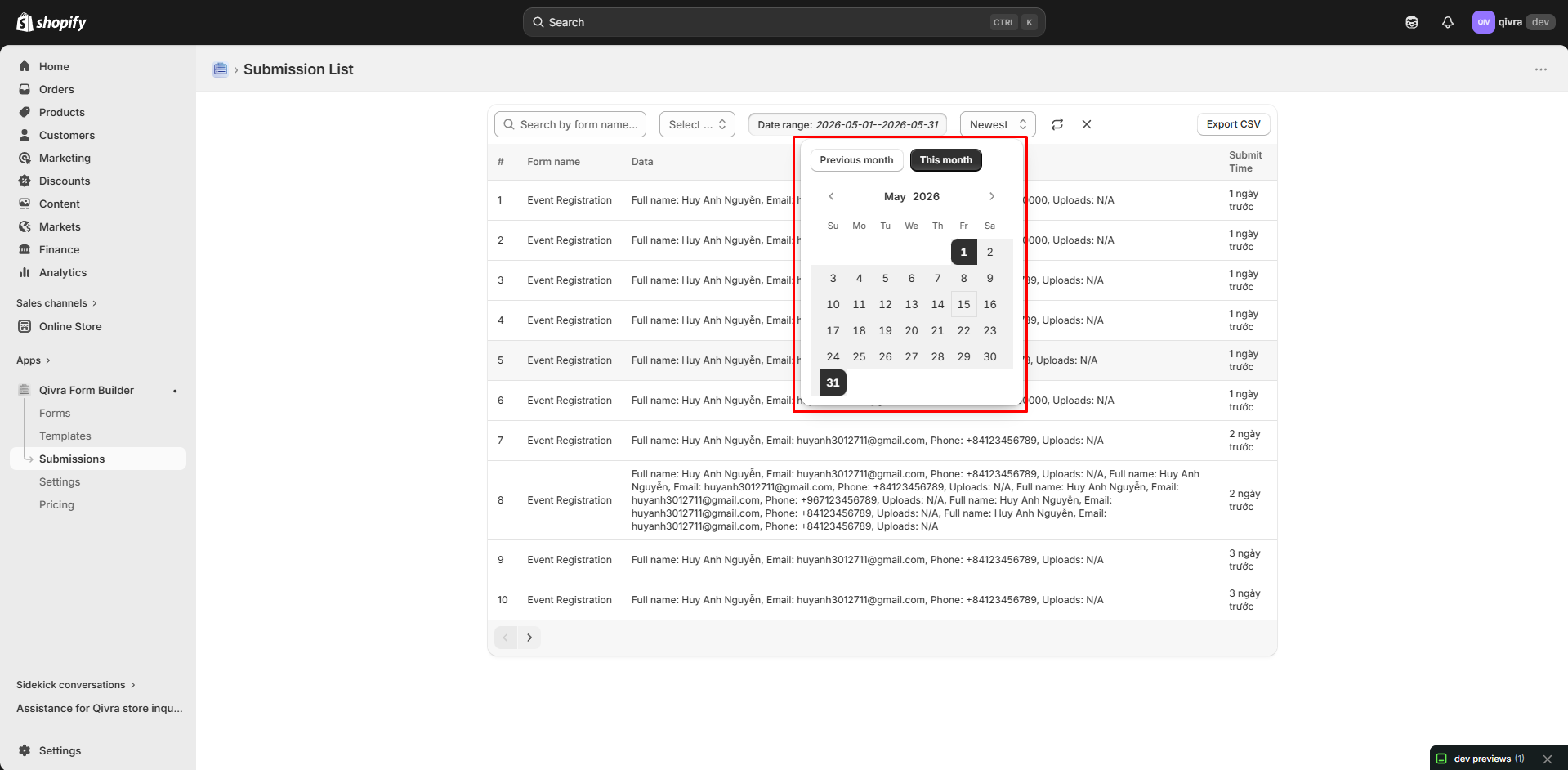
Section titled “Filtering Submissions”By Date
Section titled “By Date”- Click date filter
- Select range:
- Today
- Last 7 days
- Last 30 days
By Form
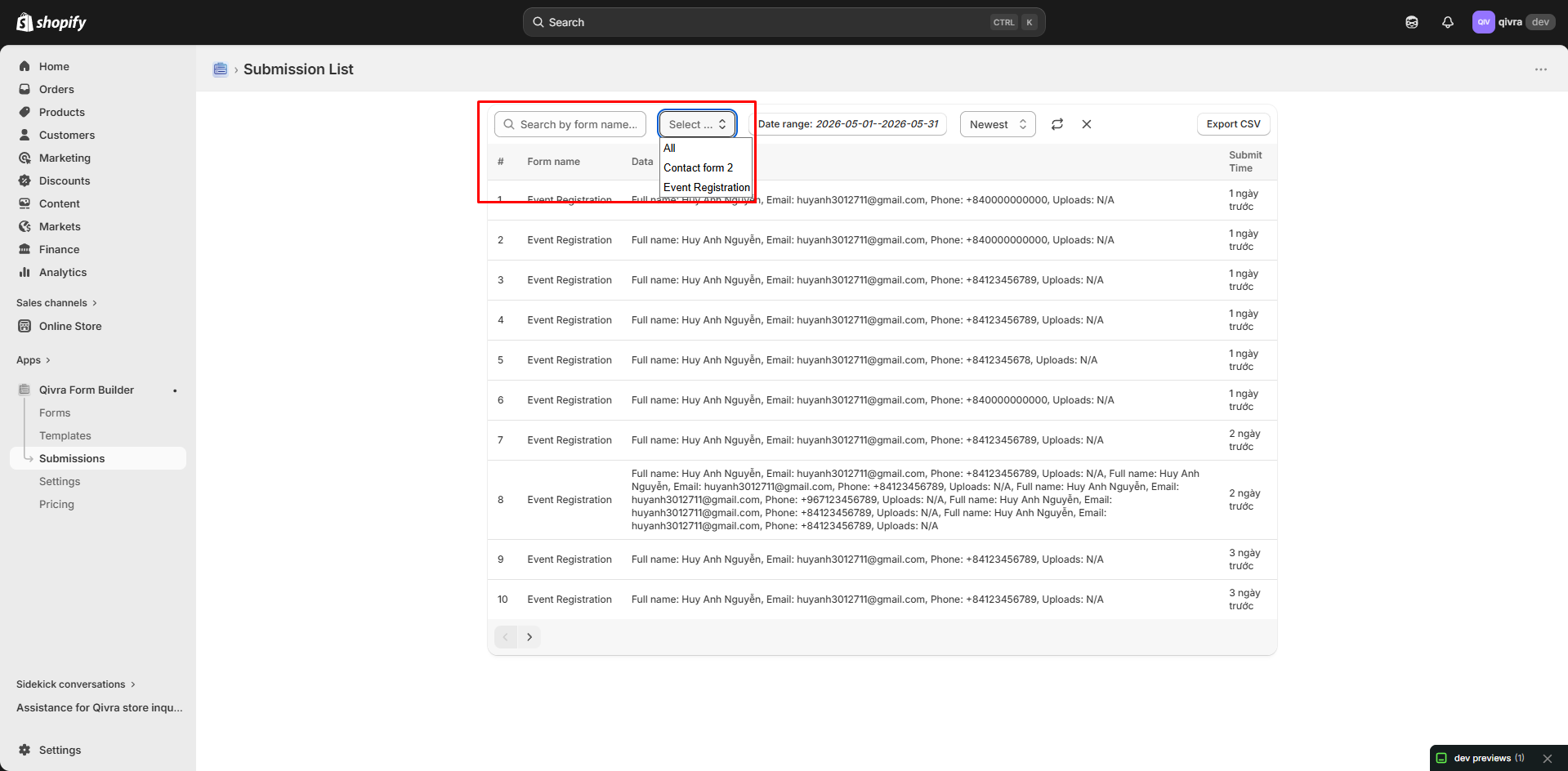
Section titled “By Form”- Click form dropdown
- Select specific form
- View only that form’s submissions
By Sort
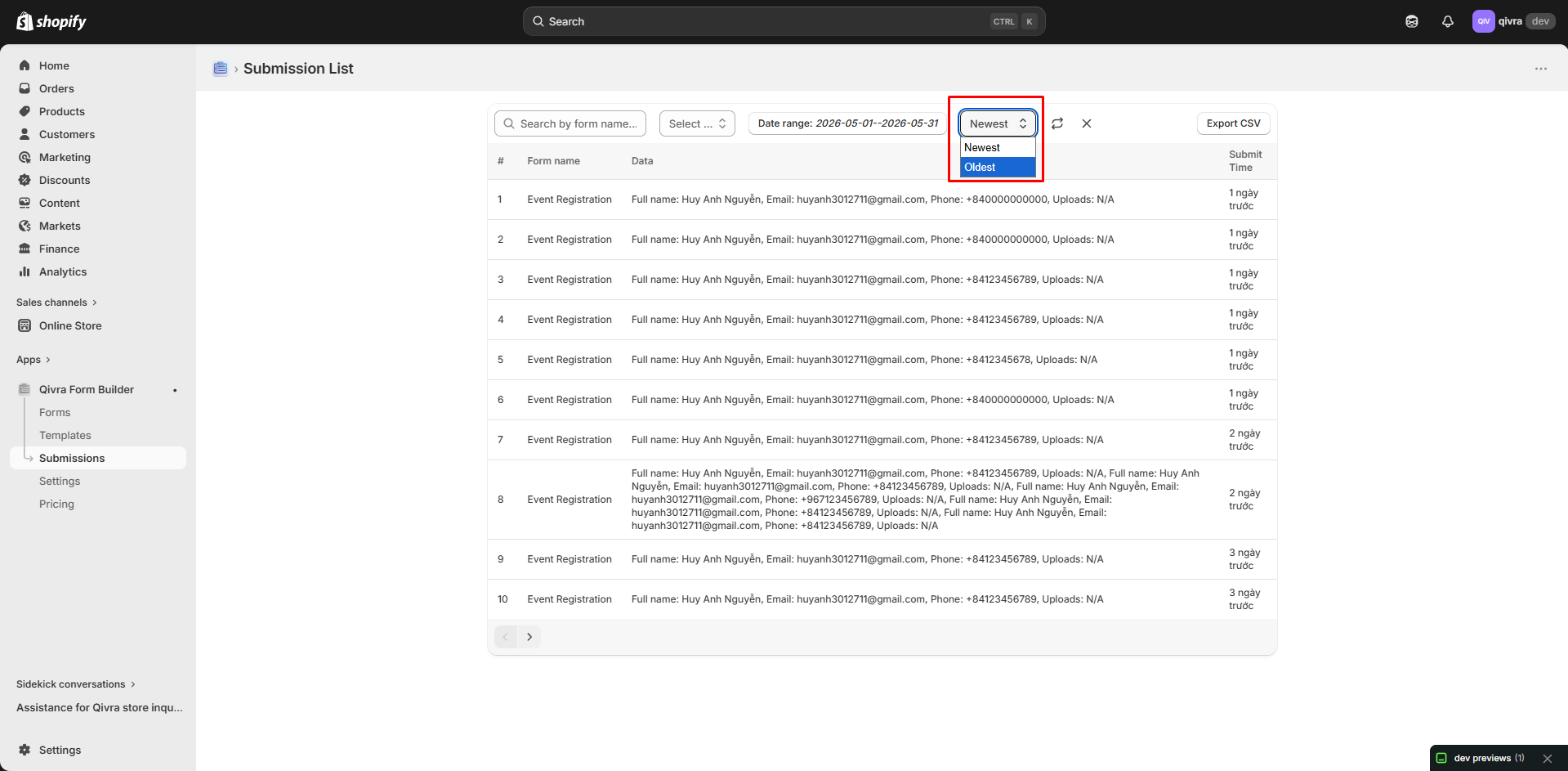
Section titled “By Sort”- Click dropdown
- Choose:
- newest (The most recently created item will be at the top.)
- oldest (Items that were created a while ago will be at the top.)
Viewing Submission Details
Section titled “Viewing Submission Details”Opening a Submission
Section titled “Opening a Submission”- Click on any submission row
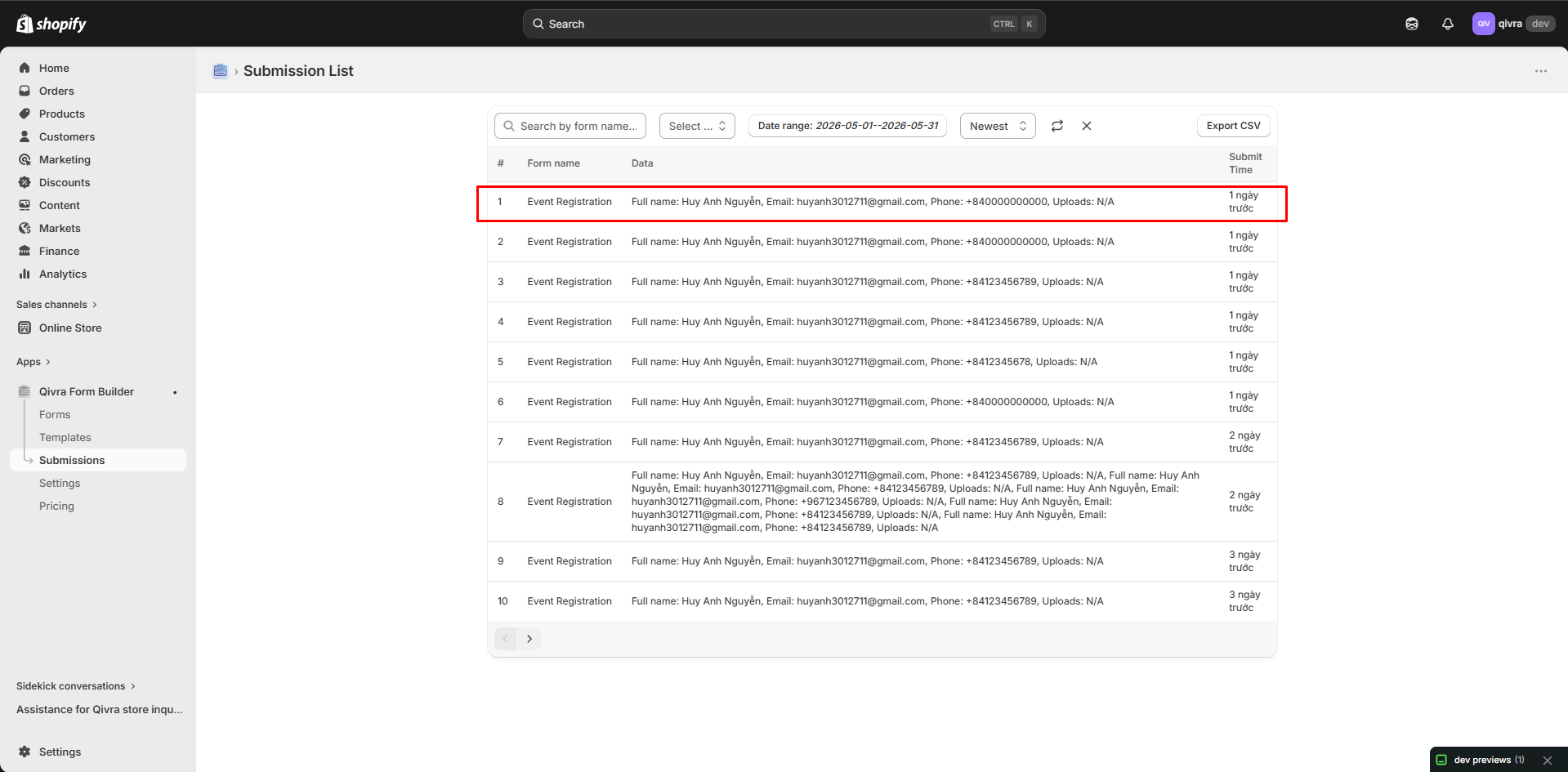
- Detailed view opens
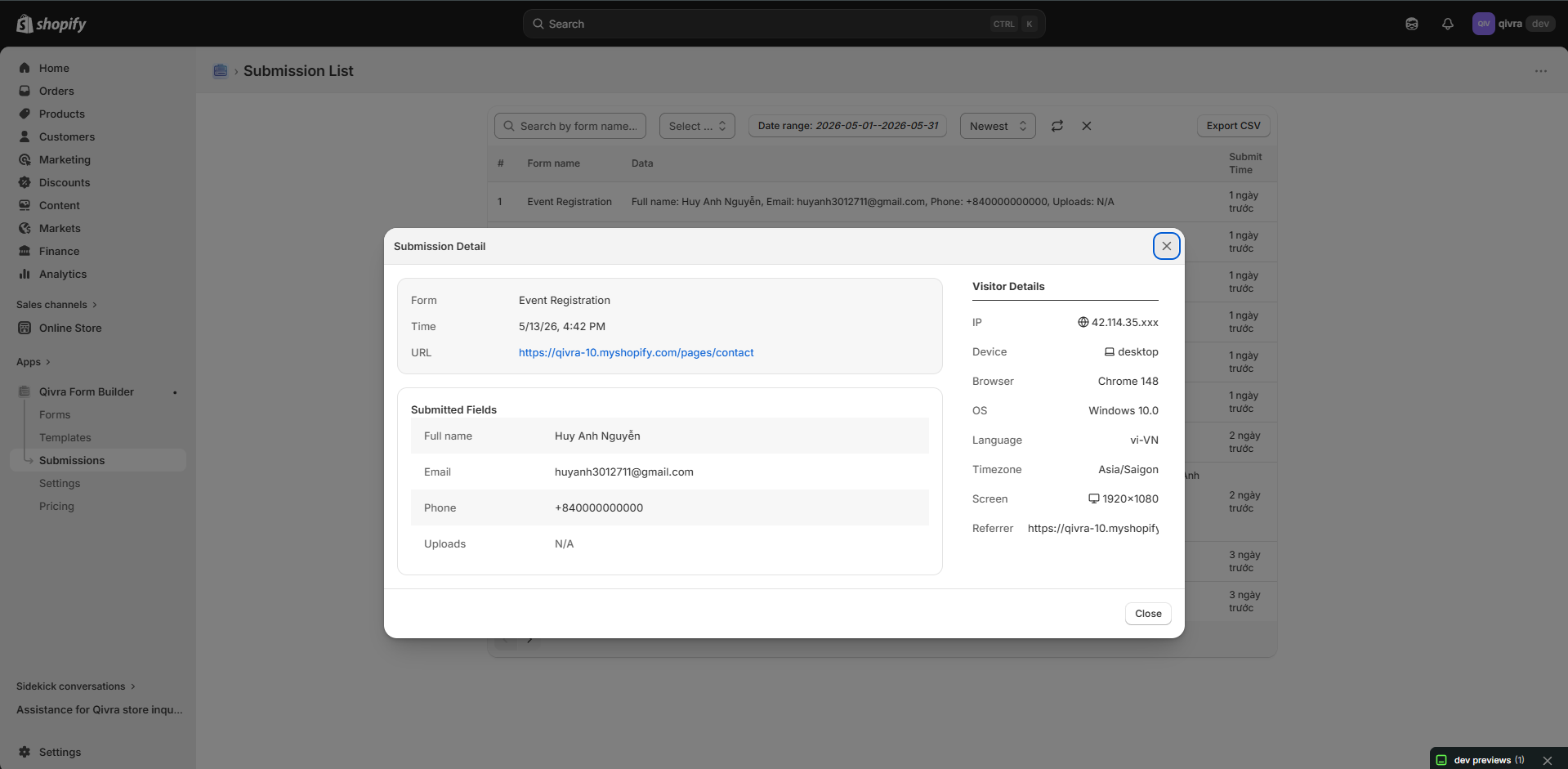
Details Included
Section titled “Details Included”| Information | Description |
|---|---|
| Submitted Fields | All submitted values |
| Time | Exact timestamp |
| Visitor Details | Location, device, browser, OS, language, timezone, screen |
| Referrer | The page the customer came from |
| UTM Tracking | UTM source, medium, and campaign that brought the visitor |
Customer Information
Section titled “Customer Information”If collected, you’ll see:
- Name
- Phone
- Any other fields
Exporting Submissions
Section titled “Exporting Submissions”Export to CSV
Section titled “Export to CSV”- Go to Submissions page
- Click Export CSV button
- Download file
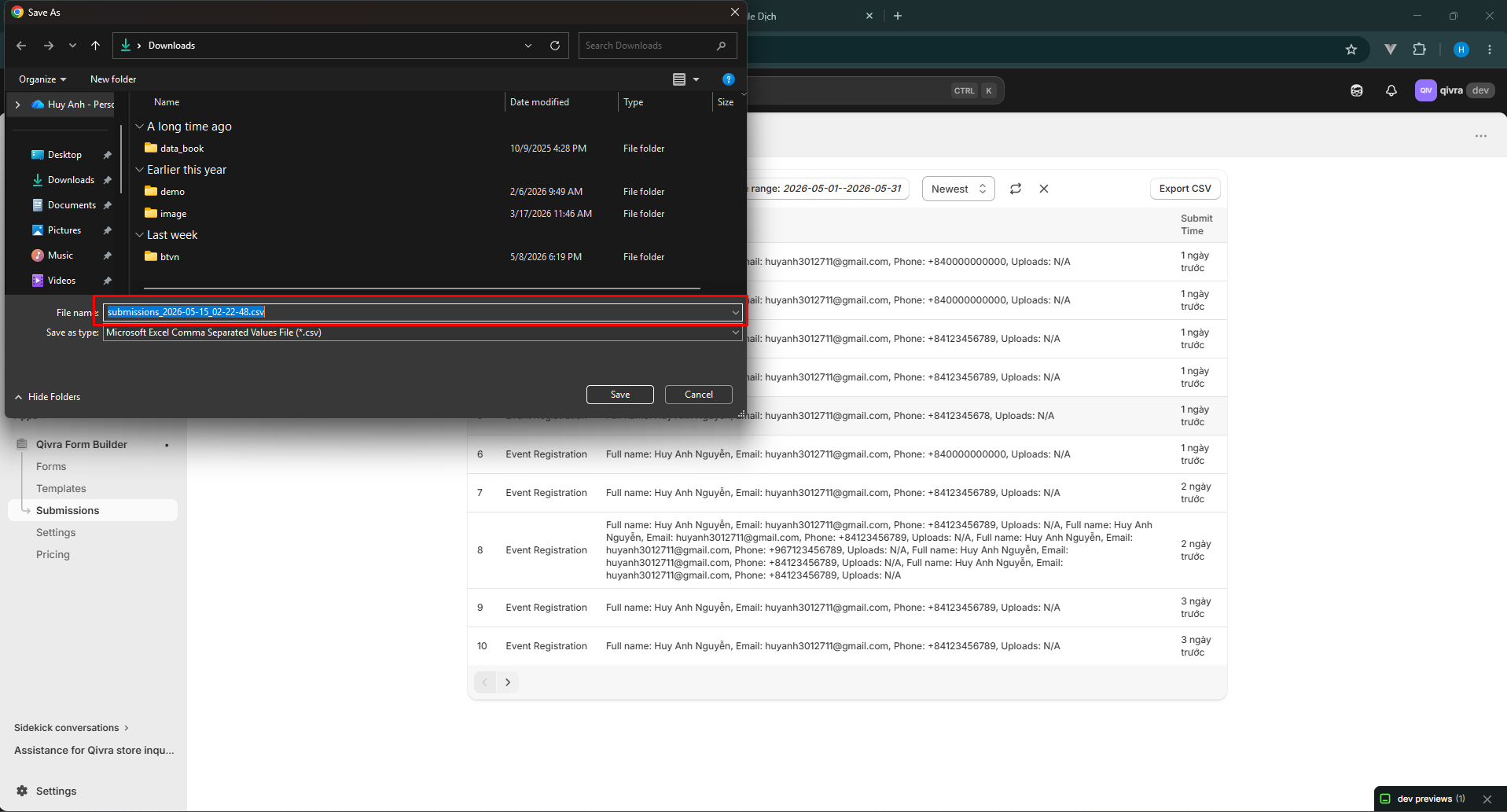
The export respects your current filters — apply a date range or form filter first to export exactly what you need.
Managing High Volume
Section titled “Managing High Volume”Tips for Many Submissions
Section titled “Tips for Many Submissions”| Strategy | How |
|---|---|
| Use filters | Focus on what matters |
| Export regularly | Keep local backup |
Data Privacy
Section titled “Data Privacy”Customer Data
Section titled “Customer Data”Submissions may contain:
- Personal information
- Contact details
- Order information
Handling Responsibly
Section titled “Handling Responsibly”| Practice | Why |
|---|---|
| Delete when done | Minimize stored data |
| Export securely | Protect customer info |
| Limit access | Only authorized users |
GDPR Compliance
Section titled “GDPR Compliance”For EU customers:
- Delete on request
- Export on request
- Honor data requests
Submission Workflow
Section titled “Submission Workflow”Recommended Process
Section titled “Recommended Process”- Check daily - Review new submissions
- Respond - Contact customers
- Export - Keep records of important submissions