Turn On the Quote Page in Customer Accounts
This guide shows how to turn on the Quote page extension so your customers can request quotes (RFQ) and manage their quotes from their Shopify account. This is step 1 of the Quotes setup.
Before you begin
Section titled “Before you begin”- You have installed Qivra B2B Wholesale.
- You are the store owner or a staff member with permission to edit customer accounts.
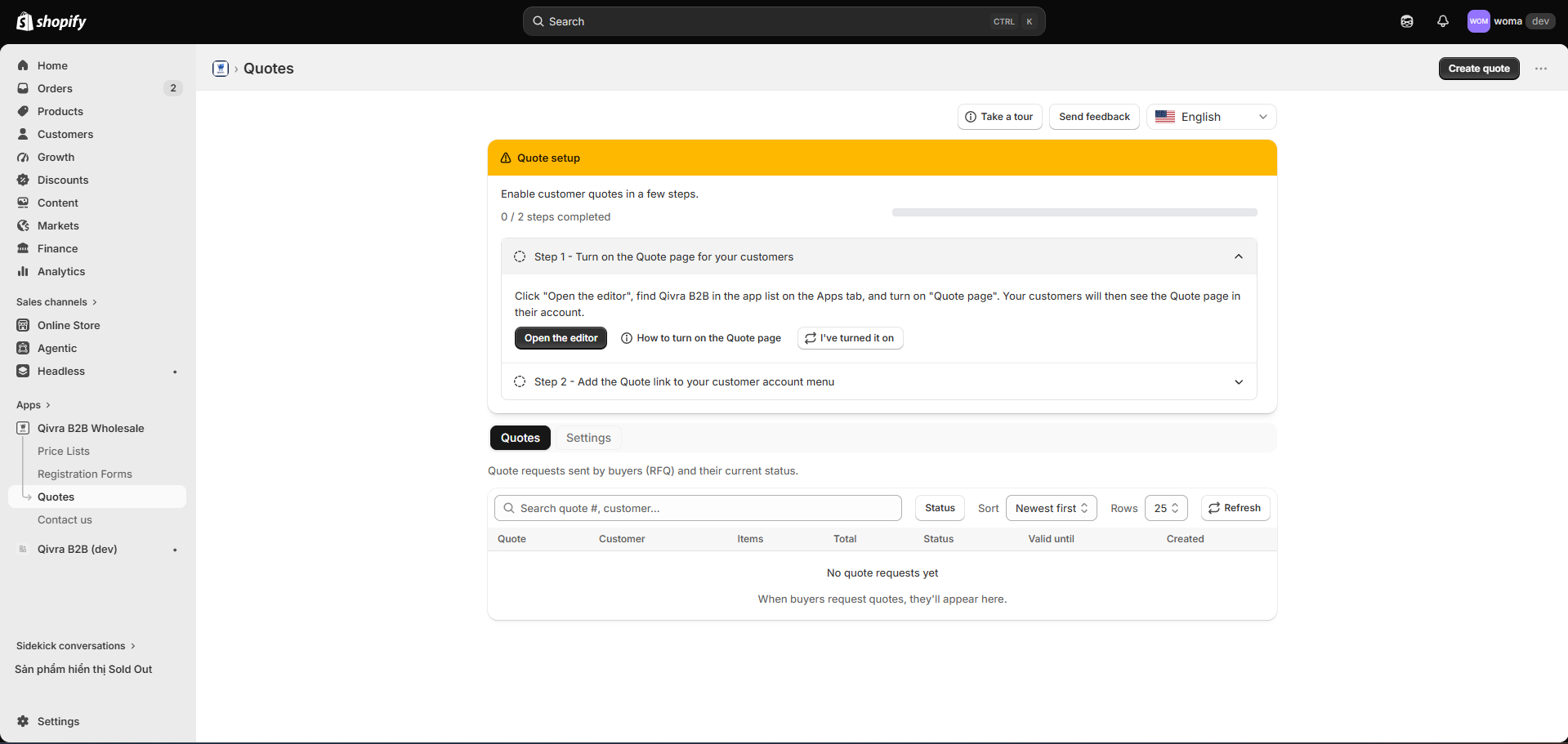
Step 1: Open the setup guide
Section titled “Step 1: Open the setup guide”- Go to Quotes in the app sidebar.
- The Quote setup guide appears at the top (also available from the Home page setup guide).
- In step 1 — Turn on the Quote page for your customers, click Open the editor.
Shopify’s Customer Accounts editor opens in a new tab.
Step 2: Find the Qivra B2B app
Section titled “Step 2: Find the Qivra B2B app”- In the editor, open the Apps tab.
- Find Qivra B2B in the app list.
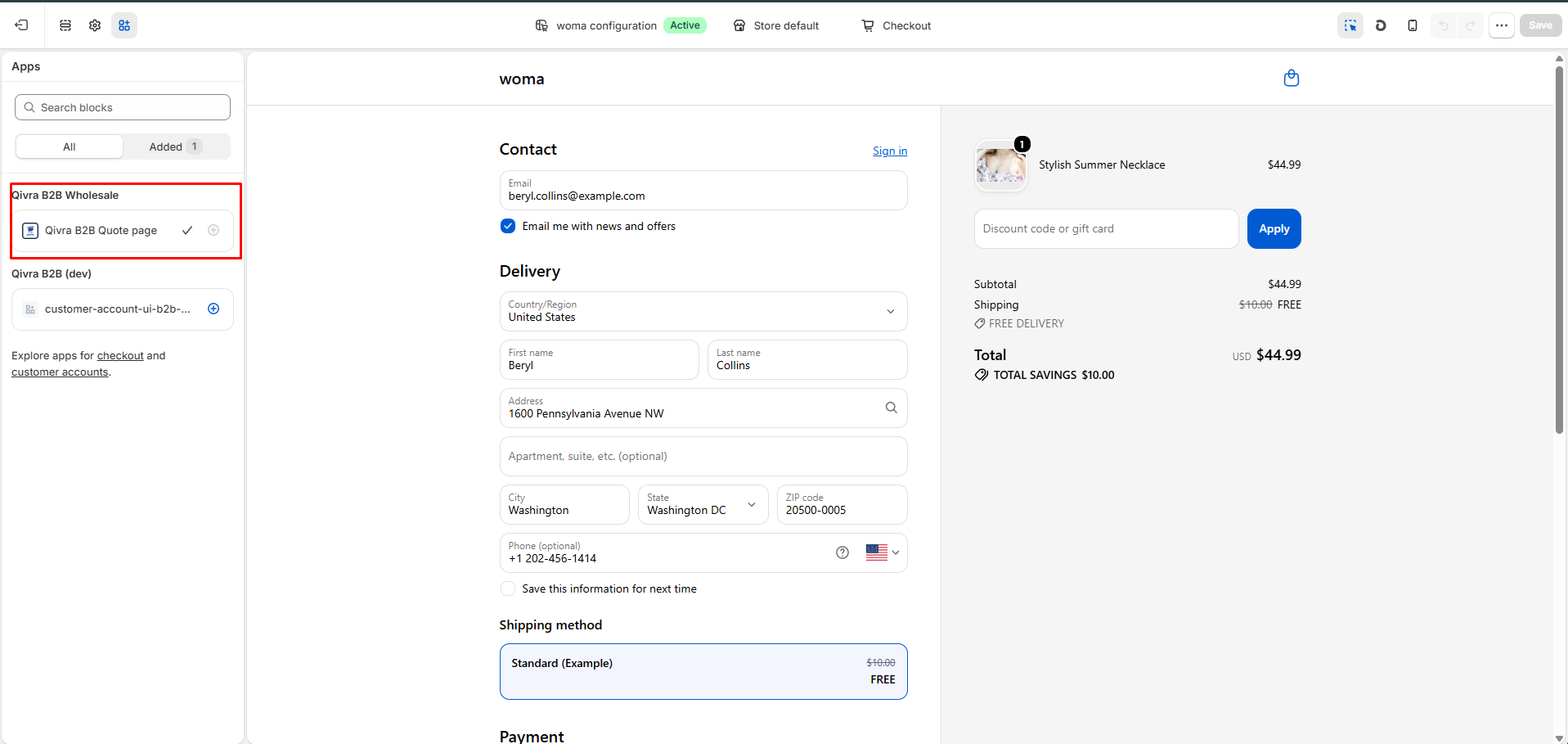
Step 3: Enable the Quote page
Section titled “Step 3: Enable the Quote page”- Toggle on Quote page.
- Save the editor if prompted.
Your customers’ account now includes the Quote page — they can request quotes, view offers you’ve sent, and accept, negotiate, or decline them. See The customer quote page.
Step 4: Confirm in the app
Section titled “Step 4: Confirm in the app”Back in the app, click I’ve turned it on so the setup guide marks the step complete.
It doesn’t show up?
Section titled “It doesn’t show up?”- Make sure you toggled Quote page (not just installed the app) in the Apps tab.
- Save the Customer Accounts editor before leaving.
- Check that you are editing the customer accounts of the live configuration.
Still stuck? See Troubleshooting: B2B prices not showing for related storefront checks, or contact support.
Next step
Section titled “Next step”Add the Quote link to your customer account menu — see Add the Quote menu link.