If you have an existing email infrastructure, you can use custom SMTP settings to send form notifications. This guide covers setting up SMTP with the Form Builder app.
SMTP (Simple Mail Transfer Protocol) is the standard protocol for sending emails. Using custom SMTP allows you to:
| Benefit | Description |
|---|
| Use existing email | Leverage your current email provider |
| Control deliverability | Manage your own sending reputation |
| No third-party | Keep everything in your infrastructure |
| Provider | Host | Port |
|---|
| Gmail | smtp.gmail.com | 587 |
| Outlook/Office 365 | smtp.office365.com | 587 |
| Amazon SES | email-smtp.region.amazonaws.com | 587 |
| SendGrid | smtp.sendgrid.net | 587 |
| Mailgun | smtp.mailgun.org | 587 |
Before setting up SMTP:
- Have SMTP credentials ready
- Know your SMTP server address
- Know the port number
- Have authentication credentials
- Enable 2-factor authentication
- Generate an App Password:
- Go to Google Account settings
- Security > 2-Step Verification > App passwords
- Generate new password for “Mail”
- Use these settings:
| Setting | Value |
|---|
| Host | smtp.gmail.com |
| Port | 587 |
| Username | Your Gmail address |
| Password | App Password (not your Gmail password) |
| Setting | Value |
|---|
| Host | smtp.office365.com |
| Port | 587 |
| Username | Your email address |
| Password | Your password |
| Setting | Value |
|---|
| Host | smtp.sendgrid.net |
| Port | 587 |
| Username | apikey |
| Password | Your SendGrid API key |
- Go to Form Builder app
- Click Settings in the sidebar
- Go to Third party integration section
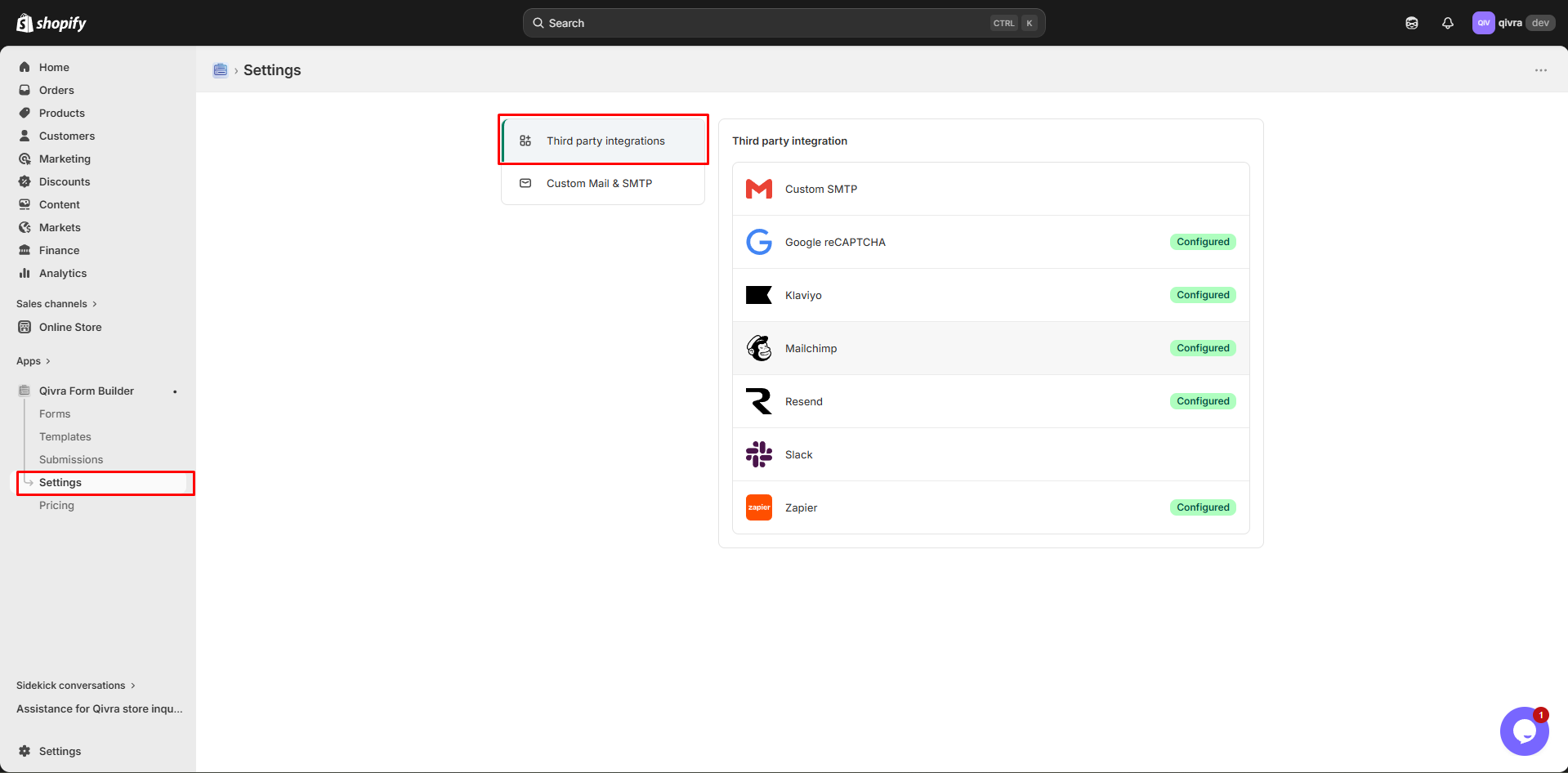
- Click Custom STMP in the provider list
Fill in all required fields:
| Field | Description | Example |
|---|
| Host | SMTP server address | smtp.gmail.com |
| Port | Server port | 587 |
| Username | Authentication username | your@email.com |
| Password | Authentication password | your-password |
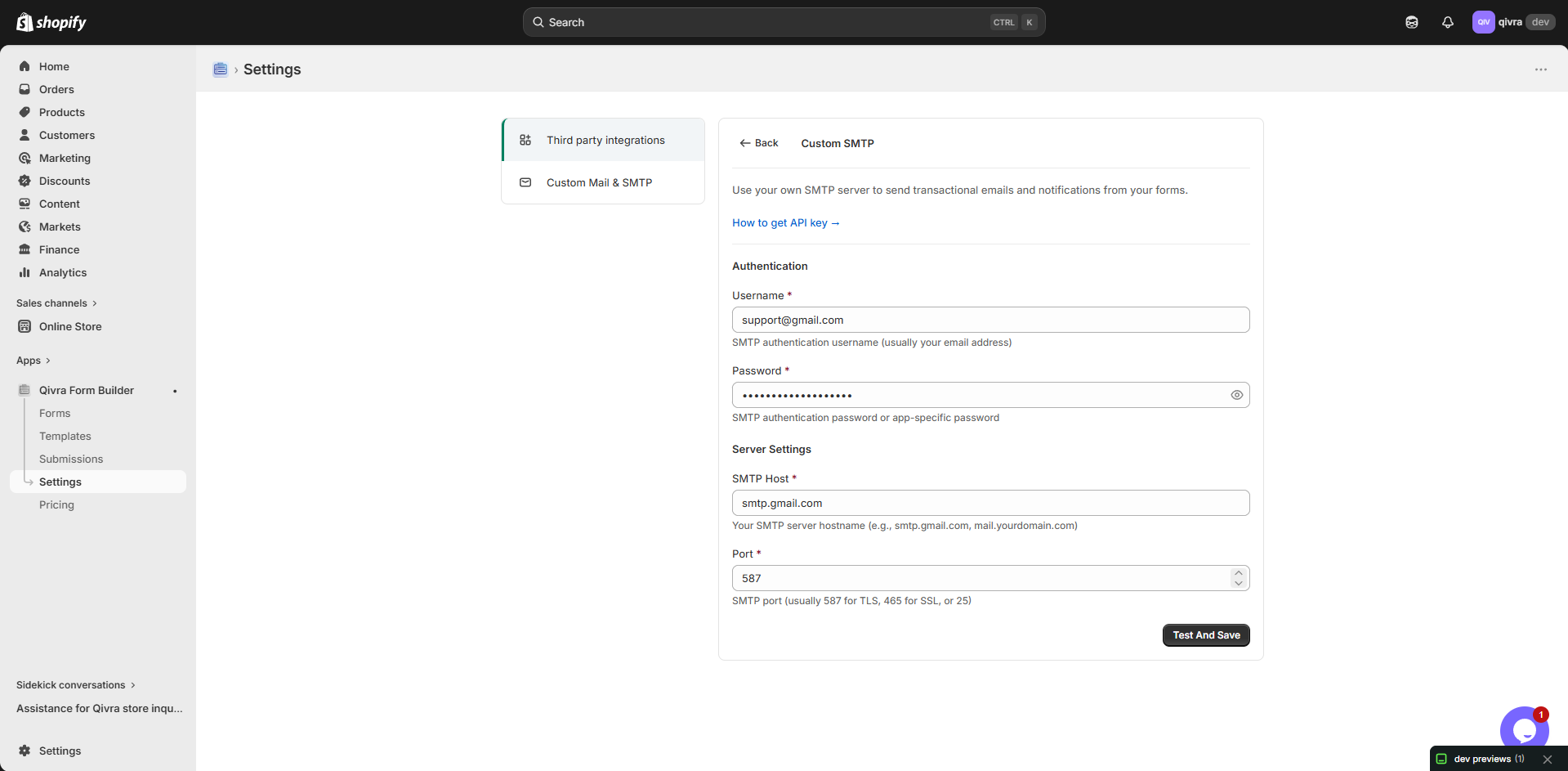
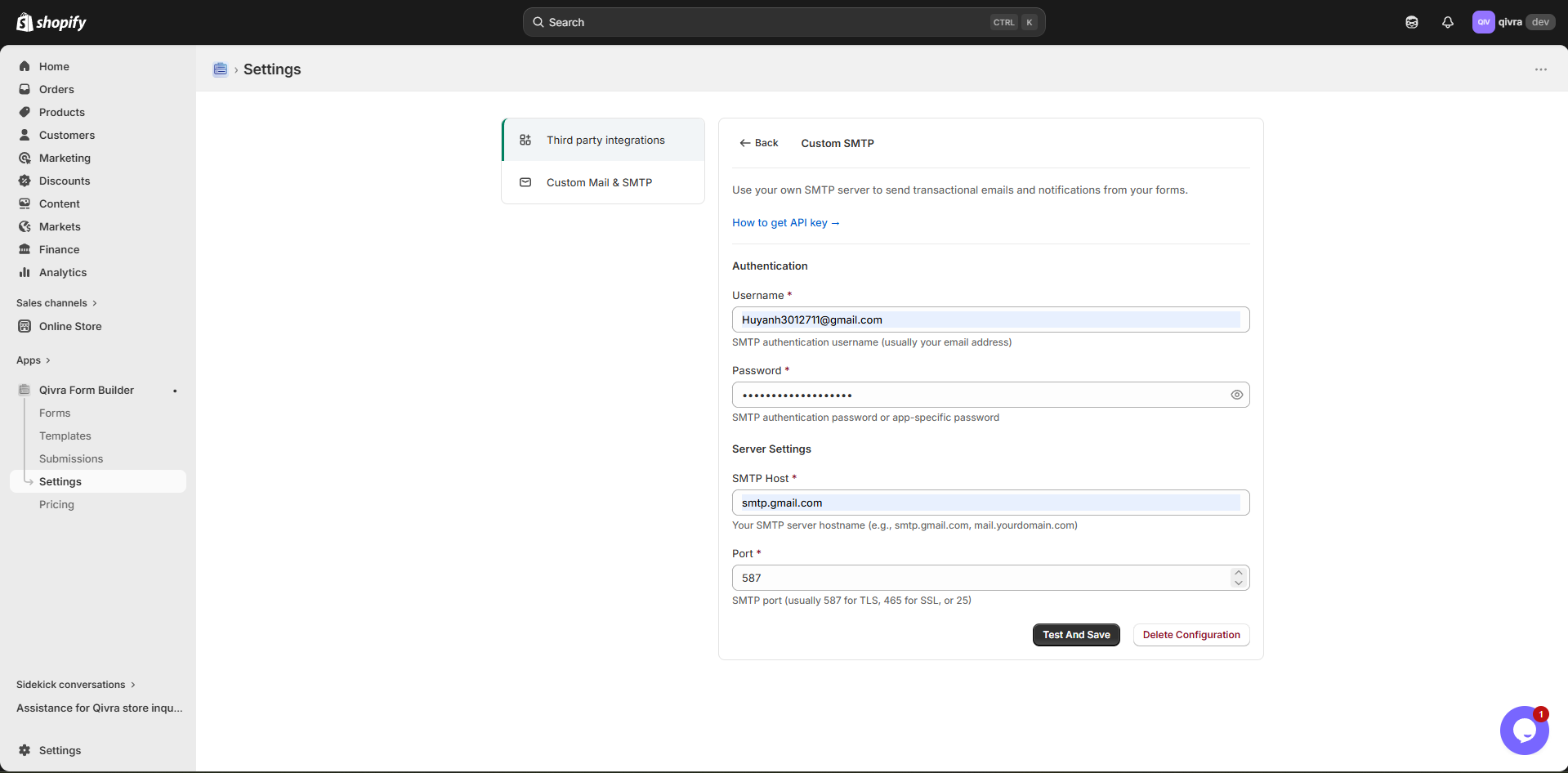
- Click Test And Save button
- The app will verify your connection
- If successful, settings are saved automatically
After configuring SMTP:
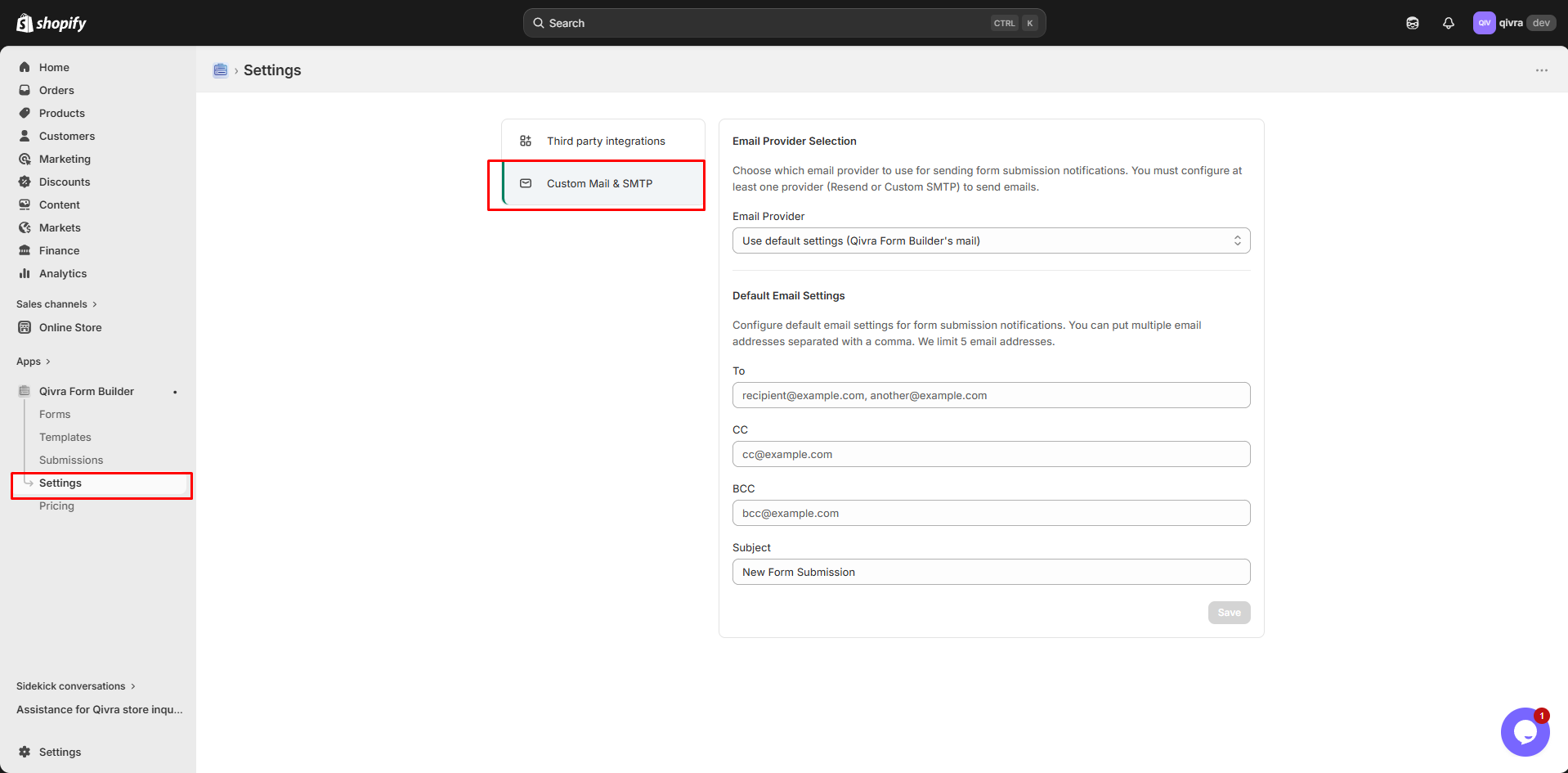
- Go to Settings > Custom Mail & SMTP
- In the Email Provider dropdown, select Custom SMTP
- Configure default email settings:
- To: Default recipient email(s) - separate multiple emails with comma (max 5)
- CC: Default CC email(s)
- BCC: Default BCC email(s)
- Subject: Default subject line (supports
{{templateName}} variable)
- Click Save
| Port | Use Case | Security |
|---|
| 25 | Standard SMTP | Often blocked by hosting providers |
| 465 | SMTP over SSL | Direct SSL/TLS connection |
| 587 | SMTP with STARTTLS | Recommended (secure) |
| 2525 | Alternative | When 587 is blocked |
| Option | Description | When to Use |
|---|
| Port 587 | STARTTLS encryption | Most SMTP providers (recommended) |
| Port 465 | SSL/TLS encryption | Legacy SSL connections |
The app automatically handles encryption based on the port you select.
| Cause | Solution |
|---|
| Wrong host | Verify SMTP server address |
| Blocked port | Try alternative port (2525 instead of 587) |
| Firewall | Allow outbound SMTP traffic |
| Cause | Solution |
|---|
| Wrong credentials | Double-check username/password |
| App password needed | Generate app-specific password (Gmail) |
| 2FA enabled | Use app password, not account password |
| Cause | Solution |
|---|
| Rate limits | Check provider sending limits |
| From email mismatch | Use same email as SMTP account |
| Spam filters | Check content for spam triggers |
| Error | Cause | Solution |
|---|
| ”Invalid login” | Wrong username/password | Verify credentials |
| ”Connection timeout” | Cannot reach SMTP server | Check host and port |
| ”Greeting never received” | Wrong protocol/port | Use correct port (587 or 465) |
- Gmail account
- 2-Factor Authentication enabled
- App Password generated
-
Enable 2FA
- Go to Google Account > Security
- Enable 2-Step Verification
-
Generate App Password
- Security > 2-Step Verification > App passwords
- Select “Mail” and “Other (Custom name)”
- Enter “Form Builder” as name
- Copy the 16-character password
-
Configure in Form Builder
- Host:
smtp.gmail.com
- Port:
587
- Username:
your@gmail.com
- Password:
[App Password]
| Plan | Daily Limit |
|---|
| Free Gmail | 500 emails/day |
| Google Workspace | 2,000 emails/day |
- Use app-specific passwords when available (Gmail, Outlook)
- Don’t use your main account password for SMTP
- Rotate passwords periodically (every 90 days recommended)
- Always use encrypted connections (port 587 or 465)
- Avoid unencrypted connections (port 25)
Check your SMTP provider’s dashboard for:
- Sending statistics
- Bounce and complaint reports
- Delivery rates
- Reputation score
Play