Create a Pre-Order Offer
This guide walks you through creating a pre-order offer from start to finish.
Step 1: Create a New Offer
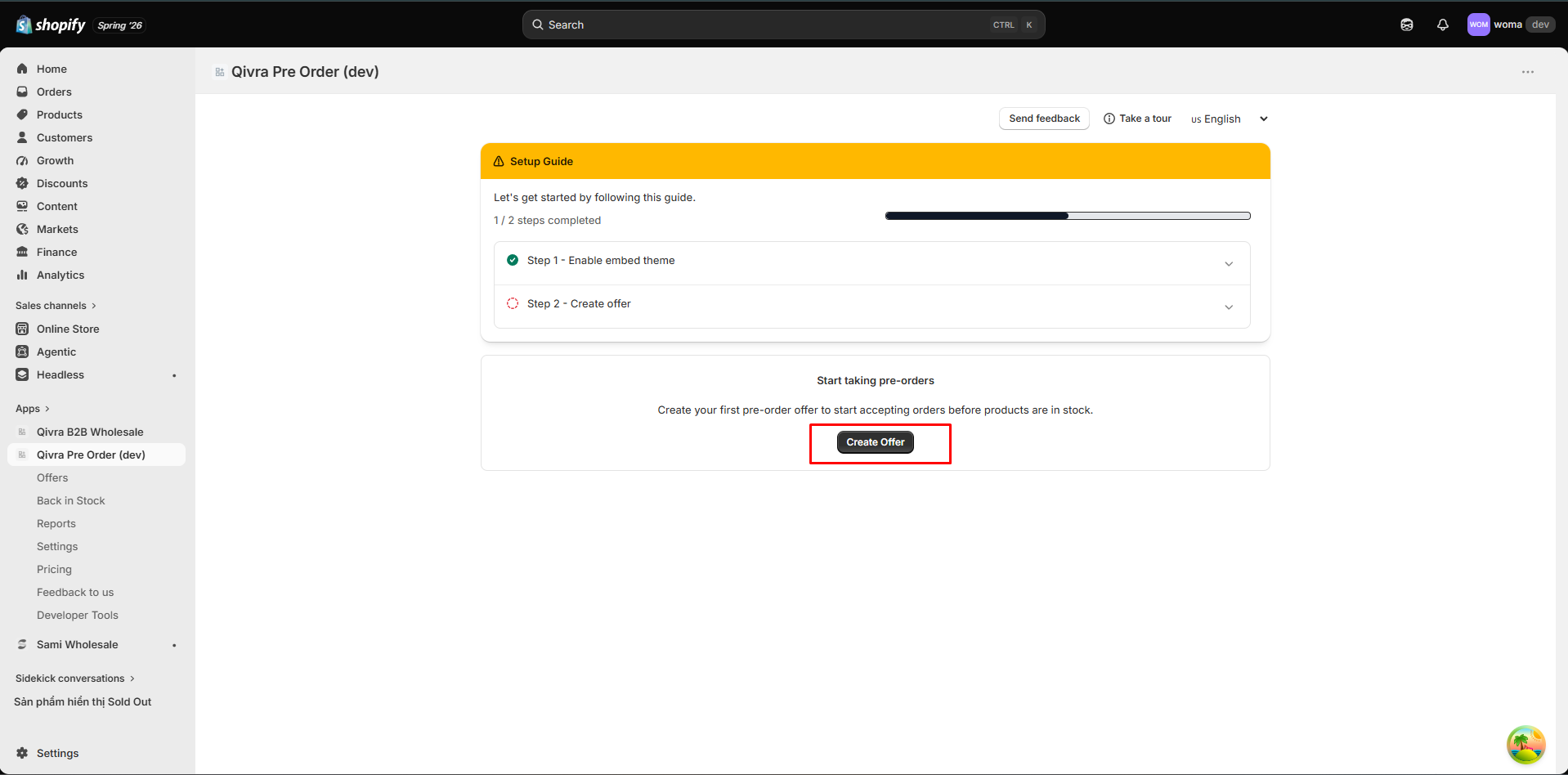
Section titled “Step 1: Create a New Offer”- In the app dashboard, go to Offers > Create Offer
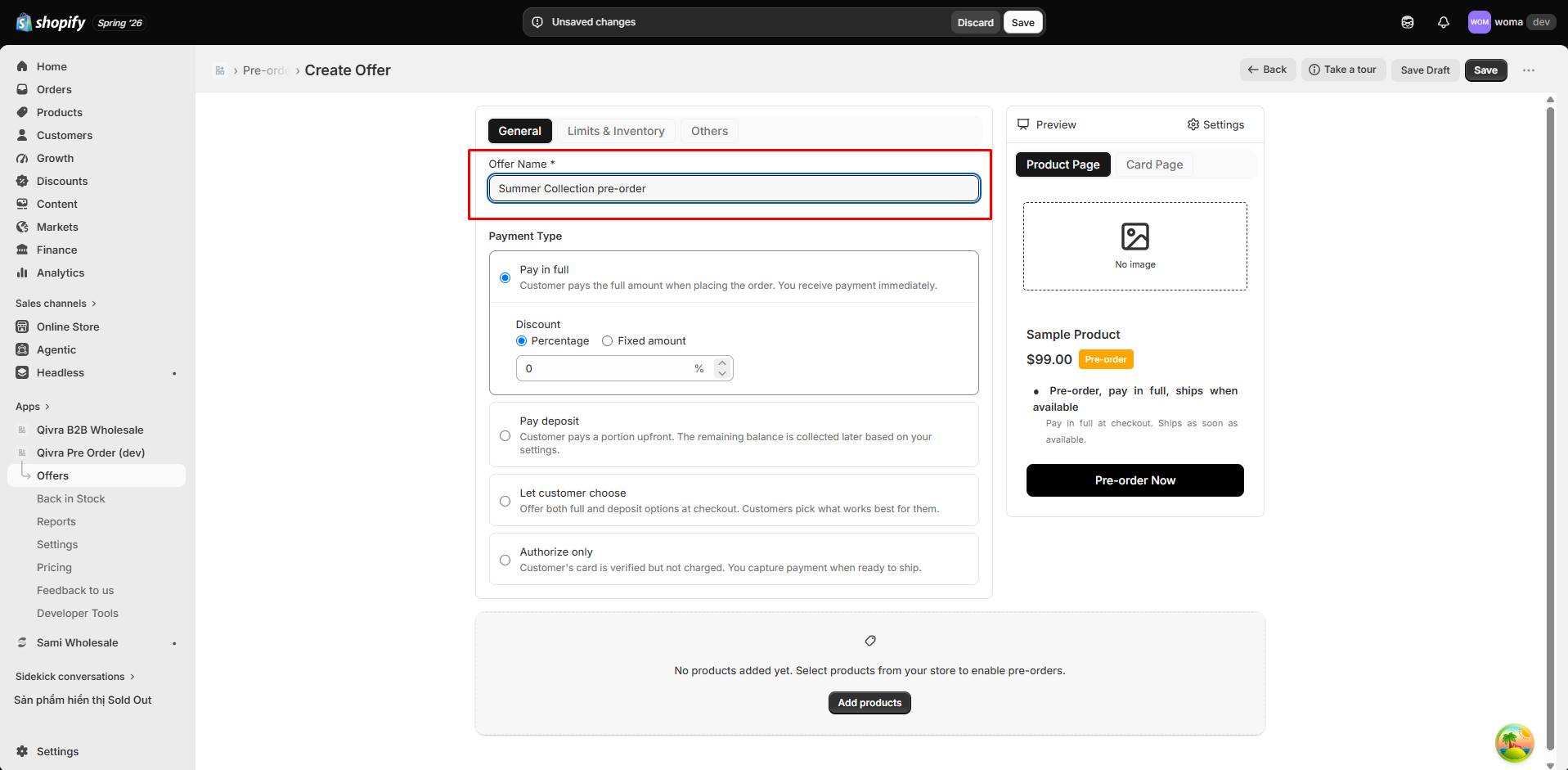
- Enter a name for your campaign (e.g., “Summer Collection Pre-Order”)
Step 2: Configure General Settings
Section titled “Step 2: Configure General Settings”In the Others tab, configure:
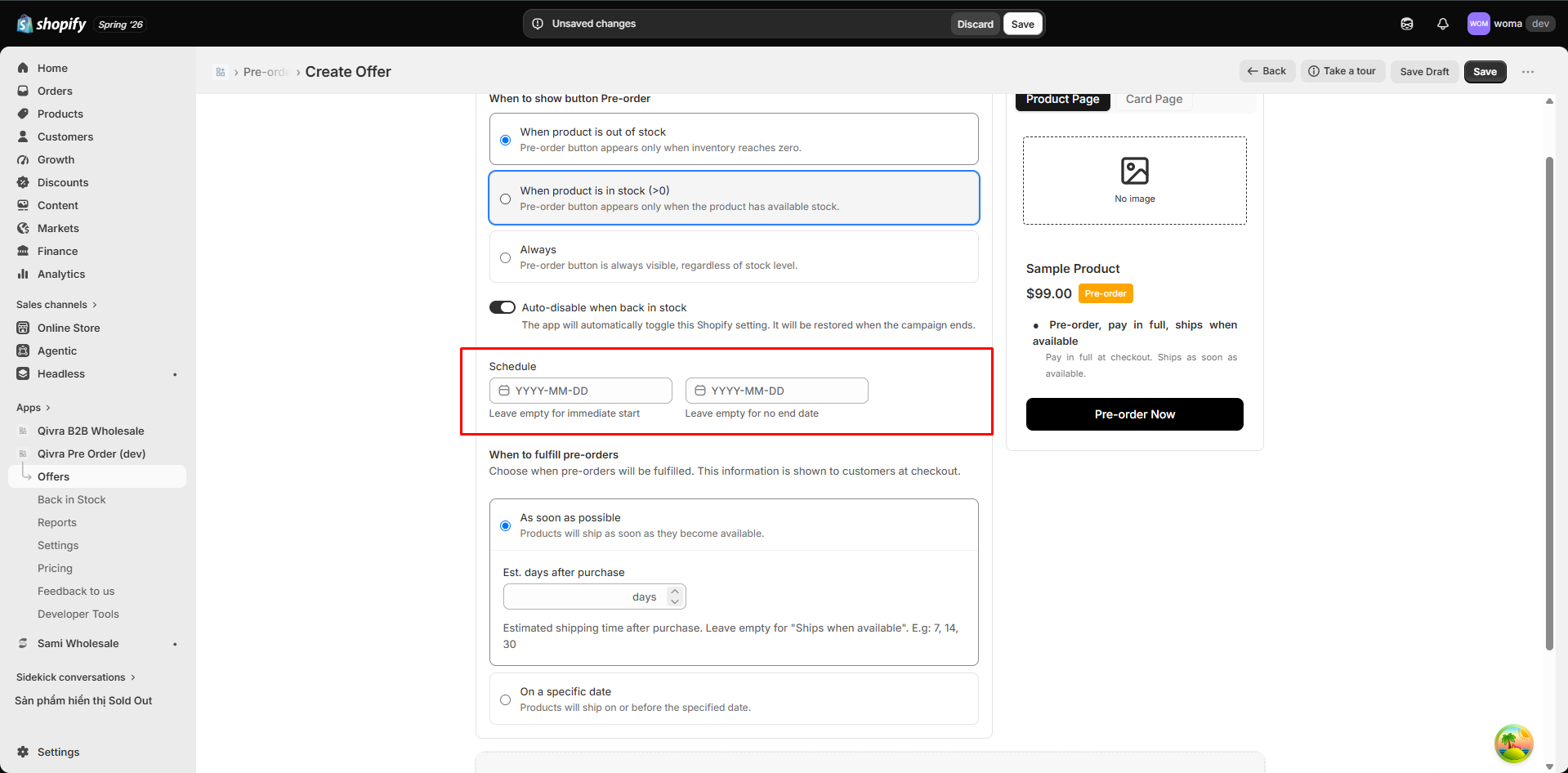
Schedule
Section titled “Schedule”Set start and end dates for your campaign:
- Start date: When the pre-order campaign becomes active
- End date: When the campaign automatically completes
- Leave both empty for a campaign with no time limit
The scheduler automatically activates and completes offers based on these dates.
Inventory Mode
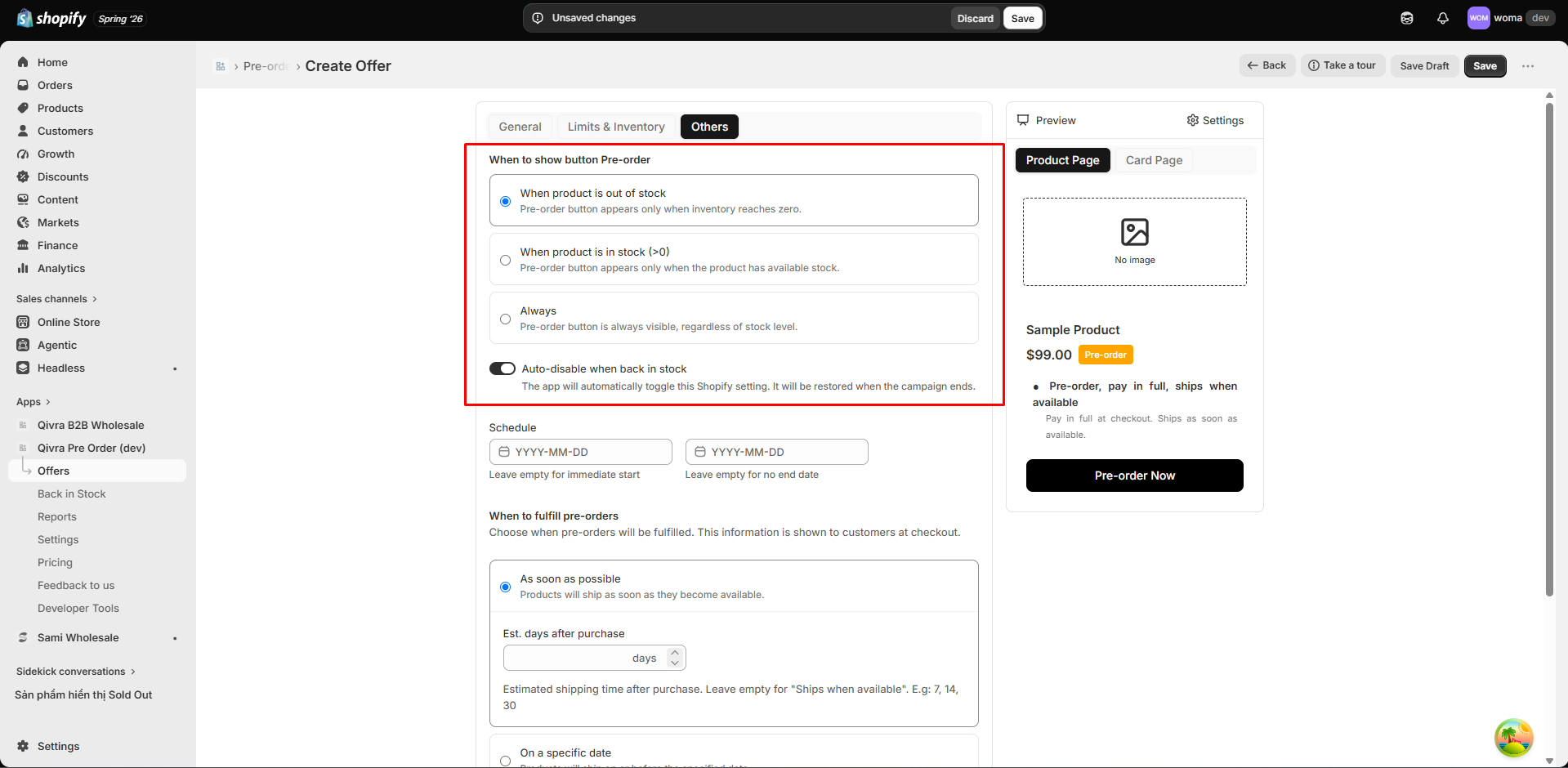
Section titled “Inventory Mode”Choose when to show the pre-order option:
| Mode | When Pre-Order Appears |
|---|---|
| Allow when out of stock | Only when inventory is 0 or below |
| Allow when in stock | Only when inventory is above 0 |
| Always | Regardless of inventory level |
If you select Allow when out of stock, you can also enable Auto-disable when back in stock. This automatically pauses the pre-order when inventory is replenished.
Fulfillment Timing
Section titled “Fulfillment Timing”Still in the Others tab, set customer expectations for when pre-orders ship. This information is shown to customers at checkout:
| Option | Behavior |
|---|---|
| As soon as possible | Products ship as soon as they become available. Optionally set an estimated number of days after purchase (e.g., 7, 14, 30) — leave empty to show “Ships when available” |
| On a specific date | Products ship on or before a date you pick (the expected fulfillment date) |
Step 3: Configure Payment
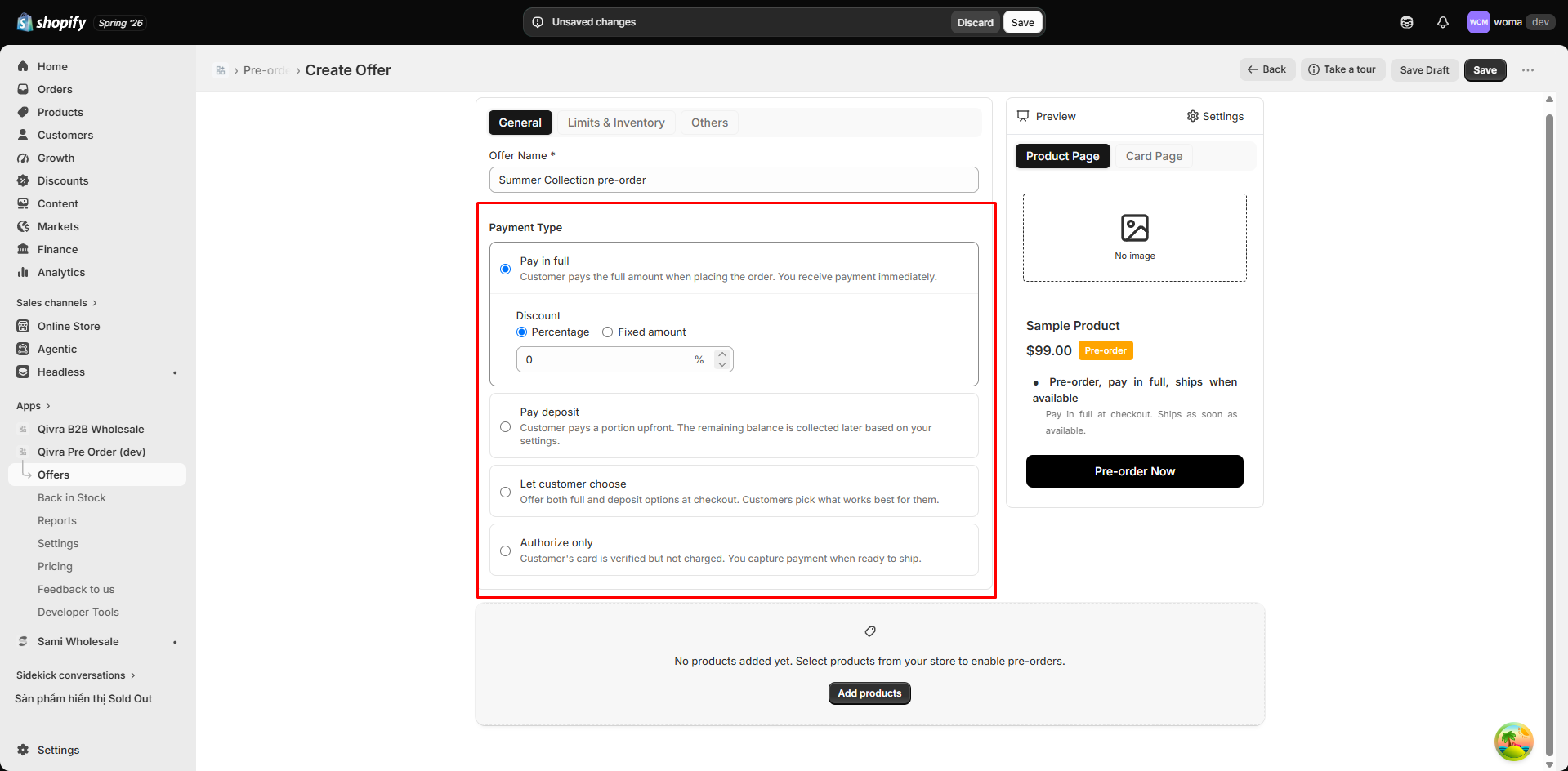
Section titled “Step 3: Configure Payment”In the General tab, choose a payment type:
Full Payment
Section titled “Full Payment”Customer pays 100% at checkout. No remaining balance.
Partial Payment (Deposit)
Section titled “Partial Payment (Deposit)”Customer pays a deposit (percentage or fixed amount). Remaining balance is charged later based on your trigger setting.
- Deposit: Set as percentage (e.g., 30%) or fixed amount (e.g., $10)
- Remaining balance trigger: When to charge the rest
- On fulfillment (Premium feature, coming soon)
- X days after checkout
- At an exact date and time
Combined
Section titled “Combined”Offer both full payment and deposit options in the same campaign. Customers choose at checkout.
Pay Nothing
Section titled “Pay Nothing”Authorization only at checkout. No charge until the trigger fires. Premium feature (coming soon).
Discounts
Section titled “Discounts”You can apply a discount to any payment type:
- Percentage discount: e.g., 10% off
- Fixed amount discount: e.g., $5 off
See Payment & Schedule for detailed payment configuration.
Step 4: Set Quantity Limits
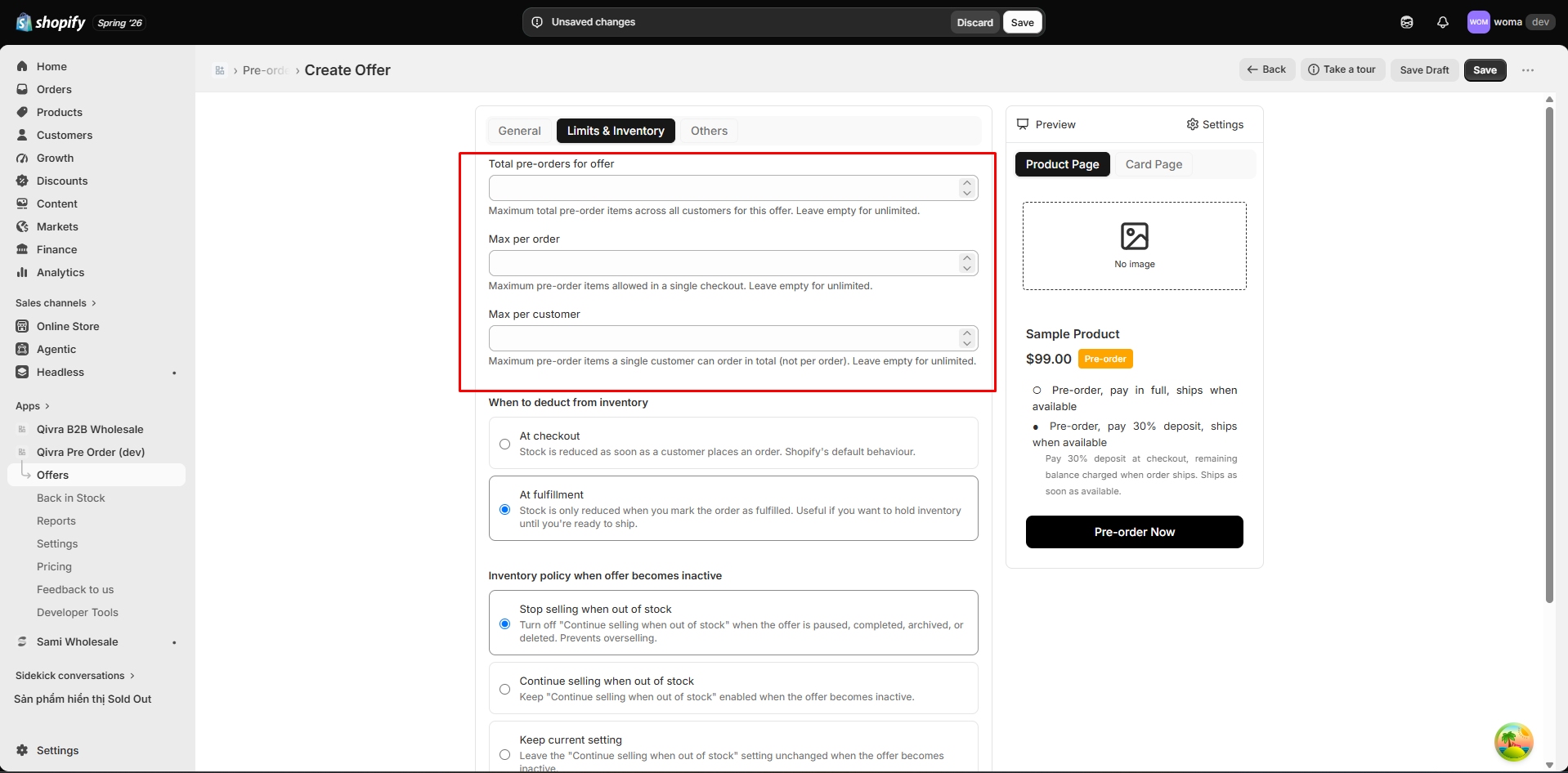
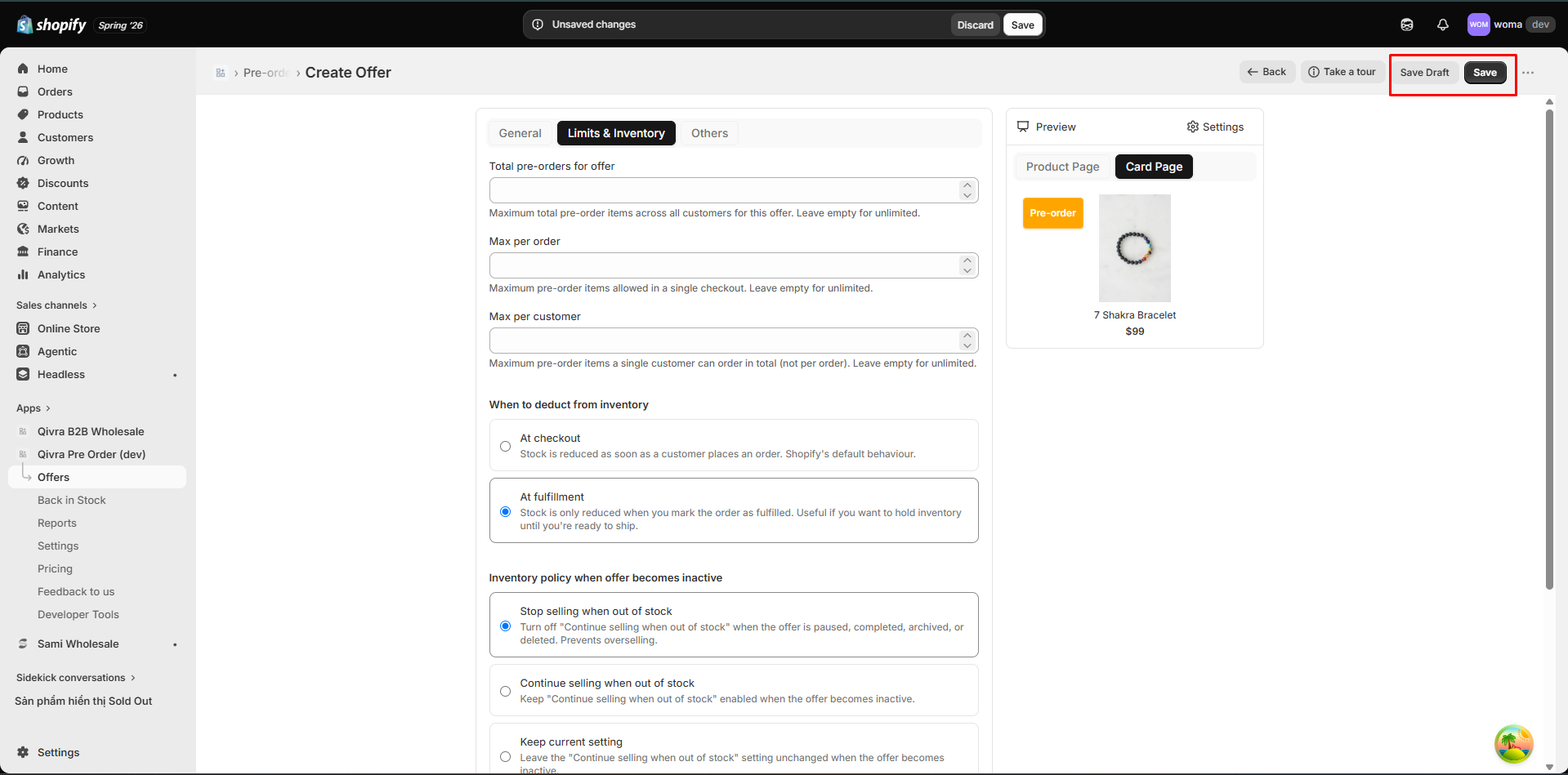
Section titled “Step 4: Set Quantity Limits”In the Limits tab, configure:
| Limit | Description |
|---|---|
| Campaign total | Maximum total units sold across all customers |
| Per customer | Maximum units per individual customer (Premium, coming soon) |
| Per order | Maximum units per single order |
Leave any field empty for unlimited. Limits help create urgency and manage inventory expectations.
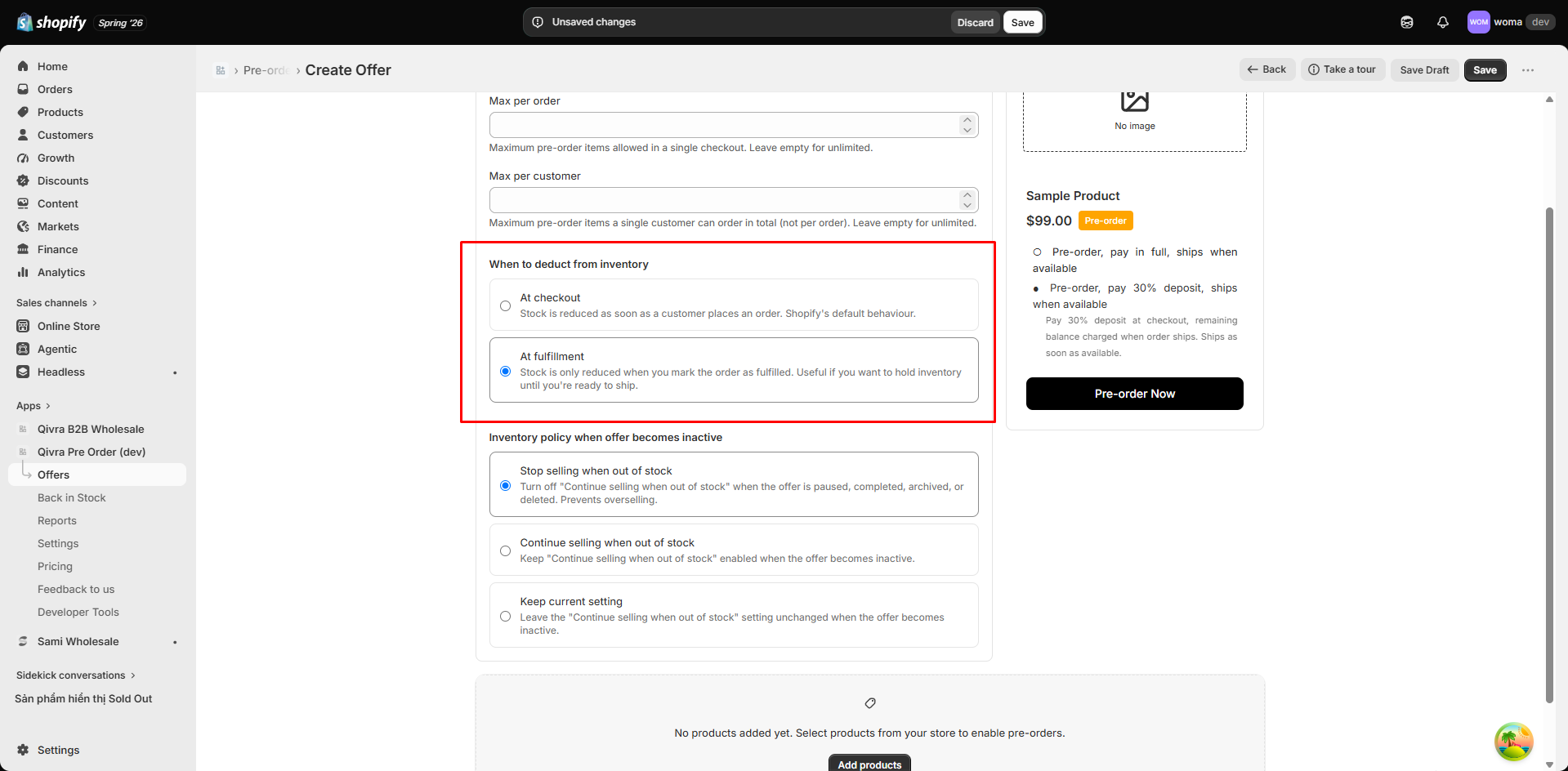
Inventory Reserve Policy
Section titled “Inventory Reserve Policy”Choose when Shopify reserves inventory:
- On sale: Inventory is reserved when the pre-order is placed
- On fulfillment: Inventory is reserved when the order is fulfilled
Step 5: Add Products
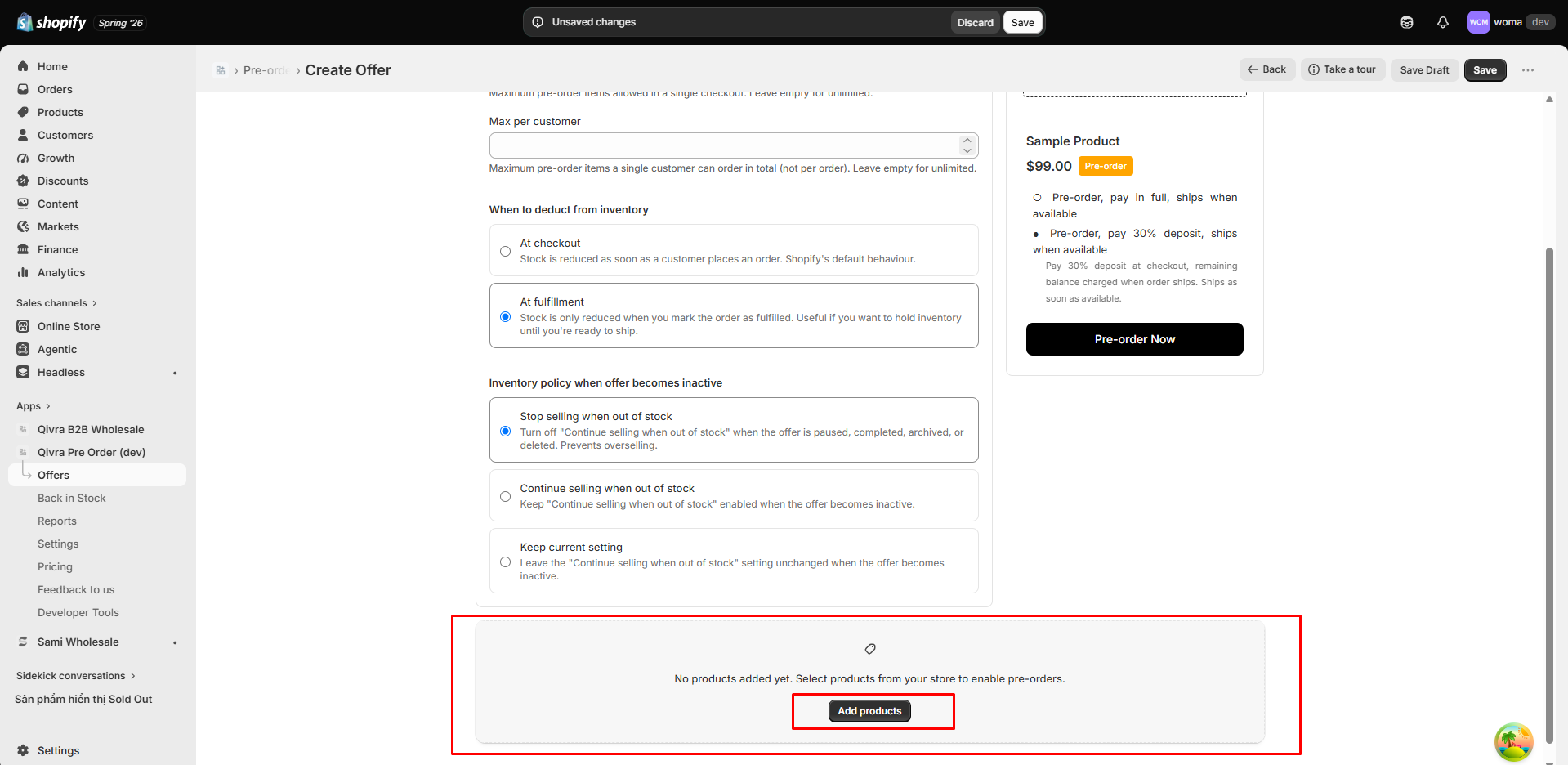
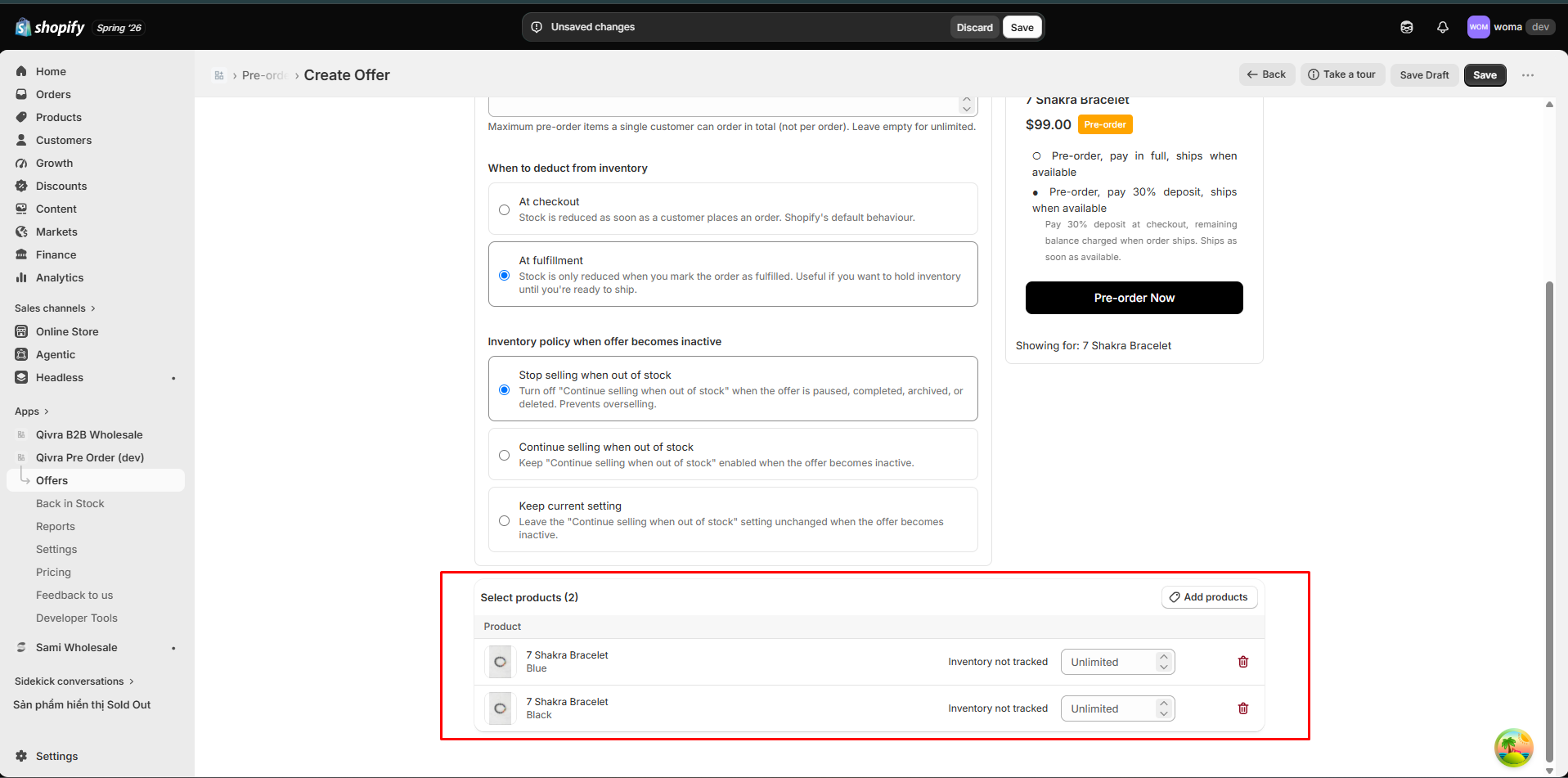
Section titled “Step 5: Add Products”In the Products & Variants section:
- Click Add Products
- Search and select products from your Shopify catalog
- Choose specific variants or all variants
- Set per-product quantity limits if needed
- Optionally set a custom delivery message per product
Note: A product or variant can only be in one active offer at a time. If a product is already in another active offer, you will see a conflict warning.
Step 6: Preview & Save
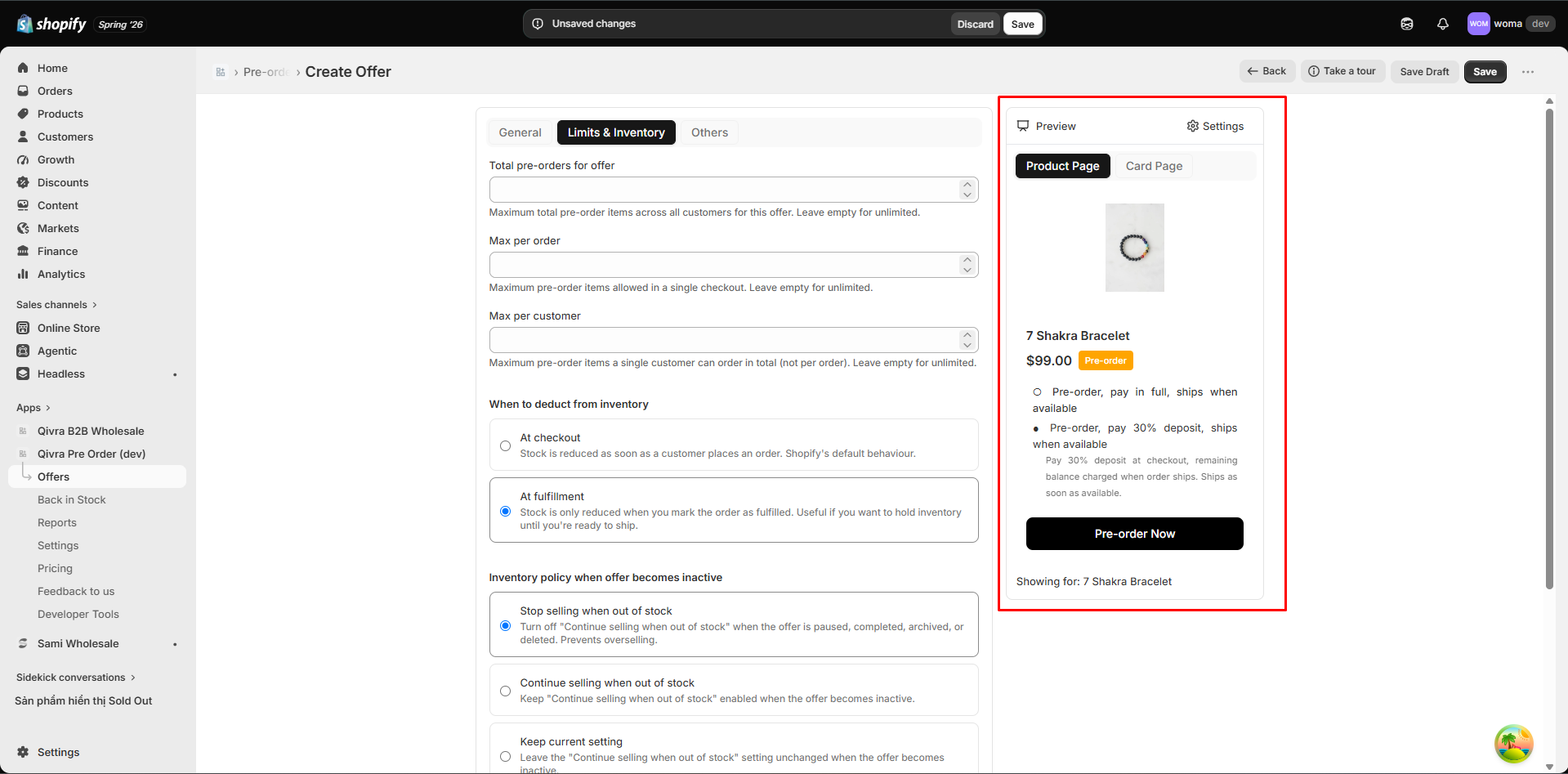
Section titled “Step 6: Preview & Save”Review your offer in the live preview panel on the right:
- PDP Preview: How the offer looks on a product details page
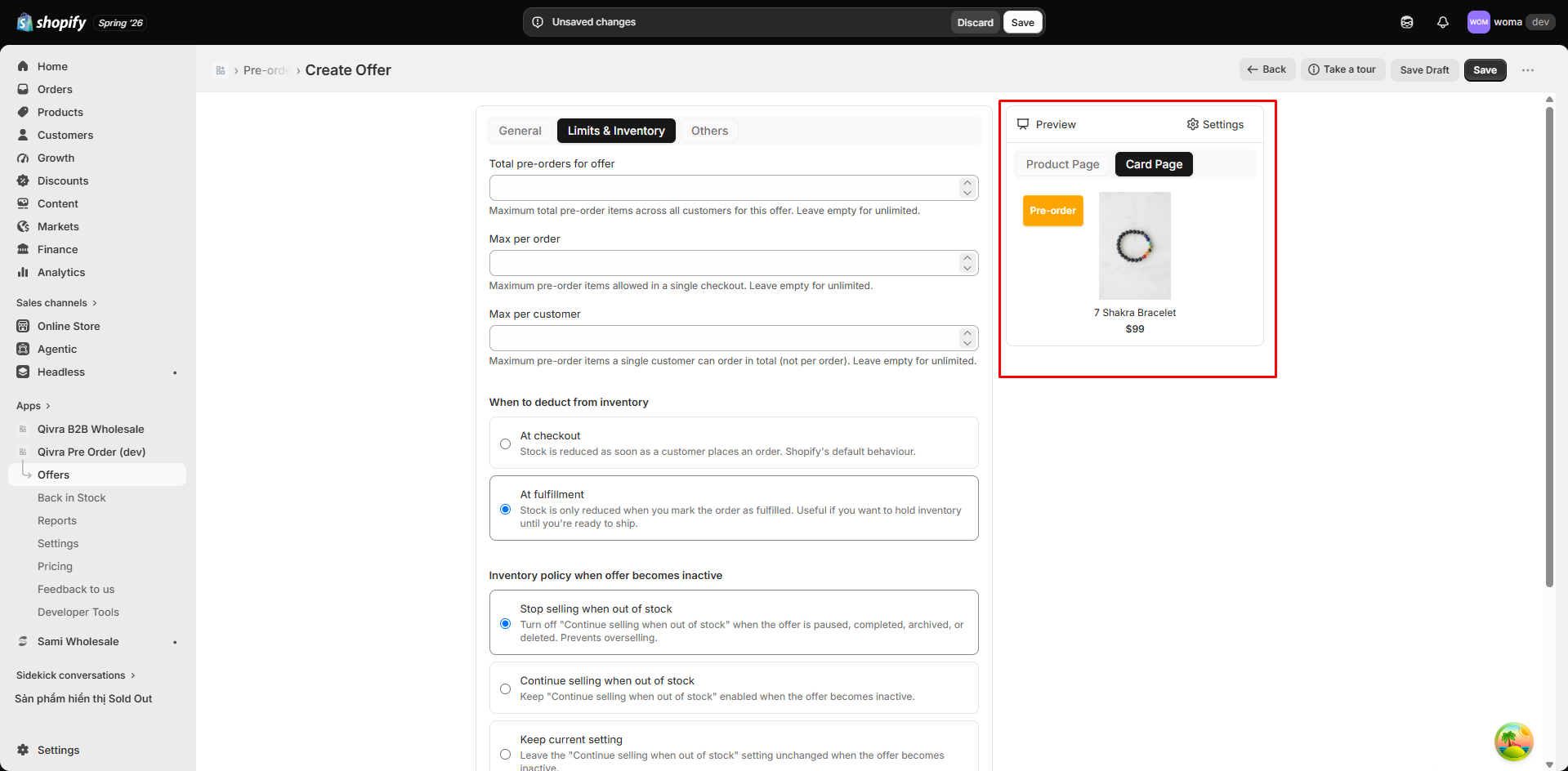
- Card Preview: How the offer looks on collection pages
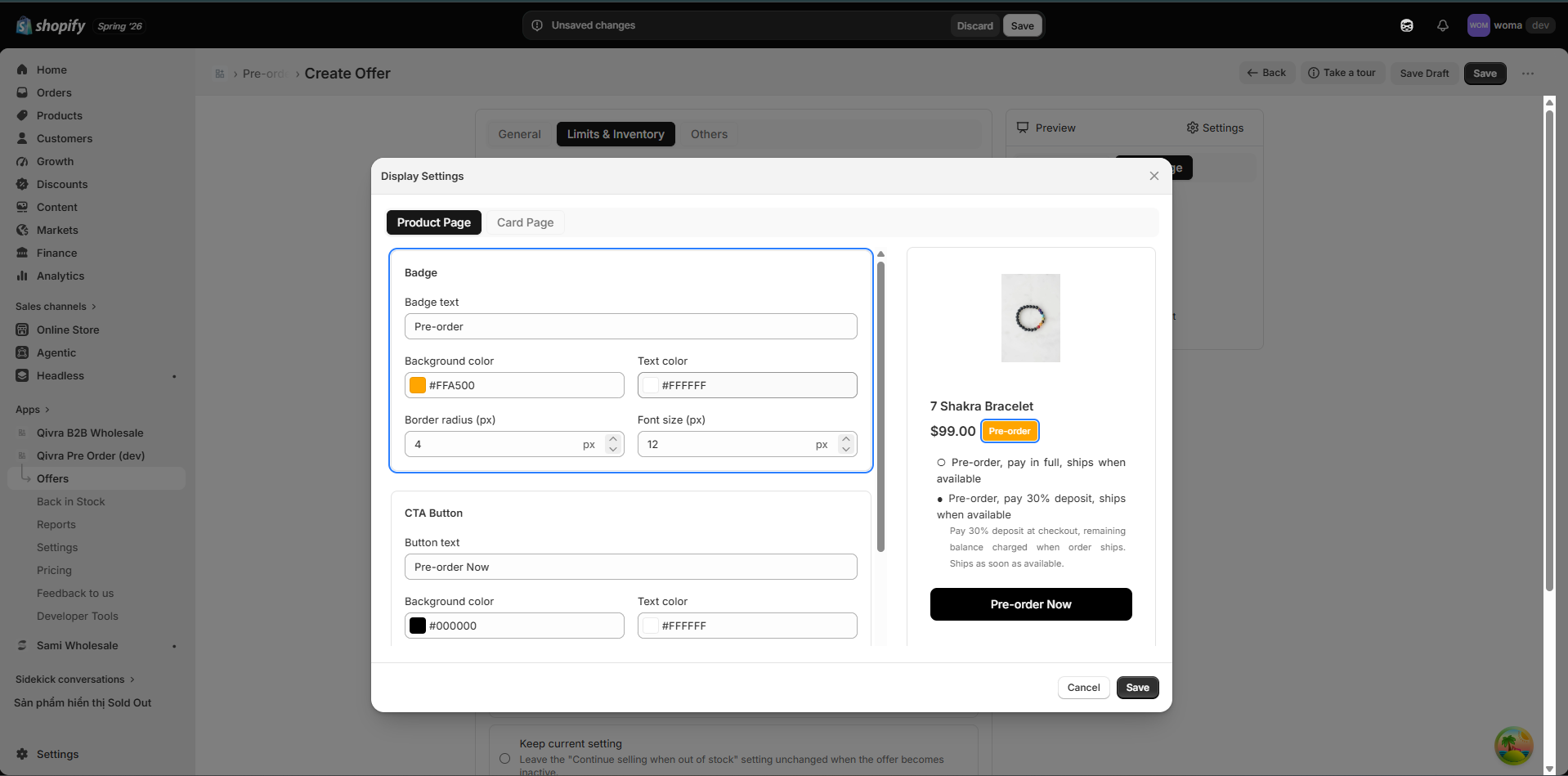
You can open Display Settings from the preview to customize badge and button appearance.
Save Options
Section titled “Save Options”- Save Draft: Save as paused (not visible on storefront)
- Activate: Save and make active (visible on storefront)
Managing Existing Offers
Section titled “Managing Existing Offers”Pause or Resume
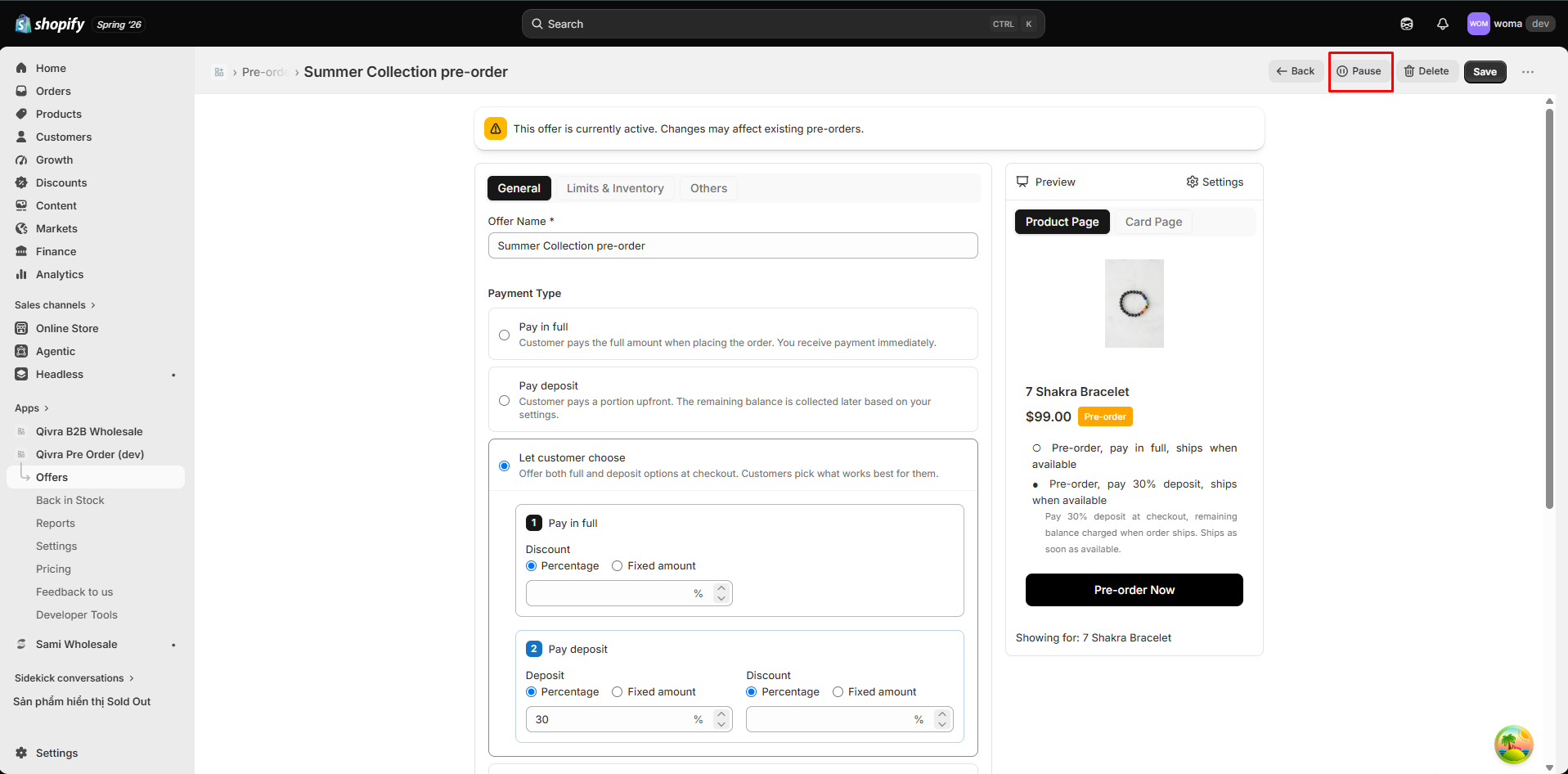
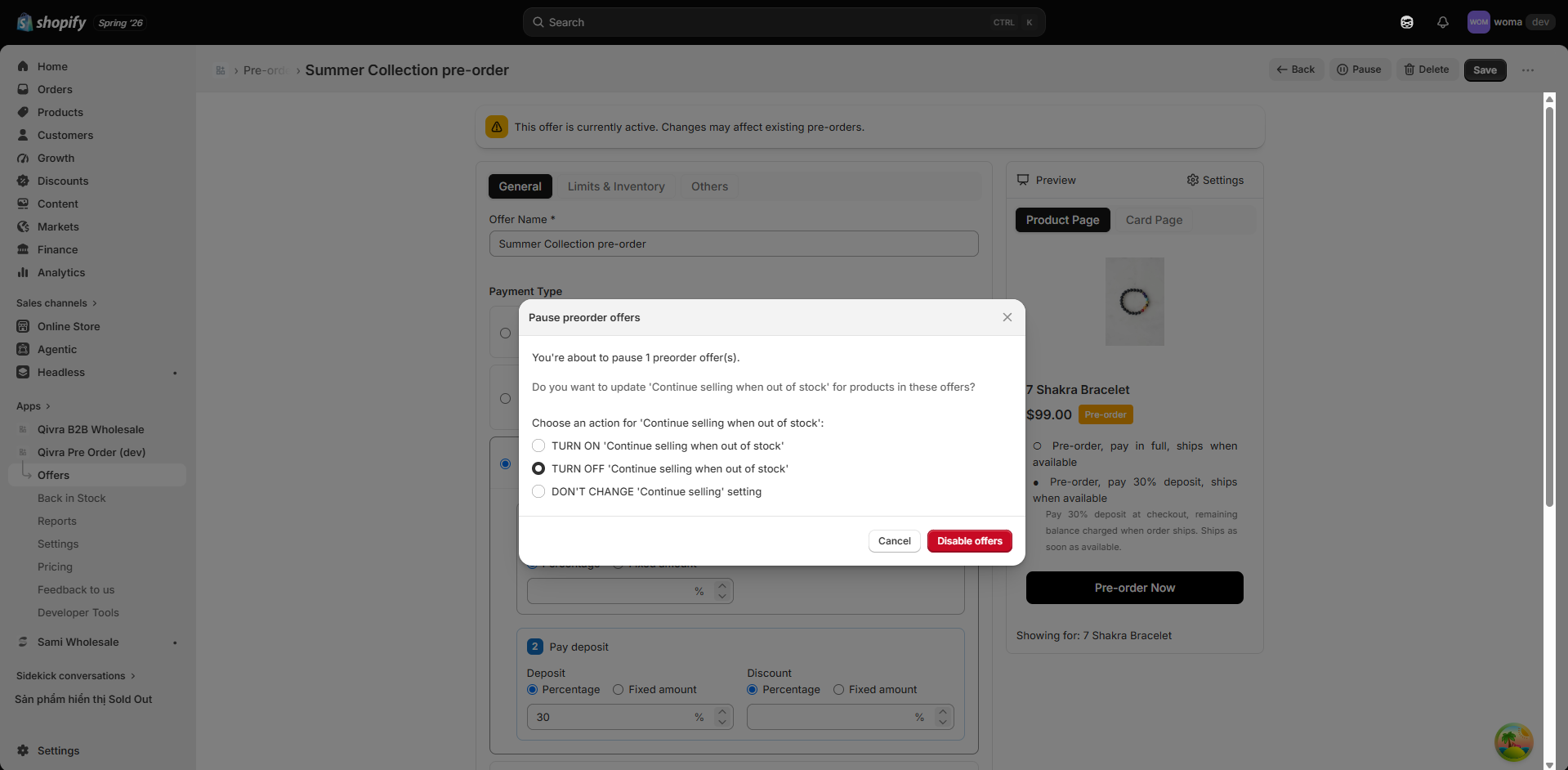
Section titled “Pause or Resume”From the offer detail page, click Pause or Resume to toggle the offer status without deleting it.
Delete an Offer
Section titled “Delete an Offer”Click Delete on the offer detail page. This removes the offer and disconnects products from the Selling Plan. Existing orders are not affected.
Duplicate an Offer
Section titled “Duplicate an Offer”From the offer list, use the duplicate option to create a copy of an existing offer with the same settings.