Pricing Rules — Discounts and Price Breaks
This guide explains the two pricing rule types in a Qivra B2B Wholesale price list — discounts and price breaks — and how to configure each one.
A price list must contain at least one rule before it can be activated.
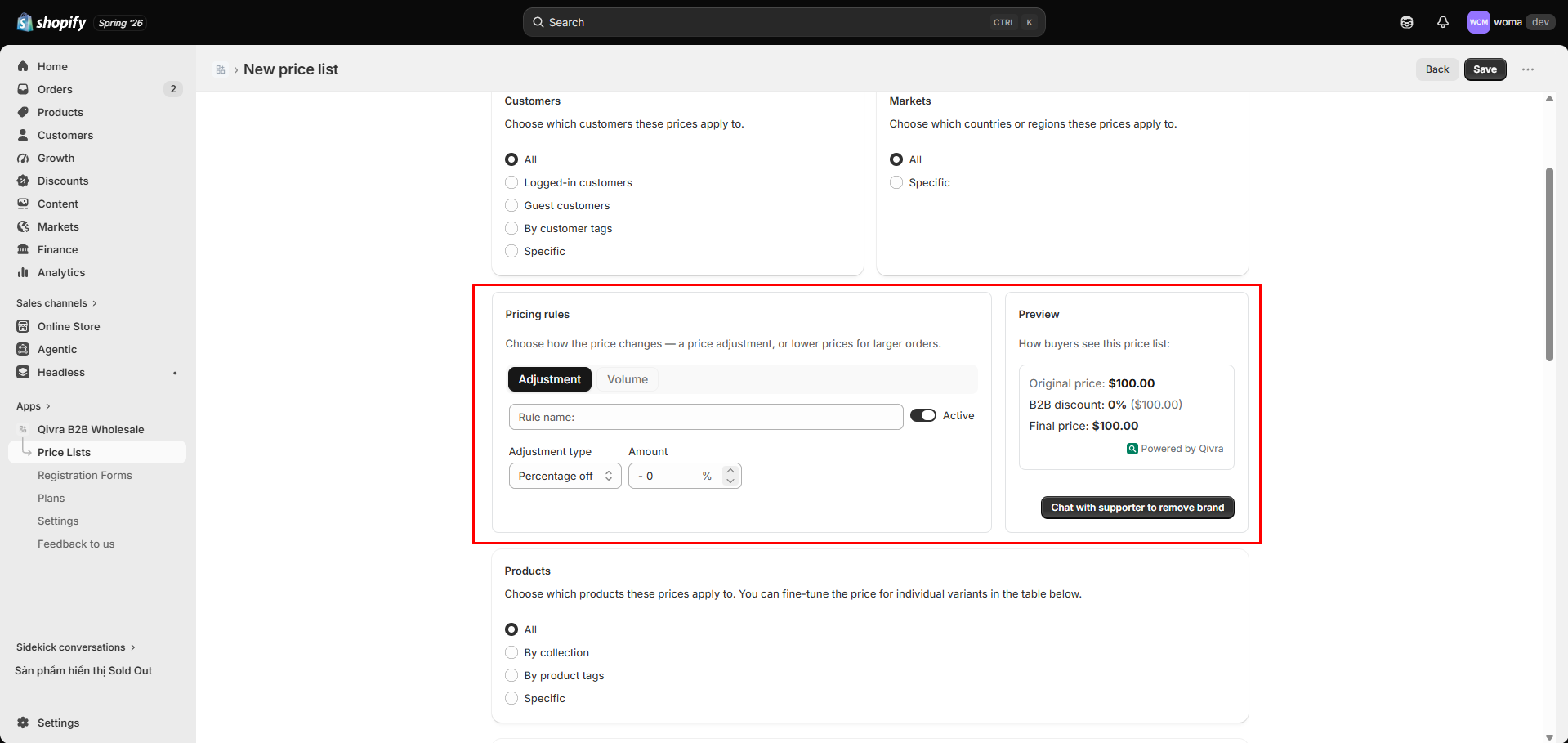
Rule types at a glance
Section titled “Rule types at a glance”| Rule type | Use case | Example |
|---|---|---|
| Discount | One flat adjustment across all matched products | ”10% off everything in this list” |
| Price break | Quantity-based tiers (volume pricing) | “Buy 5–9 get 5% off, buy 10+ get 10% off” |
Discounts
Section titled “Discounts”A discount applies a single adjustment to every matched product in the price list.
Discount types
Section titled “Discount types”| Type | What it does |
|---|---|
| Percentage off | Reduces the variant price by a percentage (e.g. 10% off). |
| Fixed amount off | Reduces the variant price by a fixed currency amount (e.g. $5 off). |
| Fixed price | Sets an exact unit price (when available for the rule) — wins over every other adjustment. |
Add a discount
Section titled “Add a discount”- Open the price list editor and go to the Discount tab.
- Toggle the rule Active.
- Enter a Rule name.
- Choose a Discount type: Percentage off or Fixed amount off.
- Enter the Amount.
- Save the price list.
Price breaks (volume tiers)
Section titled “Price breaks (volume tiers)”Price breaks let you offer different pricing as the customer buys more. Each tier has a quantity range and an adjustment.
Tier fields
Section titled “Tier fields”| Field | Meaning |
|---|---|
| From qty | Quantity where this tier starts (minimum 1). |
| To qty | Quantity where this tier ends — filled automatically to stay continuous with the next tier. Leave blank only on the last tier for an open-ended top tier. |
| Adjustment | How the price changes at this quantity. |
| Amount | The value of the adjustment (0 or more). |
Adjustment types
Section titled “Adjustment types”| Adjustment | Behavior |
|---|---|
| Percentage off | Discount at this quantity (e.g. 10% off at 10+ units). |
| Fixed amount | Fixed discount at this quantity. |
| Percentage increase | Marks the price up (used for surcharge scenarios). |
Note on checkout: Percentage increase tiers are applied on the storefront for display, but they are skipped at checkout because Shopify checkout cannot add surcharges. Use increases only to signal display-only markup.
Example: quantity tier table
Section titled “Example: quantity tier table”| From | To | Adjustment | Amount |
|---|---|---|---|
| 1 | 4 | Percentage off | 0% |
| 5 | 9 | Percentage off | 5% |
| 10 | (blank) | Percentage off | 10% |
Result: 1–4 units = full price, 5–9 units = 5% off, 10+ units = 10% off.
Add price breaks
Section titled “Add price breaks”- Open the Price breaks tab.
- Click Add price break.
- Fill in From qty, To qty, Adjustment, and Amount.
- Repeat for each tier. Click Add tier for more rows.
Validation rules
Section titled “Validation rules”- From must be at least 1.
- Tiers must be continuous: each tier’s To connects to the next tier’s From (the app fills it in as you type), so there are no overlaps or gaps.
- To can be left empty only on the last tier (open-ended top tier).
- Amount must be 0 or more.
If a row has an error, it is flagged with a Fix indicator. Resolve all errors before saving.
Combining discounts and price breaks
Section titled “Combining discounts and price breaks”A single price list can include both a discount and price breaks. Both rules apply within the scope of that price list’s customer/market/product selection.
For exact-price control on individual variants regardless of rules, use per-variant overrides.
Per-rule active toggle
Section titled “Per-rule active toggle”Each rule has its own Active/Inactive toggle. You can keep a rule configured but temporarily disabled without deleting it.
Related docs
Section titled “Related docs”- Create your first price list
- Product selection & per-variant overrides
- Customer and market selection
- Priority, status, and effective period