Embed Form via Shortcode
For advanced users who want more control over form placement, you can embed forms directly into your theme code using shortcodes.
What is a Shortcode?
Section titled “What is a Shortcode?”A shortcode is a simple HTML snippet that you can place in your theme files to display a form. It tells Qivra Form Builder where to render your form on the storefront.
Prerequisites
Section titled “Prerequisites”Before embedding, make sure the Qivra Form App Embed is enabled in your theme:
- Go to Online Store > Themes
- Click Customize on your active theme
- In the theme editor, go to App embeds in the sidebar
- Enable Qivra Form Builder
- Save the changes
⚠️ Important: Forms will not display if the App Embed is disabled.
Getting Your Embed Code
Section titled “Getting Your Embed Code”Step 1: Go to Form List
Section titled “Step 1: Go to Form List”- Open Qivra Form Builder from your Shopify Admin
- Navigate to Forms section
- You will see a list of all your forms
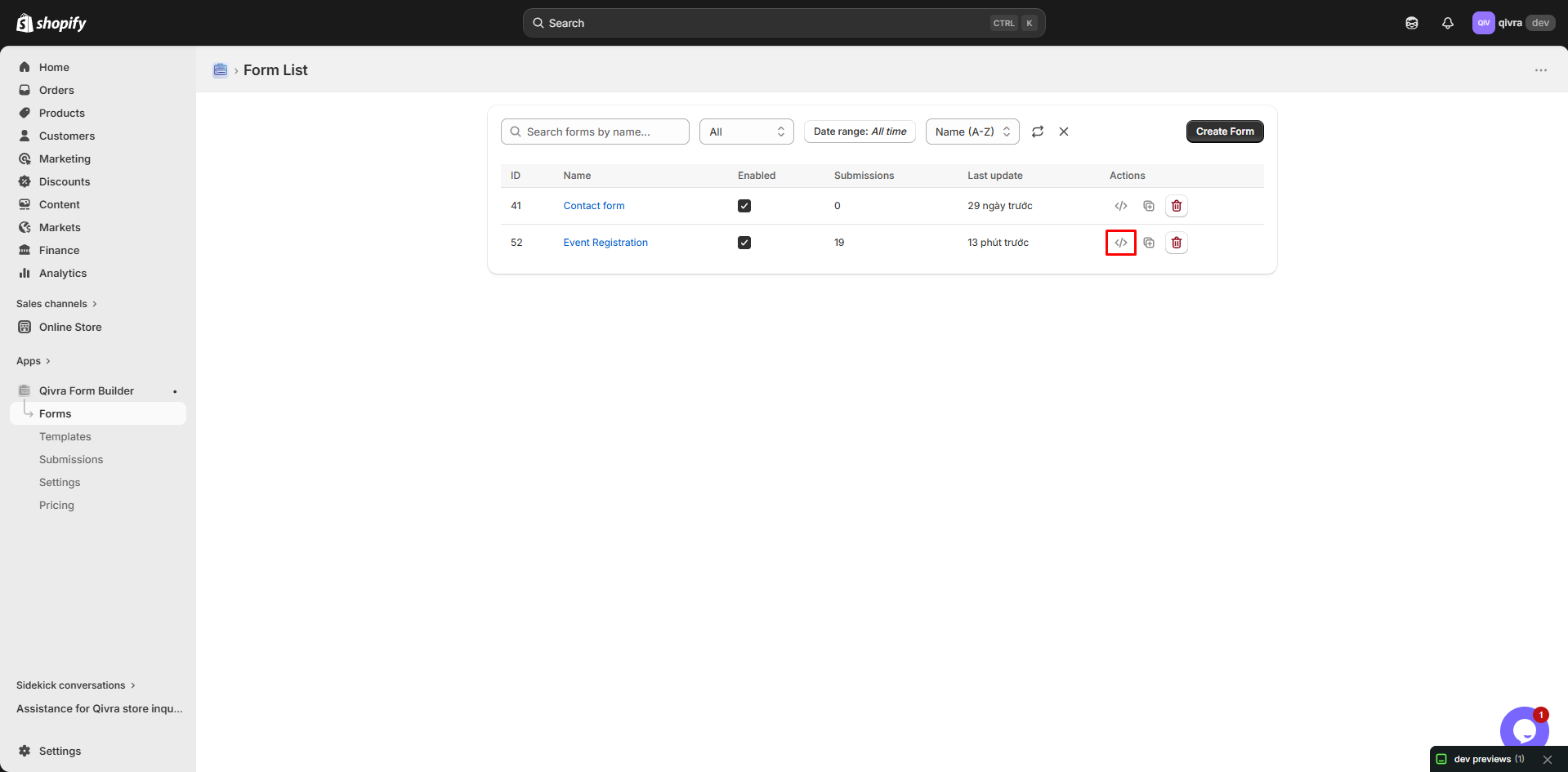
Step 2: Get Embed Code
Section titled “Step 2: Get Embed Code”- Find the form you want to embed
- Click the code icon (
</>) in the Actions column - A modal will appear with your embed code
- The code is automatically copied to your clipboard!
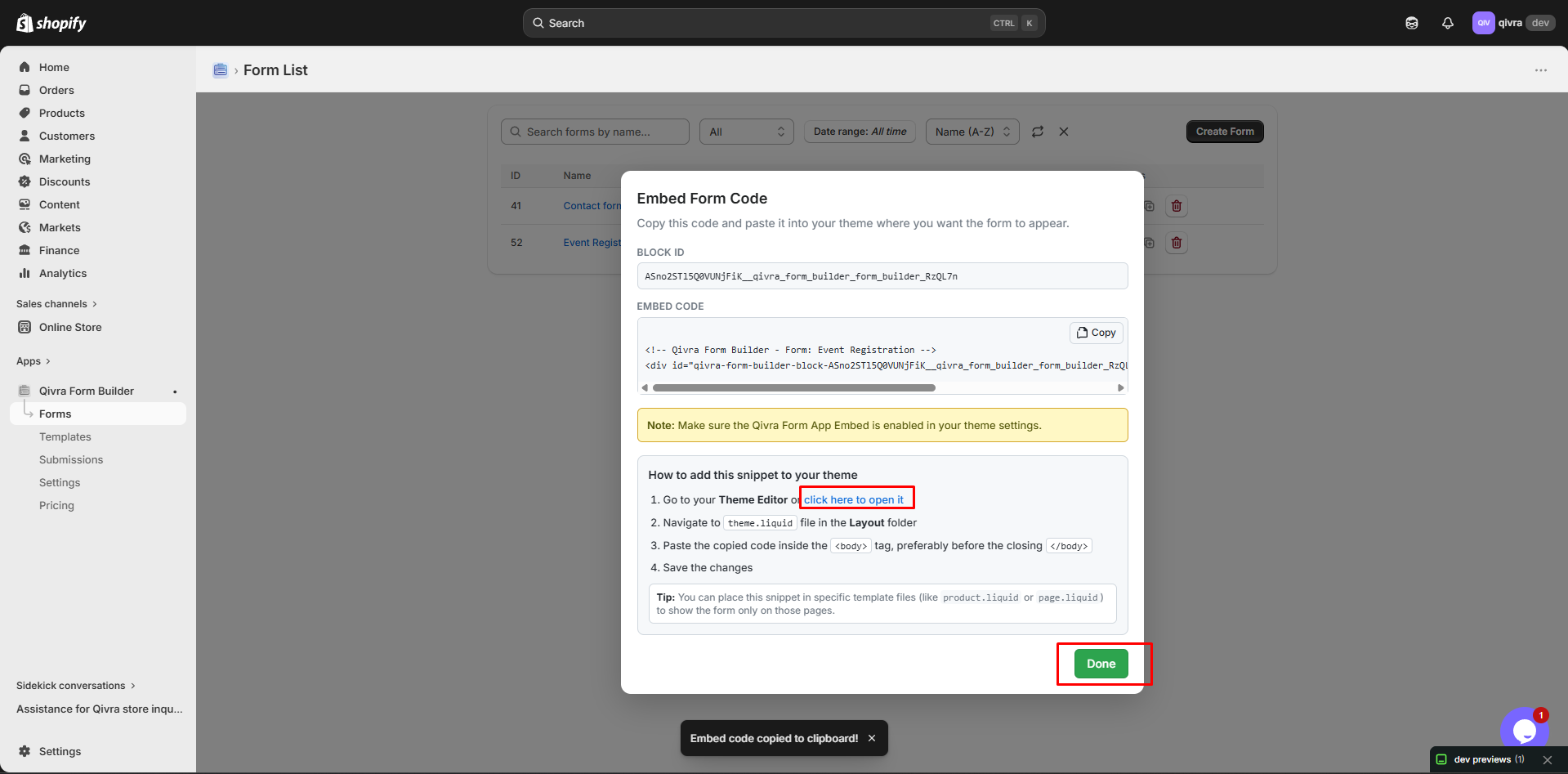
What You’ll See
Section titled “What You’ll See”The embed code looks like this:
<!-- Qivra Form Builder - Form: Contact Us --><div id="qivra-form-builder-block-abc123" class="qivra-form-builder-block"></div>The modal also shows:
- Block ID: A unique identifier for this form instance
- Copy button: To copy the code again if needed
Embedding Methods
Section titled “Embedding Methods”Method 1: Theme Liquid Files (Recommended)
Section titled “Method 1: Theme Liquid Files (Recommended)”Add forms directly to your theme’s .liquid files for permanent placement.
Step-by-Step:
Section titled “Step-by-Step:”- Go to Online Store > Themes
- Click … next to your theme and select Edit code
- Navigate to the file where you want the form (see Common Locations below)
- Paste the embed code where you want the form to appear
- Click Save
Common Locations:
Section titled “Common Locations:”| Location | File | Best For |
|---|---|---|
| All pages | theme.liquid (Layout folder) | Global forms like newsletter, chat |
| Product pages | main-product.liquid (Sections folder) | Product inquiry, customization forms |
| Cart page | main-cart.liquid (Sections folder) | Gift wrap, special instructions |
| Blog posts | article.liquid (Sections folder) | Feedback, comments forms |
| Collection pages | collection.liquid (Sections folder) | Category-specific forms |
| Contact page | page.contact.liquid (Templates folder) | Contact forms |
Example: Add to Product Page
Section titled “Example: Add to Product Page”- Open
sections/main-product.liquid - Find where you want the form (e.g., after product description)
- Paste your embed code:
<div class="product-form-wrapper">  <!-- Your existing product content -->
  <!-- Qivra Form Builder - Form: Product Inquiry -->  <div id="qivra-form-builder-block-abc123" class="qivra-form-builder-block"></div></div>
Example: Add to All Pages (Global)
Section titled “Example: Add to All Pages (Global)”- Open
layout/theme.liquid - Find the closing
</body>tag - Paste your embed code just before it:
<!-- Qivra Form Builder - Form: Newsletter --> <div id="qivra-form-builder-block-xyz789" class="qivra-form-builder-block"></div></body></html>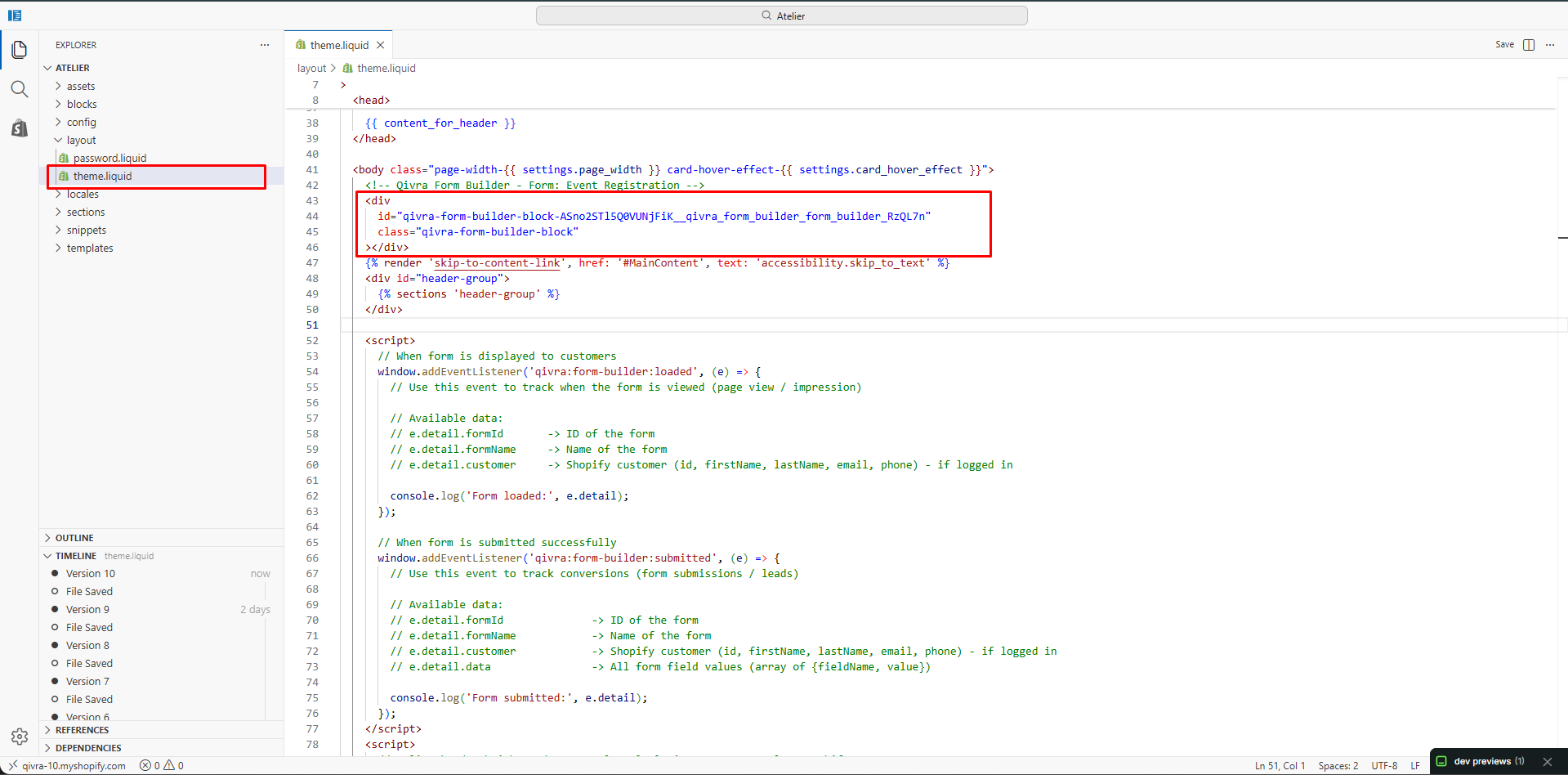
Method 2: Conditional Display
Section titled “Method 2: Conditional Display”Show forms only on specific conditions using Liquid:
Show on Specific Product Type
Section titled “Show on Specific Product Type”{%- if product.type == 'Custom Product' -%} <!-- Qivra Form Builder - Form: Custom Order --> <div id="qivra-form-builder-block-abc123" class="qivra-form-builder-block"></div>{%- endif -%}Show on Specific Page
Section titled “Show on Specific Page”{%- if page.handle == 'contact' -%} <!-- Qivra Form Builder - Form: Contact --> <div id="qivra-form-builder-block-def456" class="qivra-form-builder-block"></div>{%- endif -%}Show Based on Product Tag
Section titled “Show Based on Product Tag”{%- if product.tags contains 'preorder' -%} <!-- Qivra Form Builder - Form: Pre-order --> <div id="qivra-form-builder-block-ghi789" class="qivra-form-builder-block"></div>{%- endif -%}Method 3: Multiple Forms
Section titled “Method 3: Multiple Forms”Display different forms based on conditions:
{%- case product.type -%} {%- when 'Electronics' -%} <!-- Qivra Form Builder - Form: Electronics Inquiry --> <div id="qivra-form-builder-block-elec123" class="qivra-form-builder-block"></div> {%- when 'Clothing' -%} <!-- Qivra Form Builder - Form: Size Guide --> <div id="qivra-form-builder-block-size456" class="qivra-form-builder-block"></div> {%- else -%} <!-- Qivra Form Builder - Form: General Inquiry --> <div id="qivra-form-builder-block-gen789" class="qivra-form-builder-block"></div>{%- endcase -%}Styling Embedded Forms
Section titled “Styling Embedded Forms”Custom CSS
Section titled “Custom CSS”Add custom styles to match your theme:
/* In your theme's CSS file or inside <style> tags */
.qivra-form-builder-block {  max-width: 600px;  margin: 20px auto;  padding: 20px;}
/* Form container styling */.qivra-form-builder-block form {  background: #f9f9f9;  border-radius: 8px;  padding: 24px;}
/* Responsive adjustments */@media (max-width: 768px) {  .qivra-form-builder-block {    padding: 15px;    margin: 10px;  }}
Inline Styling
Section titled “Inline Styling”You can also add inline styles to the wrapper:
<div id="qivra-form-builder-block-abc123" class="qivra-form-builder-block" style="max-width: 500px; margin: 20px auto;"></div>Troubleshooting
Section titled “Troubleshooting”Form Not Appearing
Section titled “Form Not Appearing”- Check App Embed: Ensure Qivra Form App Embed is enabled in Theme Editor
- Verify code placement: Make sure the embed code is in the correct file
- Clear cache: Clear your browser and Shopify cache
- Check form status: The form must be enabled in the app
- Check block ID: Ensure the block ID matches what was generated
Form Shows but Doesn’t Work
Section titled “Form Shows but Doesn’t Work”- Check browser console for JavaScript errors
- Ensure no conflicts with other apps
- Verify the form is properly configured in the app
Styling Issues
Section titled “Styling Issues”- Theme CSS may override form styles
- Use more specific CSS selectors
- Add
!importantif necessary to override theme styles
Best Practices
Section titled “Best Practices”Performance
Section titled “Performance”- Don’t embed too many forms on one page
- Place forms strategically to avoid cluttering
Maintainability
Section titled “Maintainability”- Add comments above embed codes for clarity
- Keep track of which forms are embedded where
- Document any custom modifications
User Experience
Section titled “User Experience”- Test forms on both desktop and mobile
- Ensure forms are accessible
- Place forms in logical locations