Buyer Email Templates
This guide explains the quote buyer emails — which emails are sent to buyers, how to customize their subject and body, and how to switch them off.
Where to manage buyer emails
Section titled “Where to manage buyer emails”- Go to Quotes → Settings tab.
- Scroll to the Quote buyer emails section.
- Pick the email kind you want to customize.
Email kinds
Section titled “Email kinds”| When it is sent | |
|---|---|
| Quote sent to buyer | When you send a quote — includes the quoted lines, totals, validity date, and a link to accept, negotiate, or decline. |
| Quote update to buyer | When you reply to the buyer’s negotiation — includes your message, the updated total, and a link to continue. |
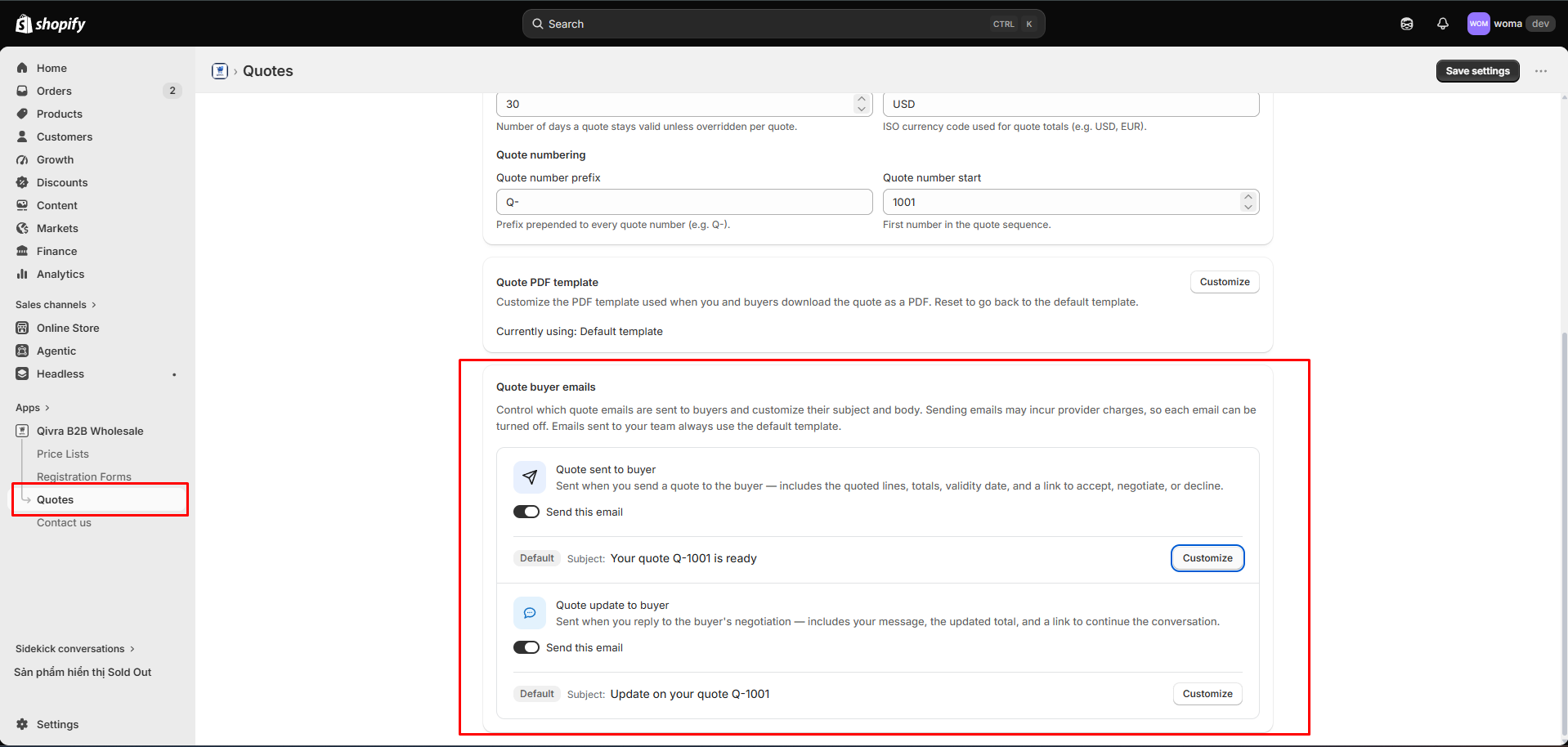
Emails sent to your team always use the default template and are not configurable here.
Enable or disable an email
Section titled “Enable or disable an email”Each email kind has a Send this email toggle:
- On (badge Default or Custom) — the email is sent.
- Off (badge Off) — sending is disabled and buyers receive nothing for that event.
Disable an email if you prefer to notify buyers manually (e.g. only send PDFs from your own mailbox).
Customize a template
Section titled “Customize a template”- Click Customize (or Edit template).
- Edit the Subject line.
- Edit the Body HTML — inline styles are supported.
- Use variables to inject live quote data. Click a variable chip to insert it at the cursor:
| Variable | Inserts |
|---|---|
{{quoteNumber}} | The quote number |
{{customerName}} | The buyer’s name |
{{currency}} | The quote currency |
{{validUntil}} | The validity date |
{{subtotal}} / {{shipping}} / {{tax}} / {{total}} | Quote totals |
{{note}} / {{message}} | Your note / negotiation message |
{{linkUrl}} | The view quote link |
Keep the view quote link variable in the email — buyers need it to open the quote in their account and accept, negotiate, or decline.
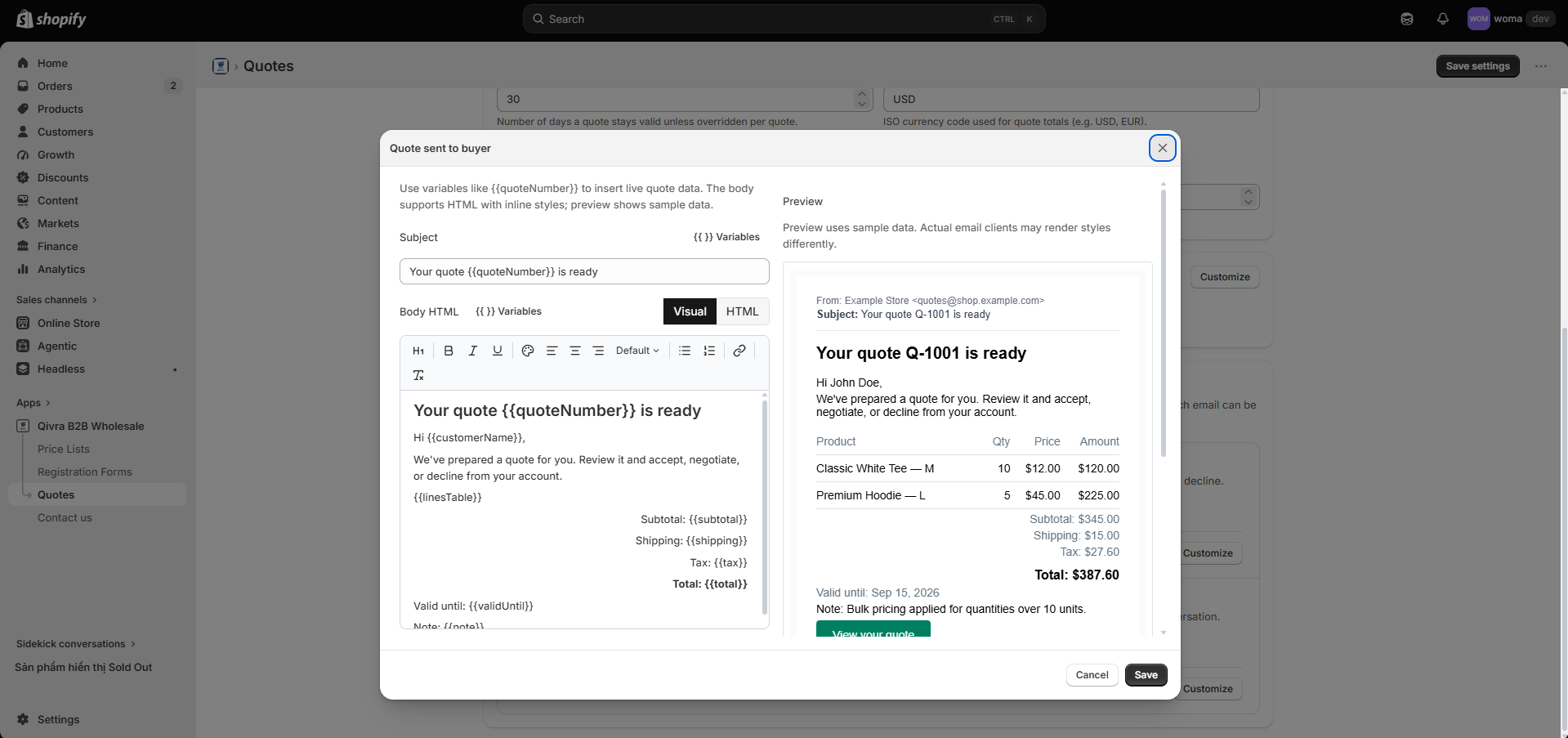
- Check the Preview (renders with sample data) and click Save.
Reset to default
Section titled “Reset to default”Click Reset to default to restore the standard template. Your custom template is deleted and cannot be recovered — confirm before resetting.