Manage Quotes
This guide covers the Quotes inbox and the quote detail page — how to track every RFQ and quote, negotiate with buyers, and turn accepted quotes into paid orders.
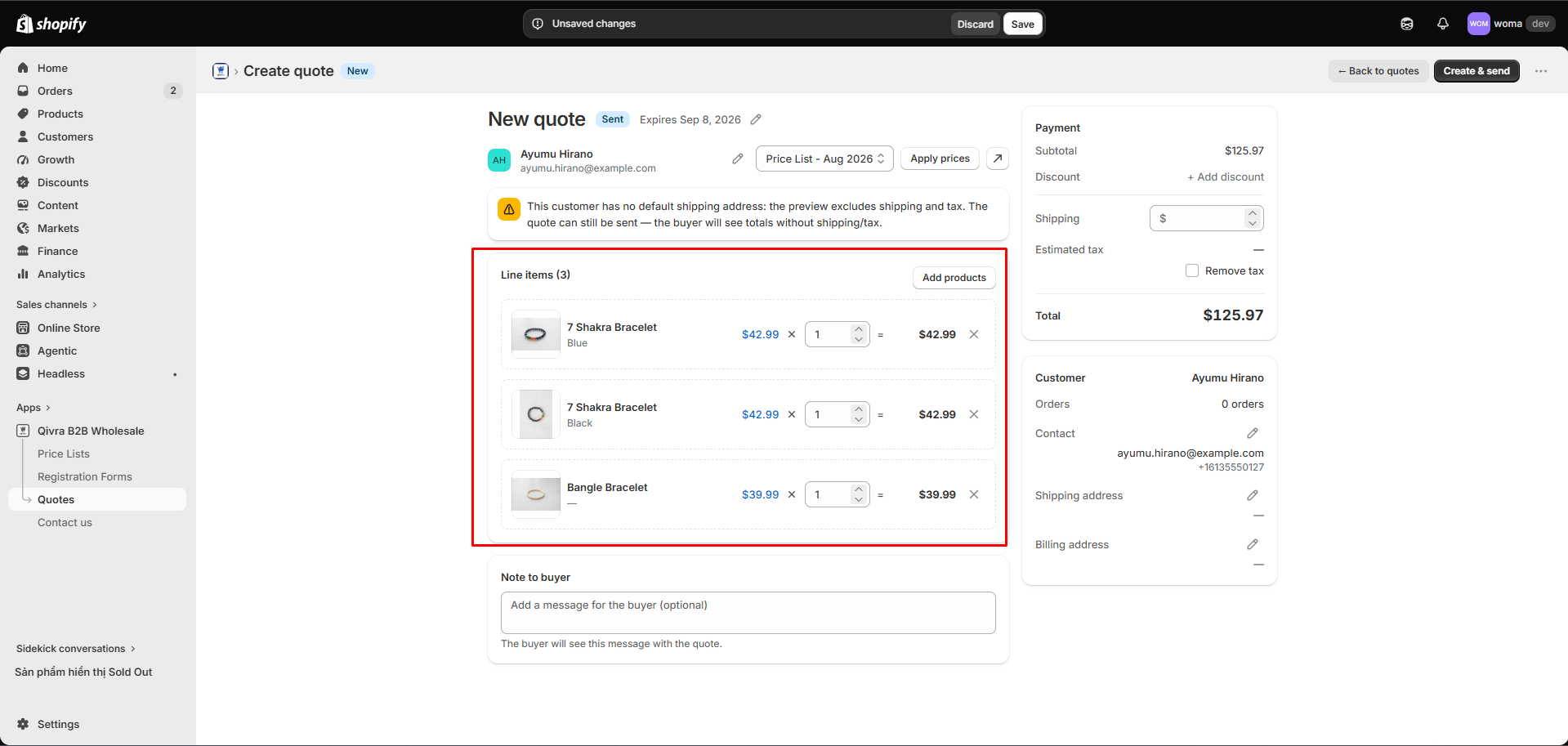
The quotes inbox
Section titled “The quotes inbox”Go to Quotes in the sidebar. The table shows:
| Column | What it shows |
|---|---|
| Quote | The quote number (e.g. Q-0001) — click to open the quote |
| Customer | Buyer name and email (not synced if the customer data hasn’t synced yet) |
| Items | Number of line items |
| Total | Quote total |
| Status | Current status badge |
| Valid until | Expiry date (— if not set) |
| Created | When the quote/RFQ was created |
Search, filter, and sort
Section titled “Search, filter, and sort”- Search — find quotes by quote number or customer.
- Status filter — multi-select any combination of: New RFQ, Sent, Negotiating, Accepted, Awaiting payment, Converted, Rejected, Expired, Cancelled.
- Sort — Newest first, Oldest first, Total high→low, Total low→high, or Quote number.
- Rows — choose how many rows per page (10 / 25 / 50).
- Use Clear filters to reset everything, or Refresh to reload the list.
The quote detail page
Section titled “The quote detail page”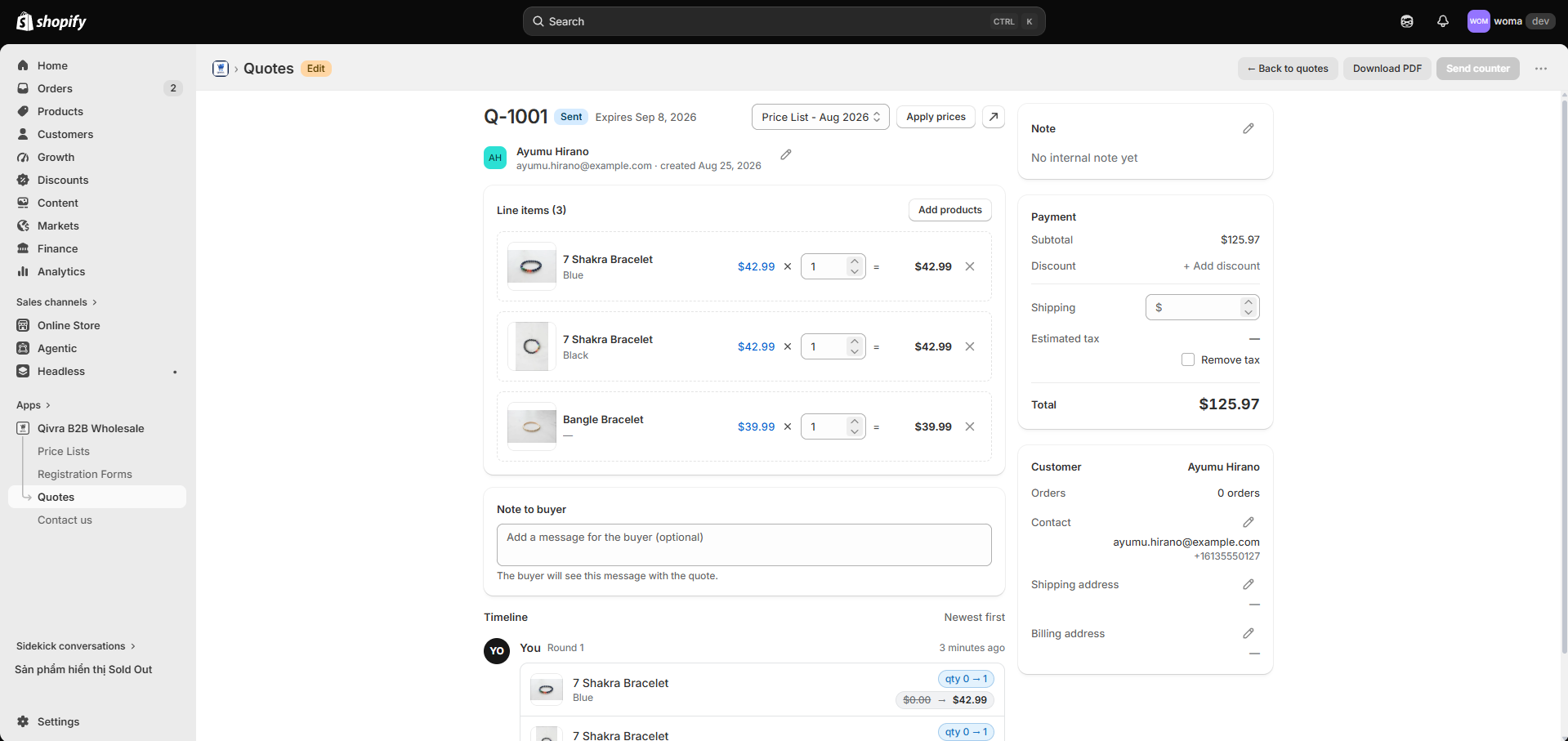
Click a quote row to open it. The detail page combines the full quote builder (lines, prices, summary, notes) with quote-specific panels:
Timeline
Section titled “Timeline”The Timeline tracks the whole negotiation:
- Every round (Round 1, Round 2, …) with changes made by You or the Buyer — price and quantity edits, address changes, requested prices.
- The buyer’s decision (Accepted / Rejected) when they respond.
- Newest activity first.
Download PDF
Section titled “Download PDF”Click Download PDF to export the quote as a PDF document. Generation happens in the background:
- Generating — the PDF is being rendered; large quotes can take a moment.
- On success, the file downloads.
- If generation fails, try again — if it keeps failing, contact support.
The PDF layout follows your PDF template.
Negotiating a quote
Section titled “Negotiating a quote”When the buyer replies with a counter-offer, the quote moves to Negotiating:
- Open the quote — the timeline shows the buyer’s requested changes.
- Adjust lines, prices, discount, and notes as needed.
- Click Send counter.
Each exchange is a new round in the timeline, and the buyer receives a quote update email. Repeat until the buyer accepts or one of you ends the negotiation.
Convert a quote to a draft order
Section titled “Convert a quote to a draft order”When a quote is Accepted (or already Awaiting payment):
- Open the quote.
- Click Convert to draft order.
- The app creates a Shopify draft order with the quote’s lines and prices and sends the invoice to the buyer — the status becomes Awaiting payment.
- Use View invoice to open the draft order in Shopify.
When the buyer completes checkout, the quote is marked Converted automatically.
Terminal statuses
Section titled “Terminal statuses”| Status | Meaning | Options |
|---|---|---|
| Rejected | The buyer declined the final offer | Start a fresh quote if the deal reopens |
| Expired | The valid until date passed | Send a new quote with a new validity window |
| Cancelled | The quote was cancelled | — |
Quote setup reminders
Section titled “Quote setup reminders”The first time you open Quotes, a short Quote setup guide helps you enable the buyer-facing Quote page and account menu link. If buyers can’t see their quotes, re-check those two steps — see Quotes overview.