Display Form on Your Store
After creating your form, you need to display it on your Shopify store so customers can see and use it. This guide covers all the ways to add forms to your storefront.
Method 1: Theme Editor (Recommended)
Section titled “Method 1: Theme Editor (Recommended)”The easiest way to add a form is through Shopify’s Theme Editor.
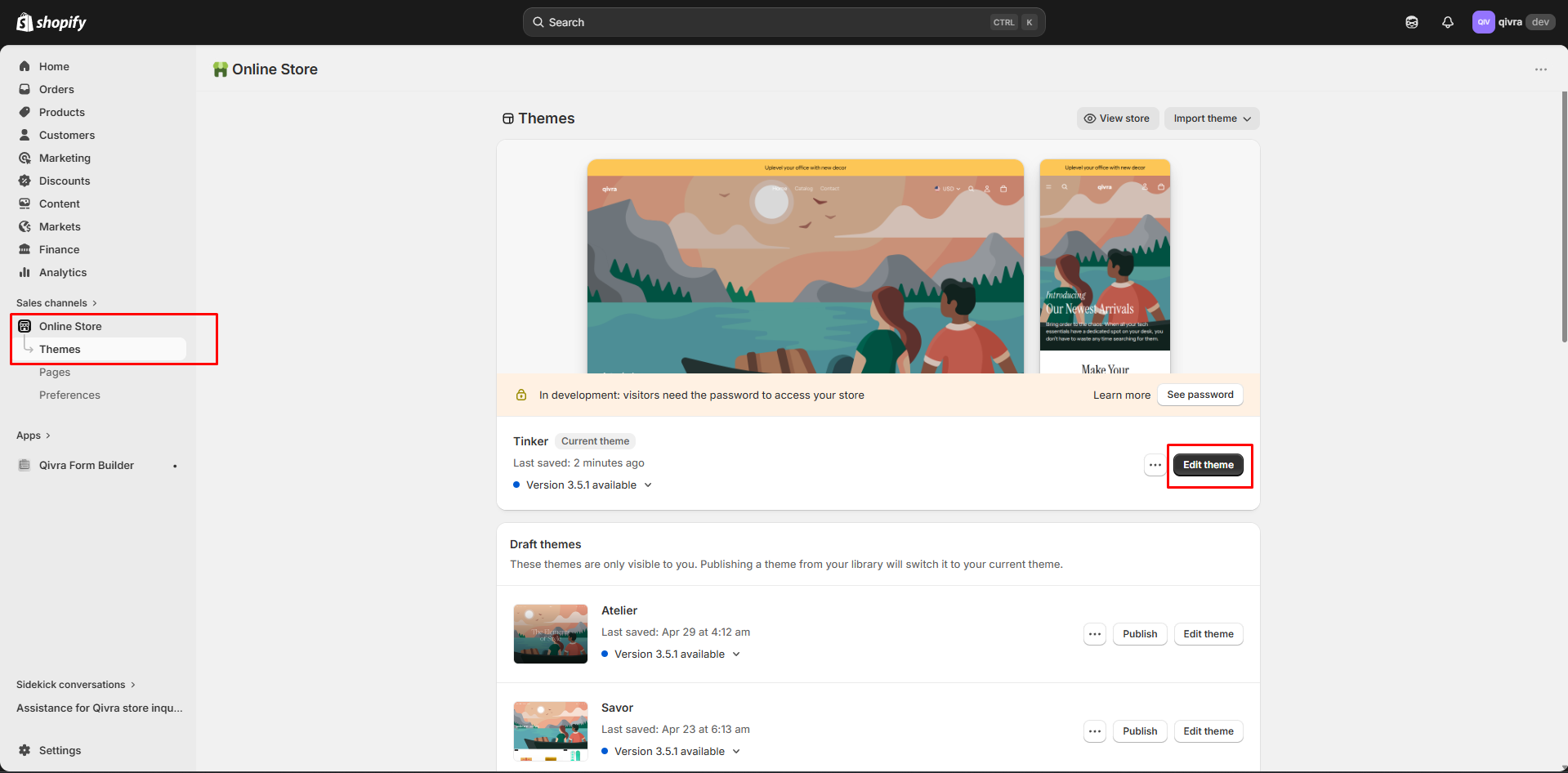
Step 1: Open Theme Editor
Section titled “Step 1: Open Theme Editor”- Go to Online Store > Themes > Edit Theme in your Shopify admin
Step 2: Navigate to Target Page
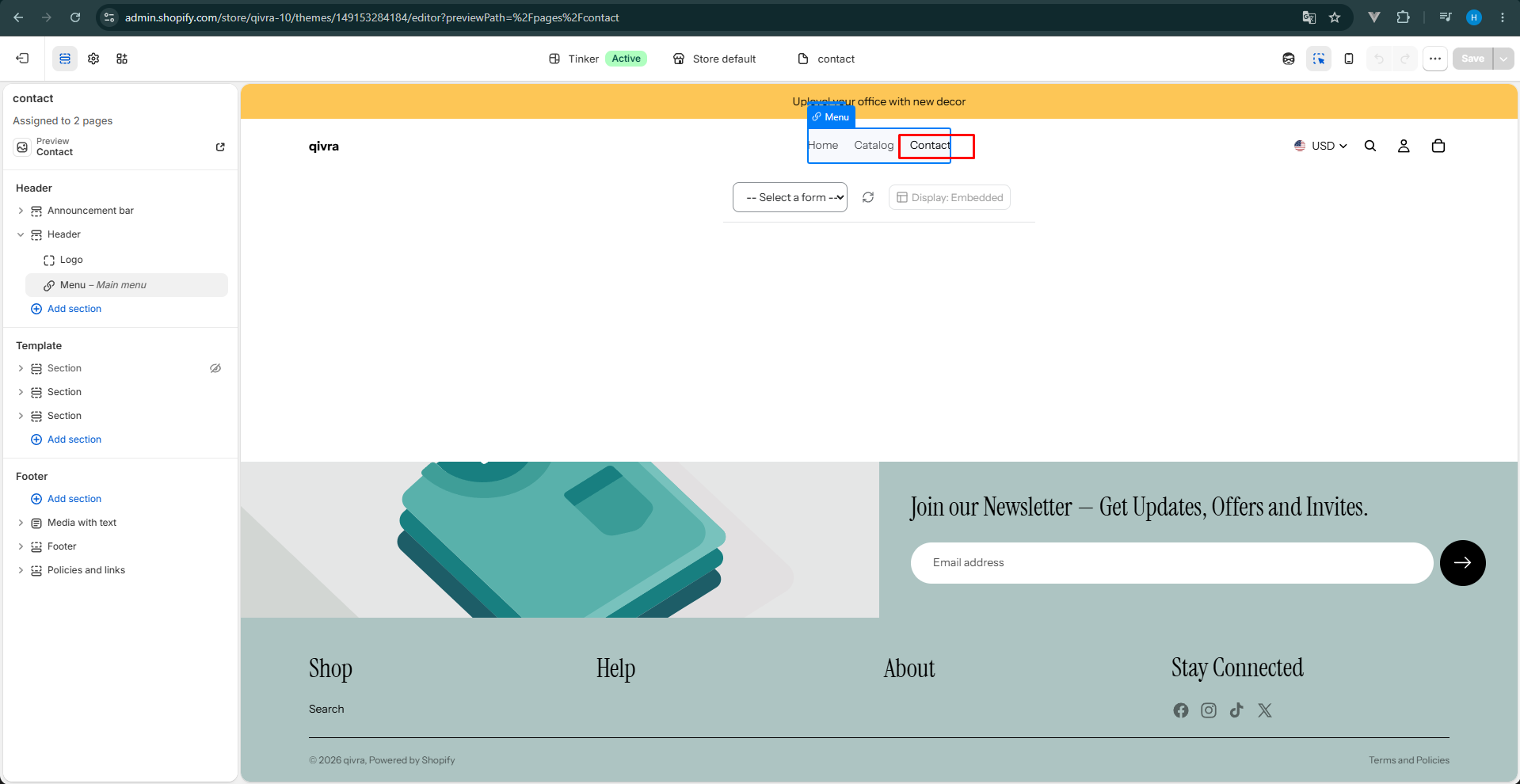
Section titled “Step 2: Navigate to Target Page”Navigate to the page where you want to display your form:
- Homepage
- Product pages
- Collection pages
- Cart page
- Custom pages
Step 3: Add the Form Block
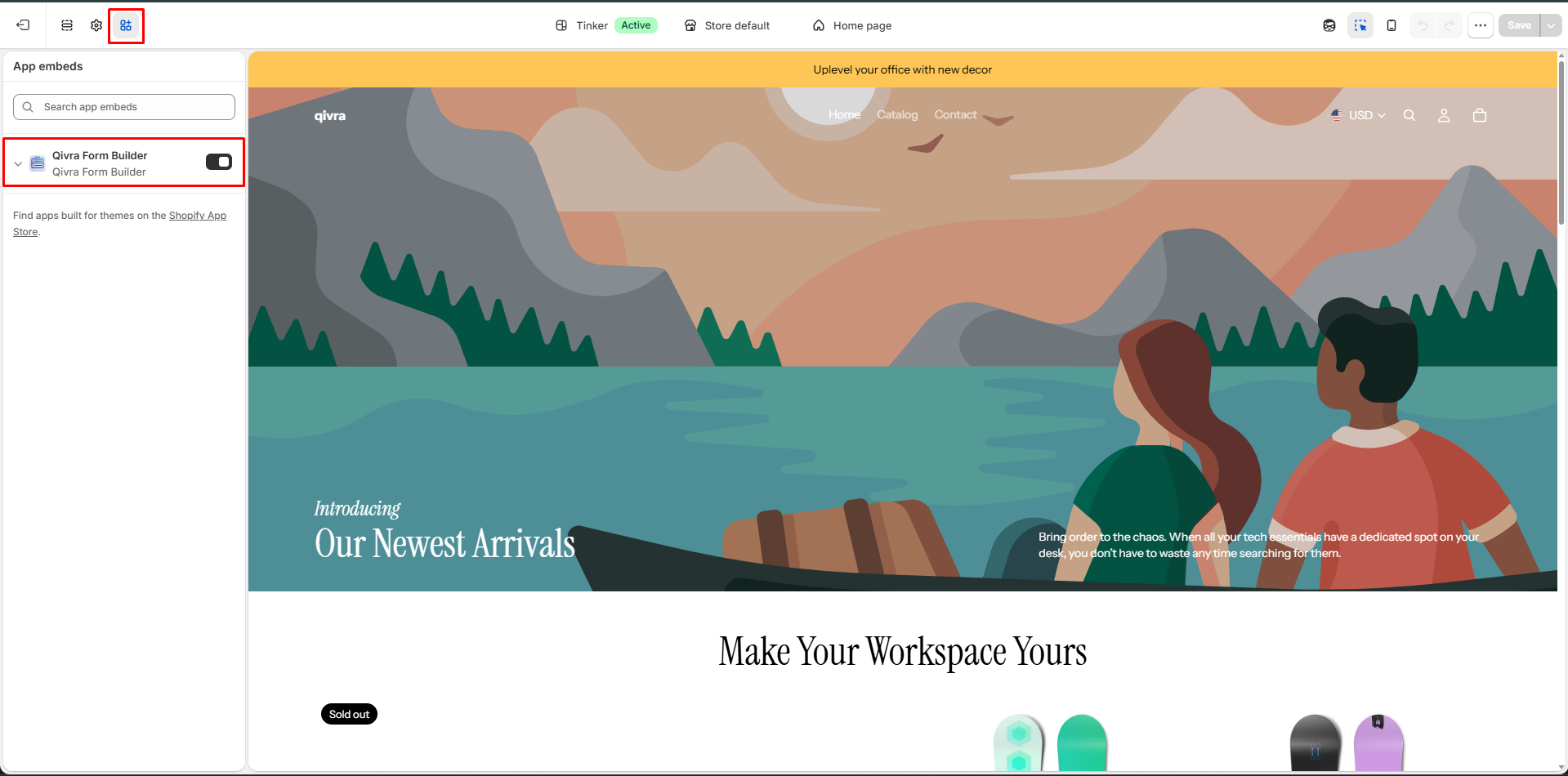
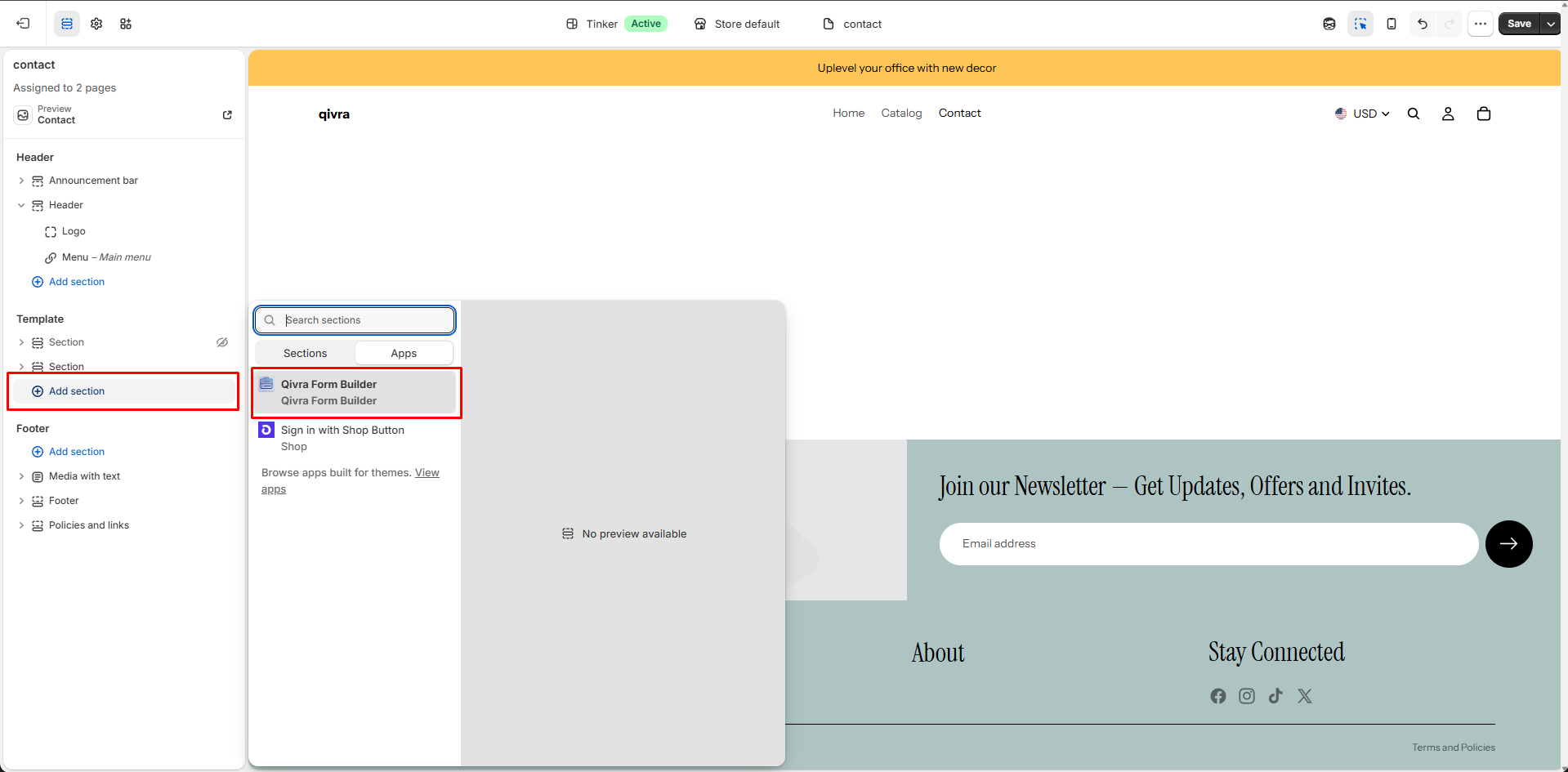
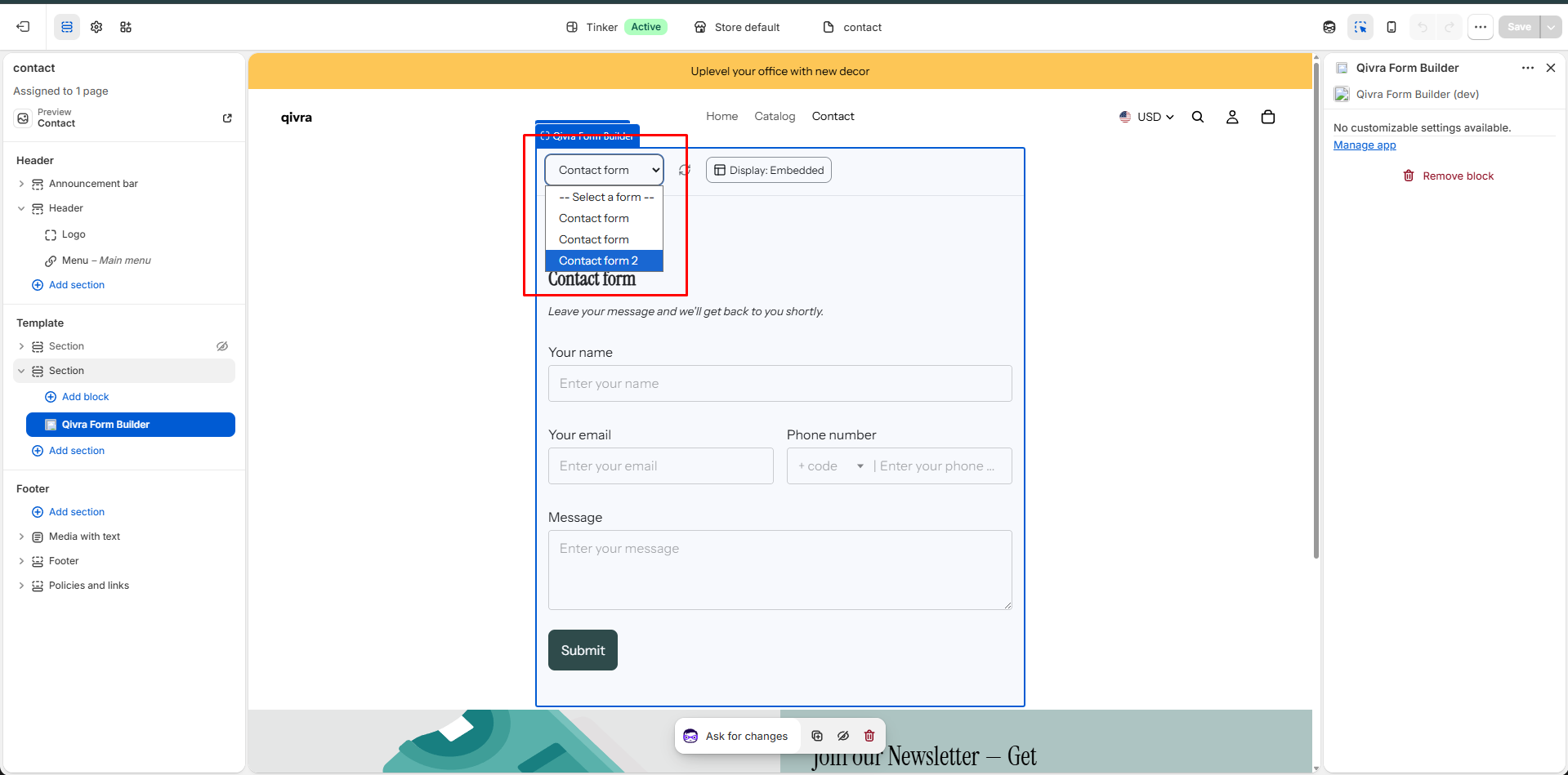
Section titled “Step 3: Add the Form Block”- Click Add section or click on an existing section
- Look for Qivra Form Builder in the apps section
- Click to add it to your page
Step 4: Select Your Form
Section titled “Step 4: Select Your Form”- In the block settings, find the Form dropdown
- Select the form you want to display
- Adjust any additional settings (padding, margin, etc.)
Step 5: Save and Publish
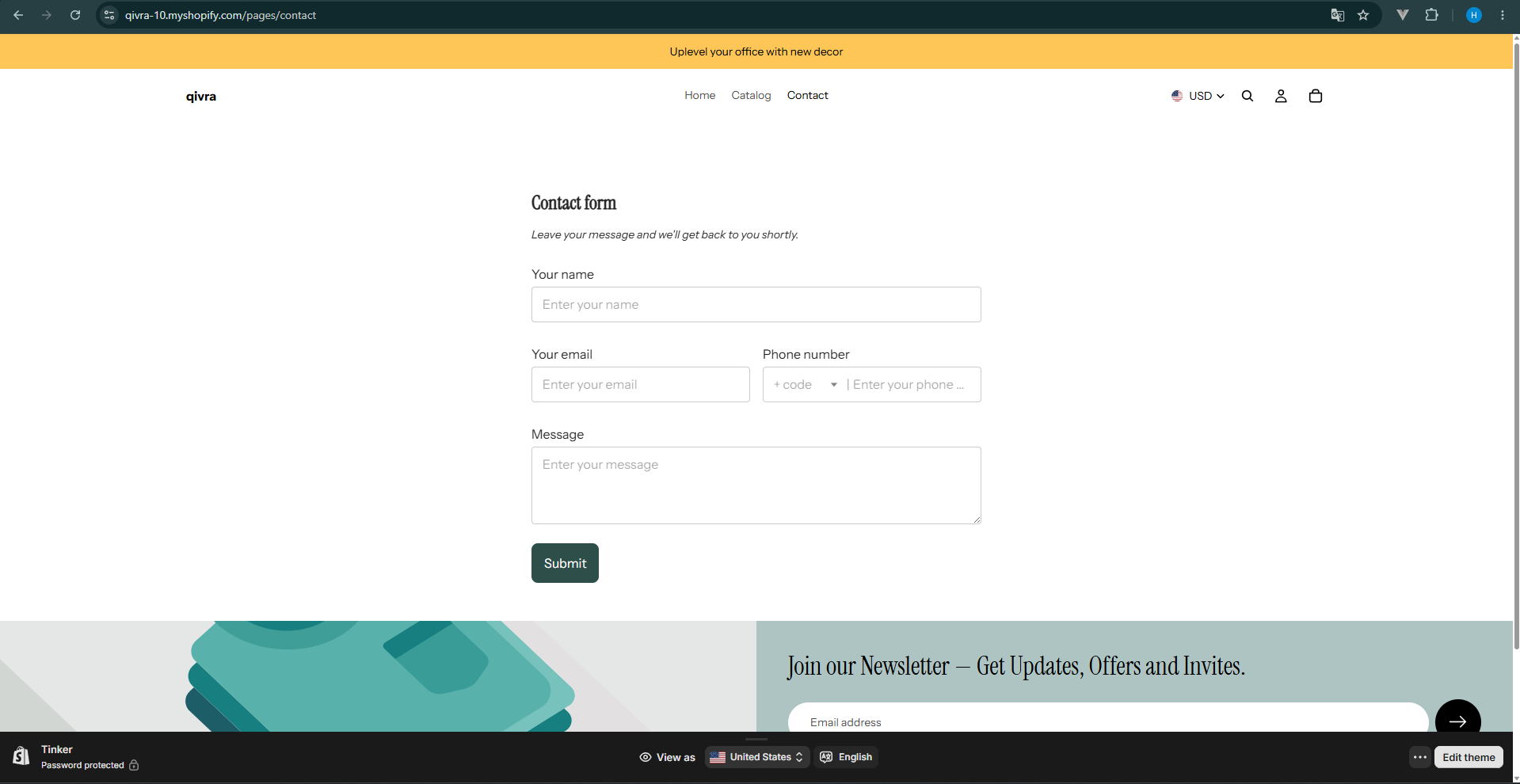
Section titled “Step 5: Save and Publish”- Click Save in the top right
- Your form is now live on your store
Method 2: Embed via Shortcode
Section titled “Method 2: Embed via Shortcode”For more flexibility, you can embed forms directly in your theme code or page content.
Using in Theme Files
Section titled “Using in Theme Files”Add this code to any .liquid file in your theme:
{% render 'qivra-form-builder', form_id: 'YOUR_FORM_ID' %}Replace YOUR_FORM_ID with your actual form ID (found in the form URL when editing).
Using in Page Content
Section titled “Using in Page Content”You can also add forms to regular pages:
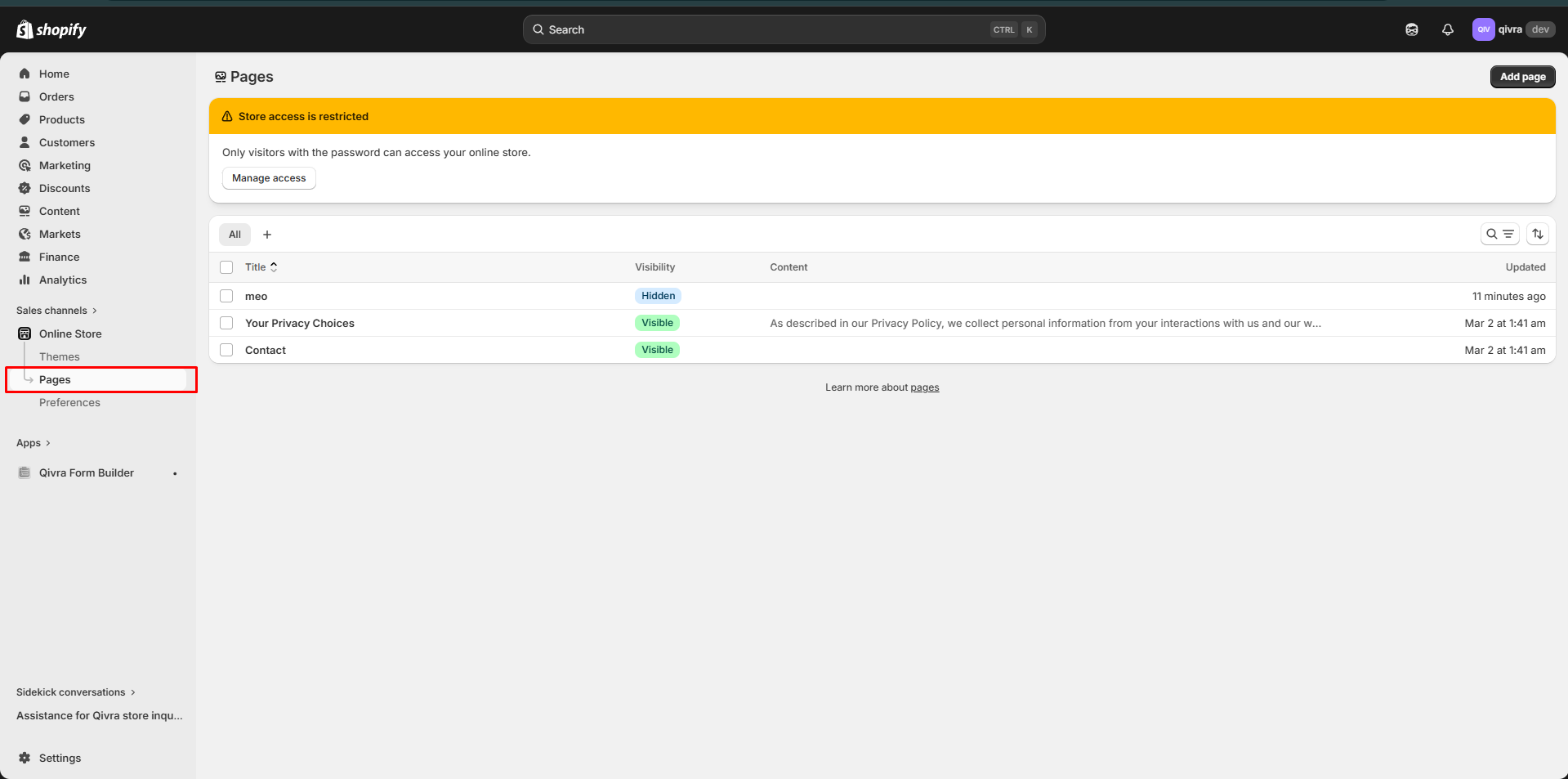
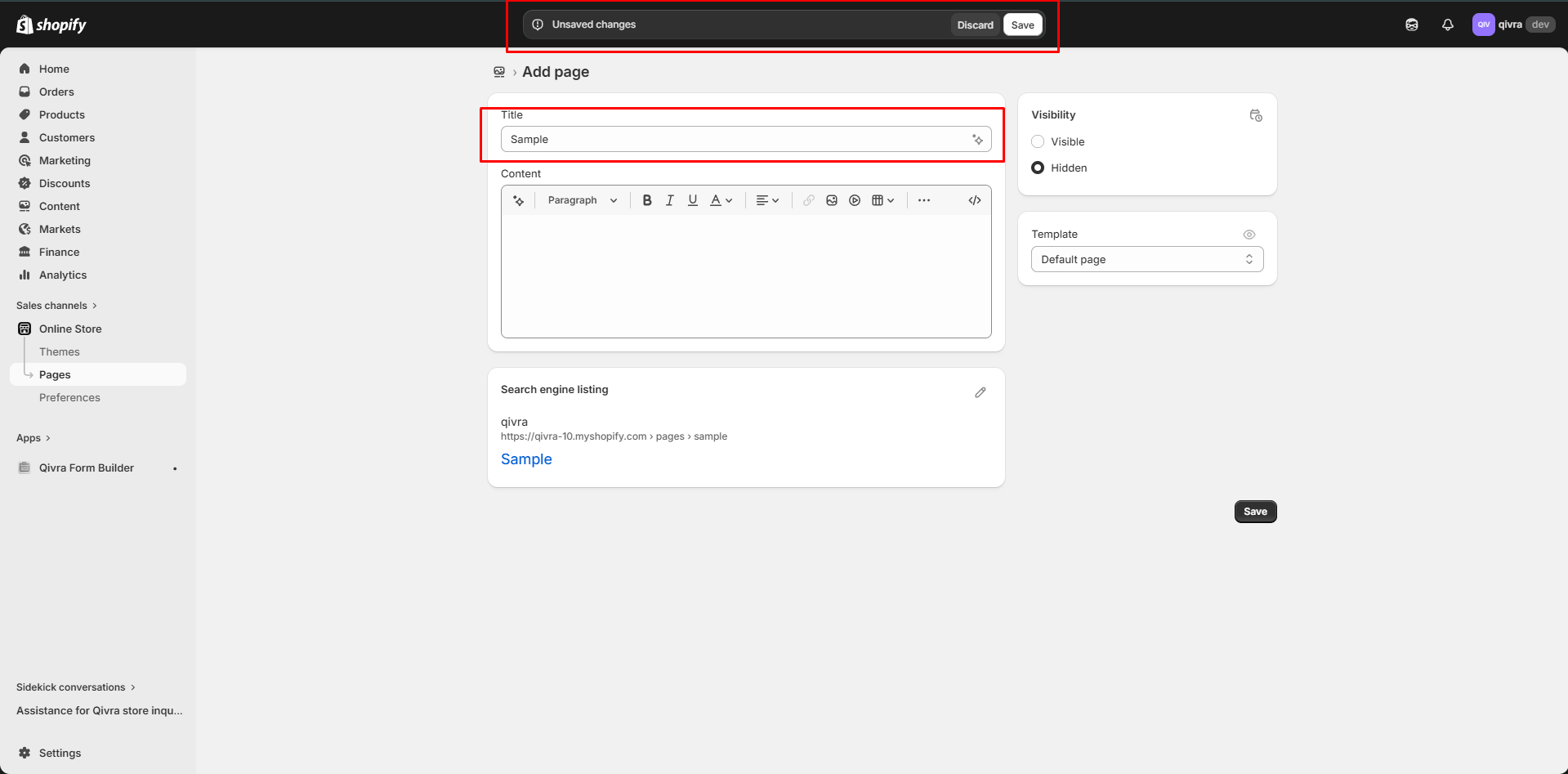
- Go to Online Store > Pages
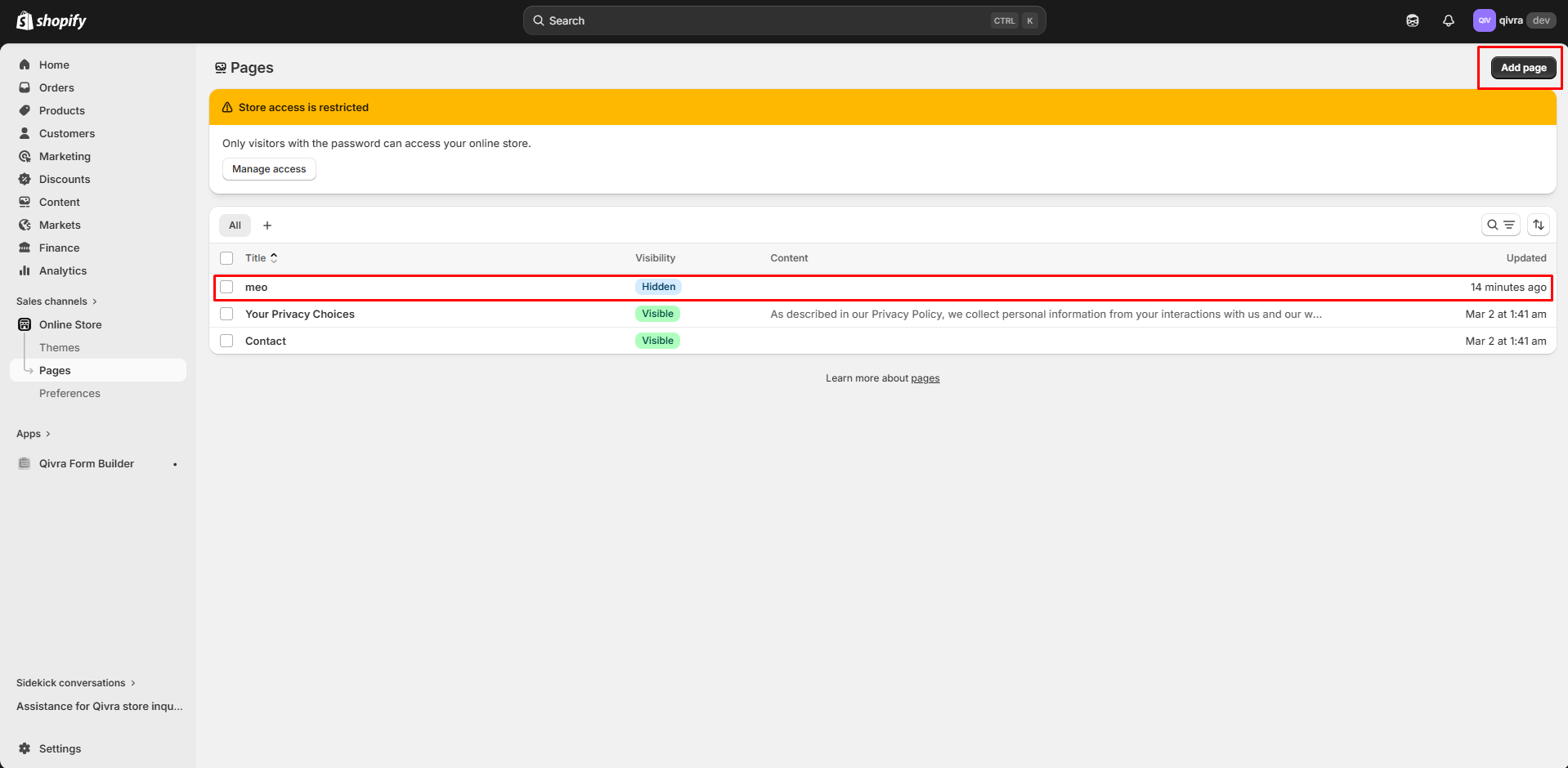
- Edit an existing page or create a new one
- Switch to HTML view in the content editor
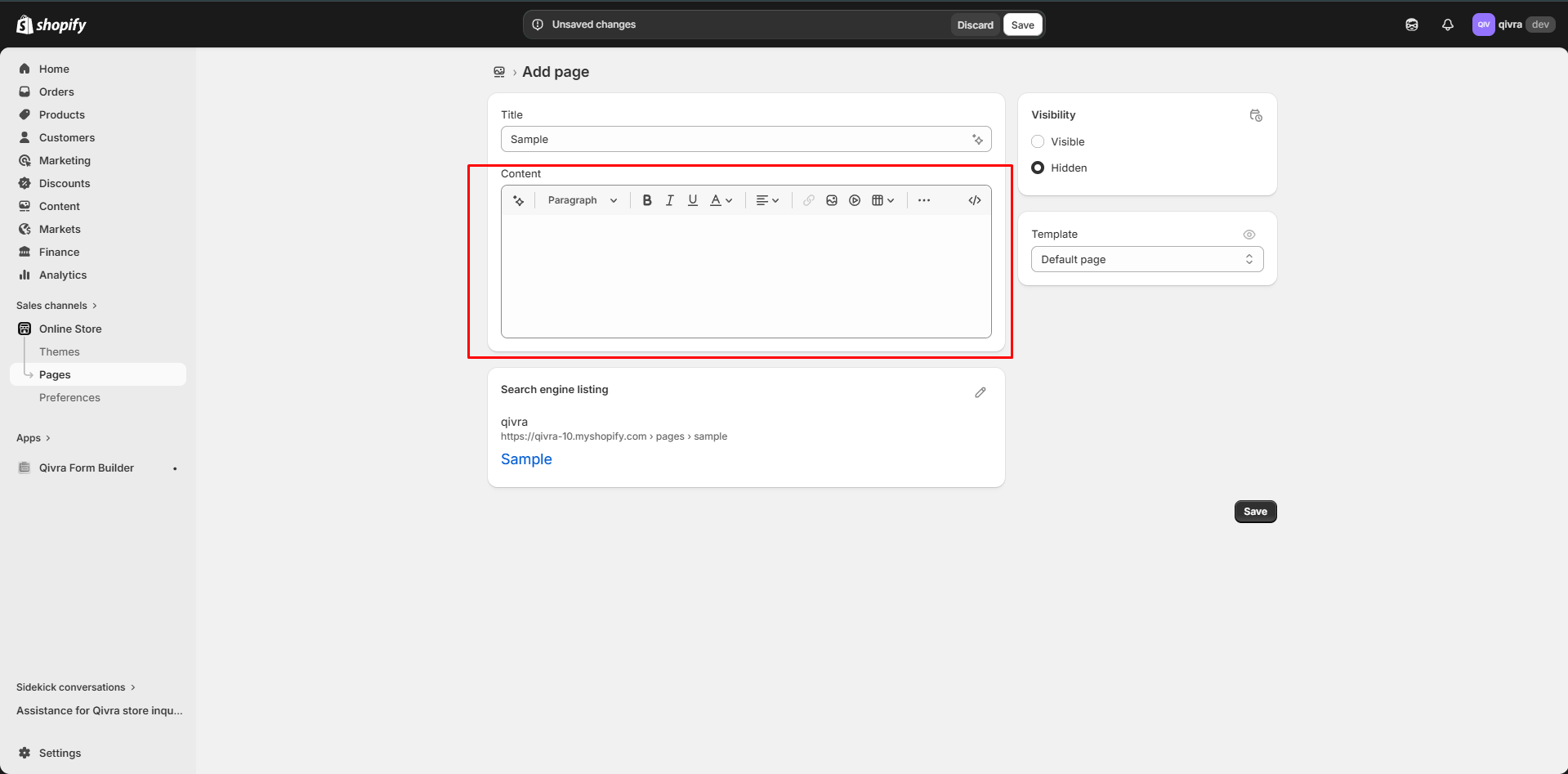
- Add the embed code
Method 3: Product Page Forms
Section titled “Method 3: Product Page Forms”To add a form specifically to product pages:
Option A: Via Theme Editor
Section titled “Option A: Via Theme Editor”- Open Theme Editor
- Navigate to a product page
- Add Qivra Form Builder block to the product section
- Select your form and save
Option B: Via Theme Code
Section titled “Option B: Via Theme Code”Add to your main-product.liquid or similar file:
{% render 'qivra-form-builder', form_id: 'YOUR_FORM_ID' %}This is useful for:
- Product inquiry forms
- Customization requests
- Pre-order forms
- Warranty registration
Method 4: Dedicated Contact Page
Section titled “Method 4: Dedicated Contact Page”To create a dedicated contact page with a form:
- Go to Online Store > Pages > Add page
- Title it “Contact Us” or similar
- Open Theme Editor
- Navigate to your new page
- Add Qivra Form Builder block
- Select your contact form
- Save and publish
Form Trigger Options
Section titled “Form Trigger Options”Forms can be displayed in different ways:
| Trigger Type | Description |
|---|---|
| AUTO | Form displays automatically when the page loads |
| BUTTON | Form appears in a popup when clicking a button |
| EMBEDDING | Form is embedded directly in the page content |
Button Trigger Setup
Section titled “Button Trigger Setup”- In Form Settings, set Trigger to BUTTON
- Customize the button text
- When customers click the button, a popup form appears
This is great for:
- Contact forms that shouldn’t take up page space
- Forms that should appear on multiple pages
- Reducing visual clutter
Previewing Your Form
Section titled “Previewing Your Form”Before going live, preview how your form looks:
In Form Builder
Section titled “In Form Builder”- Use the Desktop/Mobile toggle in the builder
- Click Preview to see the full form
In Theme Editor
Section titled “In Theme Editor”- Forms show a preview in the editor
- Make sure to test on both desktop and mobile views
Troubleshooting
Section titled “Troubleshooting”Form Not Appearing?
Section titled “Form Not Appearing?”- Check form status: Make sure the form is enabled in the Forms list
- Verify selection: Ensure the correct form is selected in Theme Editor
- Clear cache: Sometimes browser cache prevents updates from showing
- Check plan limits: Some forms may be locked based on your subscription
Form Looks Different Than Preview?
Section titled “Form Looks Different Than Preview?”- Theme CSS might override form styles
- Check for conflicting styles in your theme
- Try adjusting form styling settings