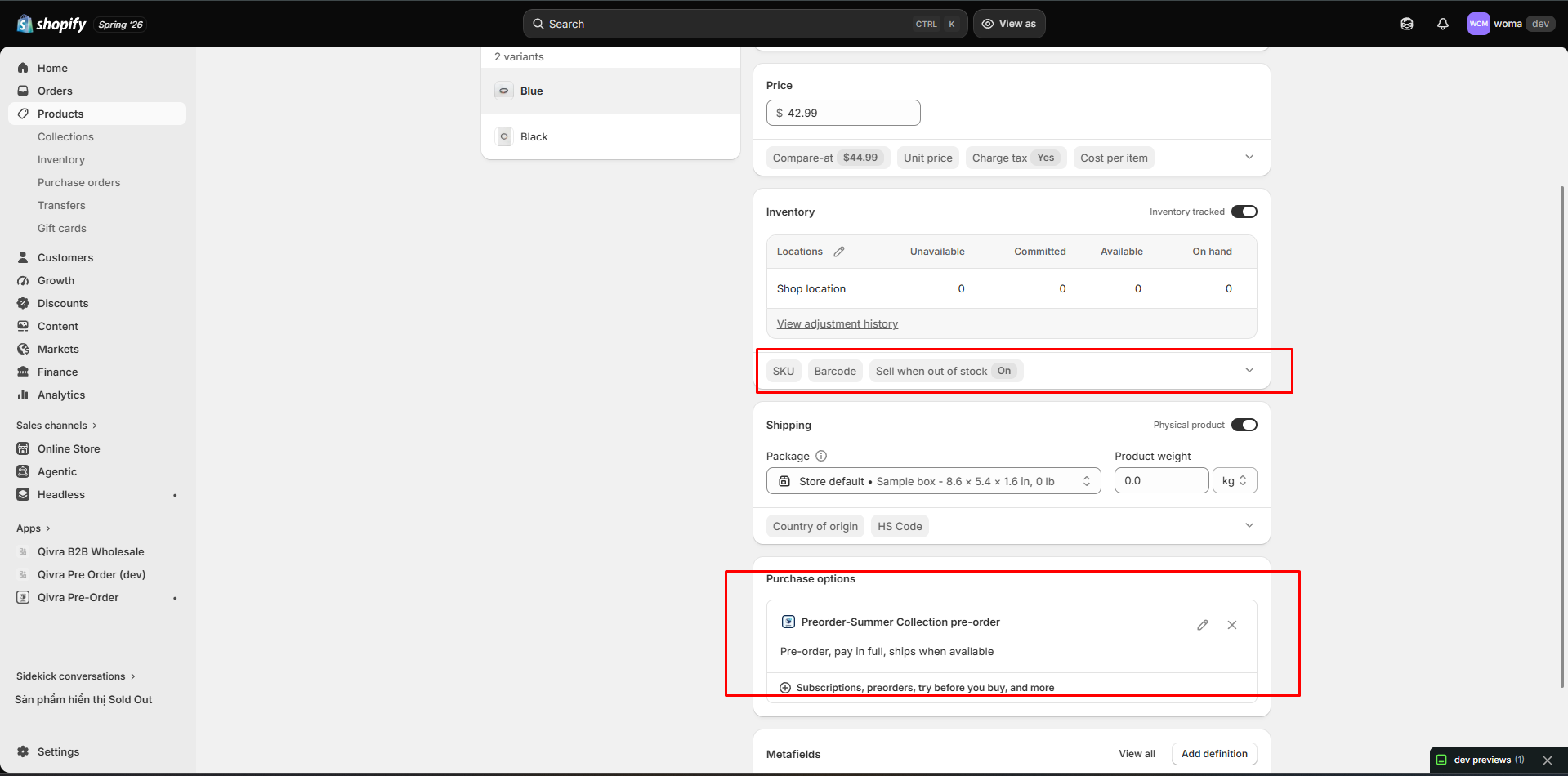
Inventory & Quantity Limits
This guide explains how to configure inventory settings and quantity limits for your pre-order campaigns.
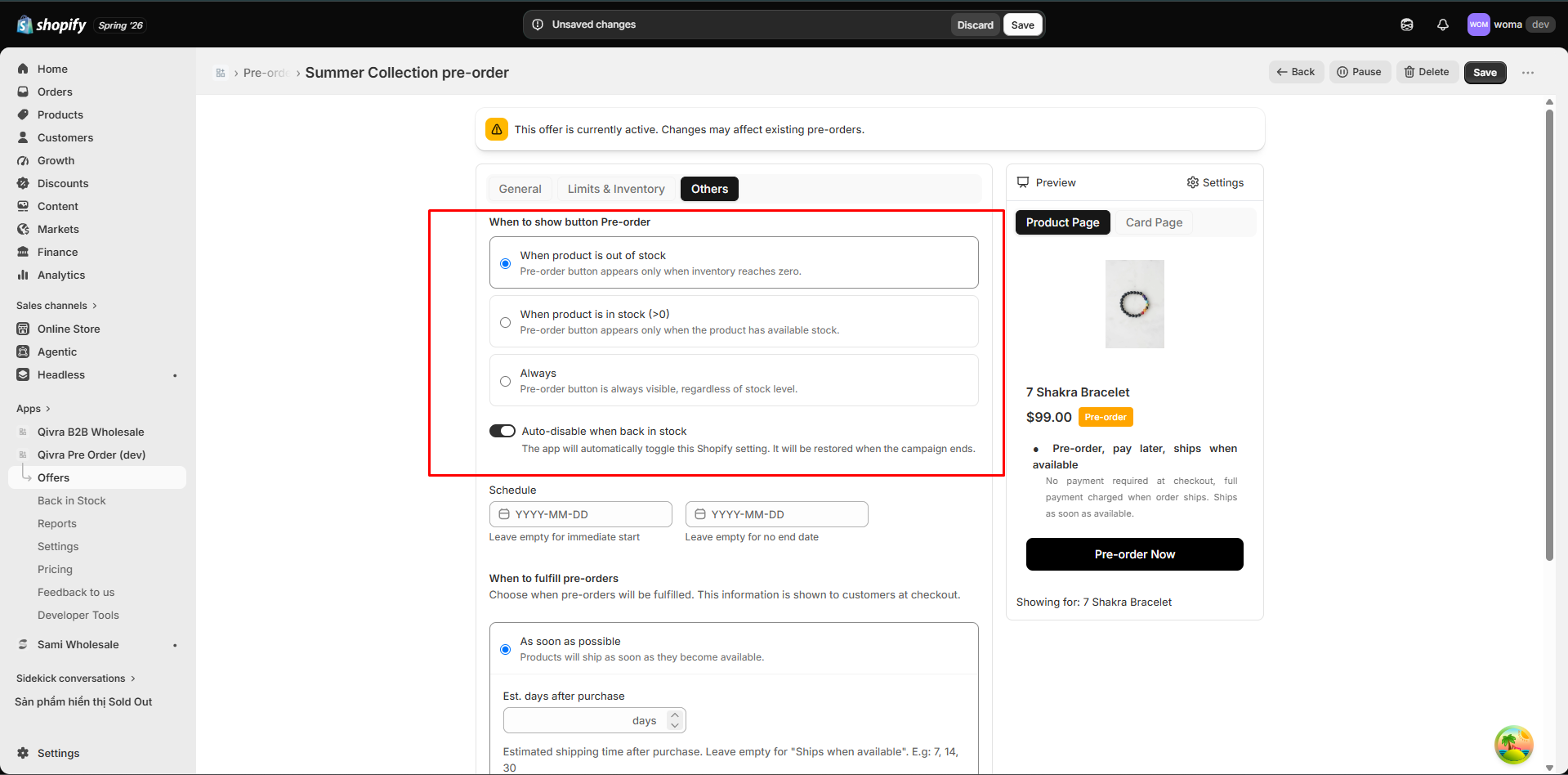
Inventory Modes
Section titled “Inventory Modes”Inventory mode determines when the pre-order badge and button appear on your storefront.
Allow When Out of Stock
Section titled “Allow When Out of Stock”Pre-order is available only when a product variant has 0 or negative inventory.
This is the most common setting for pre-orders. When a product runs out of stock, customers see the pre-order option instead of the “Sold out” button.
Auto-disable when back in stock: Enable this option to automatically pause the pre-order when inventory is replenished. The app listens to Shopify inventory webhooks and updates the offer status accordingly.
Allow When In Stock
Section titled “Allow When In Stock”Pre-order is available only when a product variant has inventory above 0.
Use this for products that are in stock but you want to accept pre-orders for future batches or made-to-order items.
Always
Section titled “Always”Pre-order is always available regardless of inventory level.
Use this for products that are always available for pre-order, such as custom or made-to-order items.
Quantity Limits
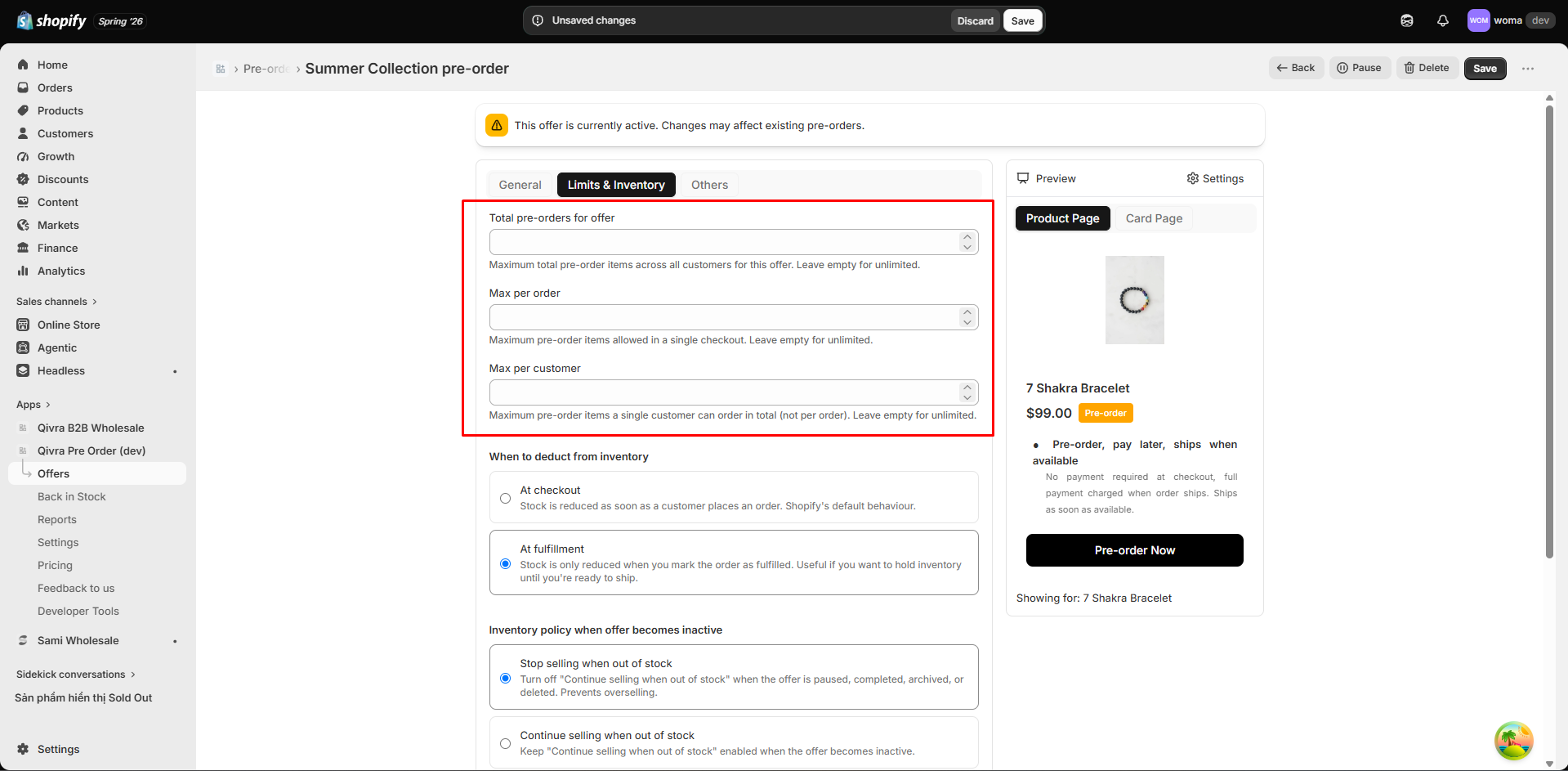
Section titled “Quantity Limits”Quantity limits help you control how many pre-order units are sold. You can set three types of limits:
Campaign Total Limit
Section titled “Campaign Total Limit”Maximum total units sold across all customers for the entire campaign.
- When reached, the pre-order badge and button are removed from the storefront
- Existing orders are not affected
- Useful for limited edition drops or products with constrained supply
Per Customer Limit
Section titled “Per Customer Limit”Maximum units a single customer can purchase across all their orders. Premium feature (coming soon).
- Tracked by customer ID (logged-in customers)
- When reached, the customer can no longer add the product as a pre-order
- Leave empty for unlimited
Per Order Limit
Section titled “Per Order Limit”Maximum units per single order.
- Limits the quantity a customer can add to cart in one transaction
- Useful for preventing bulk buying and ensuring fair distribution
- Leave empty for unlimited
Inventory Reserve Policy
Section titled “Inventory Reserve Policy”Choose when Shopify reserves inventory for pre-order items:
On Sale (Recommended)
Section titled “On Sale (Recommended)”Inventory is reserved when the pre-order is placed.
- Reduces available inventory immediately
- Prevents overselling
- Best for products with limited stock
On Fulfillment
Section titled “On Fulfillment”Inventory is reserved when the order is fulfilled.
- Available inventory is not affected until you ship
- Allows selling beyond current stock
- Best for made-to-order or products with reliable supply
Inventory Policy When the Offer Becomes Inactive
Section titled “Inventory Policy When the Offer Becomes Inactive”Pre-orders work by turning on Shopify’s “Continue selling when out of stock” for products in an offer. When an offer is paused, completed, archived, or deleted, choose what happens to that Shopify setting:
| Option | Behavior |
|---|---|
| Stop selling when out of stock | Turns “Continue selling when out of stock” off — prevents overselling after the campaign ends |
| Continue selling when out of stock | Keeps it on — customers can still buy past zero stock |
| Keep current setting | Leaves the Shopify setting unchanged |
You also choose this policy when pausing or deleting an offer from the offer list — the confirmation dialog asks each time.
Product-Level Settings
Section titled “Product-Level Settings”When adding products to an offer, you can configure:
| Setting | Description |
|---|---|
| Per-product quantity limit | Override the campaign-level limit for specific products |
| Custom delivery message | Show a specific delivery estimate for this product |
| Can pre-order toggle | Enable or disable pre-order for specific variants |
How Inventory Sync Works
Section titled “How Inventory Sync Works”- The app monitors Shopify inventory webhooks in real-time
- When inventory changes, the app checks if the product is in an active offer
- Based on the inventory mode:
- Allow when OOS: If inventory goes above 0 and auto-disable is on, the offer pauses for that product
- Allow when in stock: If inventory drops to 0, the pre-order badge is removed
- Products in the offer are synced with Shopify Selling Plans