Form Event Tracking
Form event tracking allows you to monitor when customers view and submit your forms. This data helps you understand form performance, conversion rates, and user behavior.
What is Form Event Tracking?
Section titled “What is Form Event Tracking?”Form tracking fires custom JavaScript events that you can capture with analytics platforms like:
- Google Analytics (GA4)
- Google Tag Manager
- Facebook Pixel
- Meta Pixel
- TikTok Pixel
- Hotjar
- Any custom analytics solution
Available Events
Section titled “Available Events”| Event | Description | Use Case |
|---|---|---|
| Form View | Fires when a customer sees the form | Track form impressions, page views |
| Form Submit | Fires when a customer successfully submits | Track conversions, lead generation |
Enabling Event Tracking
Section titled “Enabling Event Tracking”Step 1: Enable Tracking Options
Section titled “Step 1: Enable Tracking Options”- Open your form in the Form Builder
- Go to the Scripts tab in the left panel
- Enable the tracking options you need:
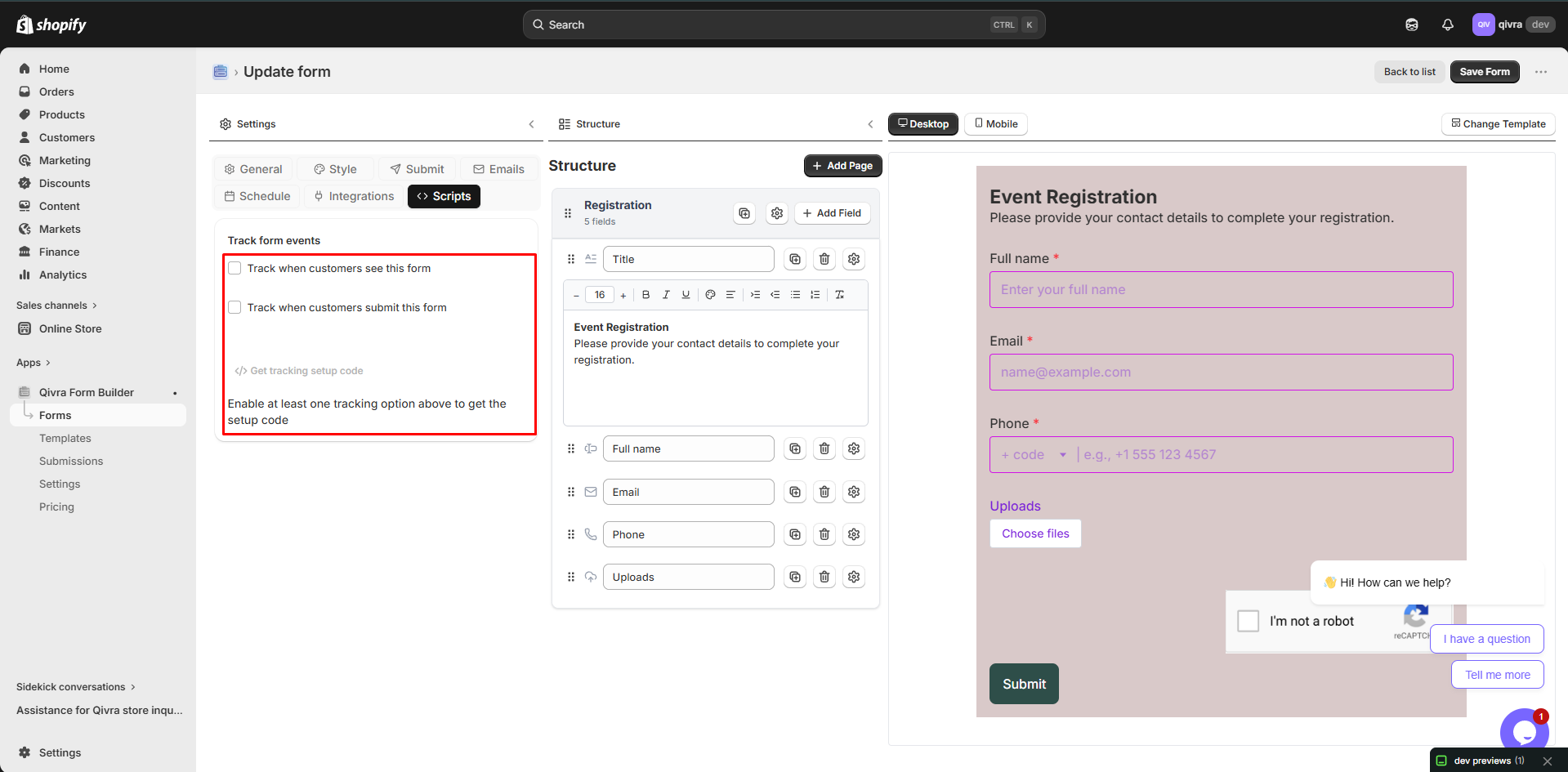
Track Form View
Section titled “Track Form View”- What it does: Fires an event when the form loads on the page
- Event name:
qivra:form-builder:loaded - Event data: Includes form ID and form name
Track Form Submit
Section titled “Track Form Submit”- What it does: Fires an event after successful submission
- Event name:
qivra:form-builder:submitted - Event data: Includes form ID, form name, and submission ID
Step 2: Get Your Tracking Code
Section titled “Step 2: Get Your Tracking Code”- Enable at least one tracking option
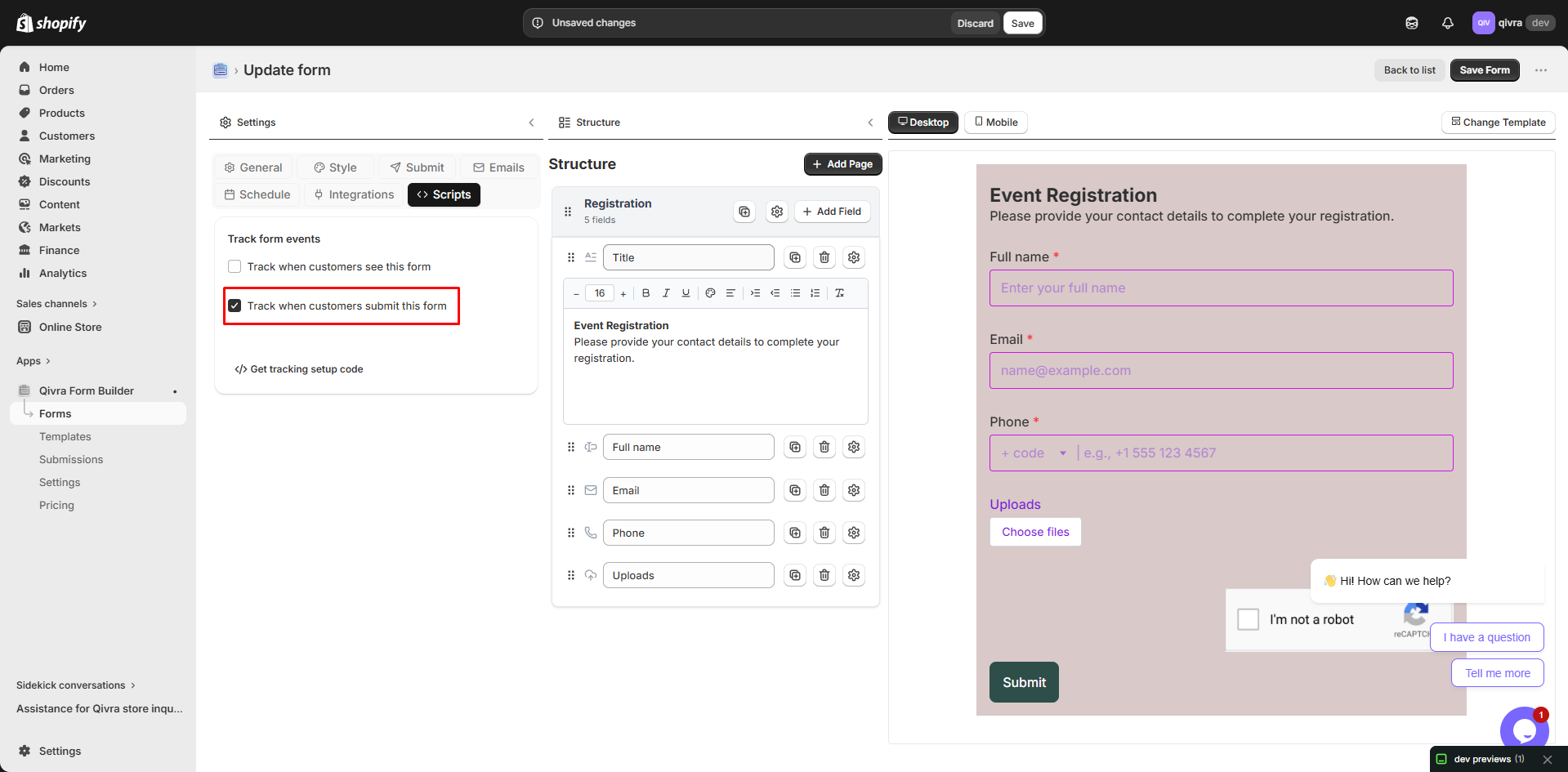
- Click Get tracking setup code
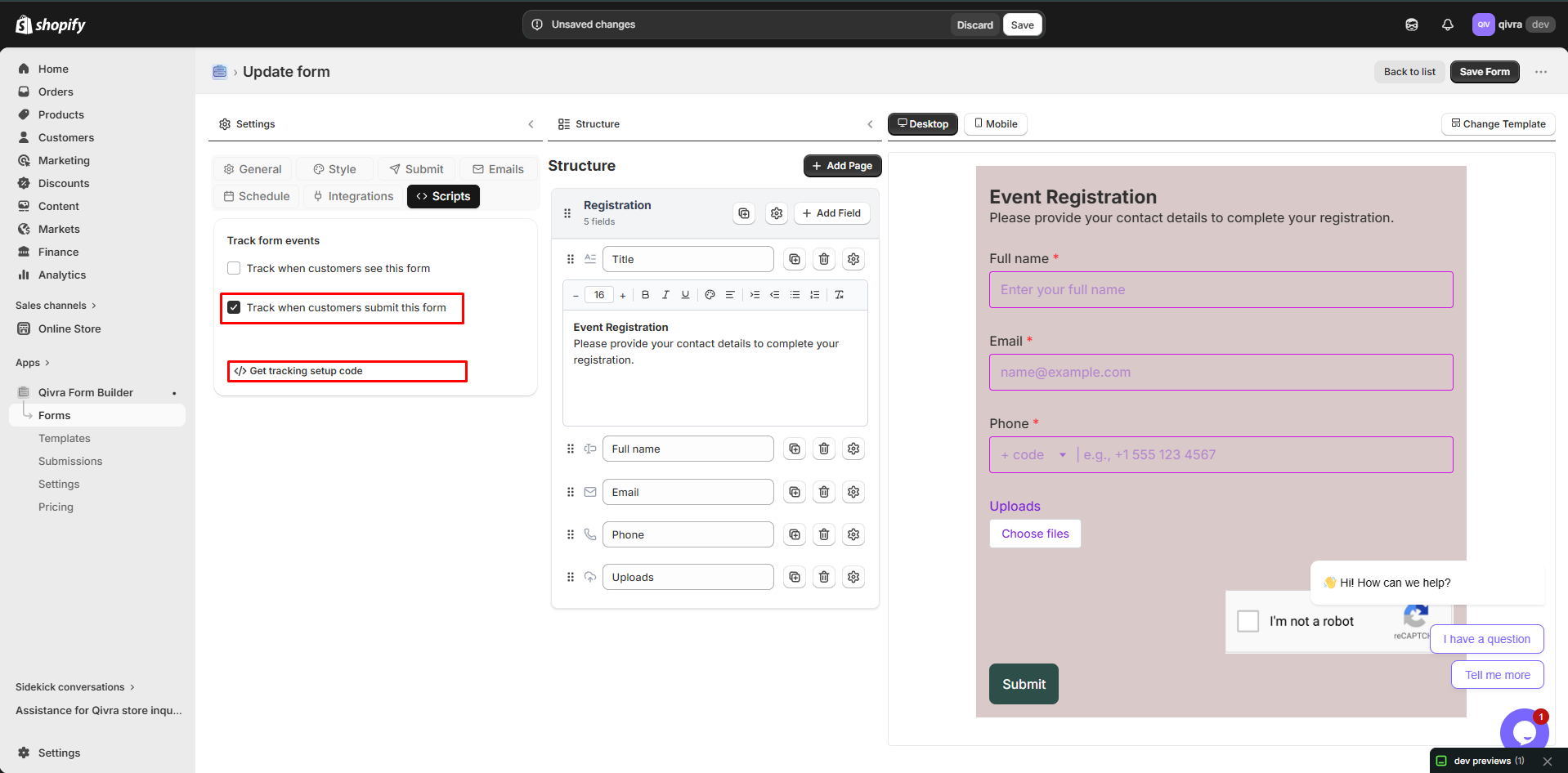
- Copy the provided JavaScript snippet and Click here to open it
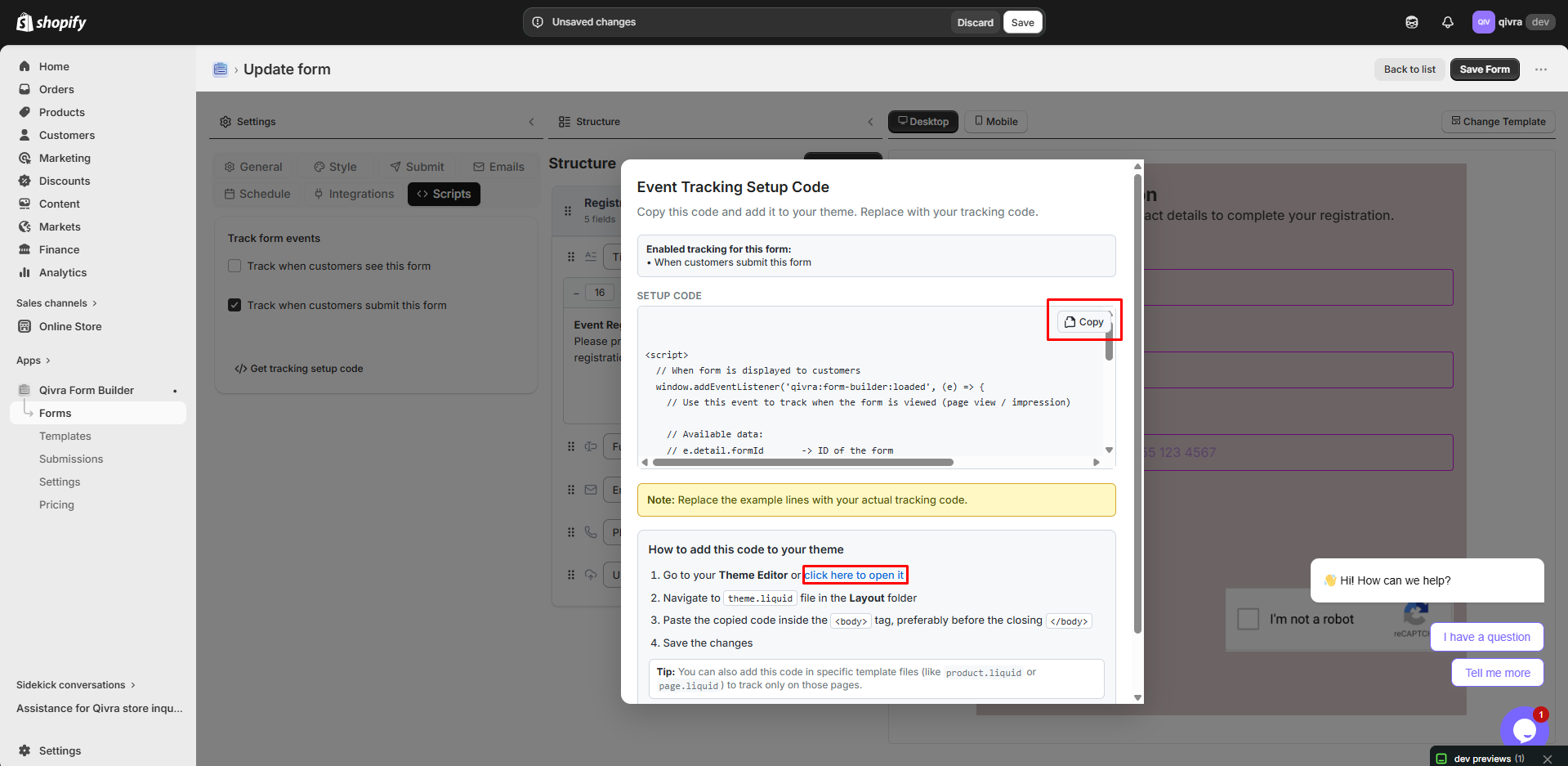
- Add it to your theme’s custom JavaScript or use a tag manager
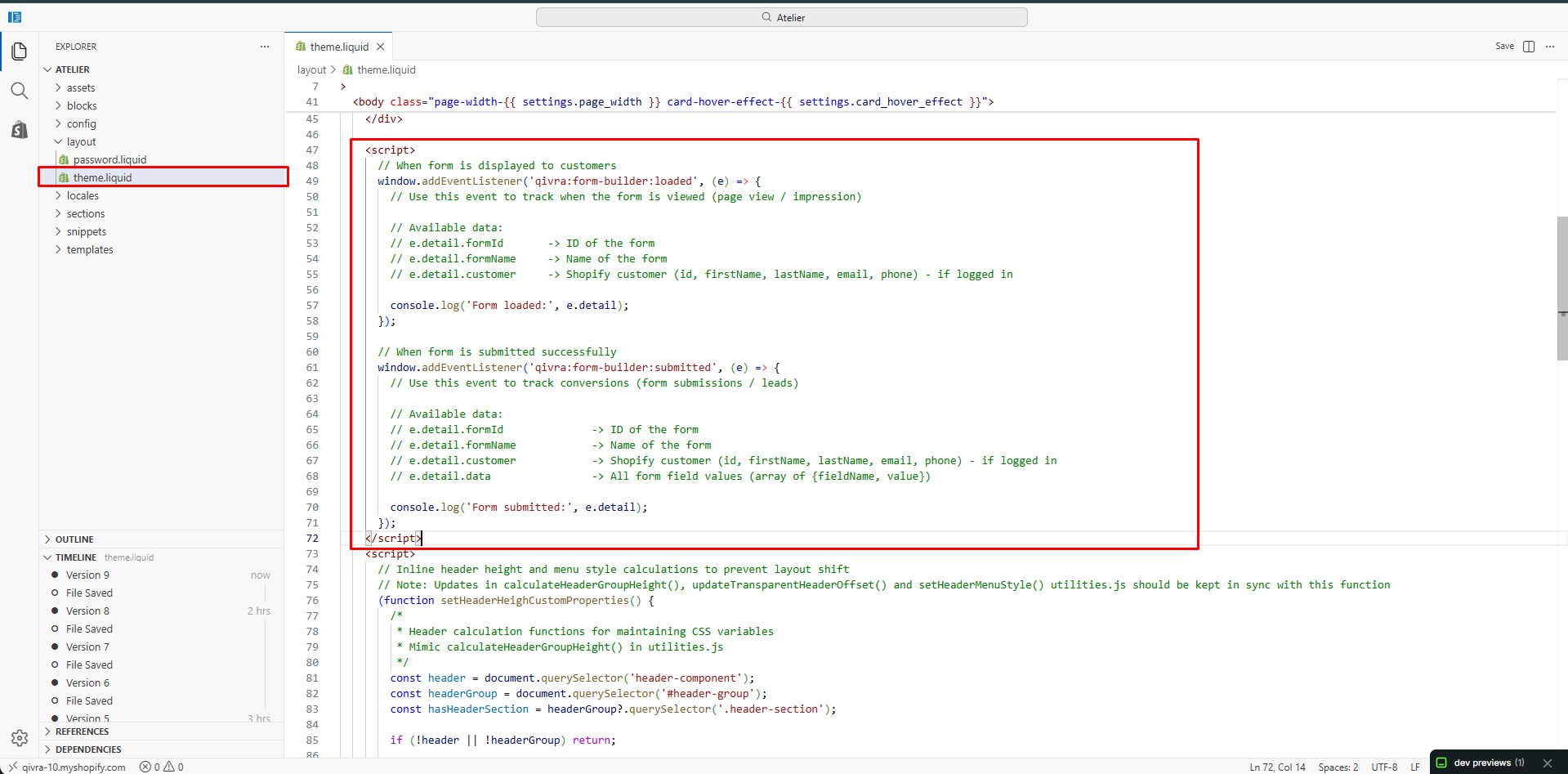
Understanding the Tracking Code
Section titled “Understanding the Tracking Code”The generated tracking code looks like this:
// Listen for form view eventswindow.addEventListener('qivra:form-builder:loaded', function(event) {  const { formId, formName } = event.detail;
  // Send to your analytics platform  // Example: gtag('event', 'form_view', { form_id: formId, form_name: formName });});
// Listen for form submit eventswindow.addEventListener('qivra:form-builder:submitted', function(event) {  const { formId, formName, submissionId } = event.detail;
  // Send to your analytics platform  // Example: gtag('event', 'form_submit', { form_id: formId, form_name: formName });});
Event Data Structure
Section titled “Event Data Structure”Each event includes:
| Property | Type | Description |
|---|---|---|
formId | String | Unique identifier for the form |
formName | String | Name of the form |
submissionId | String | Unique submission ID (submit event only) |
Integration Examples
Section titled “Integration Examples”Google Analytics 4 (GA4)
Section titled “Google Analytics 4 (GA4)”window.addEventListener('qivra:form-builder:loaded', function(event) { gtag('event', 'form_view', { form_id: event.detail.formId, form_name: event.detail.formName });});
window.addEventListener('qivra:form-builder:submitted', function(event) { gtag('event', 'generate_lead', { form_id: event.detail.formId, form_name: event.detail.formName });});Google Tag Manager
Section titled “Google Tag Manager”window.addEventListener('qivra:form-builder:loaded', function(event) { window.dataLayer = window.dataLayer || []; window.dataLayer.push({ event: 'qivra:form-builder:loaded', form_id: event.detail.formId, form_name: event.detail.formName });});
window.addEventListener('qivra:form-builder:submitted', function(event) { window.dataLayer = window.dataLayer || []; window.dataLayer.push({ event: 'qivra:form-builder:submitted', form_id: event.detail.formId, form_name: event.detail.formName });});Then in GTM, create triggers for:
- Custom Event:
qivra:form-builder:loaded - Custom Event:
qivra:form-builder:submitted
Facebook/Meta Pixel
Section titled “Facebook/Meta Pixel”window.addEventListener('qivra:form-builder:loaded', function(event) { fbq('trackCustom', 'FormView', { form_id: event.detail.formId, form_name: event.detail.formName });});
window.addEventListener('qivra:form-builder:submitted', function(event) { fbq('track', 'Lead', { content_name: event.detail.formName, content_id: event.detail.formId });});TikTok Pixel
Section titled “TikTok Pixel”window.addEventListener('qivra:form-builder:submitted', function(event) { ttq.track('SubmitForm', { content_id: event.detail.formId, content_name: event.detail.formName });});Adding the Tracking Code
Section titled “Adding the Tracking Code”Method 1: Theme Custom JavaScript
Section titled “Method 1: Theme Custom JavaScript”- Go to Online Store > Themes
- Click … > Edit code
- Find or create
assets/custom.js - Paste your tracking code
- Save the file
Method 2: Using a Script Manager App
Section titled “Method 2: Using a Script Manager App”If you use a script manager app (like Script Manager, TinyIMG, etc.):
- Open your script manager app
- Add a new script
- Set it to load on pages with forms
- Paste your tracking code
- Save and publish
Method 3: Shopify Theme Settings
Section titled “Method 3: Shopify Theme Settings”Some themes allow custom JavaScript in theme settings:
- Go to Online Store > Themes > Customize
- Go to Theme Settings > Custom JavaScript
- Paste your tracking code
- Save
Method 4: Direct in Theme Layout
Section titled “Method 4: Direct in Theme Layout”For advanced users:
- Go to Online Store > Themes > Edit code
- Open
layout/theme.liquid - Add before
</body>:
<script>// Your tracking code here</script>- Save
Testing Your Tracking
Section titled “Testing Your Tracking”Verify Events are Firing
Section titled “Verify Events are Firing”- Open your form page
- Open browser DevTools (F12)
- Go to Console tab
- Add this to test:
window.addEventListener('qivra:form-builder:loaded', (e) => console.log('Form viewed:', e.detail));window.addEventListener('qivra:form-builder:submitted', (e) => console.log('Form submitted:', e.detail));- Reload the page and submit the form
- Check console for event logs
Verify in Analytics Platform
Section titled “Verify in Analytics Platform”After setup, verify events are being received:
| Platform | How to Verify |
|---|---|
| GA4 | Realtime > Events report |
| GTM | Preview mode |
| Facebook Pixel | Events Manager |
| TikTok | Events Manager |
Common Use Cases
Section titled “Common Use Cases”Track Conversion Rate
Section titled “Track Conversion Rate”Calculate form conversion rate by comparing:
Conversion Rate = (Form Submits / Form Views) × 100Track Form Performance by Page
Section titled “Track Form Performance by Page”Use formName to compare performance across different pages.
Track Funnel Steps
Section titled “Track Funnel Steps”Combine form view/submit with page view events to build conversion funnels.
Remarketing Campaigns
Section titled “Remarketing Campaigns”Create custom audiences based on form views (not submitted) or leads (submitted).
Troubleshooting
Section titled “Troubleshooting”Events Not Firing
Section titled “Events Not Firing”- Check if tracking is enabled: Scripts tab toggles must be ON
- Verify script placement: Script must load after the form
- Check browser console: Look for JavaScript errors
- Test in preview mode: Some analytics don’t work in preview
Events Not Appearing in Analytics
Section titled “Events Not Appearing in Analytics”- Verify event names: Match exactly what your analytics expects
- Check data format: Ensure event data matches your setup
- Allow time for processing: Some platforms have delays
- Check ad blockers: Can block analytics scripts
Script Conflicts
Section titled “Script Conflicts”If you have multiple tracking scripts:
- Use unique names for your event listeners
- Check for conflicts with other scripts
- Test individually to isolate issues
- Consider event delegation for multiple forms
Best Practices
Section titled “Best Practices”Performance
Section titled “Performance”- Load asynchronously: Don’t block page load
- Defer non-critical tracking: Load after main content
- Test impact: Monitor page load times
Privacy
Section titled “Privacy”- Comply with GDPR: Inform users about tracking
- Respect consent: Only track if user consents
- Anonymize data: Don’t collect personal info in events
- Use cookie consent: Integrate with cookie banners
Reliability
Section titled “Reliability”- Test regularly: Events can break with code changes
- Monitor data: Check for sudden drops in events
- Have backups: Use multiple tracking methods for key events
- Document setup: Keep notes on your tracking configuration