Conditional Logic
Conditional logic allows you to show or hide form fields and steps based on user responses. This creates dynamic, personalized forms that adapt to each user’s needs.
What is Conditional Logic?
Section titled “What is Conditional Logic?”Conditional logic follows simple IF-THEN rules:
IF [condition is met]THEN [show/hide field or step]Example Scenarios
Section titled “Example Scenarios”| Scenario | Condition | Action |
|---|---|---|
| Business inquiry | ”Business Type” = “Business” | Show “Company Name” field |
| International shipping | ”Country” ≠ “United States” | Show “International Shipping” step |
| Custom requirements | ”Need customization?” = “Yes” | Show “Customization Details” field |
When to Use Conditional Logic
Section titled “When to Use Conditional Logic”Good Use Cases
Section titled “Good Use Cases”- Simplifying forms: Hide irrelevant questions
- Follow-up questions: Ask more based on previous answers
- Personalization: Show different fields for different user types
- Reducing abandonment: Less overwhelming forms
Avoid Overuse
Section titled “Avoid Overuse”- Too many conditions can slow form performance
- Complex logic may confuse users
- Test thoroughly before publishing
Setting Up Conditional Logic
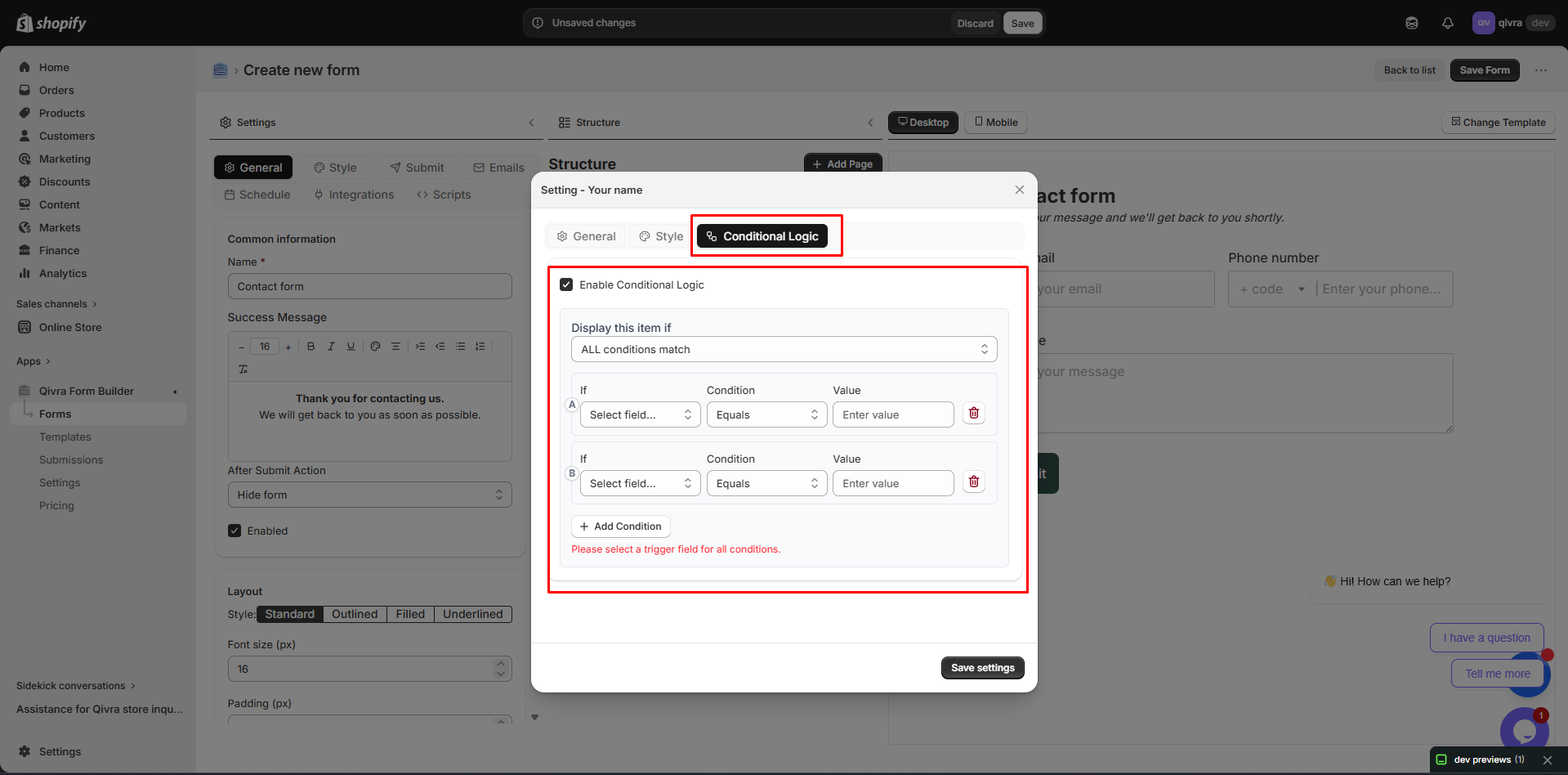
Section titled “Setting Up Conditional Logic”For Fields
Section titled “For Fields”- Click on the field to select it
- Scroll to Conditional Logic in the settings panel
- Toggle Enable Conditional Logic to ON
- Configure your conditions
For Steps
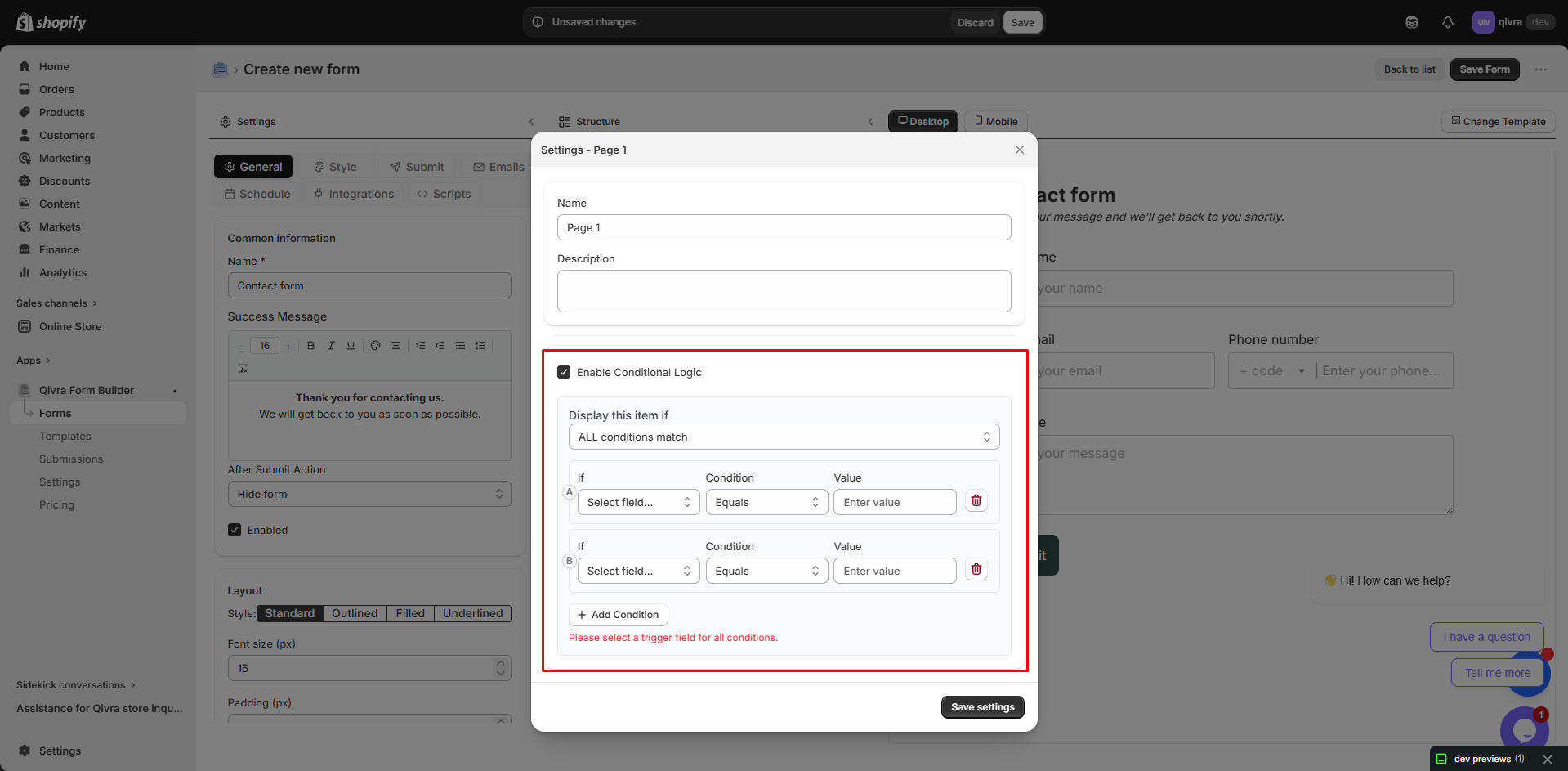
Section titled “For Steps”- Click on the step to select it
- Find Conditional Logic in step settings
- Toggle Enable Conditional Logic to ON
- Configure your conditions
Condition Configuration
Section titled “Condition Configuration”Basic Structure
Section titled “Basic Structure”Each condition has three parts:
| Part | Description | Example |
|---|---|---|
| Field | Which field to check | ”Business Type” |
| Operator | How to compare | ”equals” |
| Value | What to compare against | ”Business” |
Available Operators
Section titled “Available Operators”| Operator | Description | Works With |
|---|---|---|
| Equals | Exact match | All fields |
| Does not equal | Not exact match | All fields |
| Contains | Value includes text | Text fields |
| Does not contain | Value excludes text | Text fields |
| Is empty | Field has no value | All fields |
| Is not empty | Field has a value | All fields |
| Greater than | Number comparison | Number, Date |
| Less than | Number comparison | Number, Date |
| Is checked | Checkbox is selected | Checkbox |
| Is not checked | Checkbox is not selected | Checkbox |
Multiple Conditions
Section titled “Multiple Conditions”AND Logic
Section titled “AND Logic”All conditions must be true for the field to show.
Show "Company Size" field when: "Business Type" equals "Business" AND "Number of Employees" is not emptyOR Logic
Section titled “OR Logic”Any condition being true will show the field.
Show "Phone Preference" field when: "Contact Method" equals "Phone" OR "Contact Method" equals "Text"Combining AND/OR
Section titled “Combining AND/OR”Create complex logic with multiple condition groups:
Show "VIP Services" field when: ("Customer Type" equals "Premium" OR "Customer Type" equals "Enterprise") AND "Account Age" is greater than "1 year"Adding Multiple Conditions
Section titled “Adding Multiple Conditions”- Set up your first condition
- Click Add Condition
- Choose AND or OR
- Configure the additional condition
- Repeat as needed
Managing Conditions
Section titled “Managing Conditions”| Action | How To |
|---|---|
| Add | Click “Add Condition” |
| Remove | Click the X next to condition |
| Reorder | Drag conditions to reorder |
| Change Logic | Toggle between AND/OR |
Common Use Cases
Section titled “Common Use Cases”Show Follow-up Field
Section titled “Show Follow-up Field”Field: "Other Category"Show when: "Category" equals "Other"Show Step Based on Selection
Section titled “Show Step Based on Selection”Step: "International Shipping"Show when: "Country" does not equal "United States"Require Field Based on Checkbox
Section titled “Require Field Based on Checkbox”Field: "Delivery Instructions"Show when: "Special Delivery" is checkedMultiple Option Trigger
Section titled “Multiple Option Trigger”Field: "Product Interest Details"Show when: "Interest Area" contains "Products"Conditional Logic Examples
Section titled “Conditional Logic Examples”Example 1: Contact Preference
Section titled “Example 1: Contact Preference”Question: "Preferred Contact Method"Options: Email, Phone, Mail
IF "Preferred Contact Method" = "Phone"THEN show "Best Time to Call" field
IF "Preferred Contact Method" = "Mail"THEN show "Mailing Address" fieldsExample 2: Order Type
Section titled “Example 2: Order Type”Question: "What are you ordering?"Options: Product, Service, Consultation
IF "What are you ordering?" = "Product"THEN show "Product Selection" step
IF "What are you ordering?" = "Service"THEN show "Service Details" step
IF "What are you ordering?" = "Consultation"THEN show "Scheduling" stepExample 3: Customer Type
Section titled “Example 3: Customer Type”Question: "Are you a new or returning customer?"Options: New, Returning
IF "Customer Type" = "Returning"THEN show "Previous Order Number" field
IF "Customer Type" = "New"THEN show "How Did You Hear About Us?" fieldTesting Conditional Logic
Section titled “Testing Conditional Logic”Preview Testing
Section titled “Preview Testing”- Click Preview in the form builder
- Fill out the form as a user would
- Verify fields show/hide correctly
- Test all possible paths
Edge Cases to Test
Section titled “Edge Cases to Test”- What happens when condition field is empty?
- What happens when user changes their answer?
- Do required fields work correctly with conditions?
Troubleshooting
Section titled “Troubleshooting”Field Not Showing When Expected
Section titled “Field Not Showing When Expected”- Check condition field: Is the trigger field on a previous step?
- Verify operator: Is “equals” vs “does not equal” correct?
- Check value: Does the value match exactly (case-sensitive)?
- Review logic: Are AND/OR conditions correct?
Field Not Hiding When Expected
Section titled “Field Not Hiding When Expected”- Verify logic is enabled: Is the toggle ON?
- Check all conditions: Are all conditions being met?
- Test in preview: Does it work in preview mode?
Performance Issues
Section titled “Performance Issues”- Reduce conditions: Simplify where possible
- Limit cascading logic: Avoid conditions based on conditional fields
- Test on mobile: Ensure performance is acceptable
Best Practices
Section titled “Best Practices”Keep It Simple
Section titled “Keep It Simple”- Use the minimum conditions needed
- Avoid deeply nested logic
- Test all possible paths
User Experience
Section titled “User Experience”- Make conditional transitions smooth
- Don’t hide too many fields at once
- Consider using multi-step forms instead
Maintenance
Section titled “Maintenance”- Document complex logic
- Review conditions when updating forms
- Test after any form changes