Using Form Templates
Form templates are pre-built forms designed for common use cases. They help you create professional forms quickly without starting from scratch.
What Are Templates?
Section titled “What Are Templates?”Templates are ready-made forms that include:
- Pre-configured fields
- Logical field organization
- Appropriate field settings
- Professional styling
- Multi-step structure (when applicable)
Benefits of Using Templates
Section titled “Benefits of Using Templates”| Benefit | Description |
|---|---|
| Save Time | Start with a complete form, not a blank canvas |
| Best Practices | Templates follow form design best practices |
| Consistency | Professional structure and organization |
| Inspiration | See what fields are commonly needed |
| Customizable | Modify any template to fit your needs |
Accessing Templates
Section titled “Accessing Templates”From the Dashboard
Section titled “From the Dashboard”- Click Templates in the sidebar
- Browse available templates
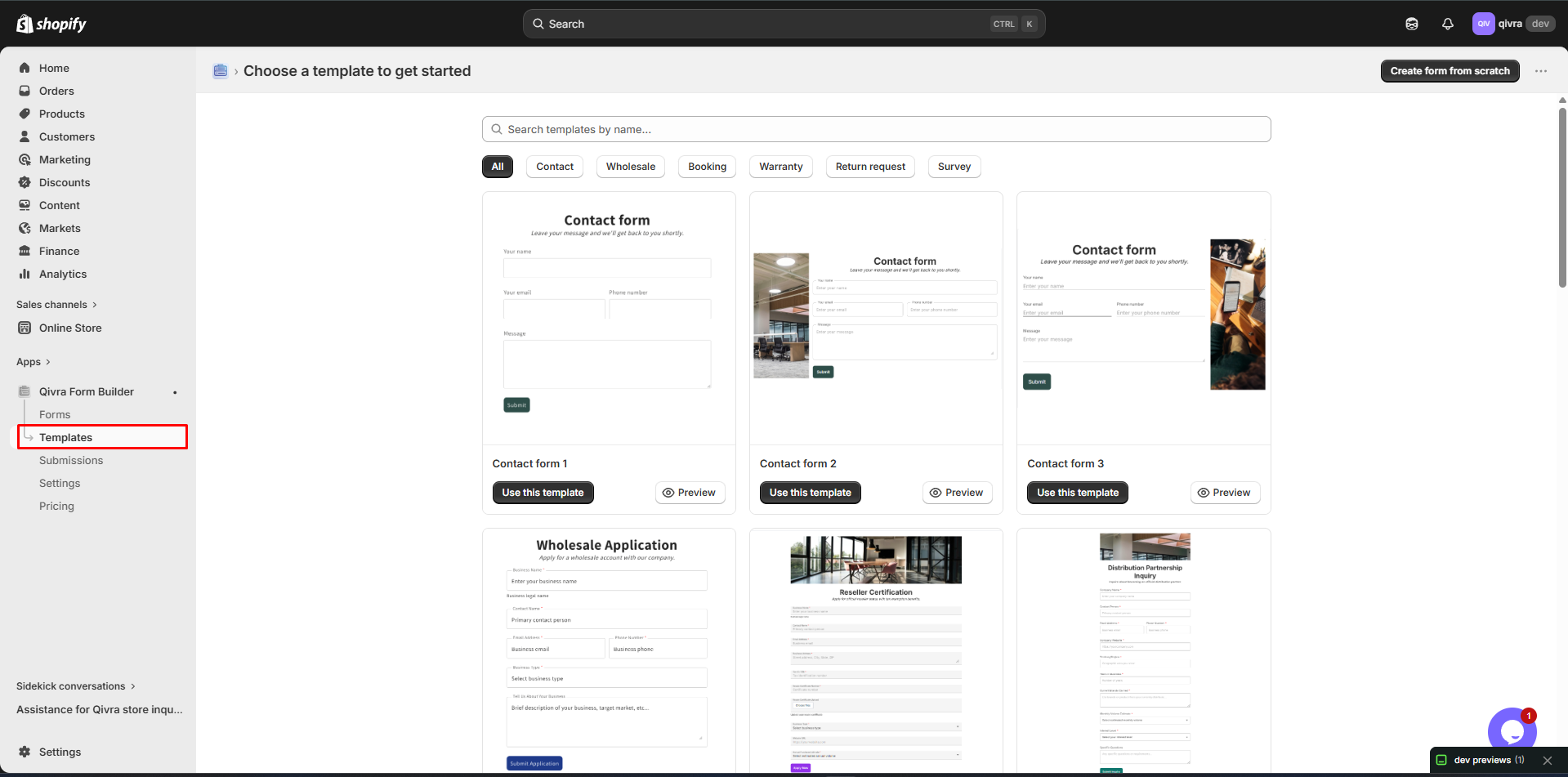
When Creating a Form
Section titled “When Creating a Form”- Click Create new form
- Choose Template option
- Browse and select a template
Template Categories
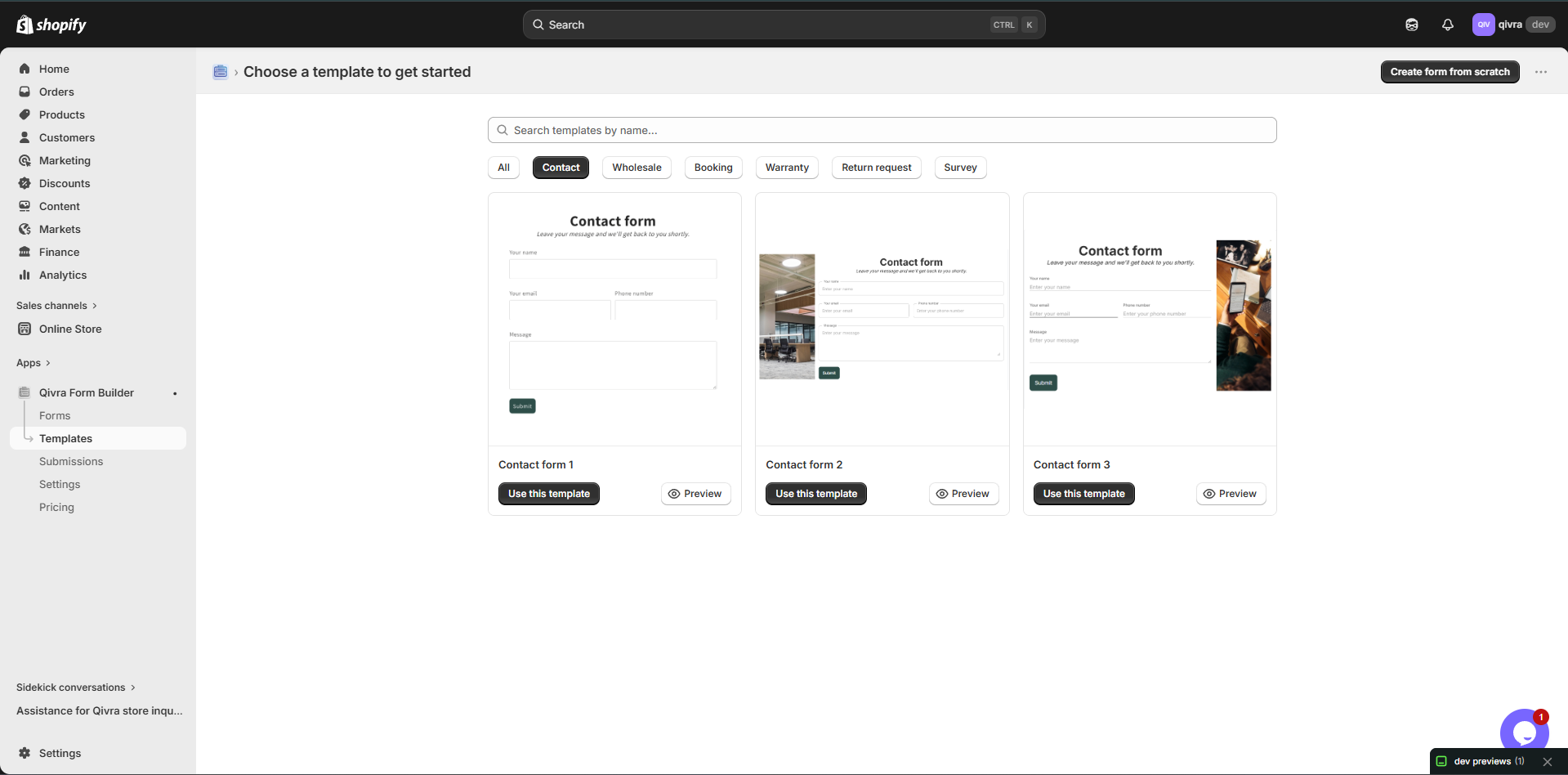
Section titled “Template Categories”Contact Forms
Section titled “Contact Forms”Purpose: General inquiries and customer communication
| Template | Description |
|---|---|
| Basic Contact | Simple name, email, message form |
| Advanced Contact | Contact form with phone and category |
| Support Request | For customer support inquiries |
Wholesale Forms
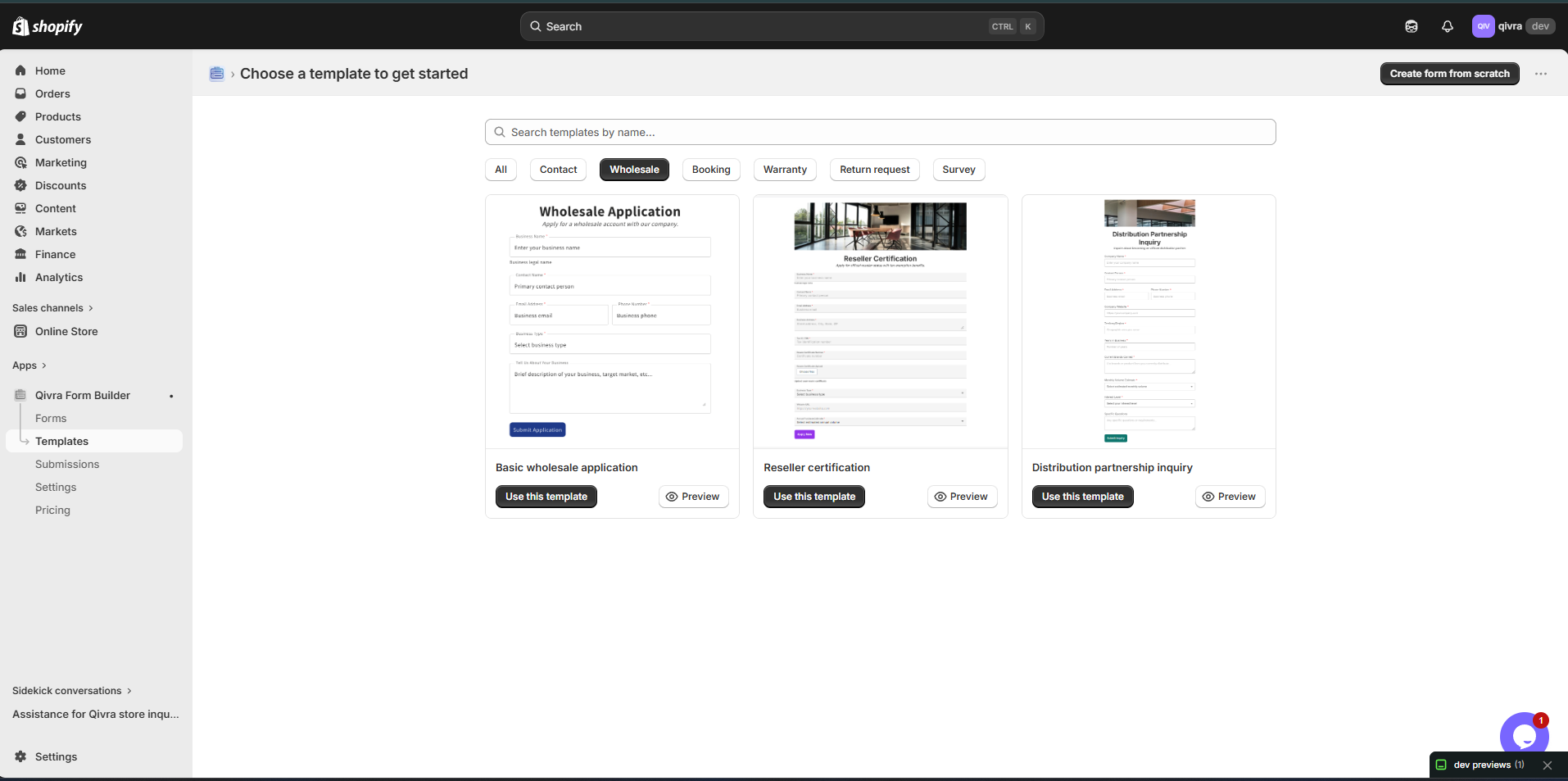
Section titled “Wholesale Forms”Purpose: B2B applications and wholesale inquiries
| Template | Description |
|---|---|
| Wholesale Application | Business info, tax ID, product interests |
| B2B Inquiry | Company details and order requirements |
| Reseller Application | For potential reseller partners |
Booking & Reservation
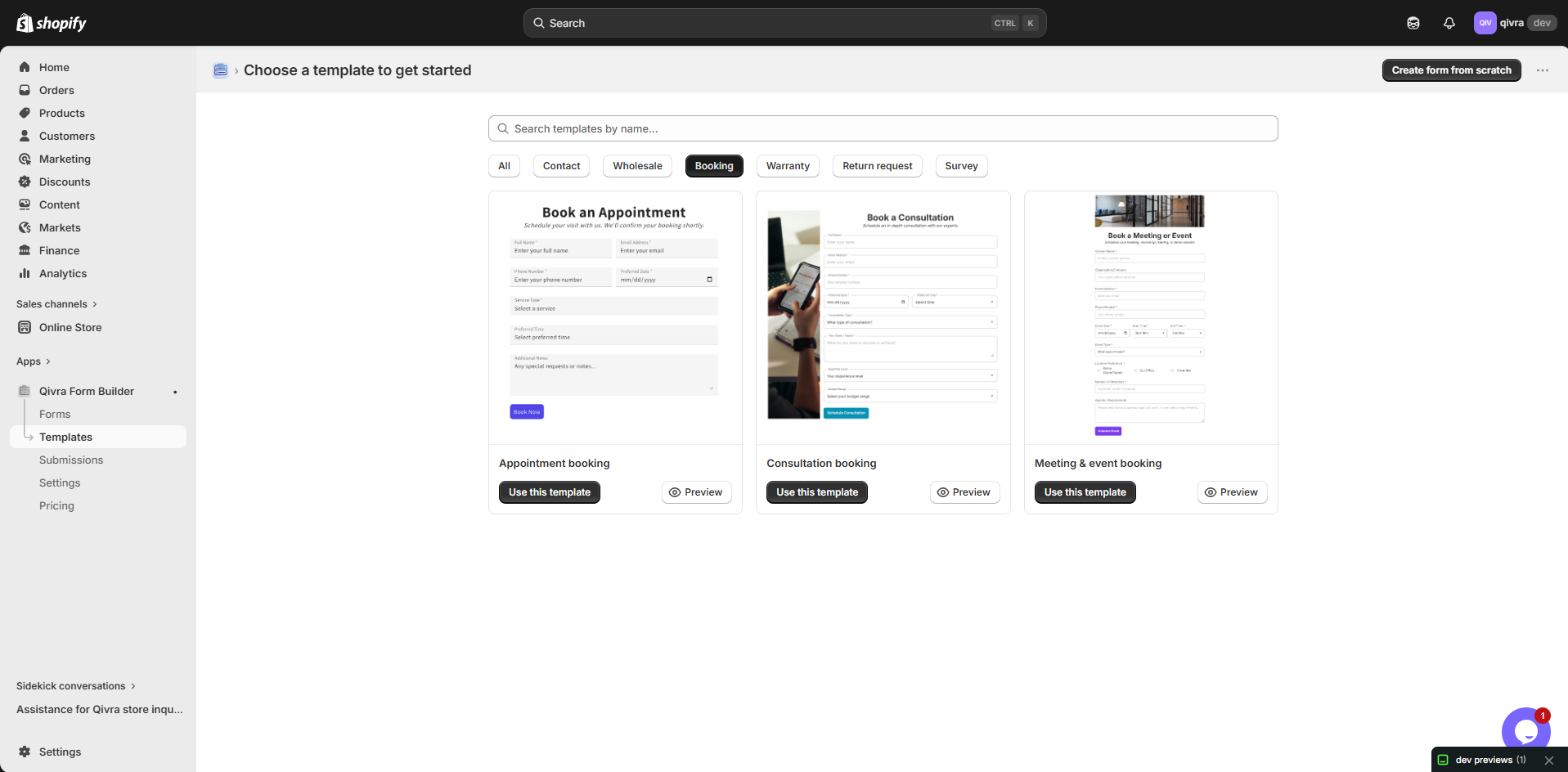
Section titled “Booking & Reservation”Purpose: Appointments, reservations, scheduling
| Template | Description |
|---|---|
| Appointment Booking | Date, time, service selection |
| Event Registration | Event details and attendee info |
| Service Booking | Service selection and scheduling |
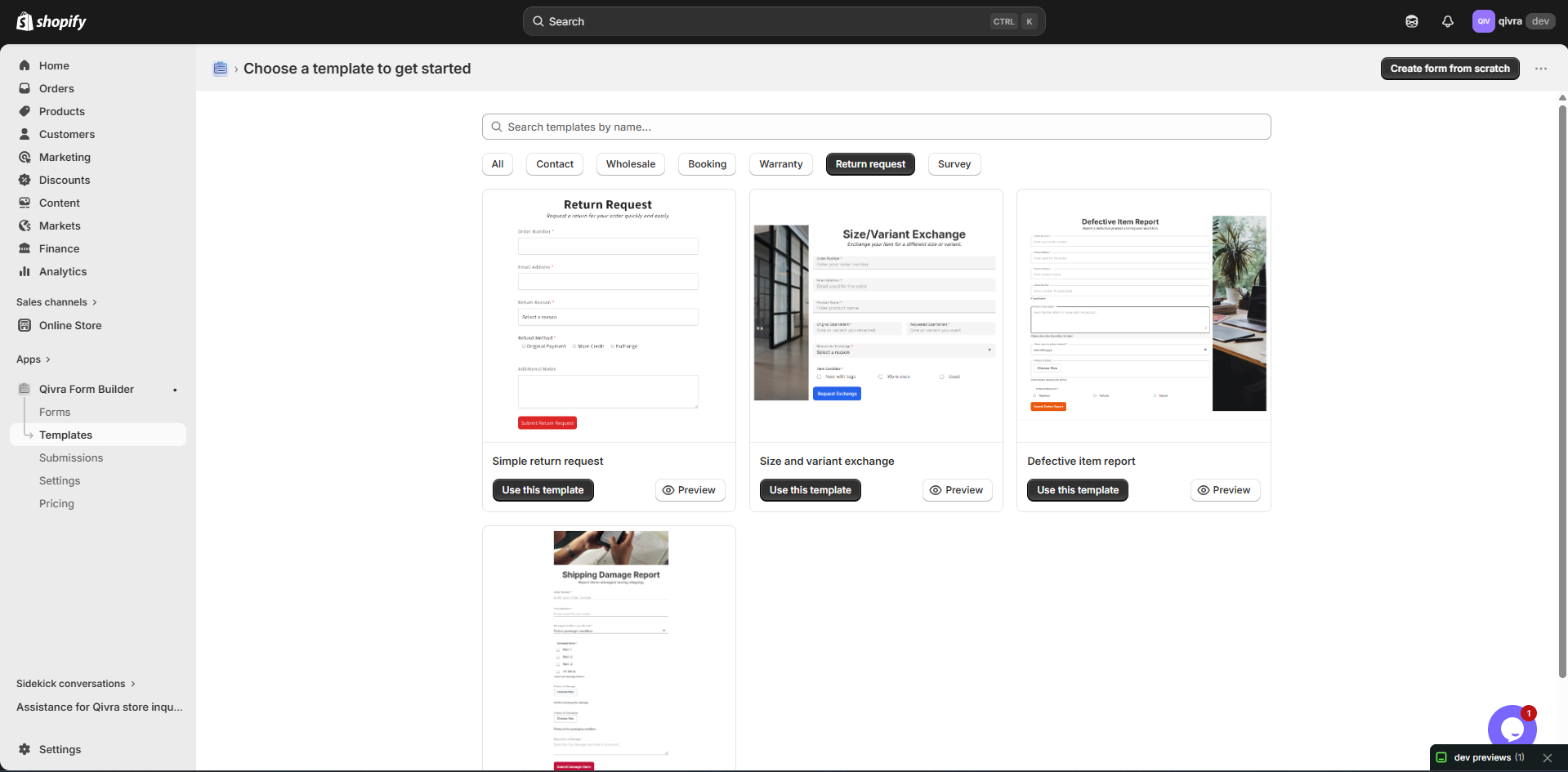
Return & Exchange
Section titled “Return & Exchange”Purpose: Return requests and exchanges
| Template | Description |
|---|---|
| Return Request | Order info, reason, refund method |
| Exchange Request | Product exchange details |
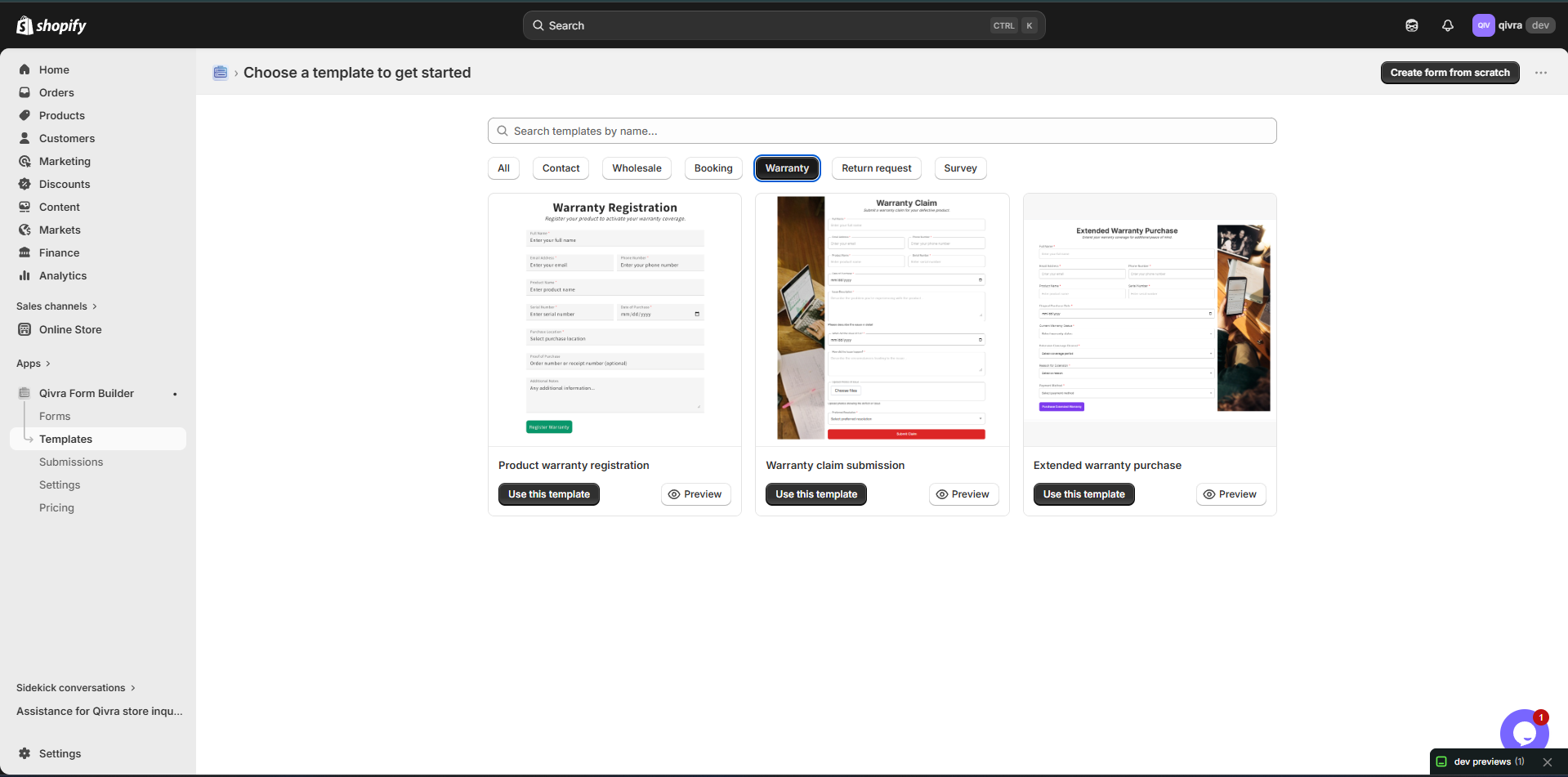
| Warranty Claim | Product issue and proof of purchase |
Survey & Feedback
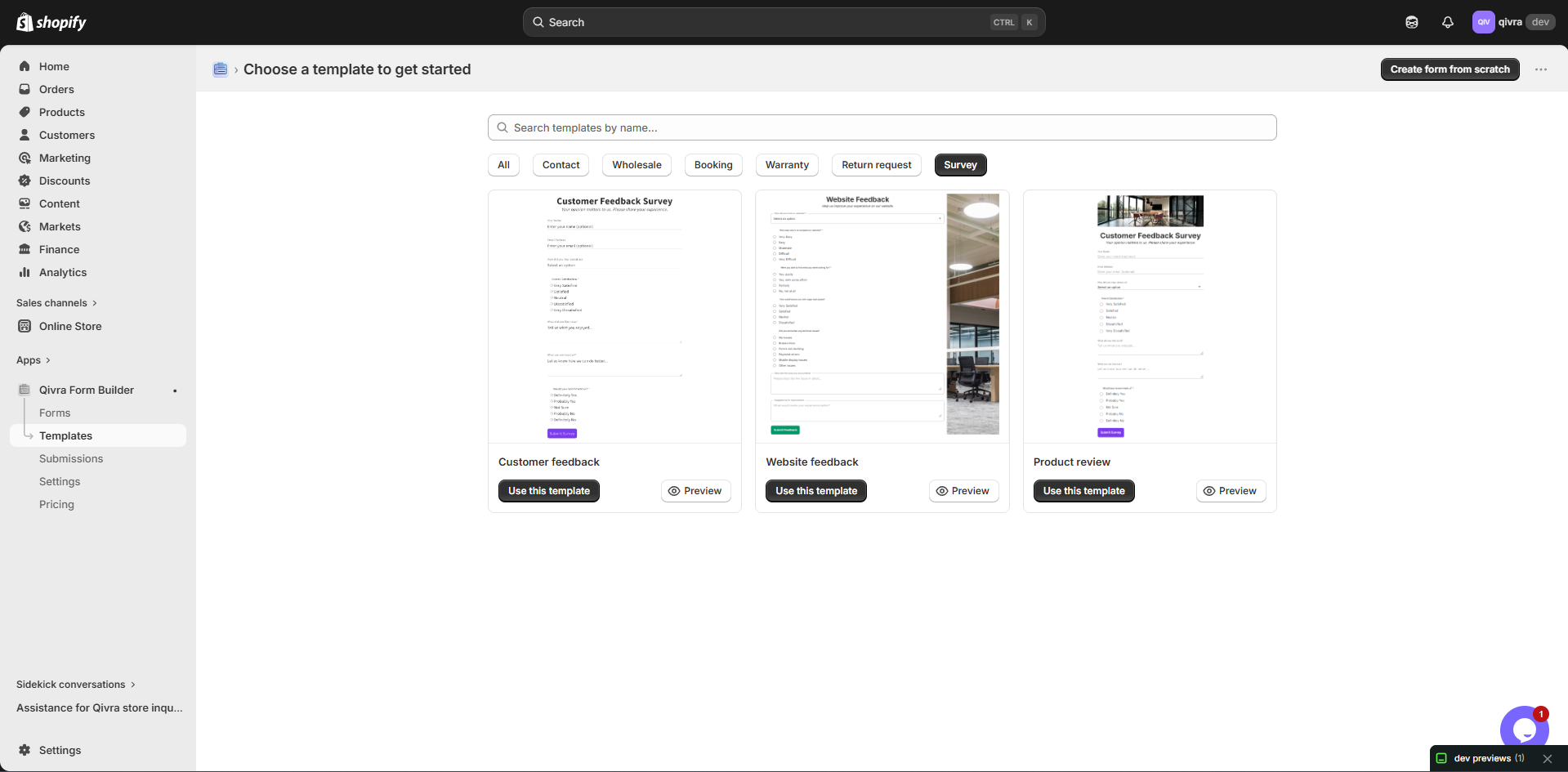
Section titled “Survey & Feedback”Purpose: Customer feedback and market research
| Template | Description |
|---|---|
| Customer Satisfaction | NPS and feedback questions |
| Product Review | Product rating and review |
| Feedback Form | General feedback collection |
Registration Forms
Section titled “Registration Forms”Purpose: Account creation and sign-ups
| Template | Description |
|---|---|
| Newsletter Signup | Email capture for marketing |
| Account Registration | New customer registration |
| VIP Program | Loyalty program signup |
Using a Template
Section titled “Using a Template”Step 1: Browse Templates
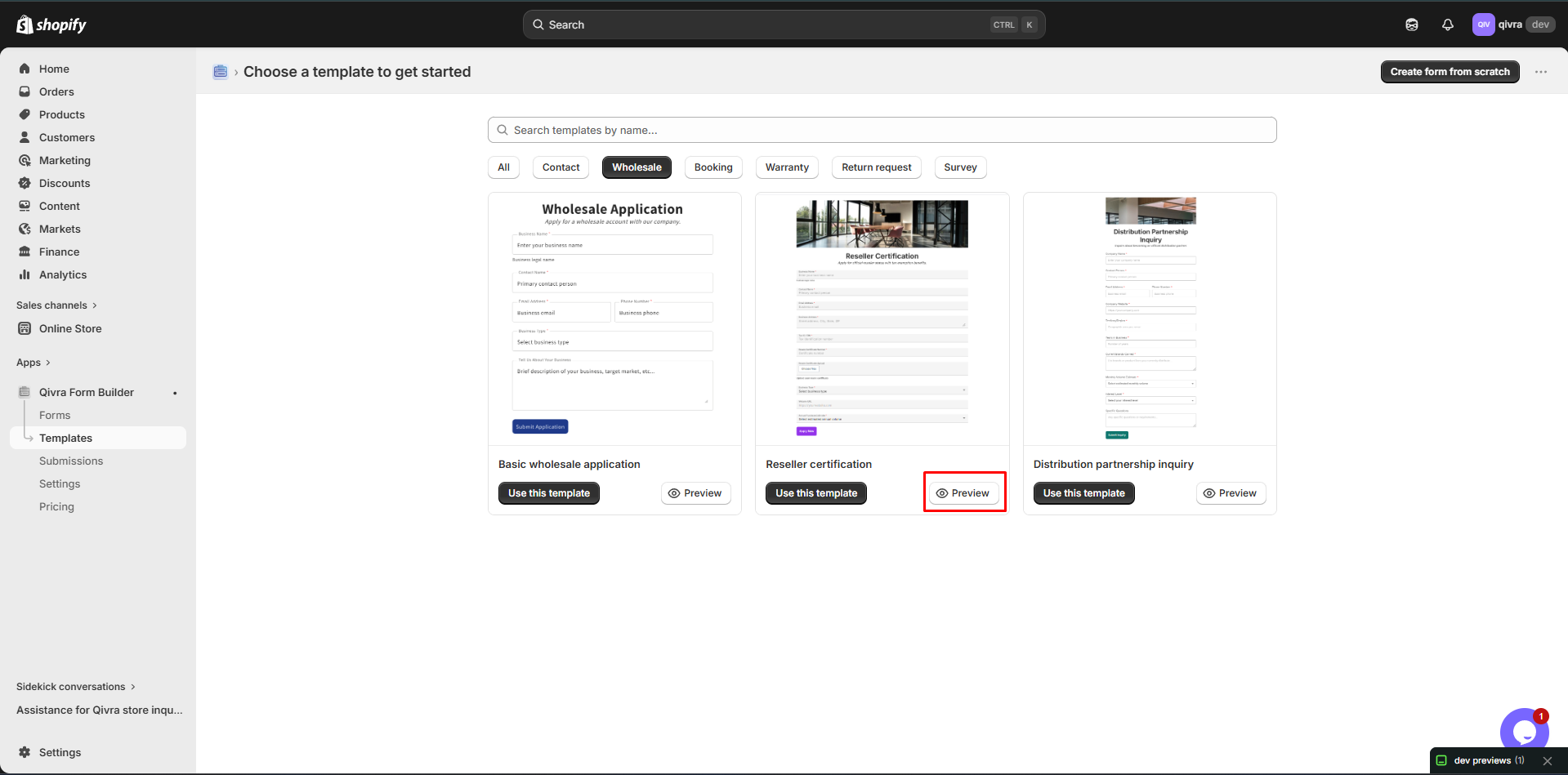
Section titled “Step 1: Browse Templates”- Go to Templates section
- Filter by category if desired
- Click on a template to preview
Step 2: Preview the Template
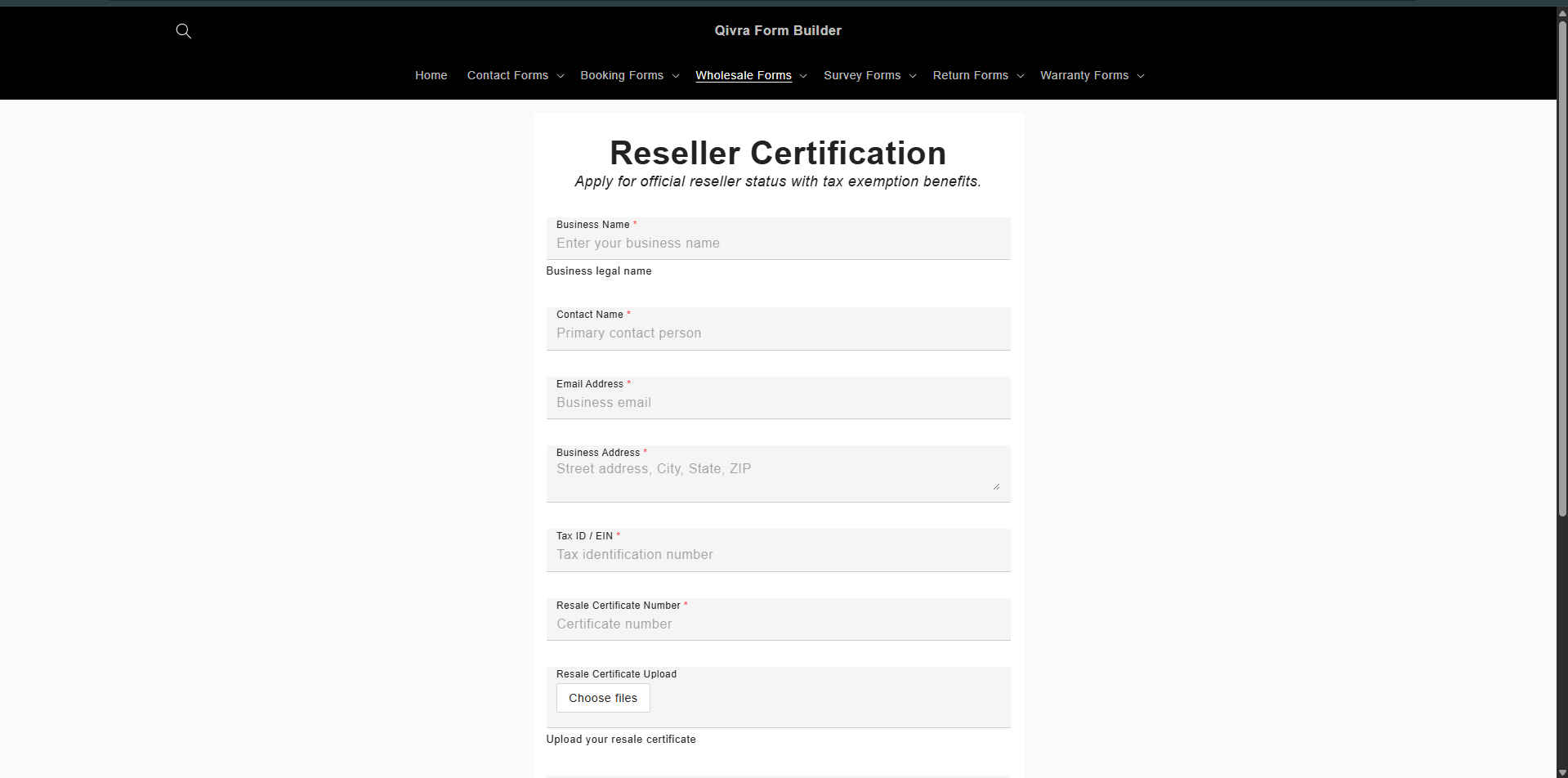
Section titled “Step 2: Preview the Template”The preview shows:
- All form fields
- Step structure (if multi-step)
- Field organization
Step 3: Use the Template
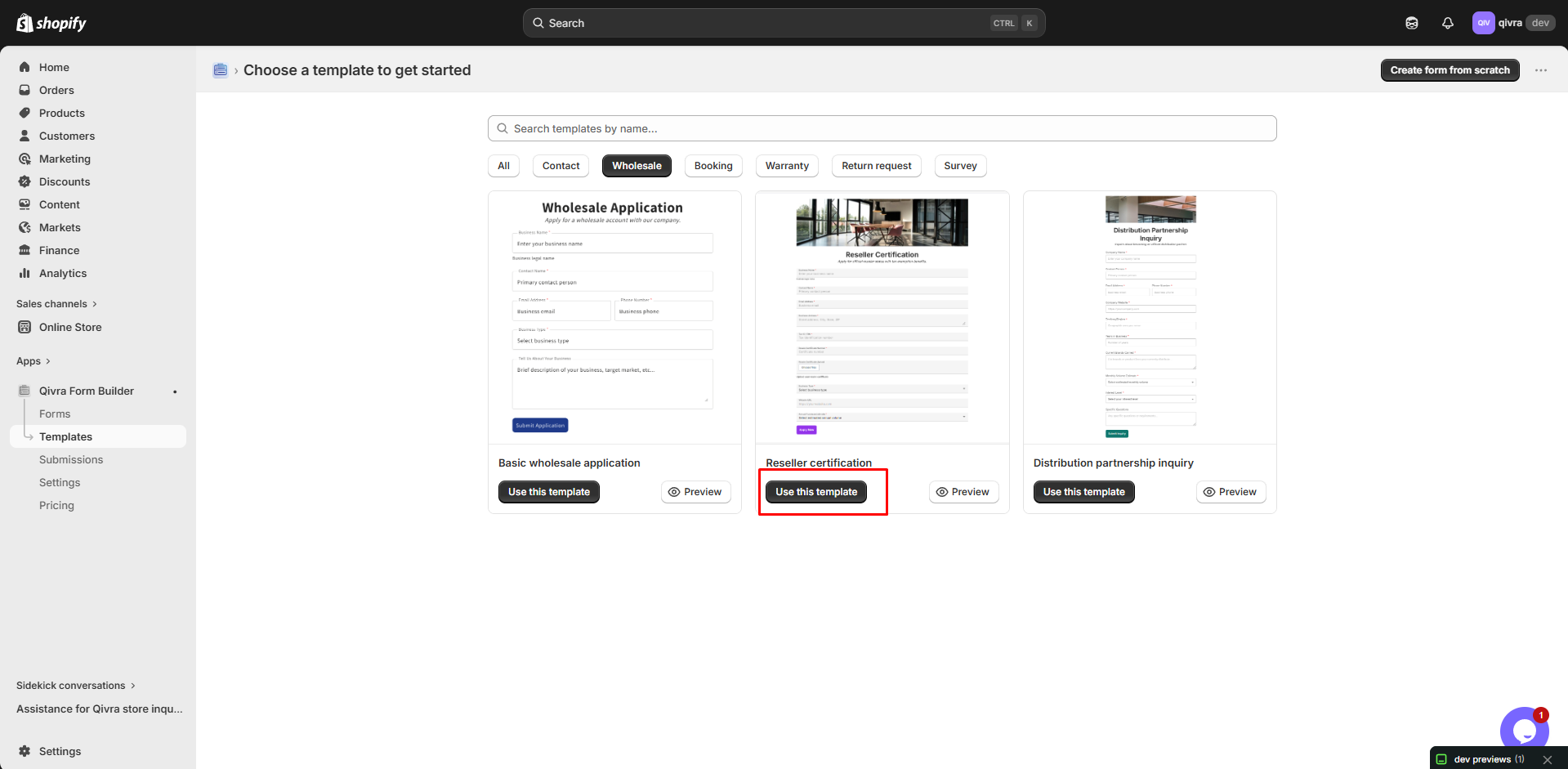
Section titled “Step 3: Use the Template”- Click Use this template
- Enter a name for your form
- The form is created with all template content
Step 4: Customize
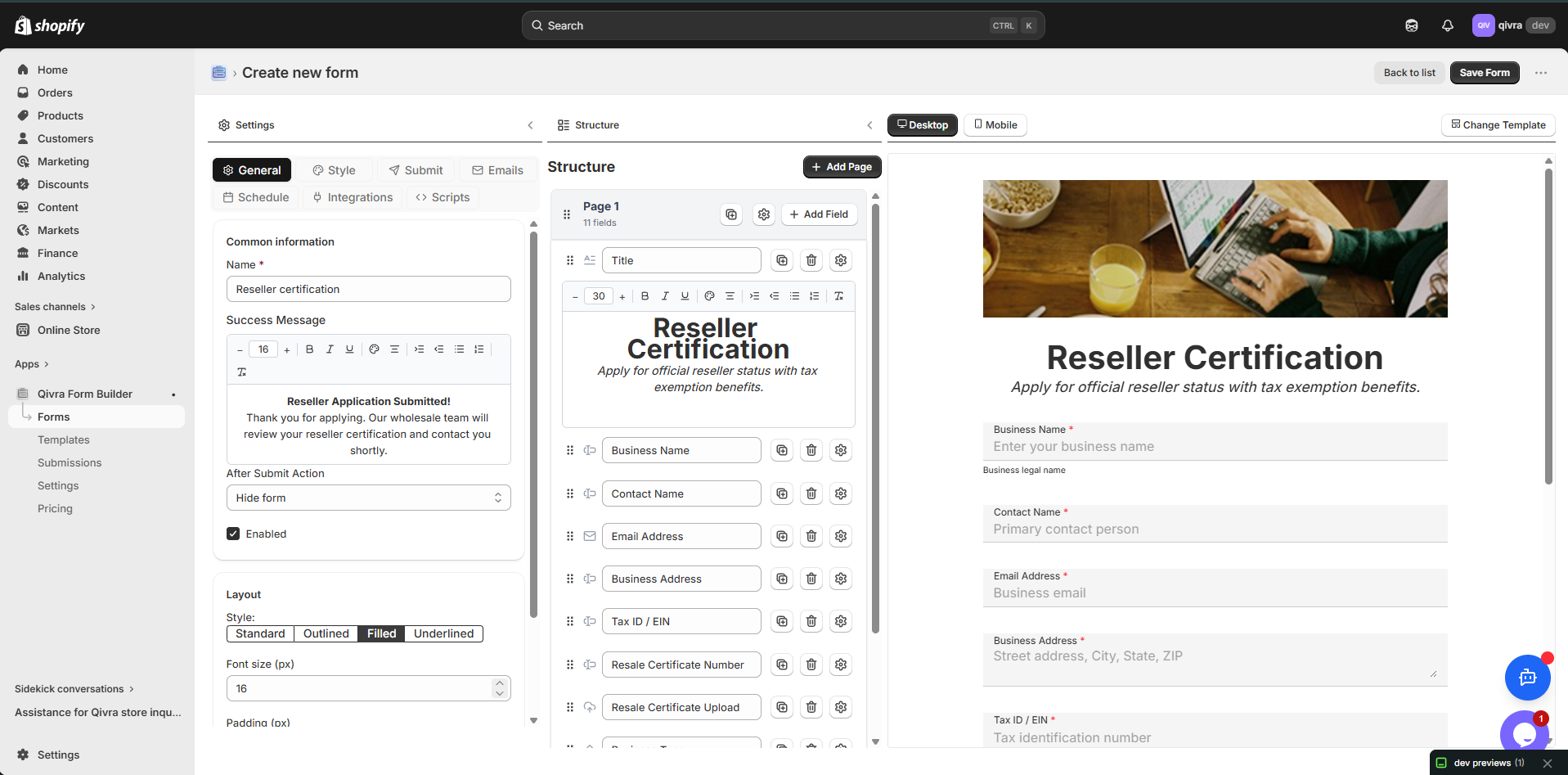
Section titled “Step 4: Customize”After creation, modify the form as needed:
- Add or remove fields
- Change field settings
- Adjust styling
- Configure notifications
Template Availability
Section titled “Template Availability”Free Templates
Section titled “Free Templates”Available to all users:
| Category | Free Templates |
|---|---|
| Contact | Basic Contact, Simple Inquiry |
| Survey | Basic Feedback |
| Signup | Newsletter Signup |
Premium Templates
Section titled “Premium Templates”Available with paid plans:
| Category | Premium Templates |
|---|---|
| Wholesale | Wholesale Application, B2B Inquiry |
| Booking | Appointment Booking, Event Registration |
| Returns | Return Request, Exchange Request |
| Advanced | Advanced Contact, Support Request |
Customizing Templates
Section titled “Customizing Templates”Templates are fully customizable after creation.
Common Customizations
Section titled “Common Customizations”| What to Change | How |
|---|---|
| Add fields | Click Add Elements and select fields |
| Remove fields | Click field, then Delete |
| Reorder fields | Drag fields to new positions |
| Change labels | Edit label text in field settings |
| Add steps | Create new steps and move fields |
| Modify styling | Adjust colors, fonts, spacing |
Making It Your Own
Section titled “Making It Your Own”-
Add your branding
- Update form name
- Adjust colors to match brand
- Add logo in header if supported
-
Customize fields
- Add fields specific to your business
- Remove fields you don’t need
- Update options in dropdown/radio fields
-
Configure notifications
- Set up email recipients
- Customize success message
- Configure integrations
Creating Forms from Templates vs. Blank
Section titled “Creating Forms from Templates vs. Blank”| Aspect | From Template | From Blank |
|---|---|---|
| Setup Time | Fast | Longer |
| Customization | Full | Full |
| Best For | Common use cases | Unique needs |
| Learning Curve | Lower | Higher |
| Structure | Pre-organized | Build from scratch |
When to Use Templates
Section titled “When to Use Templates”- Standard form types (contact, booking, etc.)
- Quick implementation needed
- Want to follow best practices
- New to form building
When to Start Blank
Section titled “When to Start Blank”- Unique form requirements
- Very simple forms
- Very complex custom forms
- Want complete control from start
Template Best Practices
Section titled “Template Best Practices”After Using a Template
Section titled “After Using a Template”-
Review all fields
- Check if all fields are relevant
- Verify field labels make sense
- Ensure required fields are correct
-
Test the form
- Preview and submit test entries
- Check email notifications
- Verify on mobile devices
-
Customize for your needs
- Add business-specific questions
- Remove unnecessary fields
- Adjust for your workflow
Maintaining Template-Based Forms
Section titled “Maintaining Template-Based Forms”- Review submissions for missing information
- Add fields if customers frequently ask
- Remove fields that aren’t useful
- Keep forms concise