Setup Google reCAPTCHA
Protect your forms from spam and abuse with Google reCAPTCHA. This guide shows you how to set up reCAPTCHA v3 for your forms.
What is Google reCAPTCHA?
Section titled “What is Google reCAPTCHA?”Google reCAPTCHA is a free service that protects your forms from spam and abuse. It uses advanced risk analysis techniques to tell humans and bots apart.
reCAPTCHA v3 Features
Section titled “reCAPTCHA v3 Features”- Invisible to users - No puzzles or challenges to solve
- Score-based verification - Analyzes user behavior
- No interruption - Smooth form submission experience
- Free to use - No cost for most websites
Before You Start
Section titled “Before You Start”Make sure you have:
- A Google account
- Access to your form builder settings
- Your store domain ready
Step 1: Register Your Site
Section titled “Step 1: Register Your Site”Go to Google reCAPTCHA
Section titled “Go to Google reCAPTCHA”- Visit Google reCAPTCHA Admin
- Sign in with your Google account
- Click + to create a new site
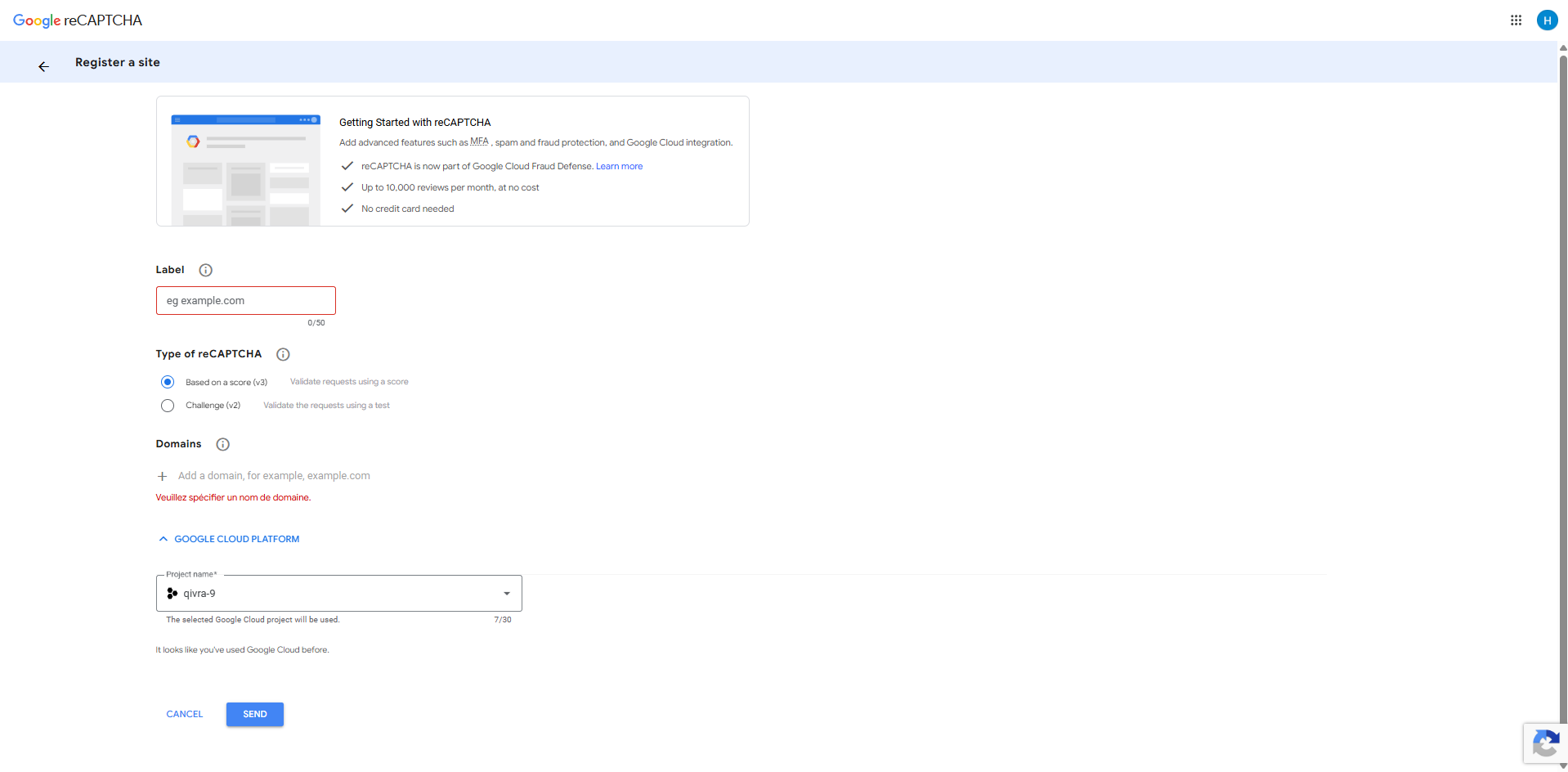
Fill in Site Information
Section titled “Fill in Site Information”| Field | What to Enter |
|---|---|
| Label | Your store name (e.g., “My Shopify Store”) |
| reCAPTCHA type | reCAPTCHA v3 |
| Domain | Your store domain (e.g., mystore.myshopify.com) |
Add Required Domains
Section titled “Add Required Domains”Enter these domains in the Domains section:
- Your store domain:
your-store.myshopify.com - Your custom domain (if any):
www.yourstore.com - App domain:
qivra-form-builder.com
Important: Add all domains where your forms will appear.
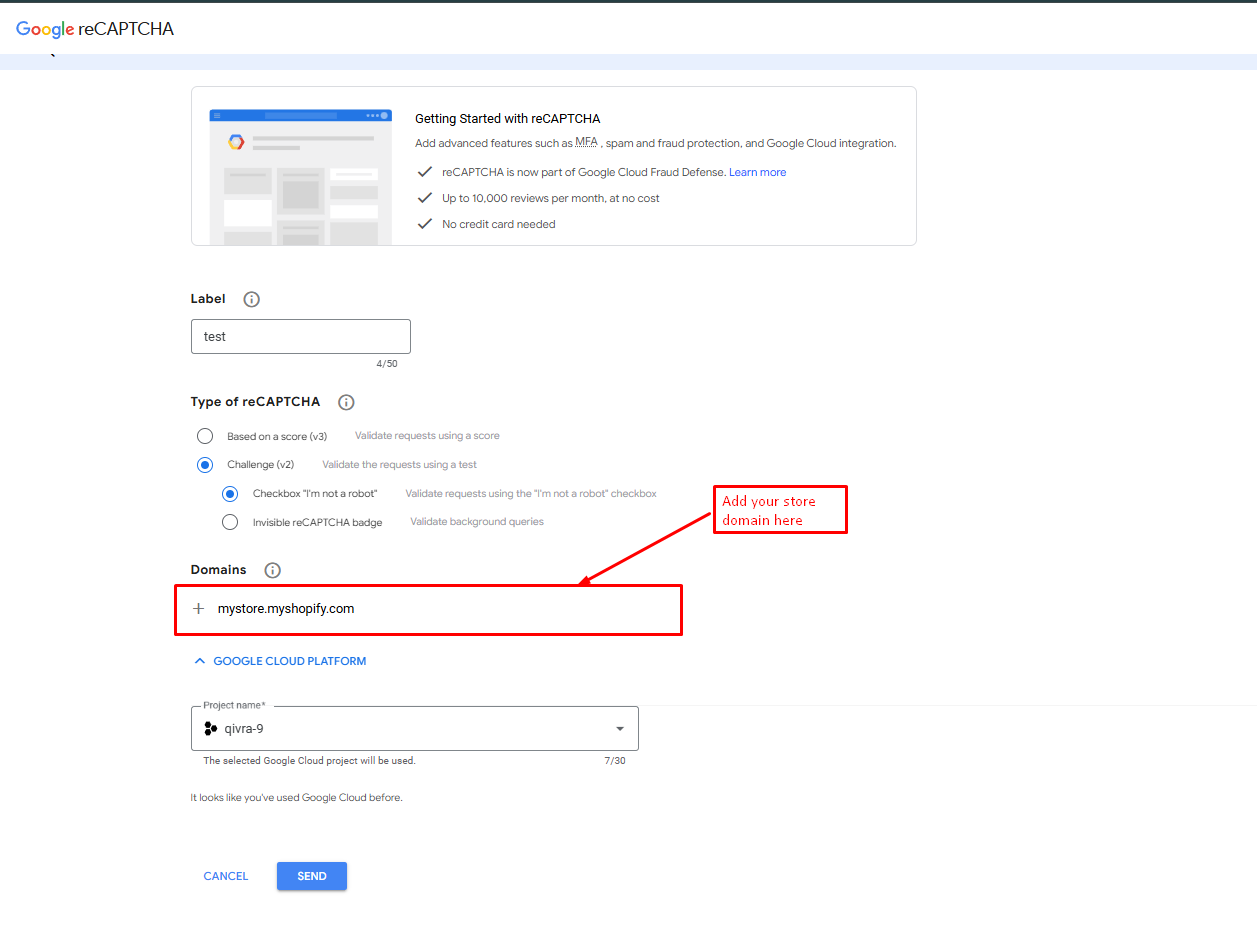
Accept Terms
Section titled “Accept Terms”- Check “Accept the reCAPTCHA Terms of Service”
- Optionally check “Send alerts to owners” for notifications
- Click Submit
Step 2: Get Your Keys
Section titled “Step 2: Get Your Keys”After registration, you’ll see two keys:
| Key | Description |
|---|---|
| Site Key | Public key used in the frontend |
| Secret Key | Private key used for verification |
Copy Your Keys
Section titled “Copy Your Keys”- Copy the Site Key (starts with
6L...) - Copy the Secret Key (starts with
6L...) - Keep these keys secure
Note: You can always find these keys later in the reCAPTCHA Admin console.
Step 3: Configure in Form Builder
Section titled “Step 3: Configure in Form Builder”Open Settings
Section titled “Open Settings”- Go to your form builder app
- Navigate to Forms > choose your form
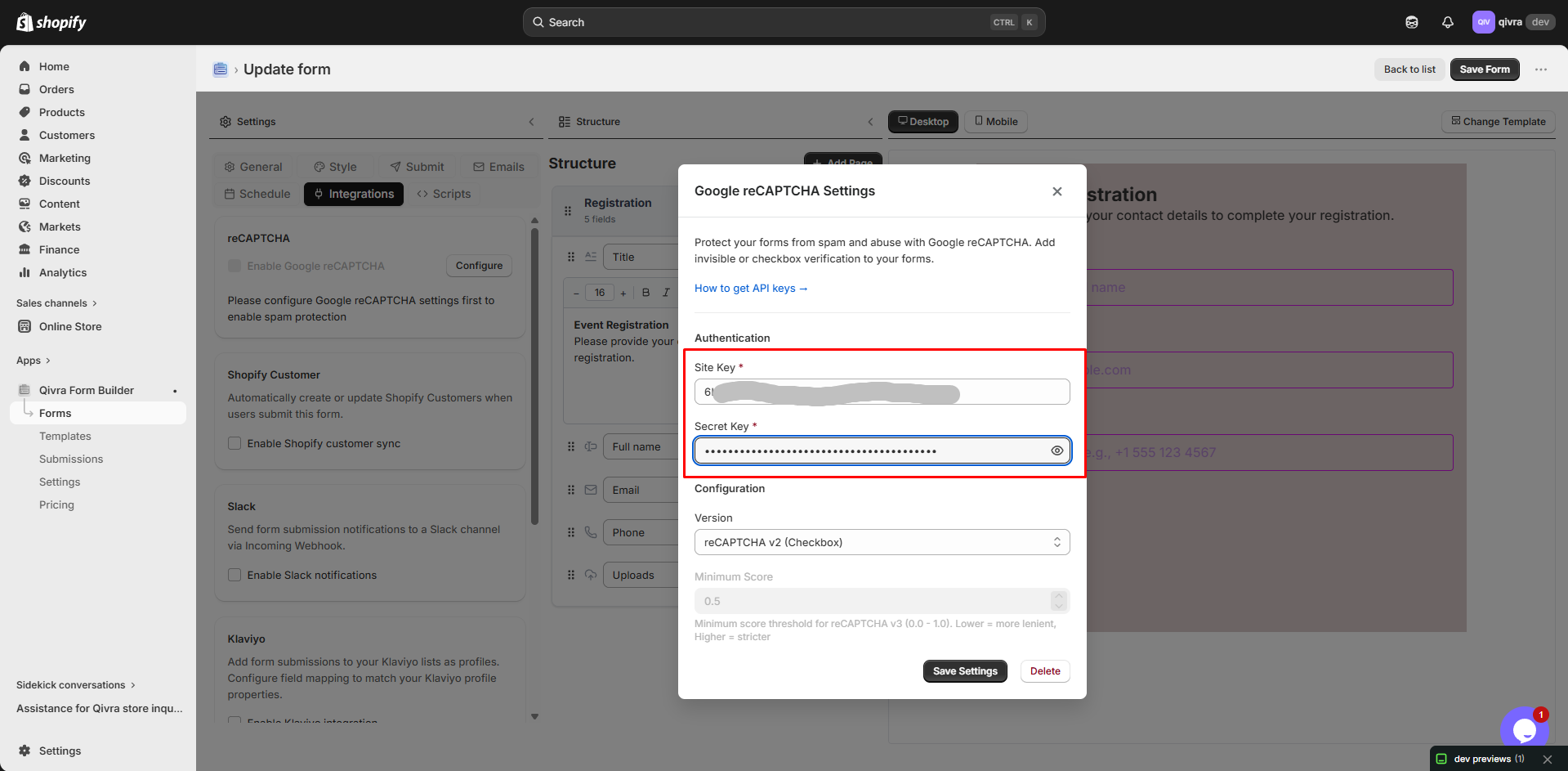
- Find Google reCAPTCHA > click Configure
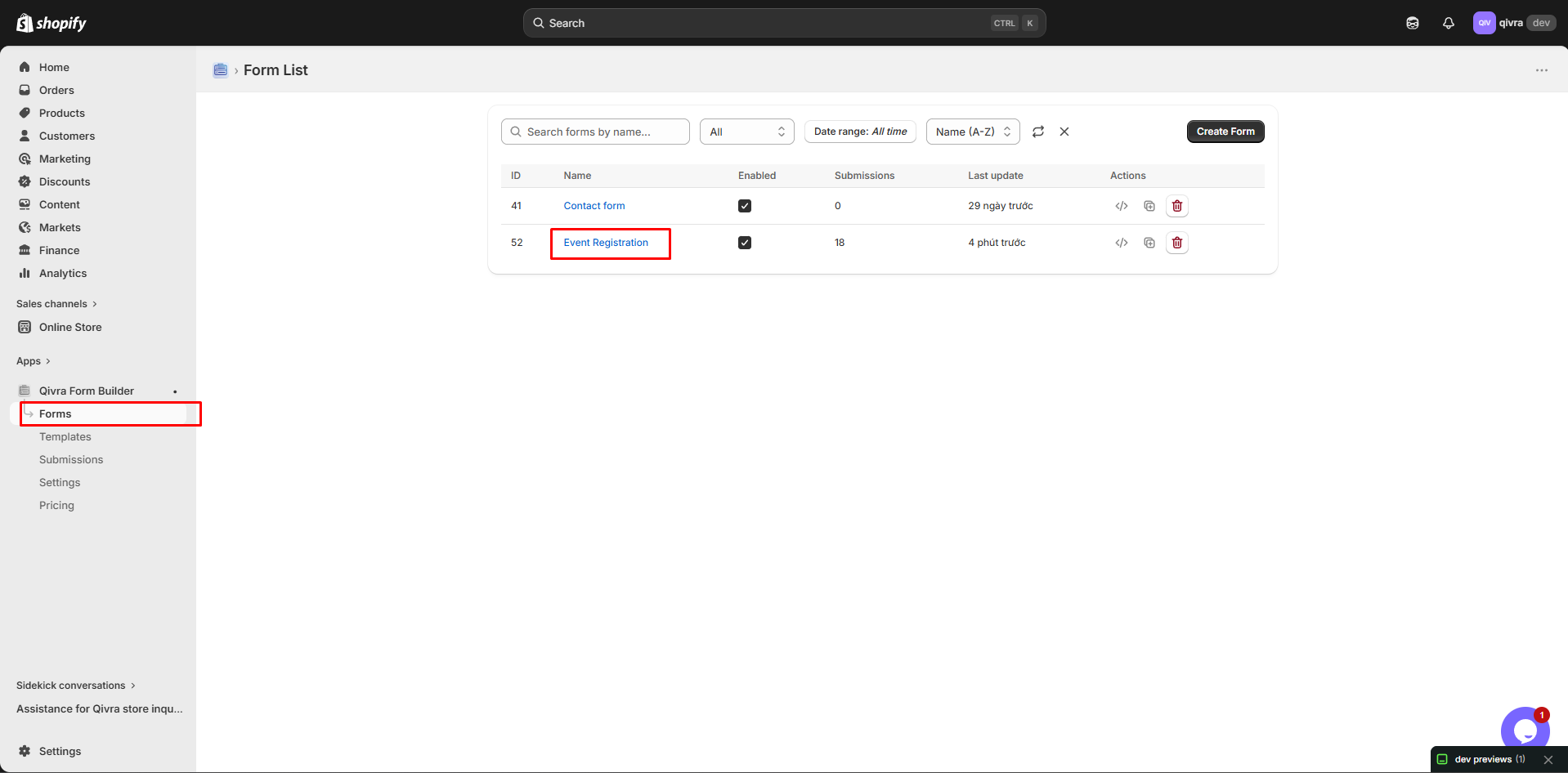
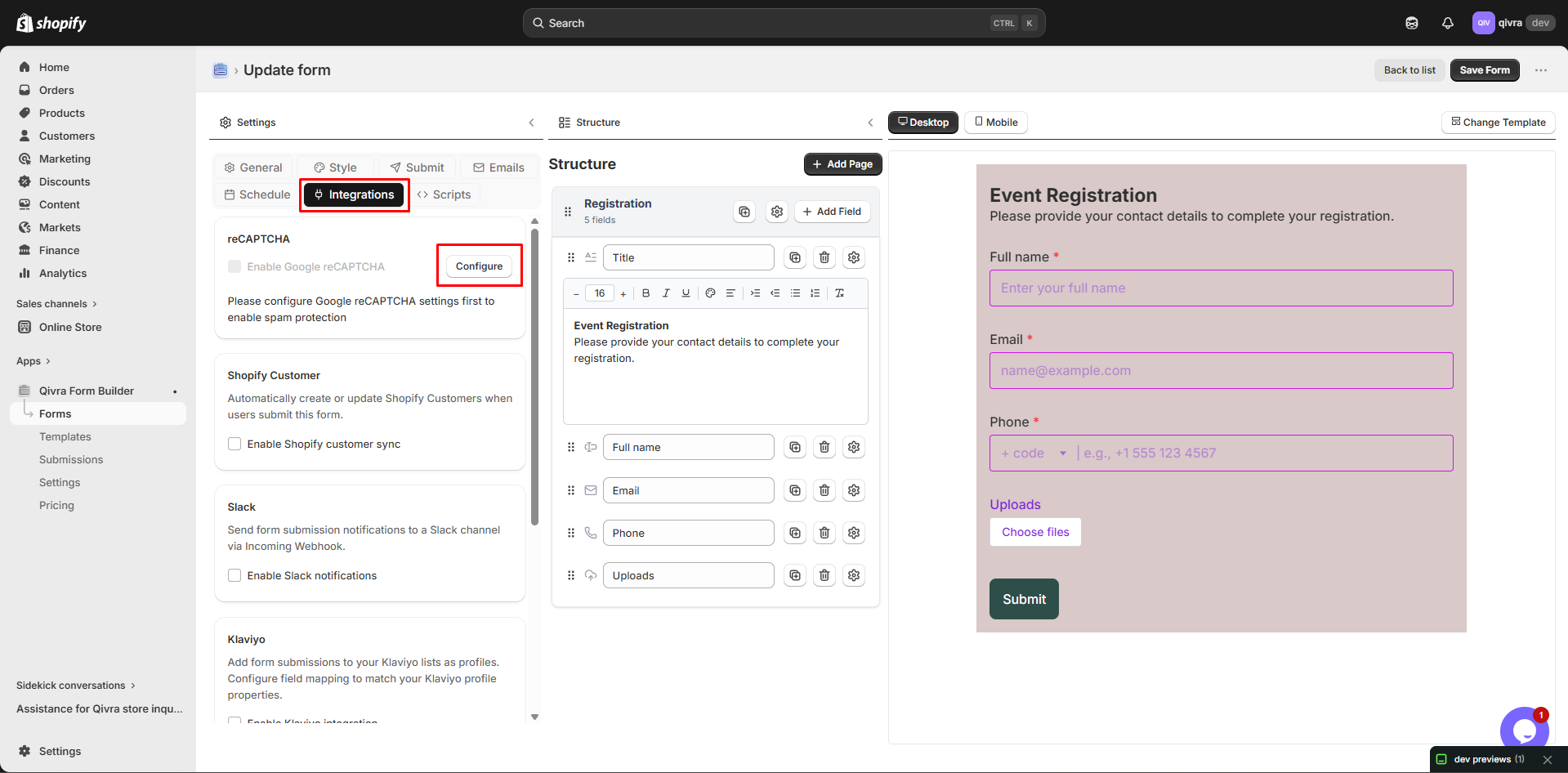
Enter Your Keys
Section titled “Enter Your Keys”| Field | What to Enter |
|---|---|
| Site Key | Paste your Site Key from Google |
| Secret Key | Paste your Secret Key from Google |
Enable reCAPTCHA
Section titled “Enable reCAPTCHA”- Click Save Settings
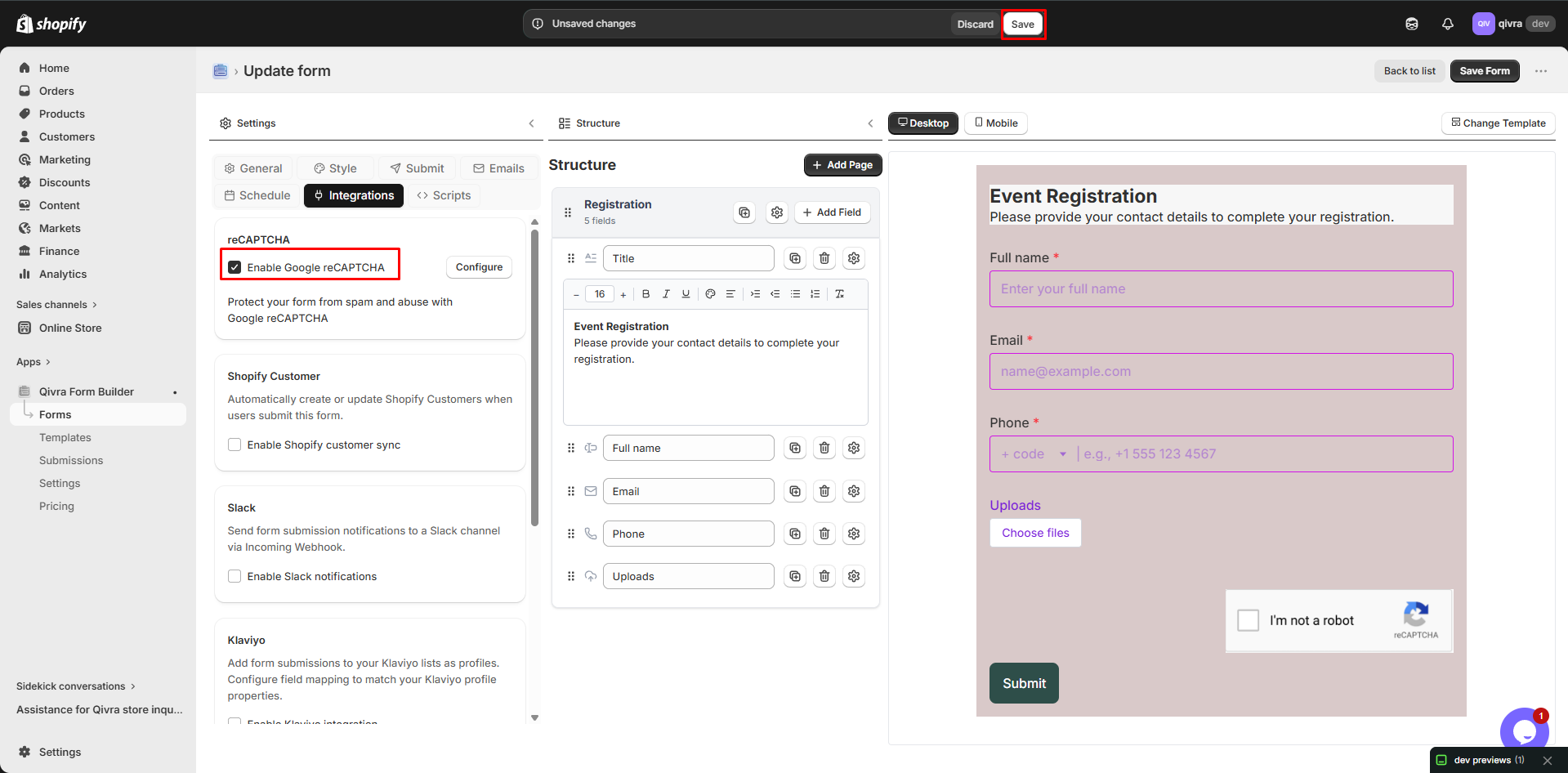
- Toggle Enable reCAPTCHA to On
- Click Save Form
Step 4: Test reCAPTCHA
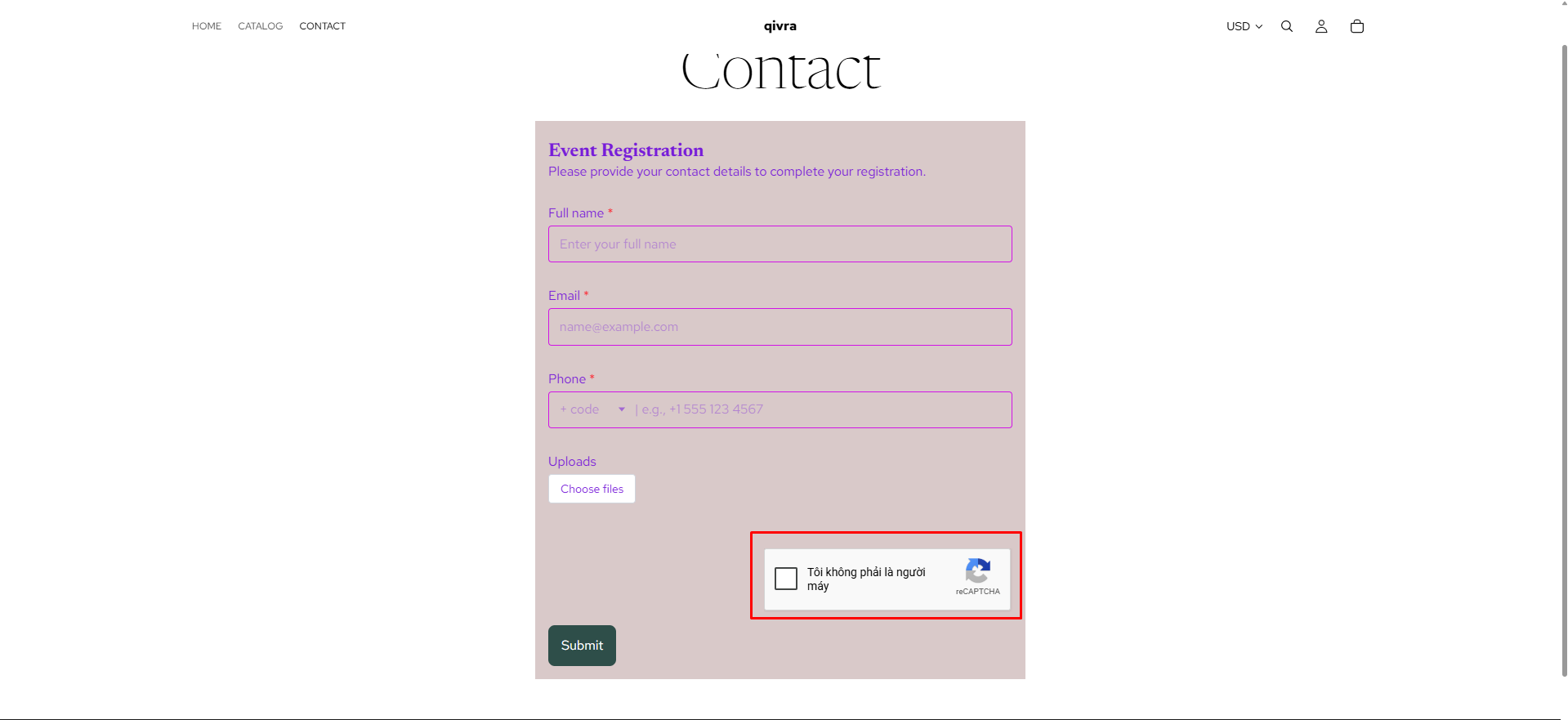
Section titled “Step 4: Test reCAPTCHA”Test on Storefront
Section titled “Test on Storefront”- Go to a page with your form
- Open browser DevTools (F12)
- Go to Console tab
- Submit the form
- Check for any reCAPTCHA errors
Verify in Google Console
Section titled “Verify in Google Console”- Go to reCAPTCHA Admin
- Click on your site
- Go to Analytics tab
- You should see requests appearing
Check Submission
Section titled “Check Submission”- Submit a test form
- Go to Submissions page
- Verify submission was recorded
- Check for spam score (if available)
reCAPTCHA Settings
Section titled “reCAPTCHA Settings”Score Threshold
Section titled “Score Threshold”reCAPTCHA v3 returns a score (0.0 - 1.0):
| Score | Meaning | Action |
|---|---|---|
| 1.0 | Definitely human | Accept submission |
| 0.5 | Likely human | Default threshold |
| 0.0 | Definitely bot | Reject submission |
Recommended: Keep default threshold (0.5) unless you have specific needs.
Adjusting Threshold
Section titled “Adjusting Threshold”The threshold is fixed at Google’s recommended default (0.5). If you see legitimate submissions blocked or spam getting through, adjust the score threshold in your Google reCAPTCHA admin console settings rather than in the app.
Troubleshooting
Section titled “Troubleshooting””Invalid site key” Error
Section titled “”Invalid site key” Error”| Cause | Solution |
|---|---|
| Wrong key copied | Re-copy from Google console |
| Key deleted | Create new site in Google |
| Typo in key | Check for extra spaces |
”Domain mismatch” Error
Section titled “”Domain mismatch” Error”| Cause | Solution |
|---|---|
| Domain not registered | Add domain in Google console |
| Wrong domain format | Use domain without https:// |
| Missing subdomain | Add both www and non-www |
Form Not Submitting
Section titled “Form Not Submitting”| Cause | Solution |
|---|---|
| JavaScript blocked | Check browser settings |
| Ad blocker | Disable for testing |
| Keys not saved | Re-save settings |
Still Receiving Spam
Section titled “Still Receiving Spam”If spam continues:
-
Check your keys
- Verify the Site Key and Secret Key match the site registered in Google
- Make sure your store domain is added to the site’s domain list
-
Monitor scores in Google
- Watch the reCAPTCHA Admin analytics to see what scores spam submissions get
Managing Multiple Sites
Section titled “Managing Multiple Sites”For Multiple Stores
Section titled “For Multiple Stores”If you have multiple stores:
-
Option A: Separate Keys
- Create new site for each store
- Use store-specific keys
-
Option B: Same Keys
- Add all domains to one site
- Use same keys everywhere
Adding New Domains
Section titled “Adding New Domains”- Go to reCAPTCHA Admin
- Click on your site
- Go to Settings
- Add new domain
- Save changes
Best Practices
Section titled “Best Practices”- Keep Secret Key private
- Test after setup
- Monitor analytics regularly
- Update domains when changing store URL
Don’ts
Section titled “Don’ts”- Don’t share Secret Key publicly
- Don’t use keys from other sites
- Don’t set threshold too low
- Don’t ignore analytics
Privacy Considerations
Section titled “Privacy Considerations”User Data
Section titled “User Data”Google reCAPTCHA collects:
- User interaction data
- Browser information
- IP address
Compliance
Section titled “Compliance”For GDPR/privacy compliance:
- Add reCAPTCHA to your privacy policy
- Inform users about bot detection
- Consider cookie consent implications
Privacy Policy Text
Section titled “Privacy Policy Text”Add to your privacy policy:
“We use Google reCAPTCHA to protect our forms from spam and abuse. This service may collect user interaction data and browser information. See Google’s Privacy Policy for more information.”