Booking & Reservation Form
Booking and reservation forms allow customers to schedule appointments, reserve services, or book events. This guide covers the booking form templates available in Qivra Form Builder.
Why Use Booking Forms?
Section titled “Why Use Booking Forms?”Booking forms help you:
| Benefit | Description |
|---|---|
| 24/7 Booking | Accept reservations anytime |
| Reduce Calls | Fewer phone bookings |
| Collect Info | Get necessary details upfront |
| Organize Schedule | Centralized booking management |
Available Booking Templates
Section titled “Available Booking Templates”Appointment Booking Form
Section titled “Appointment Booking Form”For scheduling appointments and consultations.
Included Fields:
| Field | Type | Required |
|---|---|---|
| Full Name | Text | Yes |
| Yes | ||
| Phone | Phone | Yes |
| Service Type | Dropdown | Yes |
| Preferred Date | Date | Yes |
| Preferred Time | Dropdown | Yes |
| Alternate Date | Date | No |
| Alternate Time | Dropdown | No |
| Notes | Text Area | No |
Best For:
- Salons and spas
- Medical practices
- Consulting services
- Professional services
Event Registration Form
Section titled “Event Registration Form”For signing up for events, workshops, or classes.
Included Fields:
| Field | Type | Required |
|---|---|---|
| Attendee Name | Text | Yes |
| Yes | ||
| Phone | Phone | No |
| Event Selection | Dropdown | Yes |
| Number of Attendees | Number | Yes |
| Attendee Names | Text Area | Conditional |
| Dietary Requirements | Dropdown | No |
| Special Requests | Text Area | No |
| How Did You Hear | Dropdown | No |
Best For:
- Workshops
- Classes
- Conferences
- Webinars
Service Booking Form
Section titled “Service Booking Form”For booking specific services with detailed requirements.
Included Fields:
| Field | Type | Required |
|---|---|---|
| Name | Text | Yes |
| Yes | ||
| Phone | Phone | Yes |
| Service Category | Dropdown | Yes |
| Specific Service | Dropdown | Conditional |
| Date | Date | Yes |
| Time Slot | Dropdown | Yes |
| Duration | Dropdown | No |
| Location | Dropdown | Yes |
| Special Instructions | Text Area | No |
Best For:
- Home services
- Repair services
- Cleaning services
- Delivery scheduling
Using a Booking Template
Section titled “Using a Booking Template”Step 1: Access Templates
Section titled “Step 1: Access Templates”- Go to Qivra Form Builder
- Click Templates
- Filter by “Booking” category
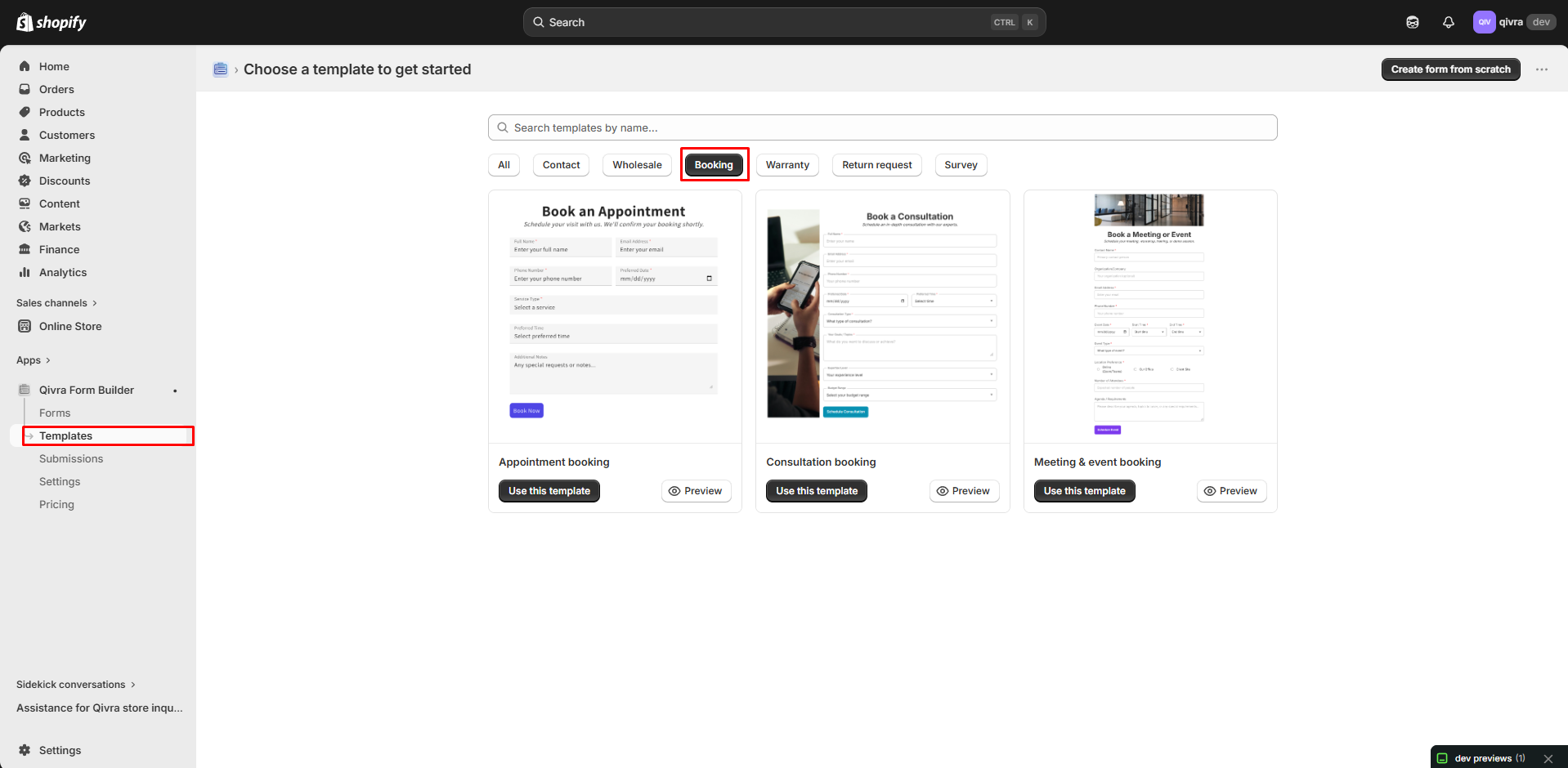
Step 2: Preview and Select
Section titled “Step 2: Preview and Select”- Preview available templates
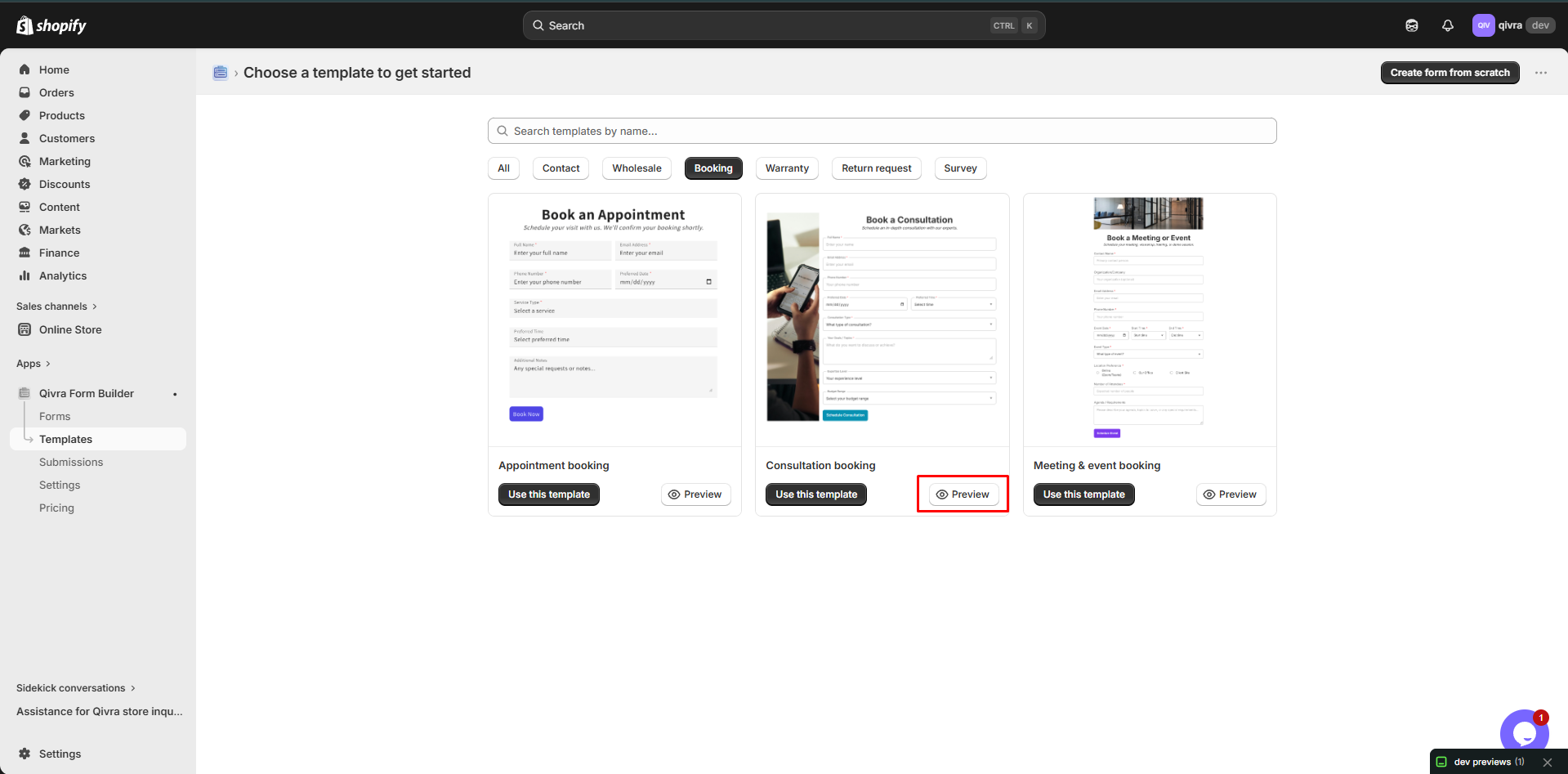
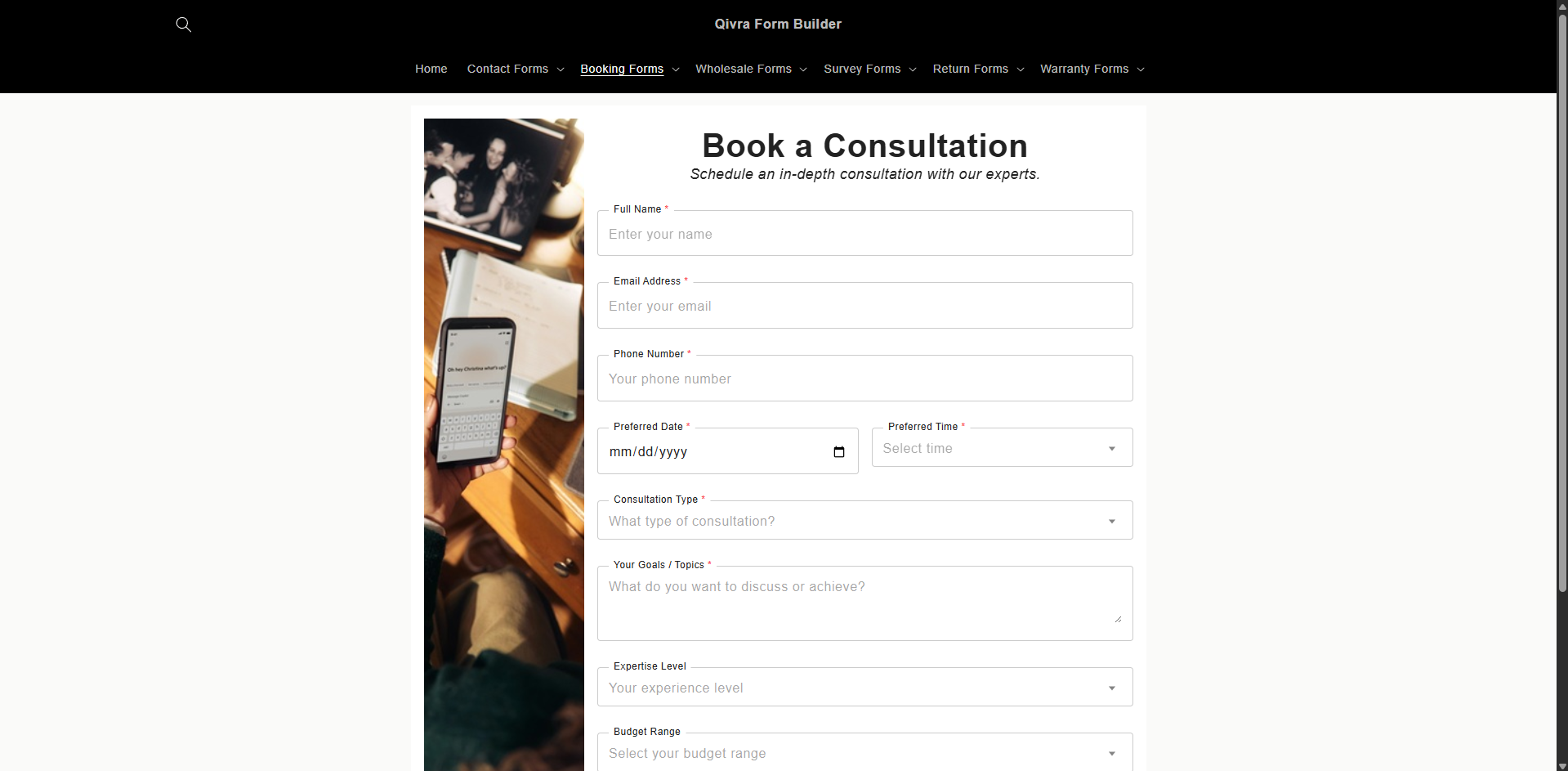
- Choose one matching your service type
- Click Use this template
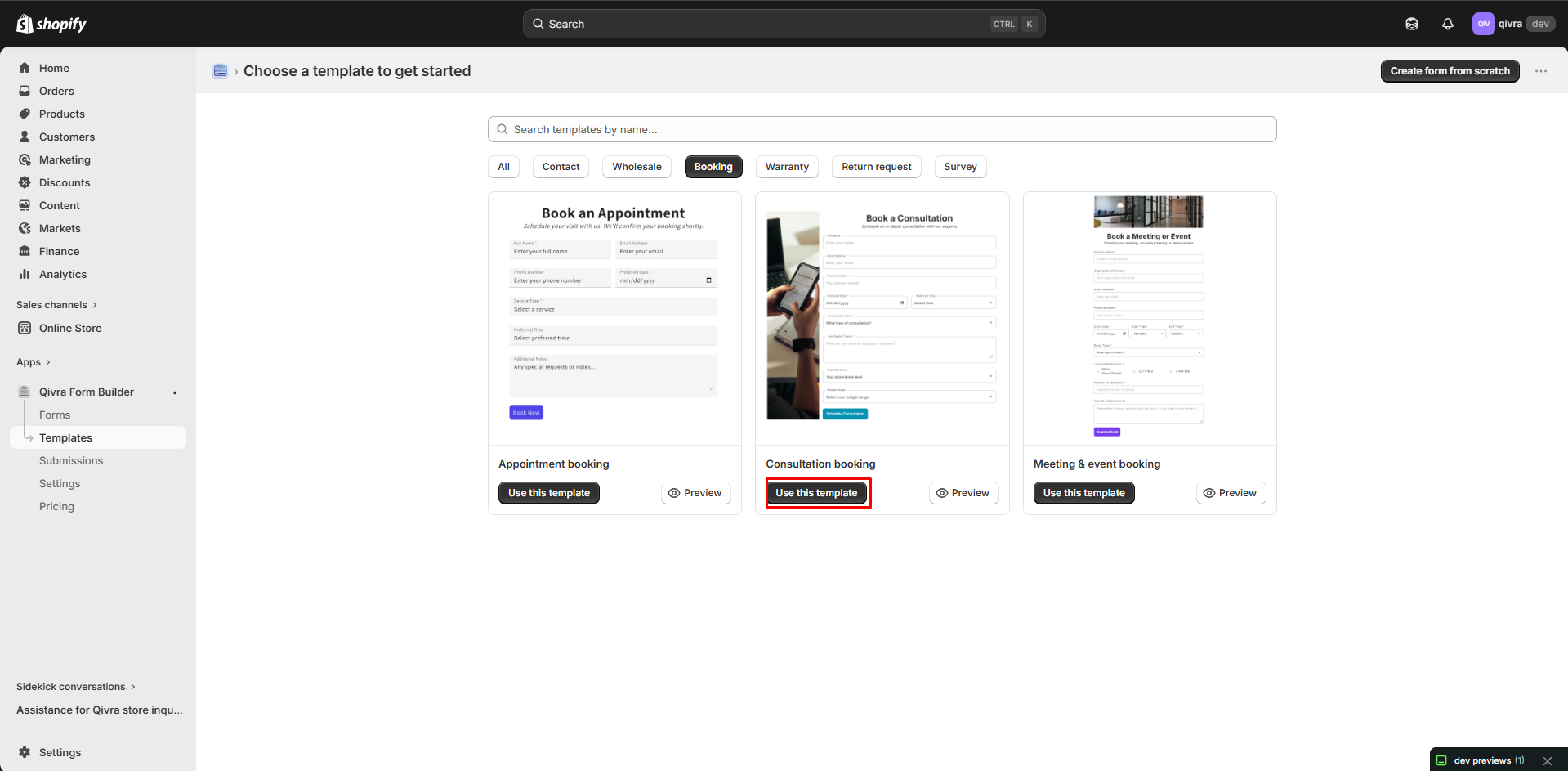
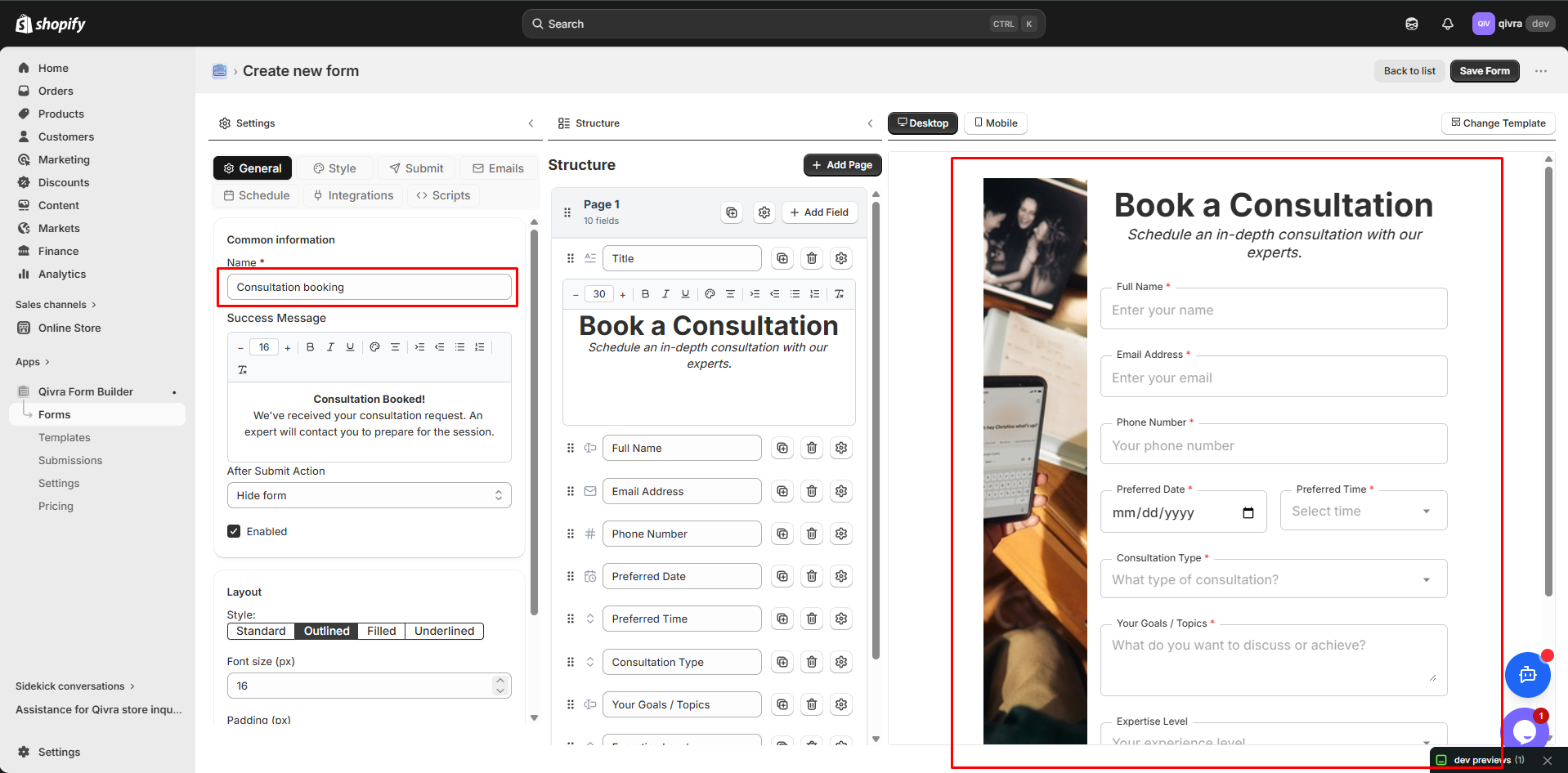
Step 3: Customize
Section titled “Step 3: Customize”Modify for your business:
- Update service options
- Set available time slots
- Add location options
- Include booking terms
Customizing Booking Forms
Section titled “Customizing Booking Forms”Service Options
Section titled “Service Options”List your available services:
- Add Dropdown or Radio field
- List all services
- Include prices if desired
- Group by category if needed
Example Structure:
Service Category (Dropdown)├── Hair Services│ ├── Haircut - $50│ ├── Color - $100│ └── Styling - $75├── Nail Services│ ├── Manicure - $30│ └── Pedicure - $40└── Spa Services ├── Massage - $120 └── Facial - $90Time Slots
Section titled “Time Slots”Offer specific time options:
| Approach | Description |
|---|---|
| Dropdown | Pre-defined time slots |
| Text Input | Customer enters preferred time |
| Morning/Afternoon | Broader time windows |
Example Time Slots:
9:00 AM10:00 AM11:00 AM1:00 PM2:00 PM3:00 PM4:00 PMConditional Services
Section titled “Conditional Services”Show services based on category:
IF "Service Category" = "Hair Services"THEN show "Hair Service Options"
IF "Service Category" = "Nail Services"THEN show "Nail Service Options"
Multi-Attendee Handling
Section titled “Multi-Attendee Handling”For group bookings:
- Add Number of Attendees field
- Conditionally show Attendee Names field
- Show when number > 1
Date and Time Handling
Section titled “Date and Time Handling”Date Field Settings
Section titled “Date Field Settings”| Setting | Recommendation |
|---|---|
| Min Date | Today |
| Max Date | 3-6 months ahead |
| Exclude Dates | Holidays, closed days |
Time Field Options
Section titled “Time Field Options”Option 1: Dropdown
- Pre-defined slots
- Easier to manage
- Prevents conflicts
Option 2: Text Input
- More flexible
- Requires follow-up
- Good for initial inquiries
Handling Availability
Section titled “Handling Availability”The form collects requests; you confirm availability:
- Customer submits booking request
- You receive notification
- Check availability
- Confirm or suggest alternatives
Booking Form Best Practices
Section titled “Booking Form Best Practices”Essential Information
Section titled “Essential Information”Always collect:
| Field | Why Needed |
|---|---|
| Name | Identify customer |
| Confirmation and reminders | |
| Phone | Day-of contact |
| Service | Know what they want |
| Date/Time | When they want it |
Optional but Useful
Section titled “Optional but Useful”Consider adding:
| Field | Use |
|---|---|
| Previous customer | Identify returning customers |
| Special requirements | Prepare in advance |
| Referral source | Marketing tracking |
| Alternate times | Backup options |
Clear Communication
Section titled “Clear Communication”Set expectations in the form:
Booking Policy:- Confirmation sent within 24 hours- Please arrive 10 minutes early- 24-hour cancellation notice required- Contact us to rescheduleConfirmation and Reminders
Section titled “Confirmation and Reminders”Auto-Confirmation
Section titled “Auto-Confirmation”Send immediate confirmation:
- Enable Auto-Reply
- Include booking details
- Add to calendar link
Example Confirmation:
Booking Request Received!
Service: {service}Date: {date}Time: {time}
We'll confirm your appointment within 24 hours.
Questions? Call us at [phone]
Reminder Emails
Section titled “Reminder Emails”Send reminders before appointments:
- 1 day before
- 1 hour before
Use your email marketing tool for automated reminders.
Managing Bookings
Section titled “Managing Bookings”Submission Notifications
Section titled “Submission Notifications”- Set up email notifications
- Include all booking details
- Add to calendar link
Booking Workflow
Section titled “Booking Workflow”- Receive - Get booking request
- Check - Verify availability
- Confirm - Email customer
- Calendar - Add to schedule
- Remind - Send reminders
- Complete - Mark as done
Tracking Bookings
Section titled “Tracking Bookings”Use submissions to track:
| Metric | Description |
|---|---|
| Total bookings | Number of requests |
| By service | Popular services |
| By time | Peak hours |
| Conversion | Requests confirmed |
Displaying Booking Forms
Section titled “Displaying Booking Forms”On Service Pages
Section titled “On Service Pages”Add booking form to service pages:
- Use Theme Editor
- Add form below service description
- Or use button trigger for popup
Dedicated Booking Page
Section titled “Dedicated Booking Page”Create a central booking page:
- Create “Book Now” page
- Add all services
- Embed booking form
- Link from navigation
Floating Book Button
Section titled “Floating Book Button”Add floating button on all pages:
- Set Trigger to BUTTON
- Position: Floating
- Button text: “Book Now”
- Always accessible
Integration Options
Section titled “Integration Options”Calendar Integration
Section titled “Calendar Integration”Connect with external calendars:
- Google Calendar
- Outlook
- Apple Calendar
Export bookings or use webhooks to sync.
Payment Integration
Section titled “Payment Integration”Collect deposits with bookings:
- Redirect to checkout
- Invoice after confirmation
- Collect payment on arrival