Create and Send a Quote
This guide walks through creating a quote and sending it to a buyer. You can start a quote yourself at any time, or reply to a buyer’s New RFQ — the builder is the same.
Before you begin
Section titled “Before you begin”- The buyer-facing Quote page is enabled in your customer accounts — see Quotes overview if you haven’t set it up yet.
- Optional: a price list matching the customer, so the app can suggest B2B prices automatically.
Step 1: Start a new quote
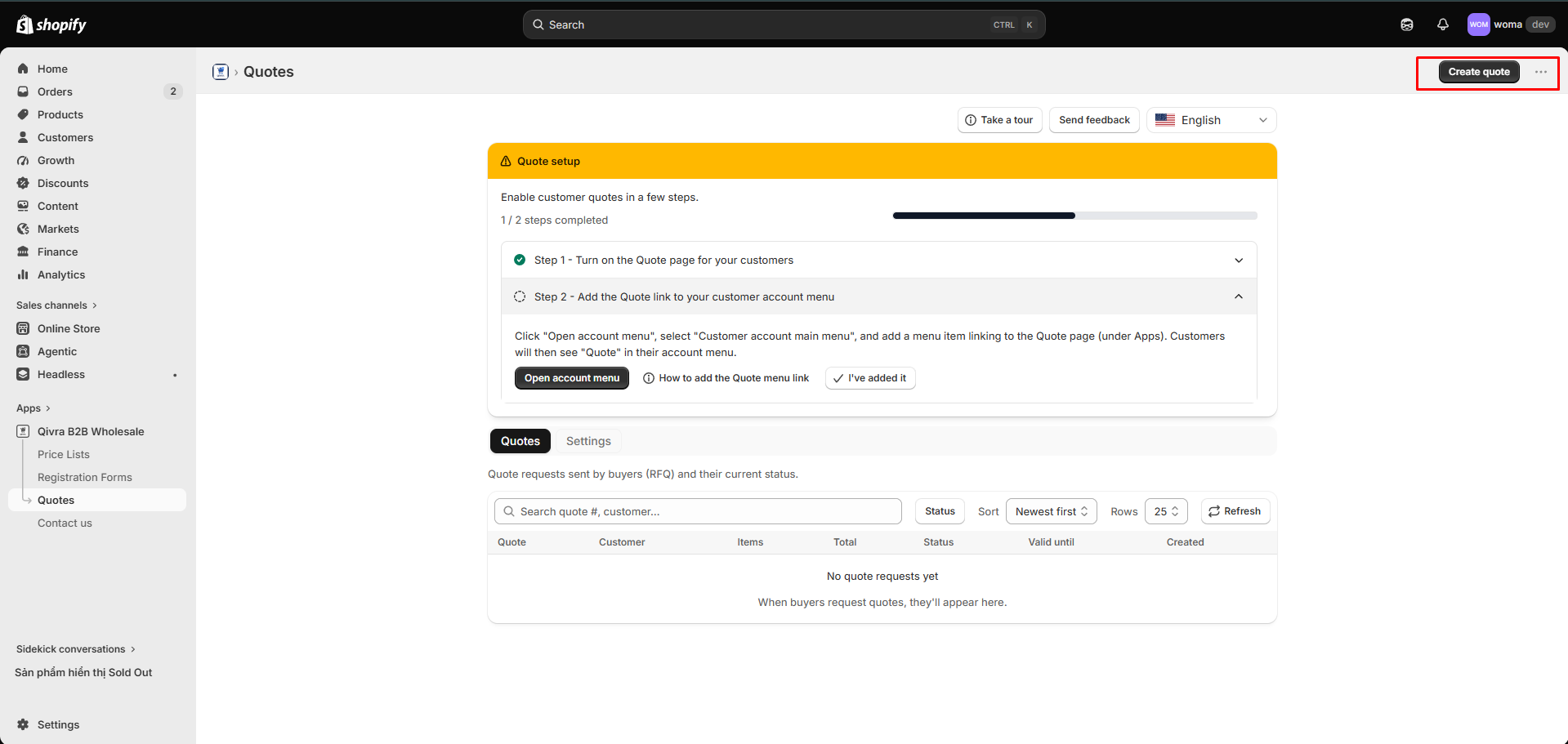
Section titled “Step 1: Start a new quote”- Go to Quotes in the app sidebar.
- Click Create quote.
- The first screen asks Who is this quote for?
Step 2: Choose the customer
Section titled “Step 2: Choose the customer”- Search customers by name or email.
- Select the customer the quote is for.
- No match? Click Create new customer — Shopify Admin opens; create the customer there, come back, and search again to select them.
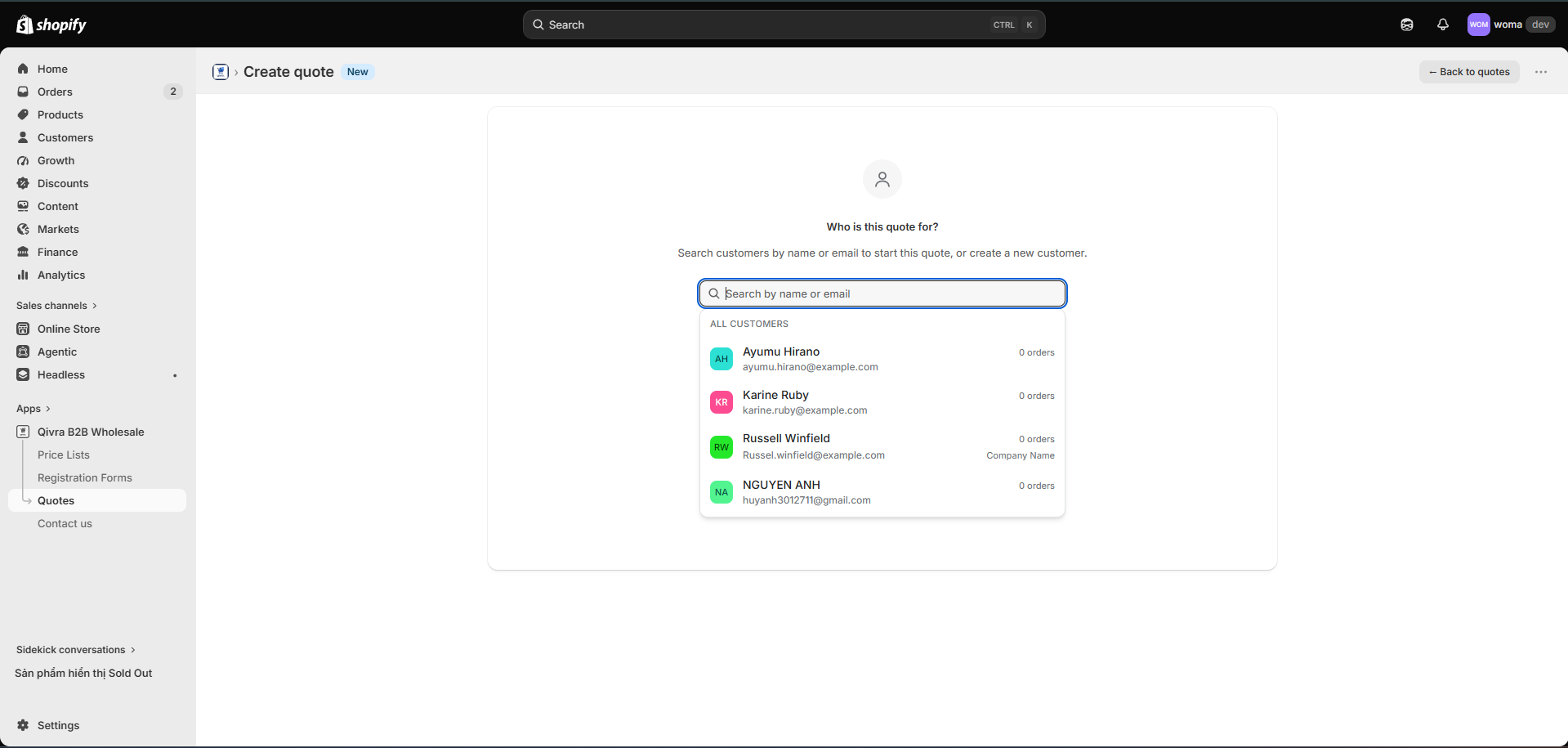
Once selected, the quote builder opens with the customer’s contact info, order count, and saved addresses.
Step 3: Add products
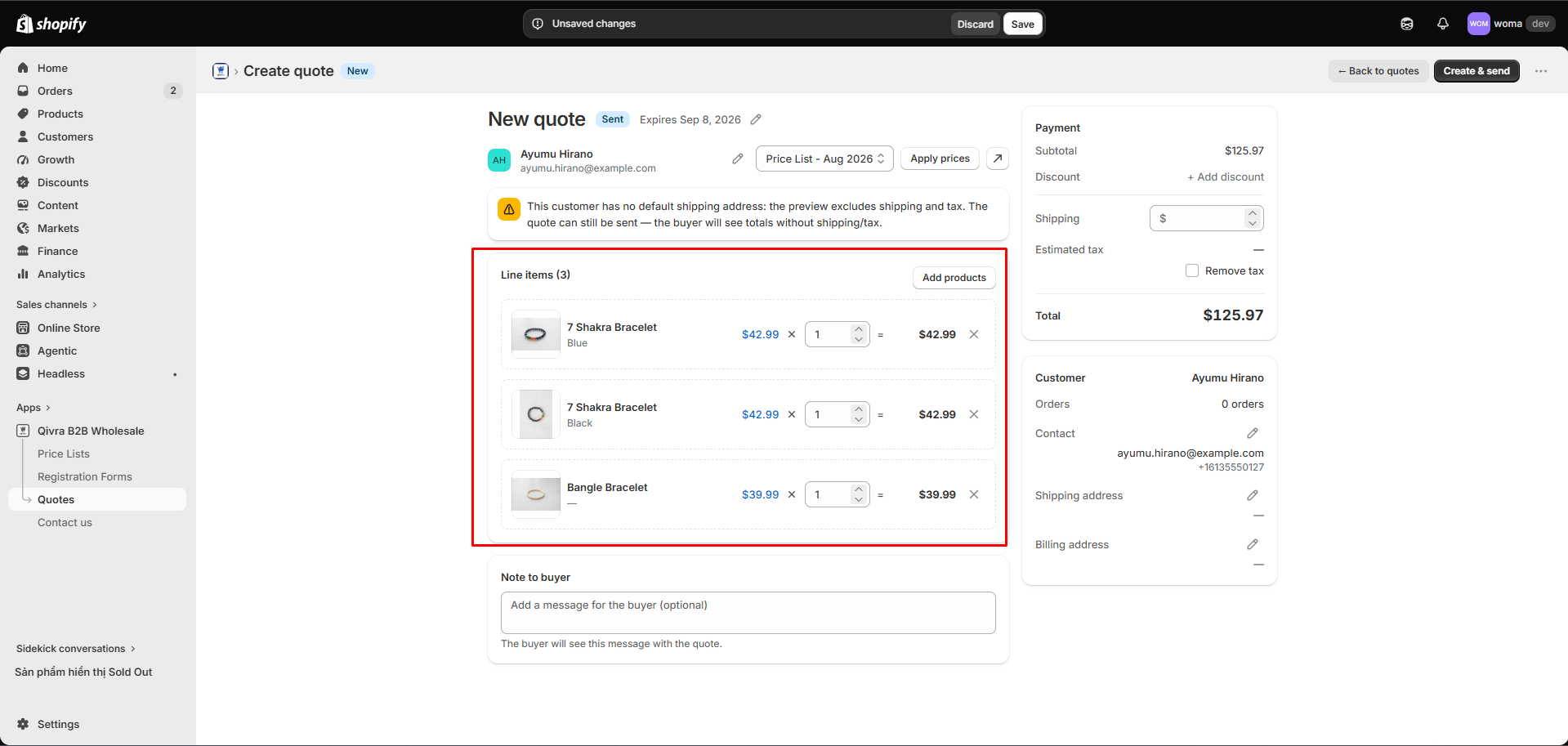
Section titled “Step 3: Add products”- Click Add products and pick products/variants with the Shopify product picker.
- For each line item, set:
- Quantity — number of units.
- Unit price — edit directly, or use the pricing mode:
- % off — a percentage off retail.
- $ off — a fixed amount off retail.
- Fixed — an exact unit price.
- Each line shows the retail price and the tier price from the customer’s price list (if one matches), plus the resulting line total.
- Remove a line with its remove action if needed.
Step 4: Apply B2B pricing (optional)
Section titled “Step 4: Apply B2B pricing (optional)”If the customer matches one of your price lists, the builder shows a pricing list suggestion (best match for the customer’s market). Click Apply prices to pre-fill every line with the price-list price.
Suggested prices are just a starting point — you can still adjust each line afterwards.
Step 5: Set the payment summary
Section titled “Step 5: Set the payment summary”In the Payment panel:
- Subtotal — calculated from your lines.
- Discount — add a quote-level discount as a percentage or a fixed amount (adjust or remove it at any time).
- Shipping — override the shipping amount.
- Tax — the estimated tax is calculated automatically; use Remove tax for tax-exempt buyers.
- Total — the final amount, with a You save banner showing the buyer’s savings vs. retail.
Step 6: Set validity and addresses
Section titled “Step 6: Set validity and addresses”- Valid for (days) — how long the quote stays valid. Defaults to the default expiry (30 days unless you changed it). The Valid until date updates instantly.
- Addresses — pick the customer’s saved shipping and billing addresses, or change them. If the customer has no saved address, the quote is sent without shipping/tax and the buyer sees totals without them.
Step 7: Add notes
Section titled “Step 7: Add notes”- Note to buyer — a message the buyer sees with the quote (e.g. payment terms, delivery window).
- Internal note (existing quotes) — private context for you and your staff; never shared with the buyer.
Step 8: Create & send
Section titled “Step 8: Create & send”- Review the summary — you need at least one line item and a selected customer.
- Click Create & send.
The quote is created with status Sent, the buyer receives the quote email with a link to open it in their account, and you land on the quote detail page where you can download the PDF and follow the conversation in the timeline.
If validation fails, fix the highlighted fields and send again.
Replying to a New RFQ
Section titled “Replying to a New RFQ”When a buyer submits a request for quote:
- Open Quotes — the request shows with status New RFQ.
- Click it to open the builder, pre-filled with the buyer’s requested lines and quantities (and their requested prices in the timeline).
- Adjust prices and terms as above, then click Send quote.
See Manage quotes for negotiating and converting accepted quotes to draft orders.