Slack Notifications
Connect Qivra Form Builder to Slack to receive instant notifications when customers submit forms. This guide shows you how to set up Slack integration.
Why Use Slack Notifications?
Section titled “Why Use Slack Notifications?”| Benefit | Description |
|---|---|
| Real-time Alerts | Instant notifications in Slack |
| Team Visibility | Everyone sees submissions |
| Quick Response | Respond faster to inquiries |
| Centralized Communication | Keep everything in Slack |
Prerequisites
Section titled “Prerequisites”Before setting up Slack:
- Have a Slack workspace
- Have permission to add apps
- Know which channel to use
Setting Up Slack Integration
Section titled “Setting Up Slack Integration”Step 1: Create Slack Webhook
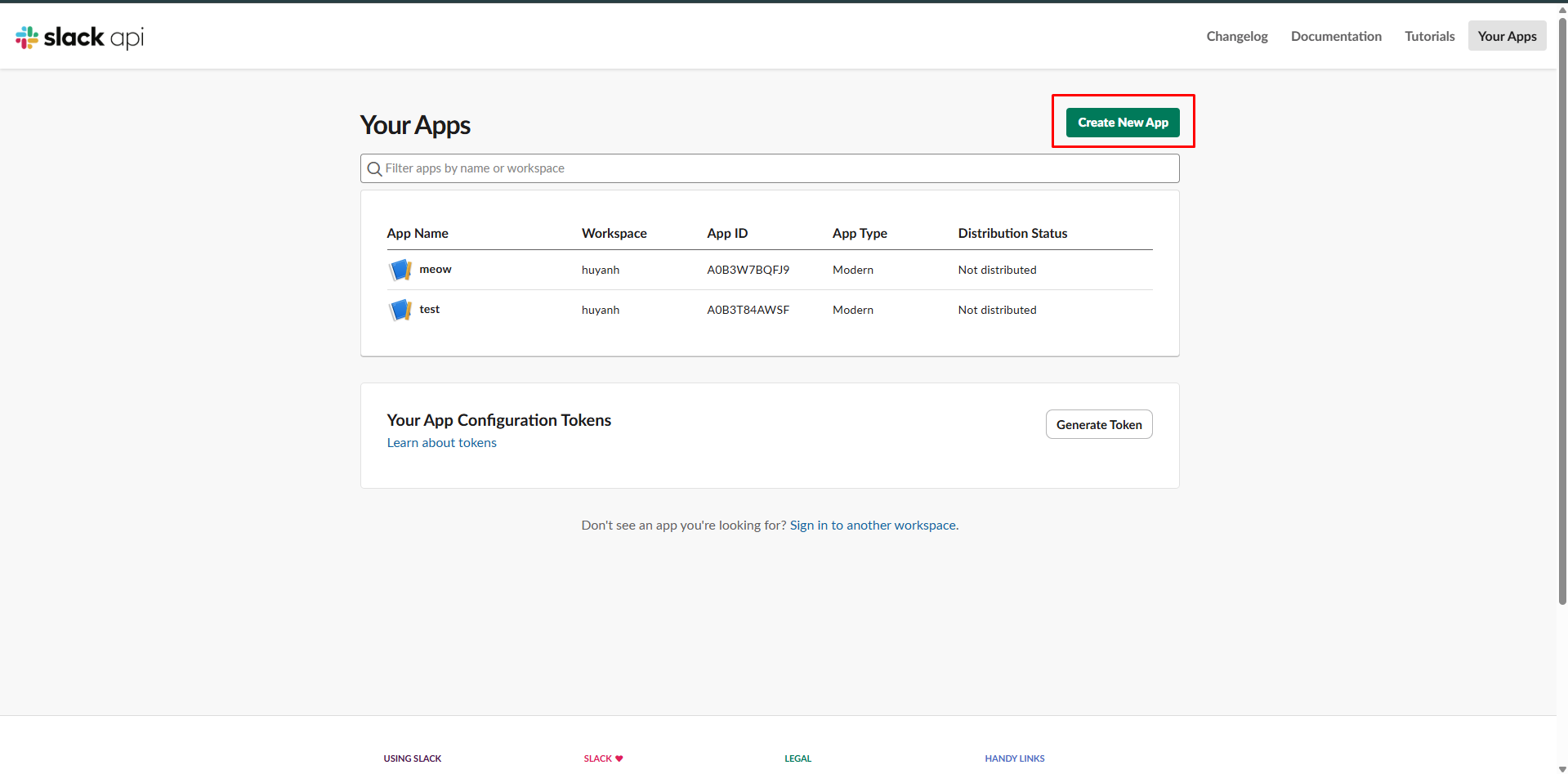
Section titled “Step 1: Create Slack Webhook”- Go to api.slack.com/apps
- Click Create New App
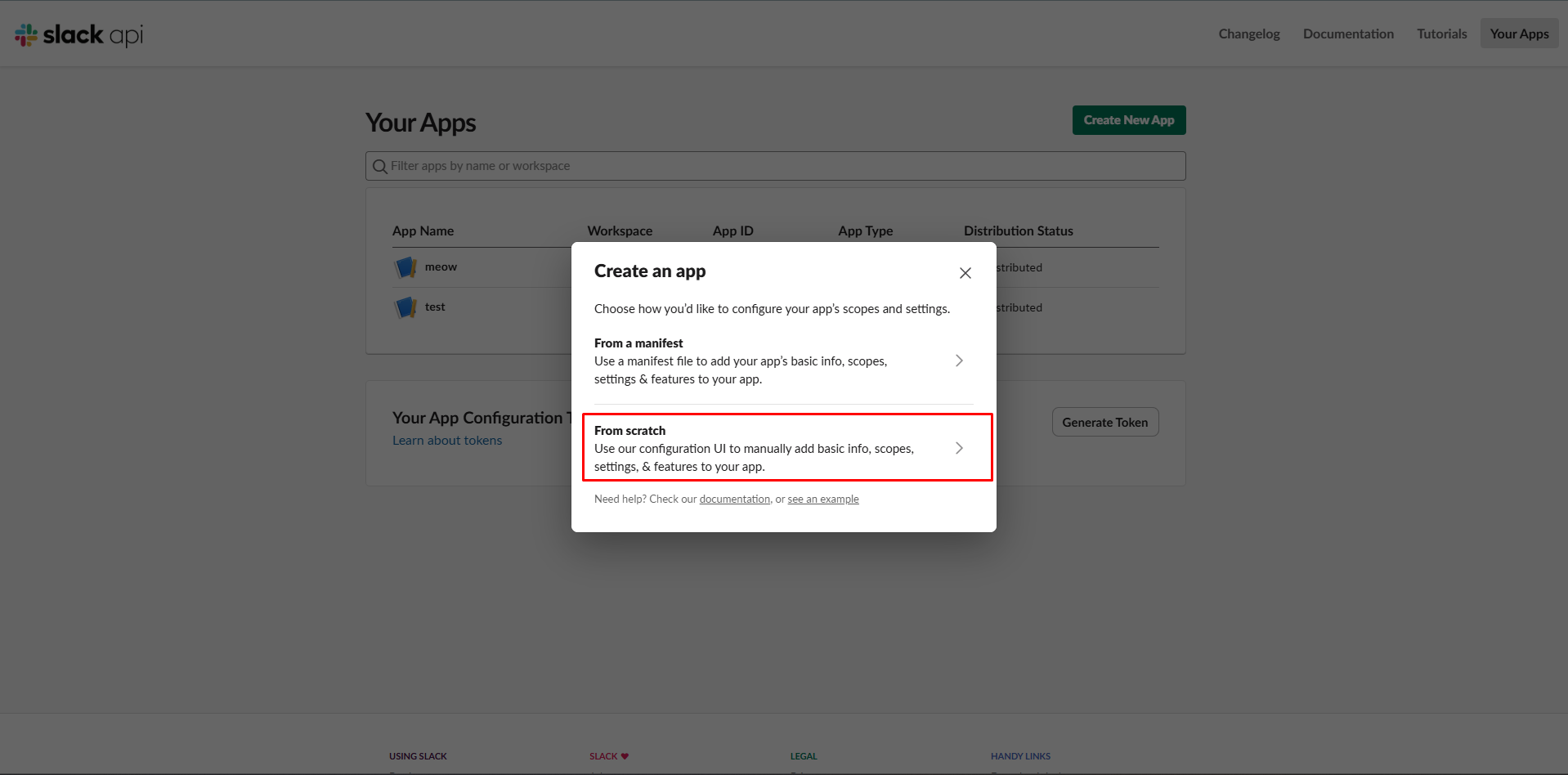
- Choose From scratch
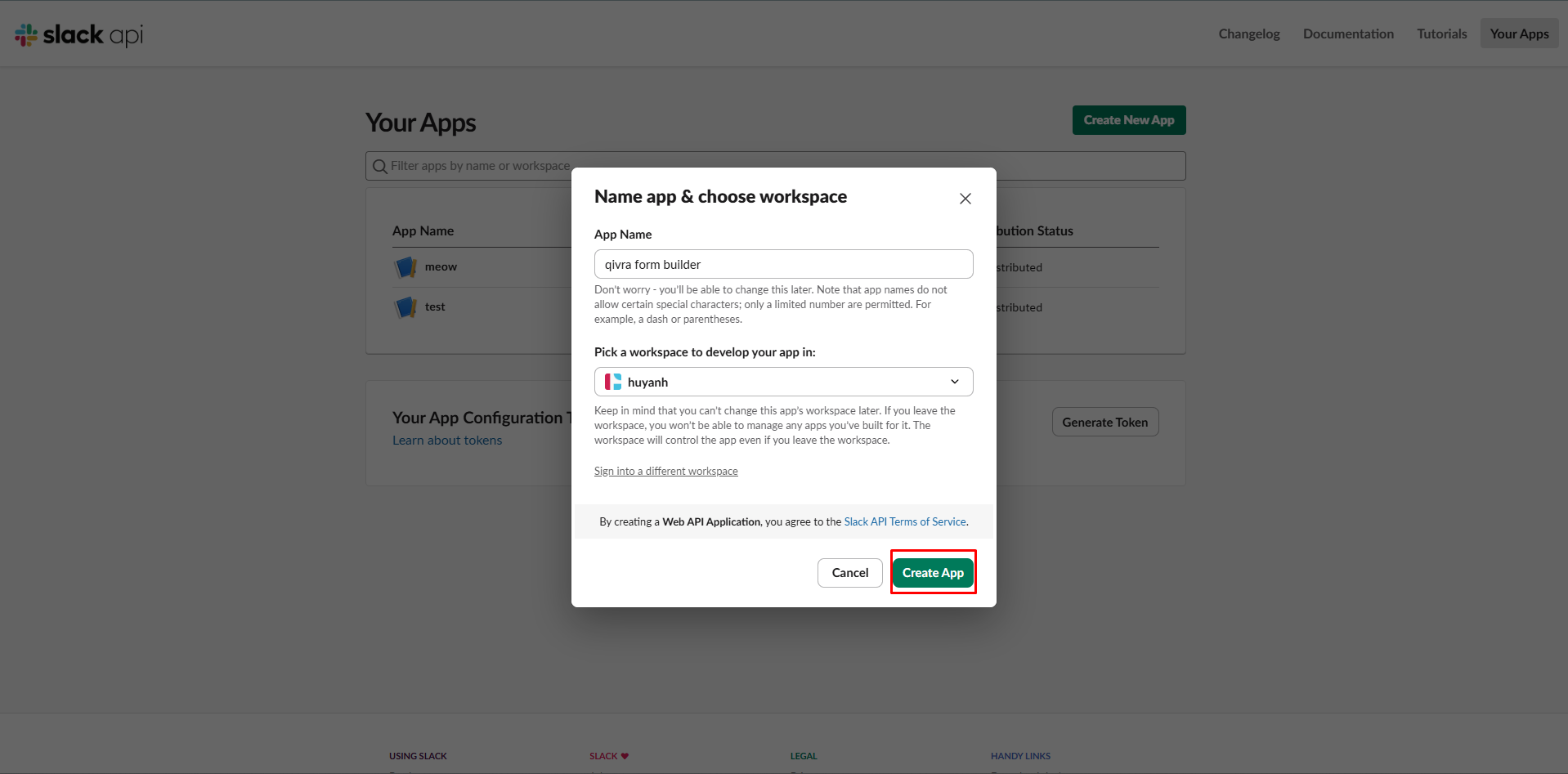
- Name your app (e.g., “Qivra Forms”)
- Select your workspace
Step 2: Enable Incoming Webhooks
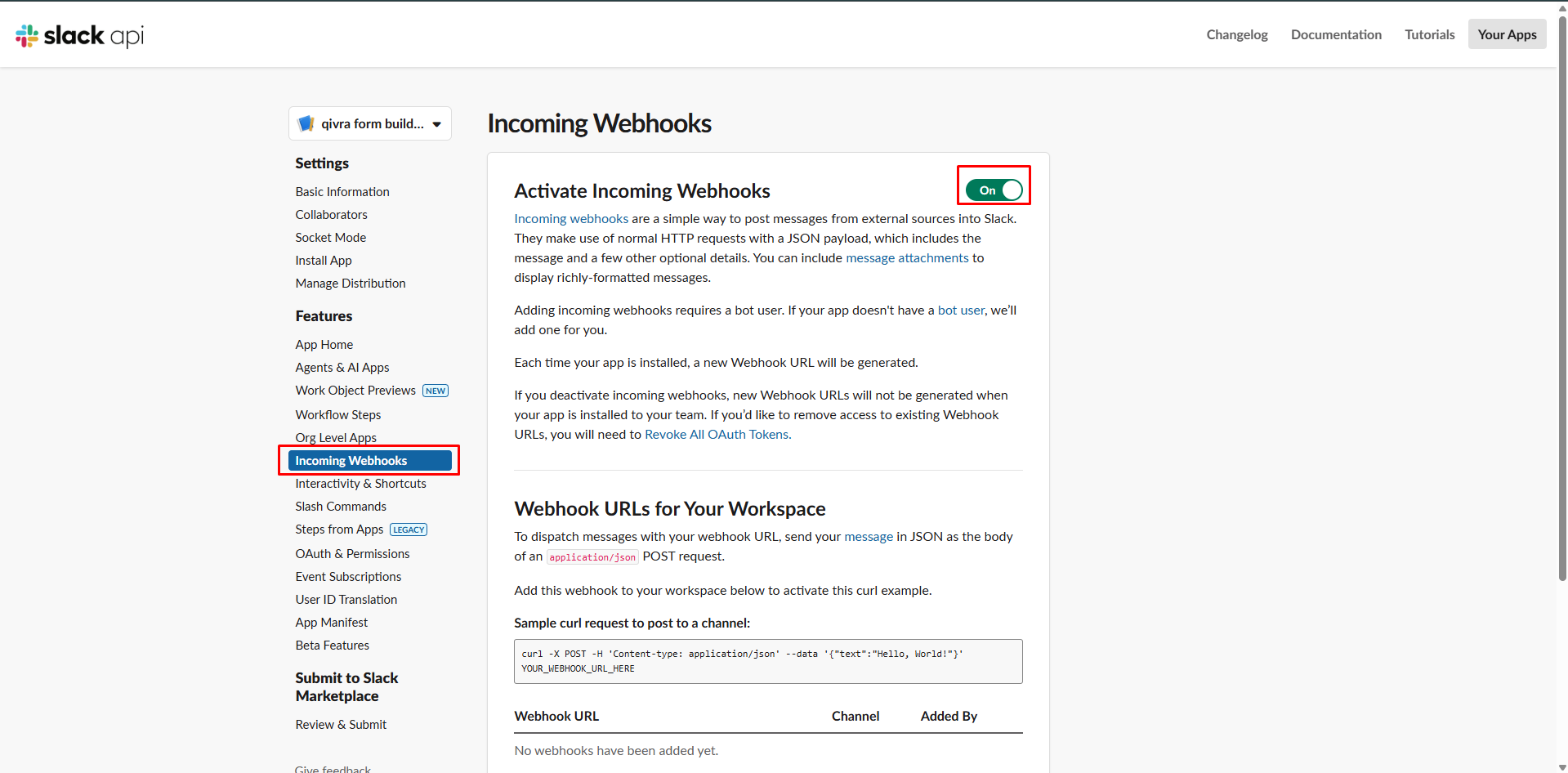
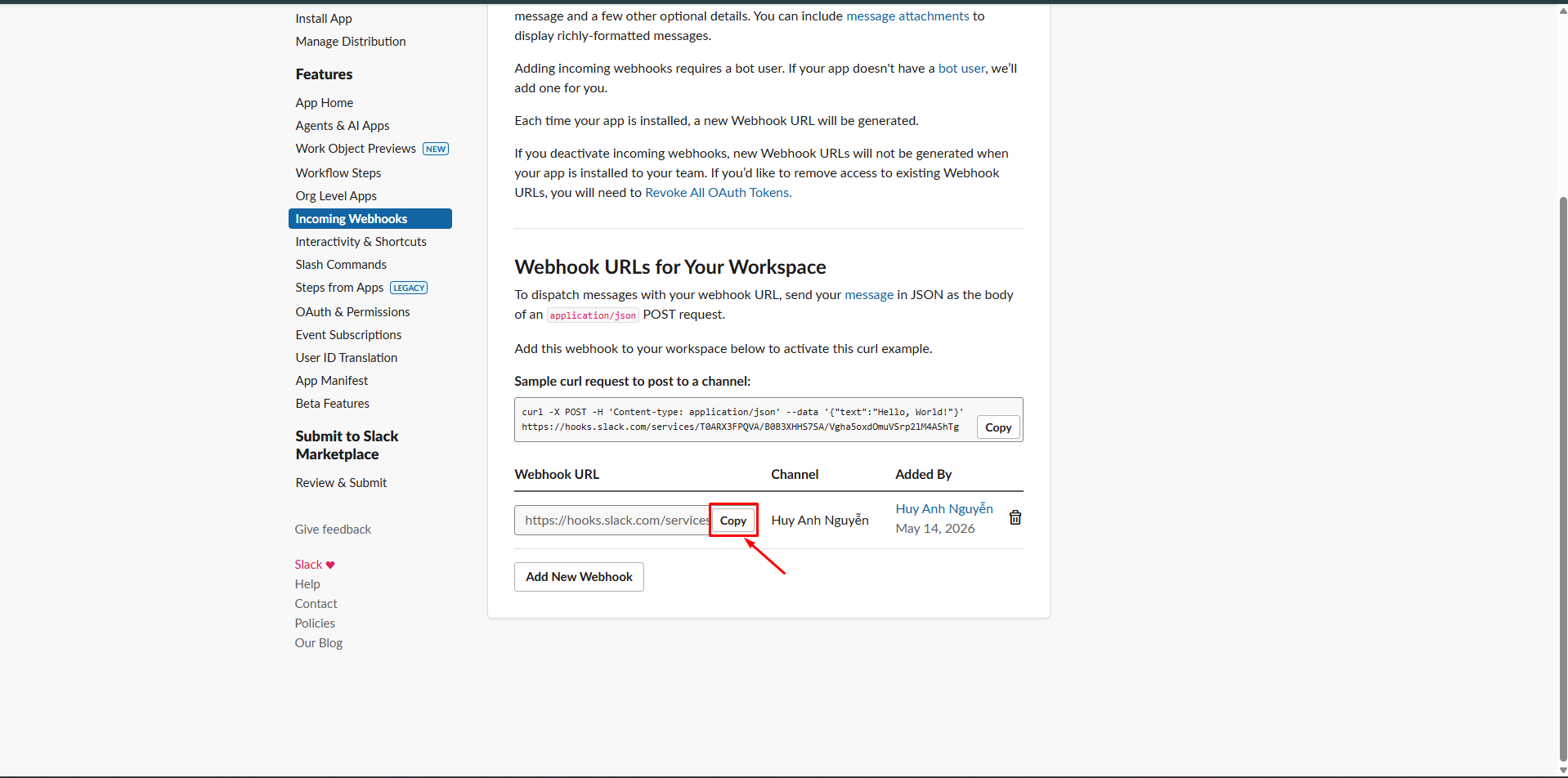
Section titled “Step 2: Enable Incoming Webhooks”- In app settings, click Incoming Webhooks
- Toggle to On
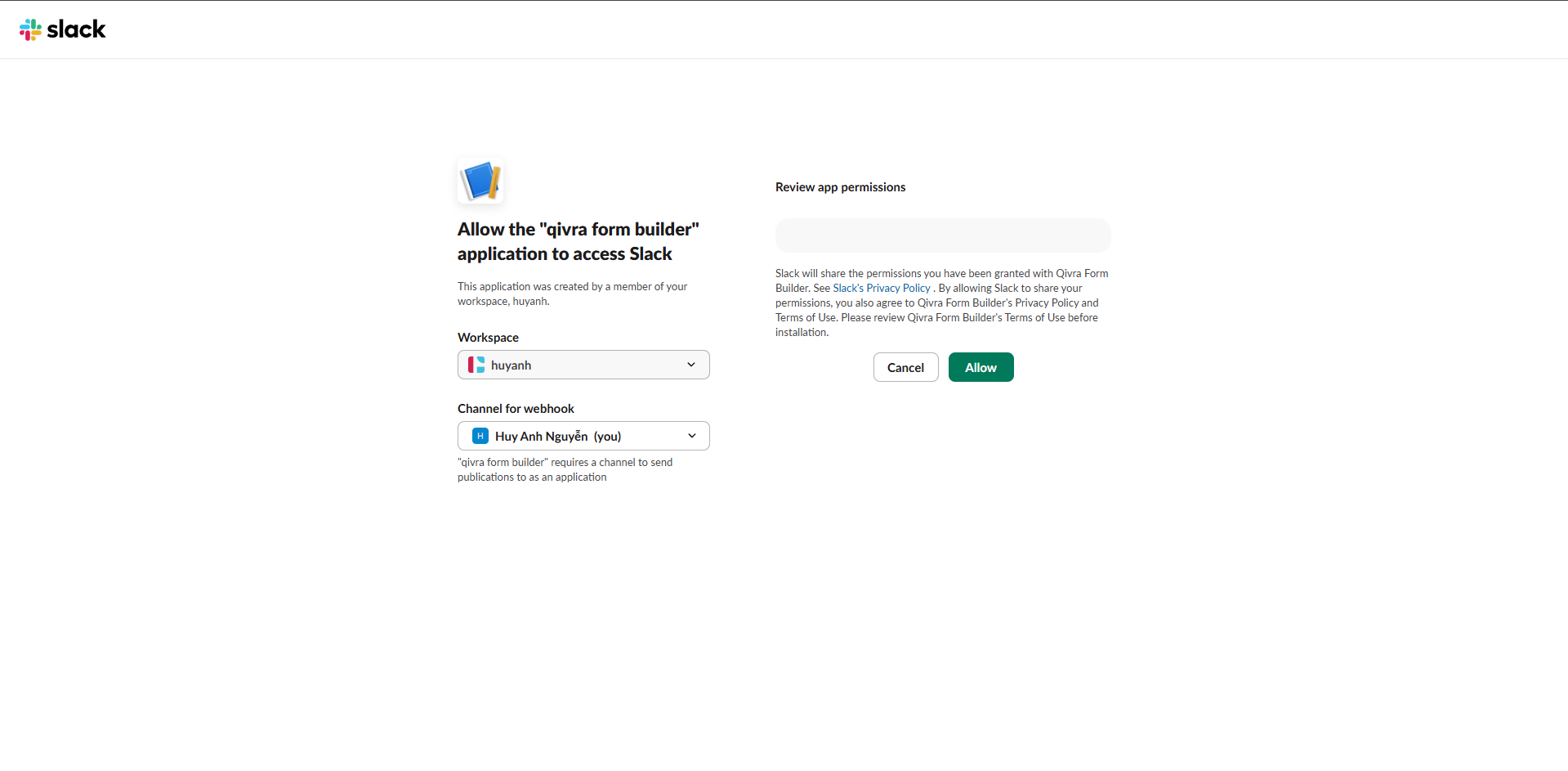
- Click Add New Webhook to Workspace
- Select the channel for notifications
- Click Allow
- Copy the webhook URL
Step 3: Configure in Qivra Form Builder
Section titled “Step 3: Configure in Qivra Form Builder”- Go to Settings > Integrations
- Find Slack section
- Paste webhook URL
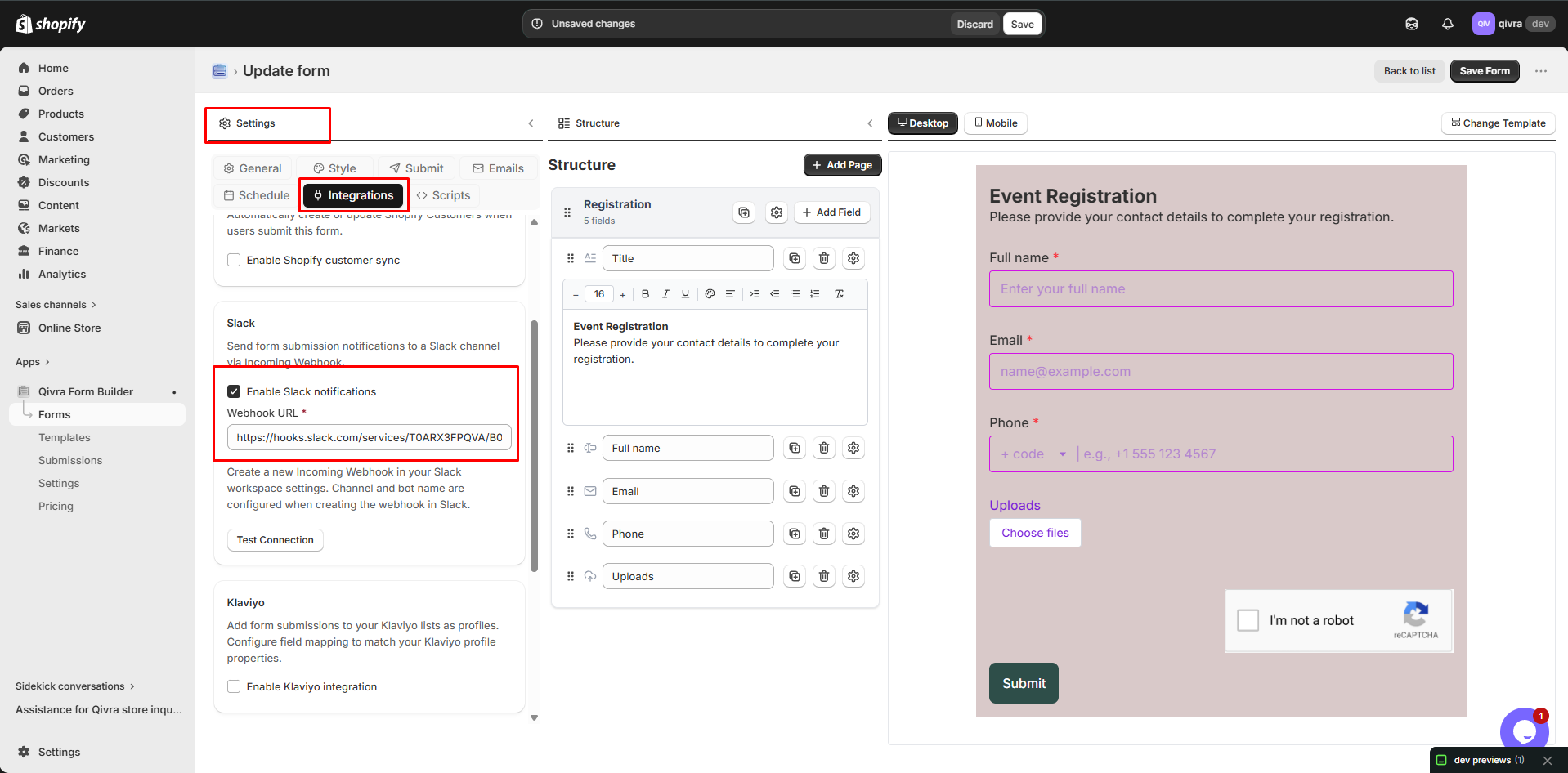
- Select notification events
- Click Save
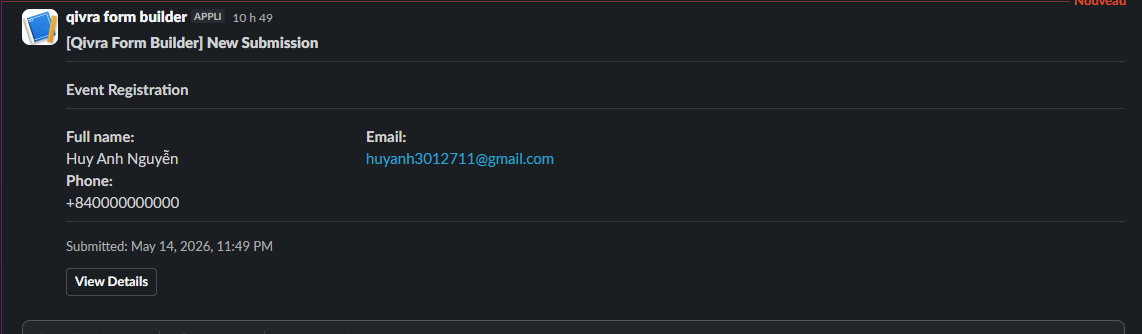
- Submit a test form entry
If setup is correct, the submission notification will appear in your selected Slack channel.
Slack Notification Settings
Section titled “Slack Notification Settings”Channel Selection
Section titled “Channel Selection”Choose where notifications appear:
| Option | Best For |
|---|---|
| #general | All team members |
| #support | Customer support forms |
| #sales | Lead generation forms |
| Private channel | Sensitive submissions |
Notification Triggers
Section titled “Notification Triggers”Choose when to notify:
| Event | Description |
|---|---|
| New Submission | Every form submission |
| Specific Forms | Only selected forms |
| High Priority | Flagged submissions only |
Message Format
Section titled “Message Format”Customize notification content:
| Element | Description |
|---|---|
| Form Name | Which form was submitted |
| Submitter Info | Name, email |
| Key Fields | Important submission data |
| Link | Direct link to submission |
Notification Examples
Section titled “Notification Examples”Basic Notification
Section titled “Basic Notification”New Form Submission
Form: Contact FormFrom: John Doe (john@email.com)Subject: Product Question
Message:Hi, I have a question about...
View Submission: [Link]Rich Notification
Section titled “Rich Notification”[Qivra Form Builder] New Submission
━━━━━━━━━━━━━━━━━━━━━━━━━━Contact Form━━━━━━━━━━━━━━━━━━━━━━━━━━
Name: John DoeEmail: john@email.comPhone: 555-123-4567Department: SalesMessage: I'm interested in bulk pricing...
Submitted: Just nowView Details: [Link]Per-Form Slack Settings
Section titled “Per-Form Slack Settings”Different Channels per Form
Section titled “Different Channels per Form”Route forms to different channels:
- Open form in Form Builder
- Go to Settings > Integrations
- Select Slack
- Choose channel
- Save
Example Routing:
| Form | Channel |
|---|---|
| Contact Form | #support |
| Wholesale | #sales |
| Bug Report | #engineering |
| Feedback | #product |
Conditional Slack Notifications
Section titled “Conditional Slack Notifications”Notify only for specific submissions:
IF "Priority" = "Urgent"THEN send to #urgent-supportAdvanced Slack Features
Section titled “Advanced Slack Features”Threaded Replies
Section titled “Threaded Replies”Keep conversations organized:
- Initial notification posted
- Team replies in thread
- All context in one place
@Mentions
Section titled “@Mentions”Alert specific team members:
<@U12345678> New urgent submission!Emoji Reactions
Section titled “Emoji Reactions”Track status with reactions:
| Emoji | Meaning |
|---|---|
| eyes | Seen/Acknowledged |
| white_check_mark | Handled |
| hourglass | In Progress |
Slash Commands
Section titled “Slash Commands”Create custom commands (advanced):
- Set up slash command in Slack app
- Point to your endpoint
- Query submissions from Slack
Managing Notifications
Section titled “Managing Notifications”Avoiding Notification Fatigue
Section titled “Avoiding Notification Fatigue”| Strategy | How |
|---|---|
| Summary mode | Daily digest instead of each |
| Filter by priority | Only high-priority |
| Use threads | Keep channel clean |
| Archive handled | Remove old notifications |
Testing Notifications
Section titled “Testing Notifications”- Submit test form
- Check Slack channel
- Verify formatting
- Confirm links work
Troubleshooting
Section titled “Troubleshooting”Notifications Not Appearing
Section titled “Notifications Not Appearing”| Cause | Solution |
|---|---|
| Invalid webhook | Regenerate and update |
| Wrong channel | Check webhook channel |
| App removed | Reinstall Slack app |
| Network issue | Check connectivity |
Delayed Notifications
Section titled “Delayed Notifications”| Cause | Solution |
|---|---|
| Queue backlog | Wait for processing |
| Slack outage | Check Slack status |
| Rate limits | Reduce notification frequency |
Formatting Issues
Section titled “Formatting Issues”| Issue | Solution |
|---|---|
| Missing fields | Check template settings |
| Broken links | Verify URL format |
| Encoding issues | Check special characters |
Security Considerations
Section titled “Security Considerations”Webhook Security
Section titled “Webhook Security”- Keep webhook URL private
- Regenerate if compromised
- Use HTTPS only
Data in Slack
Section titled “Data in Slack”Consider what data appears in Slack:
- Avoid sensitive information
- Don’t include full credit card numbers
- Link to full submission instead