Collection Page Display Settings
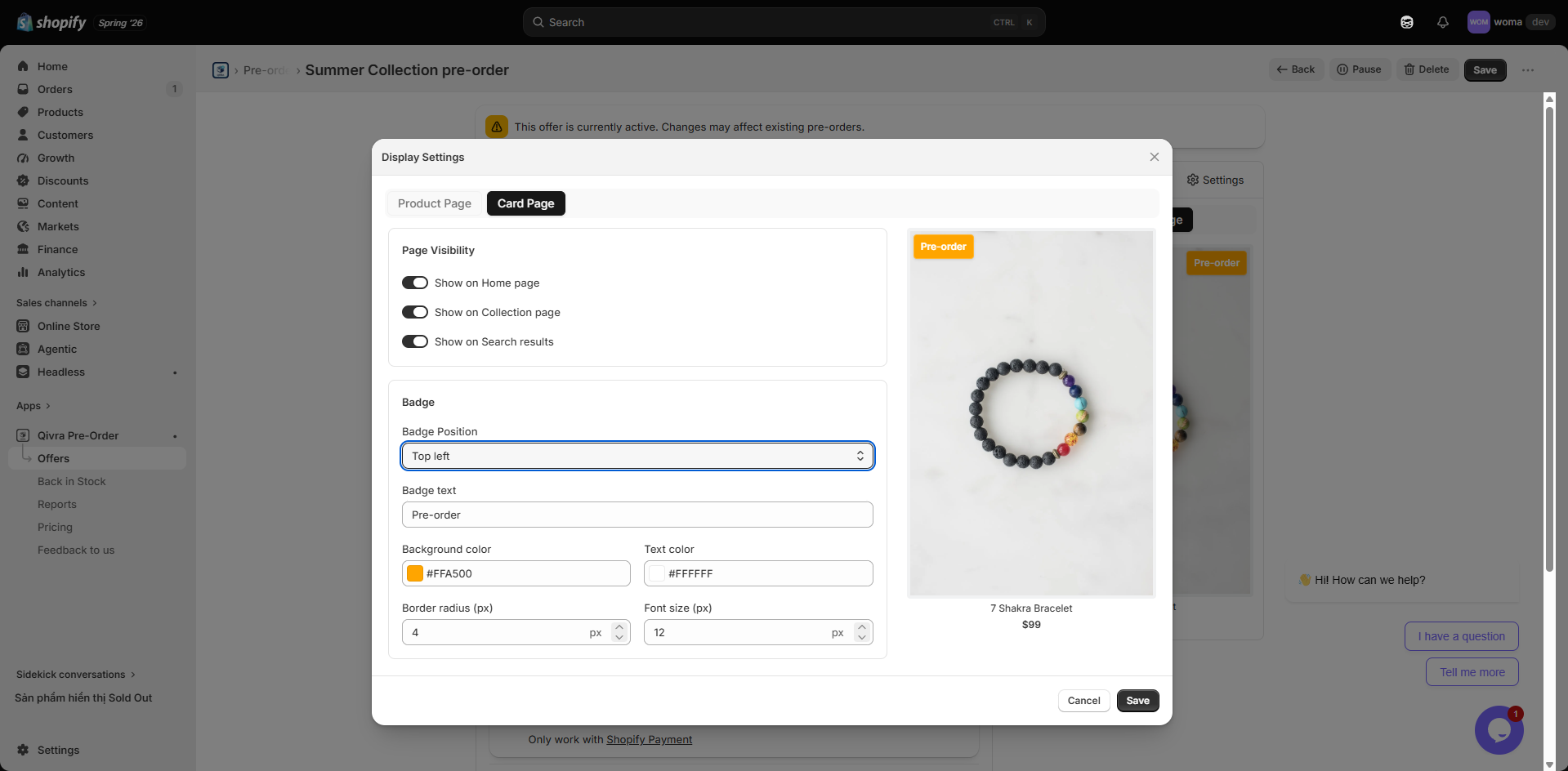
This guide explains how to customize the pre-order display on collection pages and product cards.
Accessing Card Display Settings
Section titled “Accessing Card Display Settings”- Go to Offers > Display Settings
- Switch to the Card tab
Card Settings
Section titled “Card Settings”Customize how pre-order information appears on product cards in collection pages:
| Setting | Description |
|---|---|
| Badge position | Where the badge appears on the card |
| Badge visibility | Show or hide the badge on collection pages |
| Badge styling | Inherits from PDP badge settings or customize separately |
How Collection Page Display Works
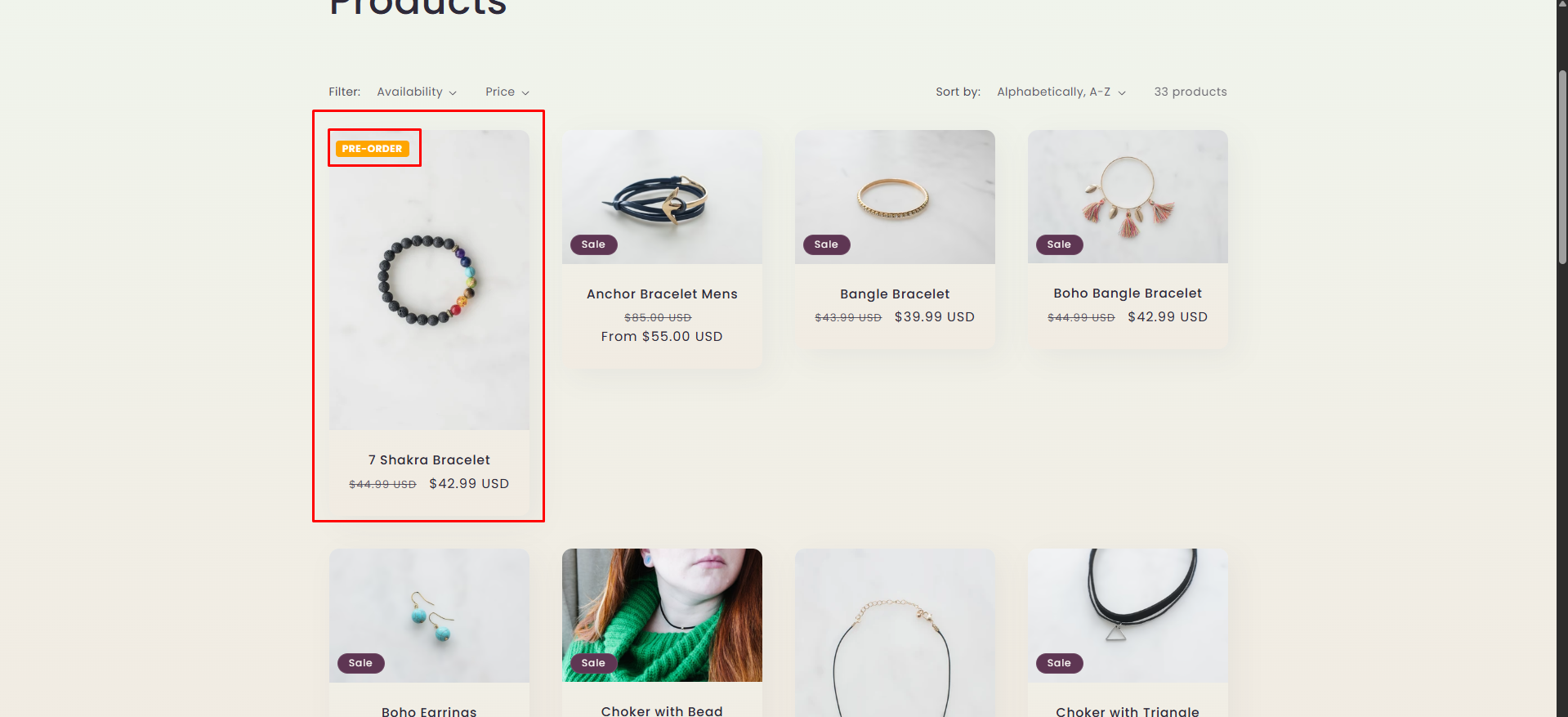
Section titled “How Collection Page Display Works”When a product in a collection has an active pre-order offer:
- The app scans collection page product cards
- A pre-order badge is rendered on cards for products in active offers
- Customers see at a glance which products are available for pre-order
- Clicking the card takes the customer to the product page where they can place a pre-order
Storefront Integration
Section titled “Storefront Integration”The collection page display uses the same app embed as the product page. No additional configuration is needed beyond enabling the app embed in Theme Editor.
The app automatically detects product cards on collection pages using CSS selectors and injects the appropriate badge.