Email Notification Settings
Configure email notifications to receive alerts when customers submit forms. This guide covers all email notification settings in Qivra Form Builder.
Overview
Section titled “Overview”Email notifications keep you informed when:
- A customer submits a form
- You need to respond to inquiries
- Important submissions arrive
Accessing Email Settings
Section titled “Accessing Email Settings”Notification recipients and email content are configured per form, in the form editor:
- Open your form in the form editor
- Open the Emails tab in the left panel
- Configure admin notifications and auto-response here
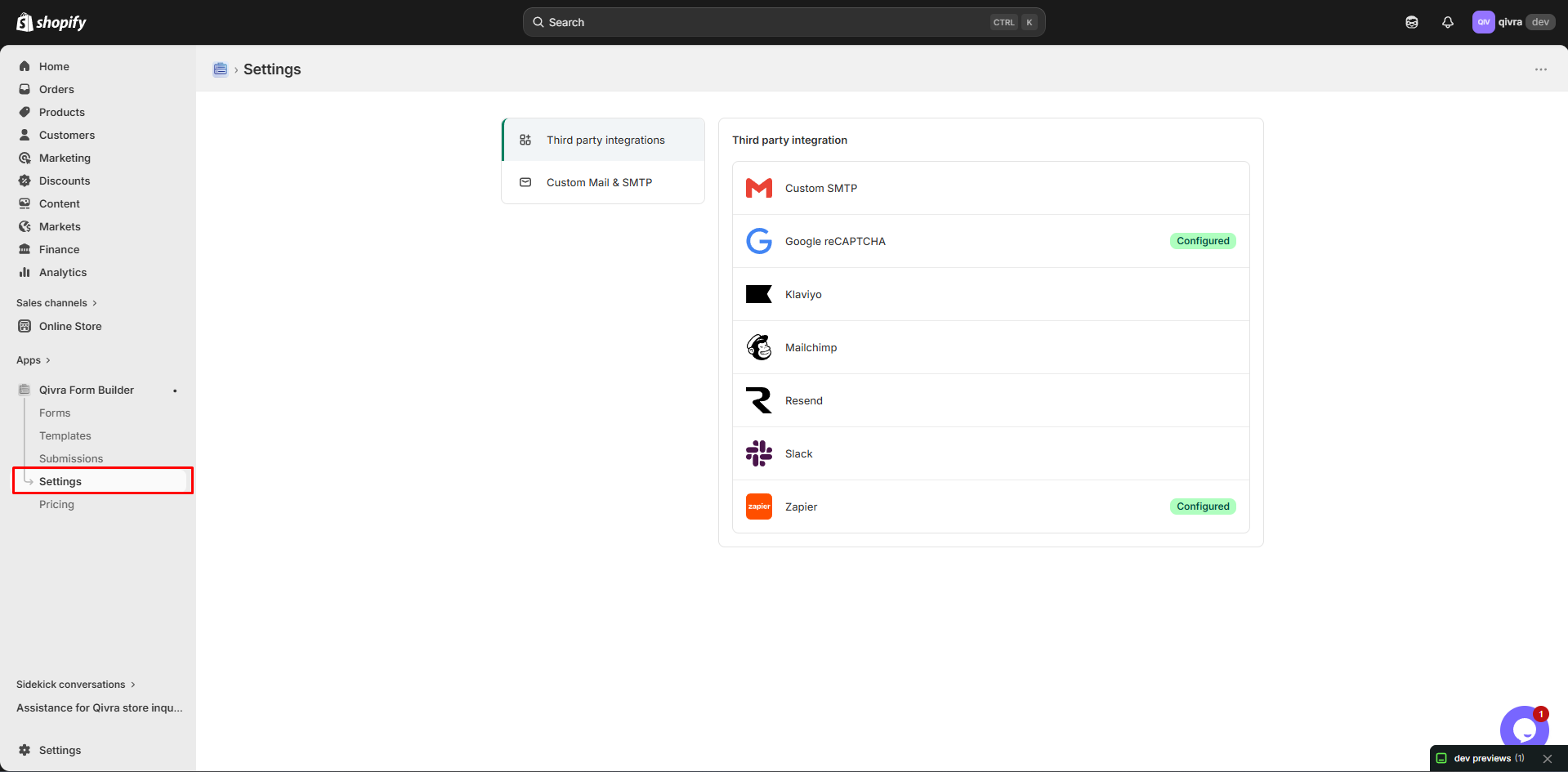
Email Provider Selection
Section titled “Email Provider Selection”Qivra Form Builder supports multiple email providers:
| Provider | Best For |
|---|---|
| Resend | Modern, reliable, easy setup |
| SMTP | Existing email infrastructure |
| Mailchimp | Marketing integration |
| Klaviyo | E-commerce marketing |
Setting Up Provider
Section titled “Setting Up Provider”- Go to Settings > Providers
- Select your preferred provider
- Enter required credentials
- Click Test & Save
See individual provider guides for detailed setup:
Notification Recipients
Section titled “Notification Recipients”To (Primary Recipients)
Section titled “To (Primary Recipients)”These receive the notification email:
- Go to Settings > Notifications
- Find Send To field
- Enter email addresses
- Separate multiple with commas
Options:
| Option | Description |
|---|---|
| Shop email | Use store’s email (default) |
| Custom email | Enter specific address |
| Multiple | Enter multiple addresses |
CC (Carbon Copy)
Section titled “CC (Carbon Copy)”Additional recipients who receive a copy:
- Find CC field
- Enter email addresses
- Multiple allowed, comma-separated
Use Cases:
- Team members who need visibility
- Department heads
- Backup recipients
BCC (Blind Carbon Copy)
Section titled “BCC (Blind Carbon Copy)”Hidden recipients who receive a copy:
- Find BCC field
- Enter email addresses
- Recipients don’t see each other
Use Cases:
- Archive/backup email
- Manager oversight
- Logging purposes
Email Content Settings
Section titled “Email Content Settings”Subject Line
Section titled “Subject Line”Customize the auto-response subject in the Emails tab:
- Find Email Subject field
- Enter your subject template
- Use variables for dynamic content
Available Variables:
| Variable | Replaced With |
|---|---|
{{form_name}} | Name of the form |
{{submission_id}} | Unique submission ID |
{{your-field}} | Any field’s value — use the field’s own token (e.g. {{email}}, {{full-name}}) |
Example:
Thank you for contacting us about {{form_name}}Email Body
Section titled “Email Body”The notification email includes:
- Form name
- Submission date/time
- All field values
- Customer information
Reply-To
Section titled “Reply-To”Set who receives replies to notifications:
| Option | Description |
|---|---|
| Customer email | Replies go to submitter |
| Shop email | Replies go to store |
| Custom | Specific email address |
Recommended: Use customer email for easy replies.
Per-Form Email Settings
Section titled “Per-Form Email Settings”Every form has its own email settings — this is where notifications are configured (there are no separate global notification settings):
- Open a form in Form Builder
- Open the Emails tab
- Configure that form’s recipients, admin notification subject, and auto-response
Form-Specific Options
Section titled “Form-Specific Options”| Setting | Description |
|---|---|
| Custom recipients | Different people for this form |
| Custom subject | Form-specific subject line |
| Disable notification | Don’t send email for this form |
Use Cases
Section titled “Use Cases”| Form Type | Custom Recipients |
|---|---|
| Support form | Support team email |
| Wholesale form | Sales team email |
| Partnership form | Business development |
Testing Email Settings
Section titled “Testing Email Settings”Send Test Email
Section titled “Send Test Email”- Go to Settings > Providers
- Click Test & Save
- Check your inbox for test email
What to Verify
Section titled “What to Verify”| Check | Description |
|---|---|
| Delivery | Email arrives in inbox |
| Spam folder | Not marked as spam |
| Formatting | Email displays correctly |
| Links | Any links work properly |
Email Deliverability
Section titled “Email Deliverability”Improving Deliverability
Section titled “Improving Deliverability”| Tip | Why It Helps |
|---|---|
| Use reputable provider | Trusted sending reputation |
| Verify domain | Proves you own the sending domain |
| Avoid spam triggers | Certain words flag filters |
| Include unsubscribe | Required for marketing emails |
Common Issues
Section titled “Common Issues”| Issue | Solution |
|---|---|
| Emails in spam | Check provider reputation, verify domain |
| Not receiving | Check recipient addresses, spam folder |
| Delayed delivery | Check provider status, network issues |
Notification Status
Section titled “Notification Status”Delivery failures are handled automatically — the app retries failed notifications several times in the background. You don’t need to trigger anything.
If emails aren’t arriving, see When Email Notifications Fail for a step-by-step diagnosis.
Auto-Reply to Customers
Section titled “Auto-Reply to Customers”Send confirmation to customers:
Setting Up Auto-Reply
Section titled “Setting Up Auto-Reply”- Open the form in the form editor
- Open the Emails tab and enable Auto-Response
- Customize the subject and message
Auto-Reply Content
Section titled “Auto-Reply Content”| Element | Recommendation |
|---|---|
| Subject | ”Thank you for contacting us” |
| Body | Confirmation + next steps |
| Response time | Set expectations |
Example:
Thank you for your submission!
We've received your message and will respond within 24 hours.
Best regards,The team
Email Templates
Section titled “Email Templates”Customize the look of notification emails:
Template Options
Section titled “Template Options”| Setting | Description |
|---|---|
| Header logo | Your store logo |
| Brand colors | Match your store |
| Footer text | Additional info |
See Email Templates for details.
Best Practices
Section titled “Best Practices”Recipient Management
Section titled “Recipient Management”- Use group emails for teams (e.g., support@company.com)
- Include backup recipients
- Review and update regularly
Content Guidelines
Section titled “Content Guidelines”- Keep subjects clear and informative
- Include key submission details
- Make reply-to useful
Monitoring
Section titled “Monitoring”- Check failed notifications regularly
- Monitor spam complaints
- Test after provider changes