Customize the Waitlist Widget & Email
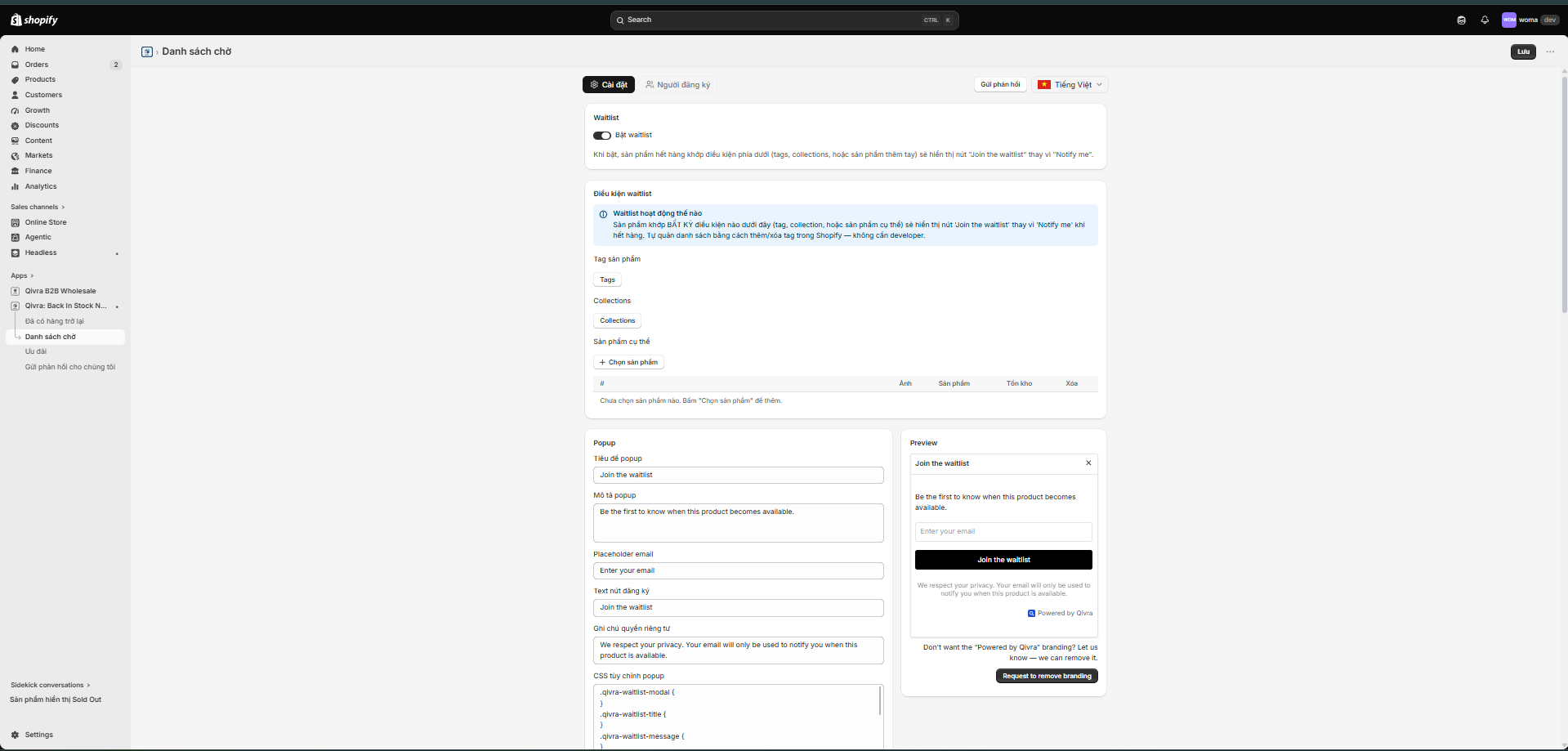
The Waitlist Settings tab controls everything the shopper sees - the Join the waitlist button, the signup popup, and the confirmation toast - plus the notification email sent when a waitlist product becomes available. Settings are organized into sections on one page, each with a live preview on the right, and a single Save bar at the bottom for all sections.
For the conditions that decide which products join the waitlist (tags, collections, specific products), see Get Started with Waitlist.
Open the Settings
Section titled “Open the Settings”- Open the Qivra PreOrder admin and go to Waitlist.
- Stay on the Settings tab.
Section: Join the Waitlist Button (Per Page Type)
Section titled “Section: Join the Waitlist Button (Per Page Type)”Configure where the button shows and what it says. The section carries a Button style follows your theme badge: by default the button inherits your theme’s styling so it looks native to your storefront.
For each page type - Product page, Collection page, and Home page:
- Toggle the switch on to show the button on that page type (product page is enabled by default; collection and home pages are off by default).
- Edit the Button text (default: “Join the waitlist”).
- Optionally override the look with the Button custom CSS box.
- The preview on the right updates instantly and shows every enabled page type.
Tips:
- The button text is per page type - use a shorter label on collection cards and a longer one on the product page.
- Leave the CSS box empty to keep following your theme.
Section: Popup
Section titled “Section: Popup”Customize the popup that appears when a shopper clicks the button.
| Field | Default |
|---|---|
| Popup title | ”Join the waitlist” |
| Popup description | ”Be the first to know when this product becomes available.” |
| Email placeholder | ”Enter your email” |
| Subscribe button text | ”Join the waitlist” |
| Privacy note | ”We respect your privacy. Your email will only be used to notify you when this product is available.” |
| Popup custom CSS | Optional CSS to restyle the popup |
A live preview on the right shows the popup exactly as the shopper will see it.
Section: Confirmation
Section titled “Section: Confirmation”Customize the toast shown after the shopper submits their email.
| Field | Purpose |
|---|---|
| Confirmation message | The success toast (default: “You’re on the waitlist! We’ll let you know when it’s available.”). |
| Already subscribed message | The toast when the email already joined this product’s waitlist (default: “You’re already on the waitlist for this product.”). |
| Toast background | Background color of the toast. |
| Toast text color | Text color of the toast. |
The preview shows both toasts so you can check the contrast of your colors.
Section: Notification Email
Section titled “Section: Notification Email”The Notification Email section controls the email subscribers receive when the waitlist product becomes available. The form is on the left and a live HTML preview is on the right.
Enable the email
Section titled “Enable the email”Use the enable switch at the top to turn notification emails on or off. Keep it on for normal use - turn it off only to pause notifications temporarily.
Header: shop name or logo
Section titled “Header: shop name or logo”- Shop name - the store name rendered at the top of the email. Reliable in every email client.
- Logo - upload a PNG or JPG image (max 1MB) to display at the top of the email. Use Remove to delete it.
Choose a preset
Section titled “Choose a preset”The Select email template section offers three presets - Minimal, Detailed, and Friendly. Click a preset tile to load its subject, body, and layout defaults; you can still fine-tune every field afterwards.
Sender, subject, and body
Section titled “Sender, subject, and body”| Field | Purpose |
|---|---|
| Sender name | The name shown next to the sender address (default: “Qivra Waitlist”). |
| Reply-to email | The address that receives replies. |
| Subject | The email subject line. Supports template variables. |
| Email subject | The big headline inside the email body. |
| Email description | A paragraph that explains the product is available. |
| Show product price | Toggle whether the product price appears in the product card. |
The subject, email subject, and email description all support template variables. Click into a field, then click one of the variable chips shown in the email settings - the variable is inserted at your cursor.
Template variables
Section titled “Template variables”| Variable | Replaced with |
|---|---|
{{customer_name}} | The subscriber’s name when available. |
{{product_name}} | The product title. |
{{variant_name}} | The variant title (color, size, etc.). |
{{shop_name}} | Your shop name. |
{{stock_date}} | The date the product became available. |
{{price}} | The product price (when “Show product price” is enabled). |
Example subject: Good news, {{product_name}} is available now!
Call-to-action buttons
Section titled “Call-to-action buttons”Every notification email automatically includes two buttons in the product card:
- Add to cart - a solid primary button that takes the shopper straight to the cart with the variant preloaded.
- View item - a secondary outline button that links to the product page.
These buttons and their styling are handled by Qivra and cannot be edited from the settings.
Send a test email
Section titled “Send a test email”- Enter the recipient address in the Recipient email field.
- Click Send test email.
The email is generated with sample data so you can check how it looks in a real inbox. After sending, the button is disabled for 60 seconds.
Save Your Changes
Section titled “Save Your Changes”When you change any section, the Save bar appears at the bottom of the page. Click Save to apply every section at once, or Discard to revert.