Add the Quote Menu Link to Customer Accounts
This guide shows how to add a Quote link to your customer account main menu so buyers can reach their Quote page. This is step 2 of the Quotes setup — complete step 1 (turn on the Quote page) first.
Step 1: Open the account menu editor
Section titled “Step 1: Open the account menu editor”- Go to Quotes in the app sidebar.
- In the Quote setup guide, find step 2 — Add the Quote link to your customer account menu.
- Click Open account menu.
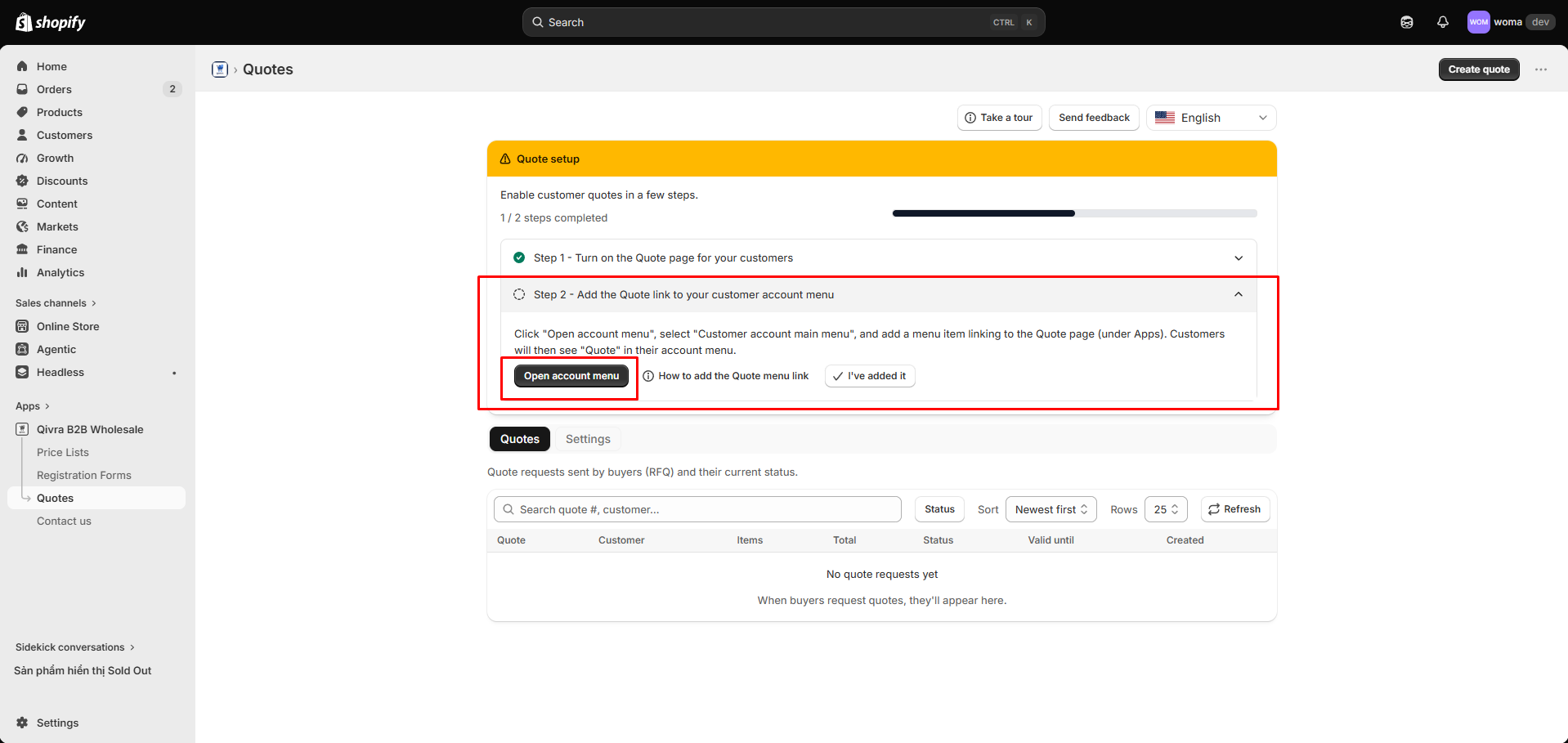
The customer account menu editor opens in a new tab.
Step 2: Edit the main menu
Section titled “Step 2: Edit the main menu”- Select Customer account main menu.
- Click to add a menu item.
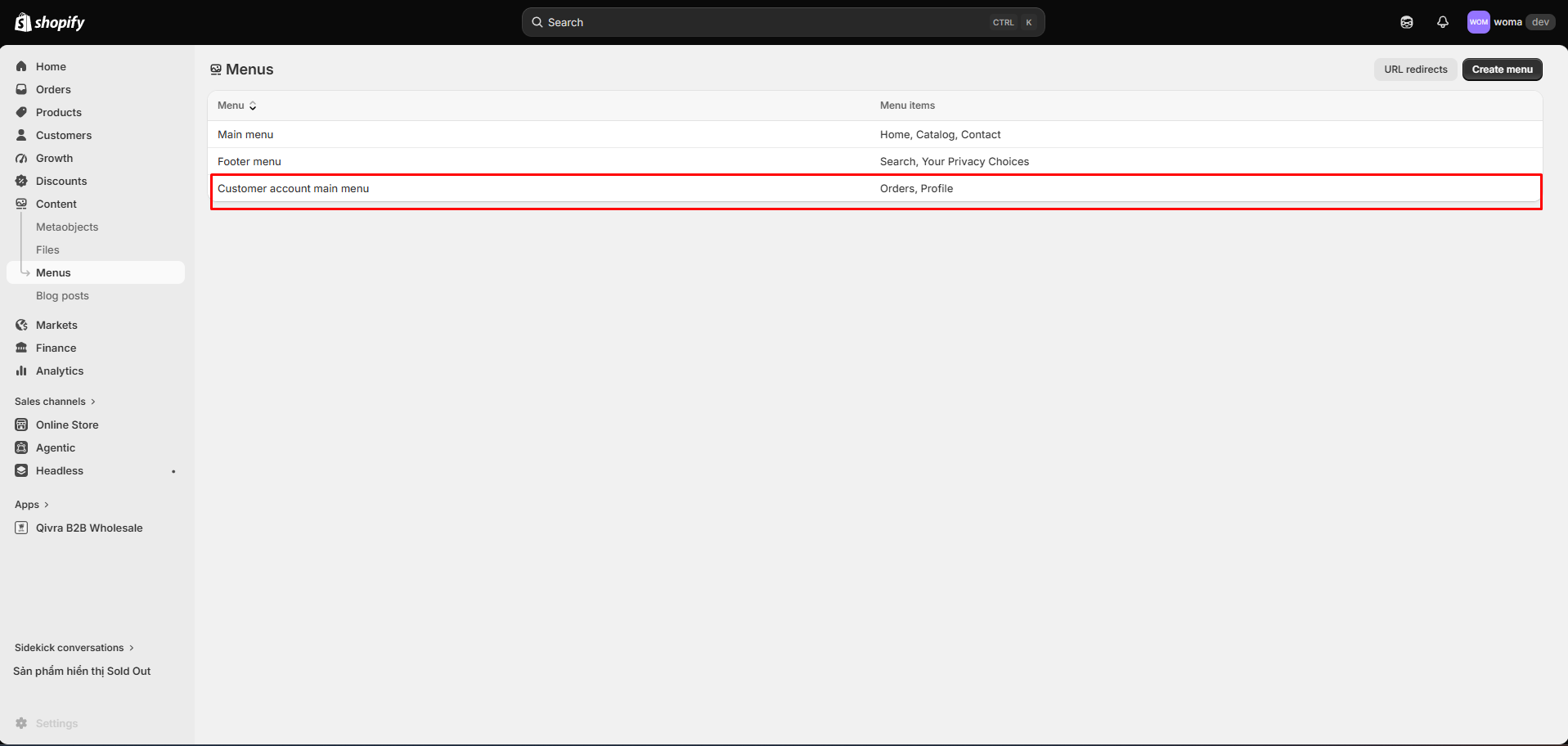
Step 3: Link to the Quote page
Section titled “Step 3: Link to the Quote page”- Name the item Quote (or your preferred label).
- Link it to the Quote page under Apps.
- Save the menu.
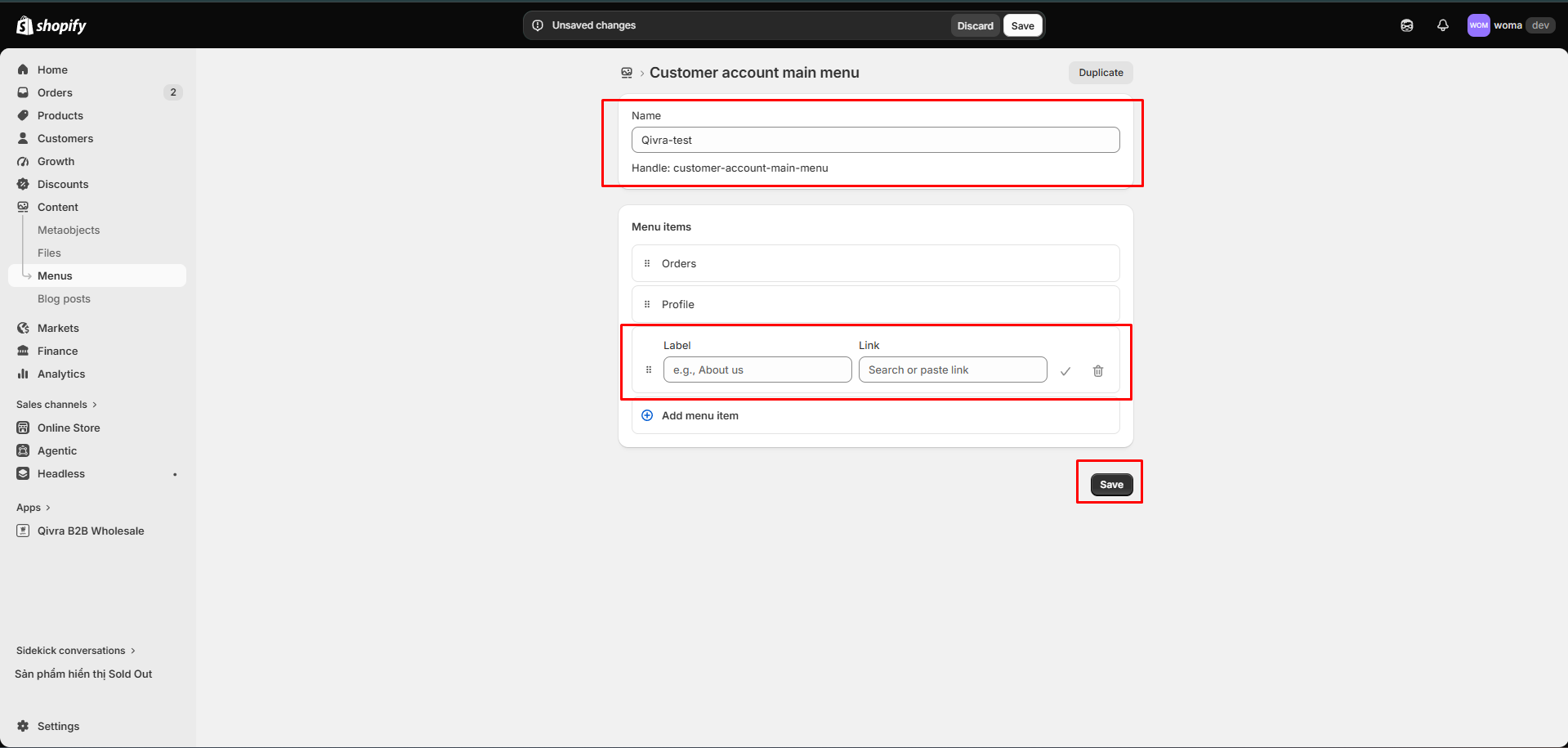
Step 4: Confirm in the app
Section titled “Step 4: Confirm in the app”Back in the app, click I’ve added it to complete the setup guide.
Buyers now see Quote in their account menu and can start requesting quotes.
The link doesn’t appear?
Section titled “The link doesn’t appear?”- Confirm the menu item points to the Quote page (Apps), not an external URL.
- Save the menu editor before leaving.
- The change can take a few minutes to appear on the storefront.
Next step
Section titled “Next step”Everything is wired up — send your first offer with Create and send a quote, or learn the whole flow in the Quotes overview.
Related docs
Section titled “Related docs”- Quotes overview
- Turn on the Quote page in customer accounts
- The customer quote page
- Create and send a quote